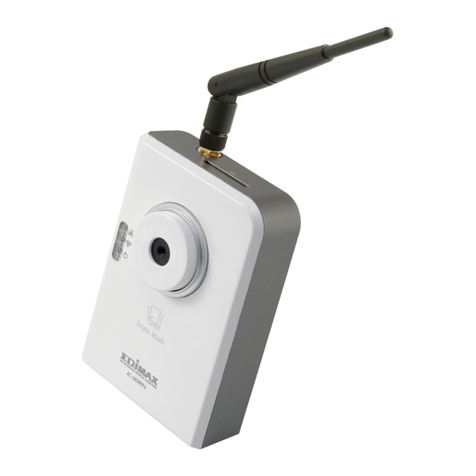
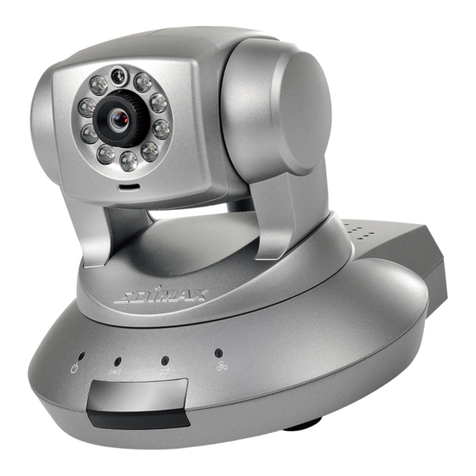
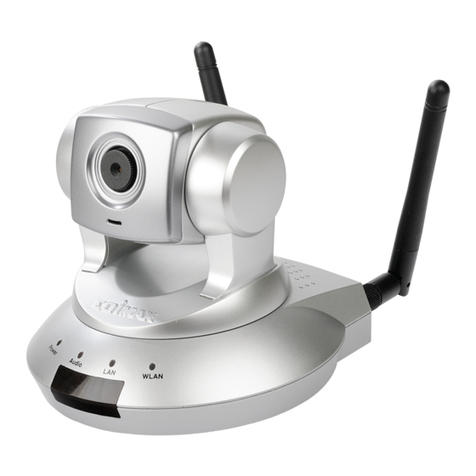
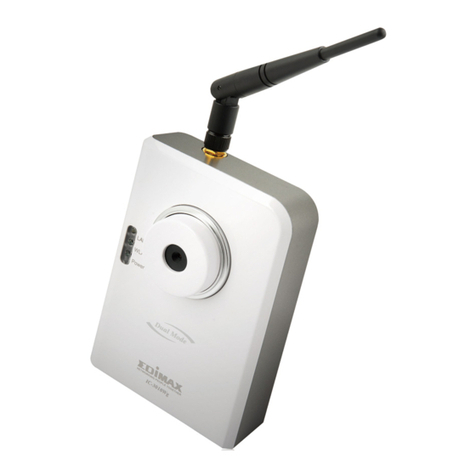
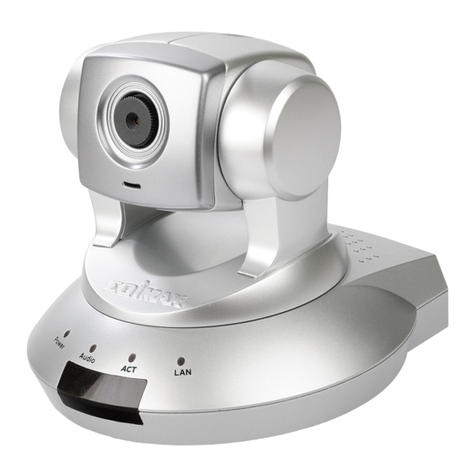
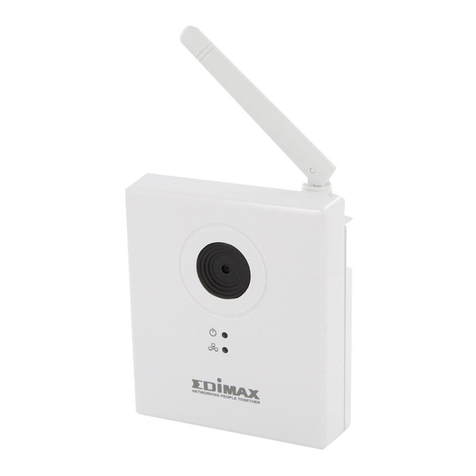
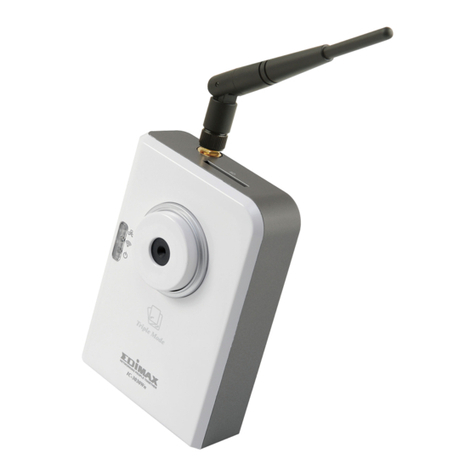
Edimax IC-7000PTn User manual

Mechanical Pan & Tilt IP Camera
User Manual
1
Интернет-магазин TELECAMERA.RU

C ATA L O G
Chapter I: Familiar with your Internet IP Camera............................................................4
1.1 Package Contents.....................................................................................................4
1.2 Basic Introduction......................................................................................................4
1.3 Product Highlights.....................................................................................................5
1.4 Familiar with Key Components ......................................................................................6
1.5 Descriptions for LED Indicators ...................................................................................10
1.6 Camera Installation......................................................................................................11
Chapter II: Using Web Management Interface...............................................................14
2.1 Camera Settings..........................................................................................................14
2.2 Pan and Tilt..................................................................................................................17
2.2.1 Preset Points..............................................................................................17
2.2.2 Grand Tour..................................................................................................18
2.3.3 Dynamic DNS.............................................................................................27
2.3.4 UPnP..........................................................................................................28
2.3.5 Login Free ..................................................................................................29
2.4.1 Motion Detection.........................................................................................31
2.5.1 Camera Information....................................................................................36
2.5.2 Date / Time Setting.....................................................................................37
2.5.3 Utilities........................................................................................................37
2.5.4 Status ..........................................................................................................39
2.6 Account........................................................................................................................43
2.7 SDHC…………………………………………………………………………………………..42
2.7.2 Space Alarm…………………………………………………….…………………………..43
2.7.3 File Management......................................................................................................43
Chapter III: Using Surveillance Software.......................................................................43
3-1 Installing IP Camera Surveillance Software.................................................................44
3-2 Using IP camera surveillance software........................................................................47
3-3 Configure IP camera surveillance software..................................................................49
3-3-1 Configure cameras.....................................................................................49
3-3-2 General Settings ........................................................................................55
3-4 Change Display Layout ...............................................................................60
3-5 Full-screen modes.......................................................................................62
3-6 Scan ............................................................................................................63
3-7 Zoom-in / Zoom-out.....................................................................................64
3-8 PTZ..............................................................................................................65
2

Интернет-магазин TELECAMERA.RU

3-9 Snapshot .....................................................................................................66
3-10 Recording..................................................................................................66
3-11 Video Playback..........................................................................................67
Chapter IV: Appendix.......................................................................................................68
4.1 Specification.................................................................................................................68
4.2 Troubleshooting...........................................................................................................69
3
Интернет-магазин TELECAMERA.RU

Chapter I: Familiar with your Internet IP Camera
1.1 Package Contents
Thank you for purchasing this IP camera! Before you start to use this IP camera, please check the package
contents. If anything is missing, please contact the dealer of purchase and return the package to claim for
missing contents.
Item Name Quantity
1 IP Camera 1
2 Antenna 2


3 Power Adapter 1
4 Ethernet Cable 1
5 Driver and User Manual CD-ROM 1
1.2 Basic Introduction
Thank you for purchasing this Internet IP camera! This IP camera is an ideal product for all kinds of
video-surveillance purposes, like home/office safety, kid/pet monitoring, and remote video acquire etc. Unlink
conventional close-circuit vide camera, you’re not limited to the length of cable! Once this IP camera is
connected to Internet, you can receive video from anywhere in the world where Internet access is available.
If you have problem installing a new cable from the place the camera is installed to your monitoring computer,
don’t worry! This IP camera also supports wireless network, that is, you can link to this camera wirelessly! You
only have to provide this IP camera with 12V power by the power adapter that comes with the product
package, and you don’t have to set a new network cable between the IP camera and monitoring computer.
Worry about the content will be intercepted by unauthorized person when the video is transmitted over the air?
That’s also not a problem! Unlink conventional analog wireless camera, which video will be intercepted by
anyone who got a compatible video receiver, this IP camera supports data encryption (WEP & WPA), which
will provide ultimate data security level. All video transmitted over the air is encrypted; therefore no one will be
able to get the video captured by the IP camera, expect yourself.
Some people may concern that there will be some places which will not be covered by camera, but this
problem is completely solved by this IP camera. With built-in pan-tilt function, you can point the camera to the
position where you wish to look at with user interface. You can even define a preset path, and the camera will
cruise along the path you defined. You can discover more useful functions in next section!
4
Интернет-магазин TELECAMERA.RU

1.3 Product Highlights
No pre-loaded software required - all you need is a browser like Internet Explorer 6 (and above, with
plug-in installed).
With supplied video surveillance software, you can connect up to 16 video cameras and view images
captured by every camera at the same time.
Supports 3 video resolutions: XGA (1024 x 768), VGA (640 x 480), and QVGA (320 x 240).
Anti-flicker function (eliminates flash caused by fluorescent lights, 50 / 60Hz selectable).
Video control functions, like brightness and zoom-in / zoom-out.
Pan-tilt control.
Wired and wireless network (802.11b / 802.11g / 802.11n) support, supports up to 100Mbps for wired
network and 100Mbps for wireless network.
Wireless data encryption (WEP / WPA)
Supports DHCP and PPPoE protocol, you can also assign a fixed IP address to the camera also.
Supports Dynamic DNS (used to allocate the IP camera’s Internet address, when the ISP you’re using
does not assign you with a fixed Internet address).
Supports UPnP, Windows XP (and above) will discover this IP camera in network neighbor
automatically.
Send captured picture and video by Email or FTP when motion is detected.
Configurable motion detection sensitivity (6 levels from most sensitive to least sensitive).
Built-in real-time clock, date and time information will be recorded with every captured picture / video clip
(also supports auto time synchronization via network time protocol).
Upgradeable firmware - enjoy new functions without buying a new camera!
Supports up to 16 users, and you can set different password to different user.
Usage and event logging.
5
Интернет-магазин TELECAMERA.RU

1.4 Familiar with Key Components
Front View
The picture is similar with IC-7000PT
Focus Ring
Microphone
IC7000PTn Power LED Audio LED LAN LED WLAN
IC7000PT Power LED Audio LED ACT LED LAN
zPower LED: Indicates power status
zAudio LED: Indicates Audio status
zLAN LED: Indicates LAN activity
zACT LED: Indicates Data activity
zWLAN LED: Indicates Wireless LAN activity
zFocus Ring:Adjusts focus
6
Интернет-магазин TELECAMERA.RU

Back View
Ethernet
Connector
Antenna Power Connector WPS Button SD Card Slot Audio Connector
zAntenna: Connects to supplied antenna (IC-7000PTn only)
zPower Connector: Connects to A/C power adapter
zSD Card Slot: Accepts SD / SD-HC memory card for image / video storage
zWPS Button: click the bottom on IP Cam and click it on the AP you want to connect for wireless
zAudio Connector: Connects to external speaker for audio output
zEthernet Connector: Connect to your local area network
7
Интернет-магазин TELECAMERA.RU

S
ide View
Reset Button
Reset Button: Press the button with pen nib and hold for 5 seconds to reset the camera settings to factory
default value.
8
Интернет-магазин TELECAMERA.RU

Bottom View
Tripod Connector
Tripod Connector: Connects to tripod to secure the camera when the camera is not put on a horizontal
surface.
9
Интернет-магазин TELECAMERA.RU

1.5 Descriptions for LED Indicators
For IC-7000PTn
LED Name Status Description
Off Camera is not powered (camera off)
Power On Camera is correctly powered (camera on)
Off LAN port not in use
On LAN port in use
LAN Flash Transferring data via LAN port
Off Wireless LAN not in use
On Wireless LAN in use
Flash at low
speed Waiting for WPS connection from AP and flash
speed is once a second.
WLAN
Flash Transferring data via wireless LAN
Off Audio function is disabled (Volume 0)
On Audio function is enabled
Audio Flash Two way audio is working
For IC-7000PT
LED Name Status Description
Off Camera is not powered (camera off)
Power On Camera is correctly powered (camera on)
Off Data is not transfer
ACT On Transferring data
Off LAN not in use
LAN On LAN in use
Off Audio function is disabled (Volume 0)
On Audio function is enabled
Audio Flash Two way audio is working
10
Интернет-магазин TELECAMERA.RU
Table of contents
Other Edimax IP Camera manuals

Edimax
Edimax IC-9000 User manual

Edimax
Edimax IC-3010 User manual

Edimax
Edimax IC-3115W User manual

Edimax
Edimax IC-1000 User manual

Edimax
Edimax IC-2000Wg User manual

Edimax
Edimax ND-323 User manual

Edimax
Edimax 802.11g Wireless LAN Cardbus Adapter User manual

Edimax
Edimax IC-3030 User manual

Edimax
Edimax IC-3005Wn User manual

Edimax
Edimax IC-1510 User manual

Edimax
Edimax 10-2011 User manual

Edimax
Edimax NC-220 User manual

Edimax
Edimax IC-1000M User manual

Edimax
Edimax IC-3116W User manual

Edimax
Edimax IC-3010 User manual

Edimax
Edimax NC-213 Series User manual

Edimax
Edimax IC-3010 User manual

Edimax
Edimax IC-7000PT User manual

Edimax
Edimax IC-7010PT User manual

Edimax
Edimax IC-3030i User manual