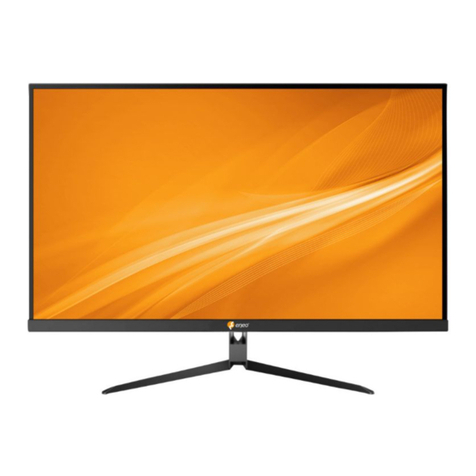
Eneo VM-UHD28M User manual

EN
Quick Installation Guide
LCD Monitor, 4K UHD,
3840x2160, LED, USB, Display
Port, HDMI, DVI, VGA
VM-UHD28M
VM-UHD43M
VM-UHD55M
DE

2
Contents
Components...................................................................................................................5
Introduction...................................................................................................................6
Control...................................................................................................................................................................................6
Connectors ..........................................................................................................................................................................7
Control buttons on the remote control.....................................................................................................................8
Inserting the batteries.....................................................................................................................................................8
Startup..............................................................................................................................
9
Switch the monitor ON and OFF..................................................................................................................................9
No signal...............................................................................................................................................................................9
Select input signal.............................................................................................................................................................9
OSD ...............................................................................................................................10
Introduction ..................................................................................................................................................................... 10
Picture Mode.................................................................................................................................................................... 10
Colour Mode .................................................................................................................................................................... 11
VGA Adjust........................................................................................................................................................................ 11
Zoom mode...................................................................................................................................................................... 12
Menu Language.............................................................................................................................................................. 12
Restore Default................................................................................................................................................................ 13
Software Update (USB)................................................................................................................................................. 13
Media Player..................................................................................................................................................................... 14
Troubleshooting ..........................................................................................................15
General Section............................................................................................................................................................... 15
Problems with VGA connection................................................................................................................................ 15
More Info .....................................................................................................................16

3
EN
Safety instructions
General safety instructions
• Before switching on and operating the system, rst read this safety advice and the operating instructions.
• Keep the operating instructions in a safe place for later use.
• Installation, commissioning and maintenance of the system may only be carried out by authorised indi-
viduals and in accordance with the installation instructions - ensuring that all applicable standards and
guidelines are followed.
• Protect the devices from water penetration and humidity, since these can cause lasting damage.
• Should moisture nevertheless enter the system, under no circumstance switch on the devices under these
conditions, instead send them for examination to an authorised specialist workshop.
• The system must never be used outside of the technical specications, since this can destroy it.
• The device must be protected from excesses of heat, dust, humidity and vibration.
• When separating the system from the voltage supply, only ever use the plug to pull out the cable. Never
pull directly on the cable itself.
• Lay the connecting cables carefully and check that they are not mechanically stressed, kinked or damaged
and that no humidity can penetrate into them.
• In the event of a malfunction, please inform your supplier.
• Maintenance and repairs may only be carried out by authorised specialist personnel.
• The system must be isolated from the power supply before opening the housing.
• The device may only be opened by qualied service personnel. Unauthorised access invalidates any
warranty claim.
• Connection cables should always be exchanged through VIDEOR E. Hartig GmbH.
• Use only original spare parts and accessories from VIDEOR E. Hartig GmbH.
• The housing should only be cleaned using a mild domestic cleaning agent. Never use solvents or petrol as
these can permanently damage the surface.
• During installation, it is essential to ensure that the seals provided are correctly installed and that they are
not displaced during installation. Damaged seals must not be installed and will invalidate any warranty.
• The installer is responsible for the maintenance of the enclosure as per the technical data, e.g. by sealing
the cable outlets with silicone.
• Wire end ferrules should be used when shortening the exible connection cables.
• The devices may only be operated in the temperature range indicated in the data sheet and within the
dened air humidity range.

4
WEEE (Waste Electrical & Electronic Equipment)
Correct Disposal of This Product (Applicable in the European Union and other European countries with separate
collection systems).
This marking shown on the product or its literature, indicates that it should not be disposed with
other household wastes at the end of its working life. To prevent possible harm to the environment
or human health from uncontrolled waste disposal, please separate this from other types of wastes
and recycle it responsibly to promote the sustainable reuse of material resources. Household users
should contact either the retailer where they purchased this product, or their local government
oce, for details of where and how they can take this item for environmentally safe recycling.
Business users should contact their supplier and check the terms and conditions of the purchase
contract. This product should not be mixed with other commercial wastes for disposal.
Graphical symbols
Please pay attention to the safety instructions, and carefully read through this instruction guide before initial
operation.
Important points of warning are marked with a caution symbol.
iImportant points of advice are marked with a notice symbol.

5
EN
Components
This system comes with the following components:
• Monitor
• Installation Guide
• VGA cable
• Remote Control
• Power Cord
• Feet with mounting kit

6
Introduction
Control
Simplied front view
The control buttons are exemplary and may dier depending on the device.
No. Label Description of the function
1Power Turn the monitor ON/OFF
2 Modus Select Source
3 Menu Open OSD menu
4Downward Move down in the OSD menu
5 Upward Move up in the OSD menu
6 To the left Move to the left in the OSD menu
7 To the right Move to the right in the OSD menu

7
EN
Connectors
No. Label Description of the function
1 DP DP input (Full HD or 4K)
2 HDMI HDMI input (Full HD or 4K)
3DVI DVI input (Full HD or 4K)
4VGA VGA input (Full HD)
5AV Audio input
6AVL Audio input for the left speaker
7AVR Audio input for the right speaker
8 USB USB port (for software update and playback of image/video)
9 AC IN Power connection AC 100 - 240V

8
Control buttons on the remote control
Standby / On
Turn on the monitor or switch to standby mode.
Mute
Turn OFF/ON the sound.
Menu selection
Select menu item
Volume
Adjust the volume
Menu selection
Select menu item
Menu
Open or close the settings menu.
Source
Open the source menu and select in the following
order:VGA BNC1 HDMI DVI DP
Image
To switch between the available video images
Inserting the batteries
Open the battery compartment on the back of the remote control.
Insert a CR2032 3V battery with the correct polarity into the compart-
ment. Please use only new batteries.
Close the compartment again.
Hold the remote control in the direction of the infrared sensor. The
distance to the monitor must not exceed 7 meters.
iNote: Please do not throw the used batteries into the household waste, but dispose of
them in an environmentally friendly manner at the appropriate collection points.

9
EN
Startup
Switch the monitor ON and OFF
Connect the power cord to the monitor and the power source. Turn on the monitor using
the power button on the monitor or remote control. Press the power button again to turn
o the monitor.
No signal
If the monitor does not receive an input signal, this character is displayed:
Select input signal
Press the Source button on the remote control or the Mode button on the monitor to
select the input signal.
• Press ▼ ▲to select the correct input signal
• Conrm the selection with the Enter key on the remote control or with ► on the
monitor

10
OSD
Introduction
• Press the Menu button
• Press ▼ ▲ for selecting a menu item
• Press ◄► for switching between the setting menus
• Conrm the selection with the Enter key
Picture Mode
• Press the Menu button
• Navigate with ▼ ▲ to the entry "Picture Mode"
• Conrm the selection with the Enter key
• Choose with ▼ ▲ the desired function
• Use ◄► to set the desired value of the function
• Exit the menu by pressing the Menu button
This manual suits for next models
2
Table of contents
Languages:
Other Eneo Monitor manuals
Eneo
Eneo VMC-27LEDM User manual

Eneo
Eneo VMC-10/2 User manual
Eneo
Eneo VMC-5.6LCD User manual
Eneo
Eneo VMC-8.4LCD-CM User manual
Eneo
Eneo VM-FHD10M User manual
Eneo
Eneo VMC-19LEDMD User manual

Eneo
Eneo VM-17PD User manual
Eneo
Eneo VMC-8.4LCD-CP User manual
Eneo
Eneo VMC-15LCD-HMC1 User manual
Eneo
Eneo VMC-10.4LED-CM User manual
Eneo
Eneo VMC-27LEDM User manual
Eneo
Eneo VM-4K M Series User manual
Eneo
Eneo VM-FHD27MP User manual
Eneo
Eneo VMC-17LCD-HMPG1 User manual

Eneo
Eneo VMC-32LCD-PW2 User manual
Eneo
Eneo VMC-19LEDMD User manual
Eneo
Eneo VMC-5.6/2-LCD User manual
Eneo
Eneo VM-FHD24PF User manual
Eneo
Eneo VM-HD19MR Installation instructions
Eneo
Eneo VMC-10.4LED-CP User manual