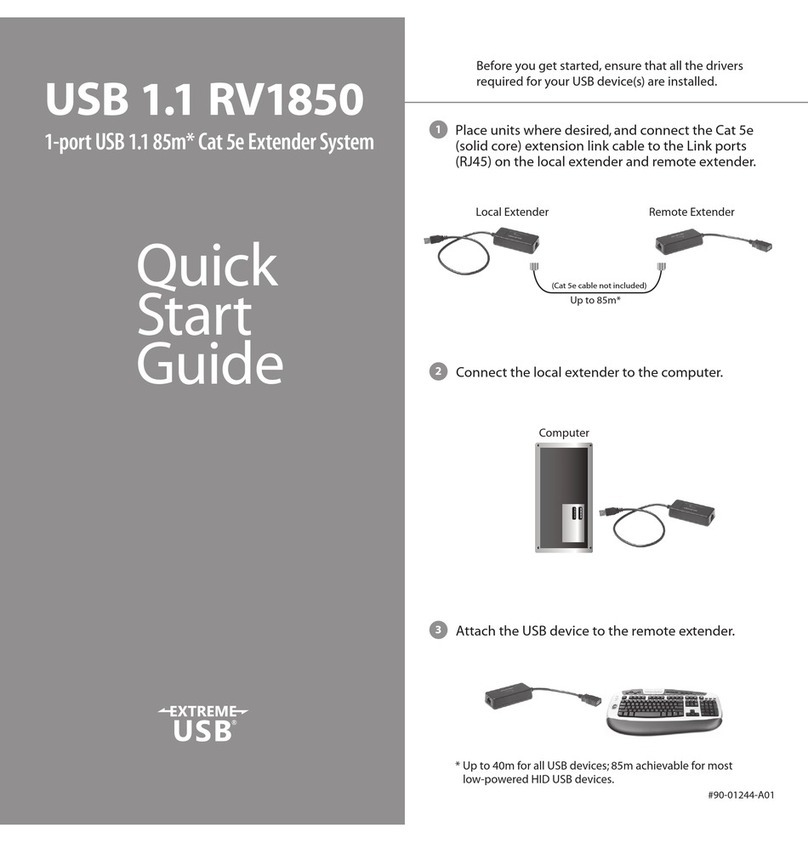
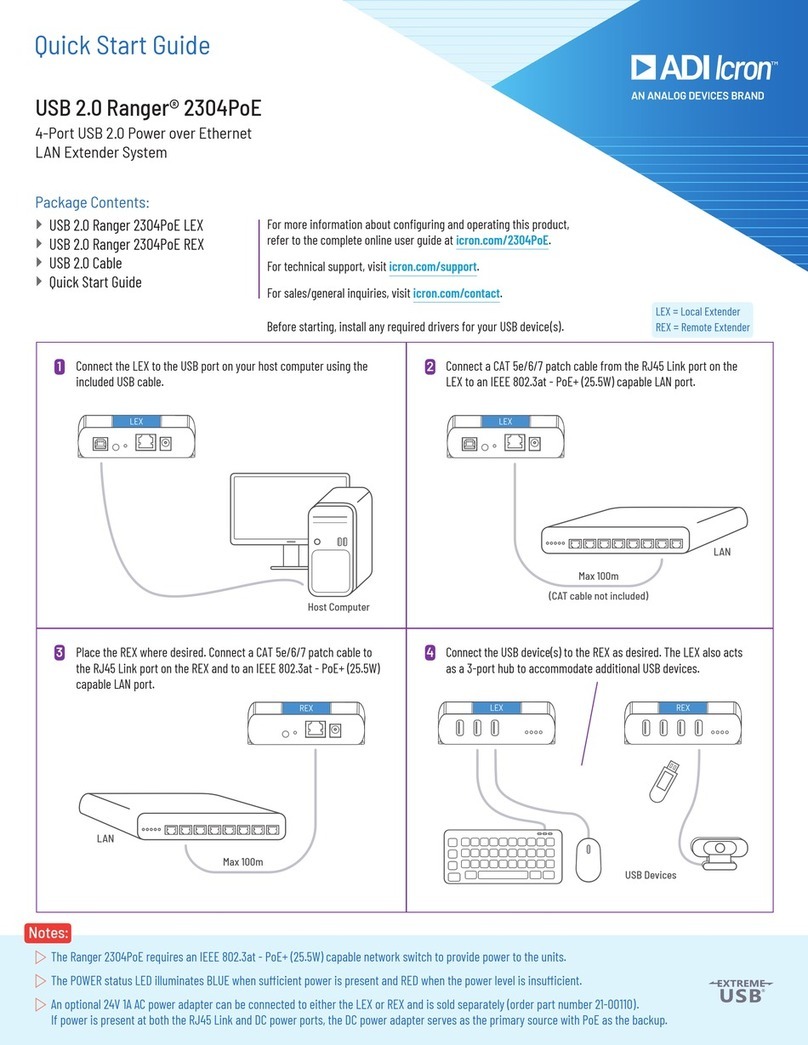
Connecting the Local Extender to the Remote Extender
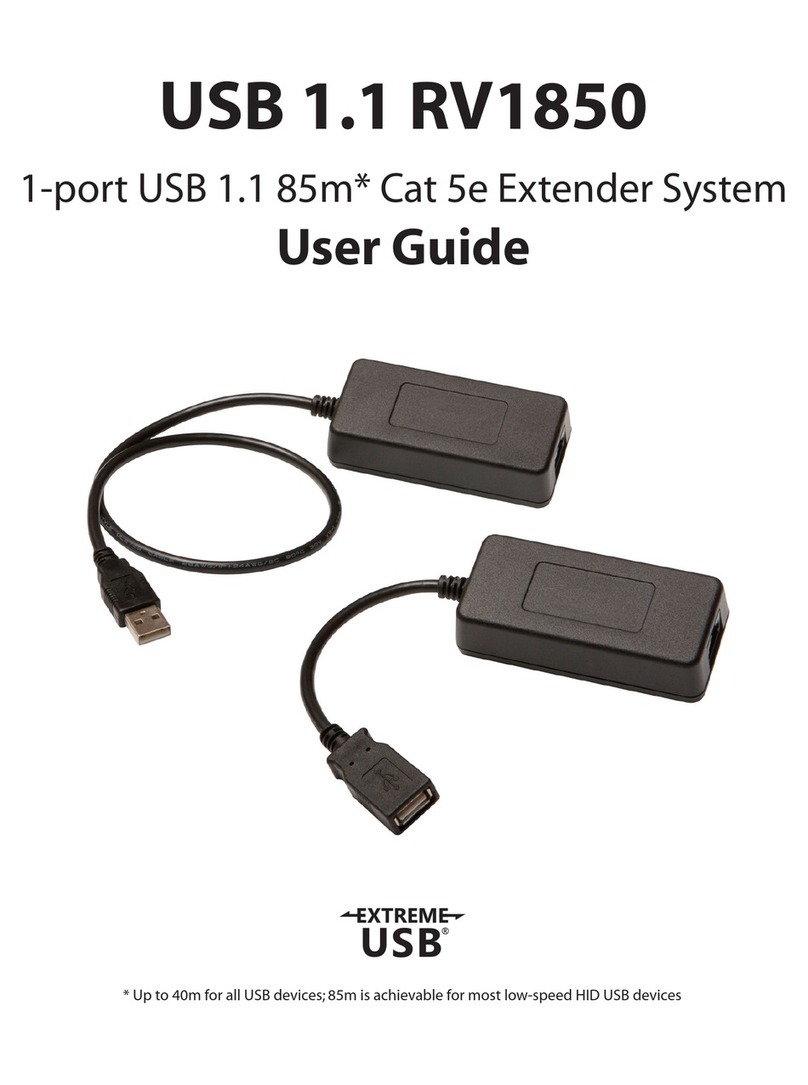
While Cat 5e cabling may be used, to ensure proper operation,it is recommended that solid core Cat 6 STP (or Cat 7
STP) cabling be used to connect the local extender to the remote extender.The cabling must have a straight-through
conductor configuration with no crossovers and must be terminated with Cat 6 connectors to qualify as Cat 6.
With Surface Cabling
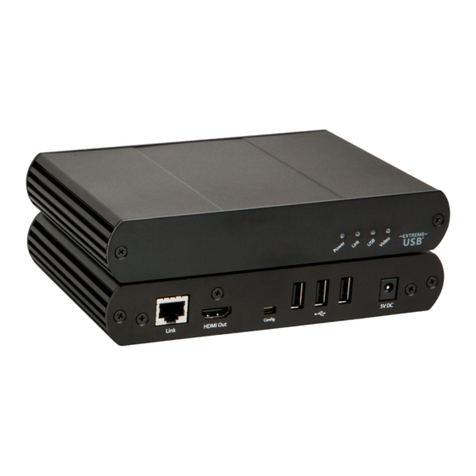
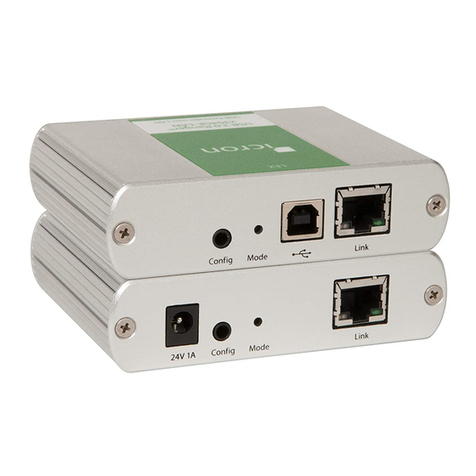
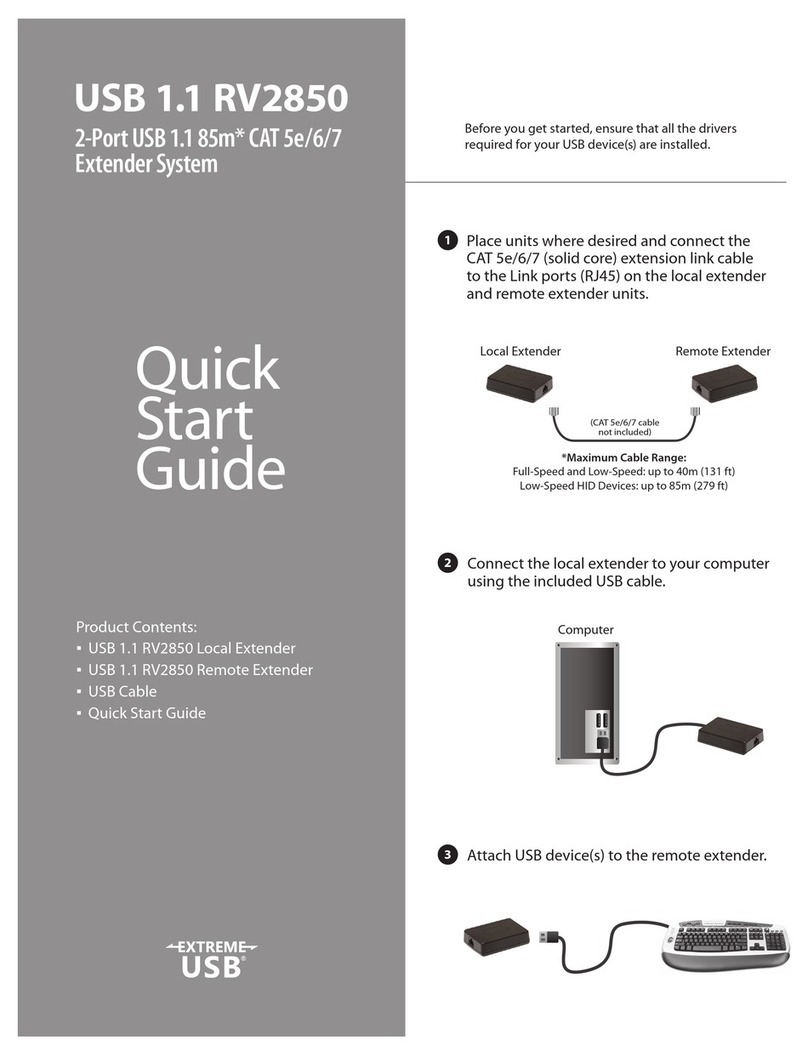
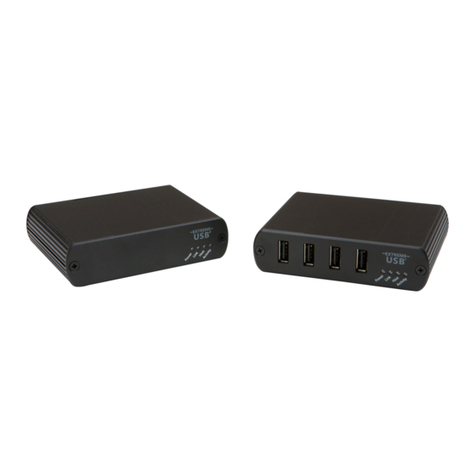
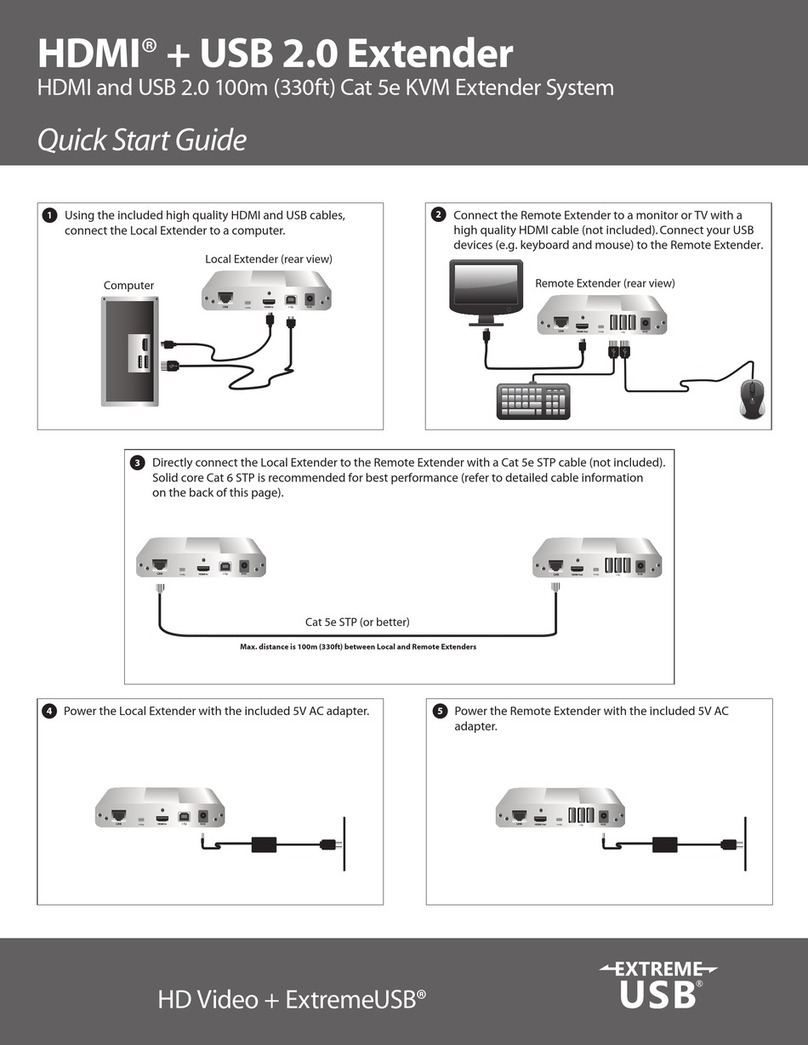
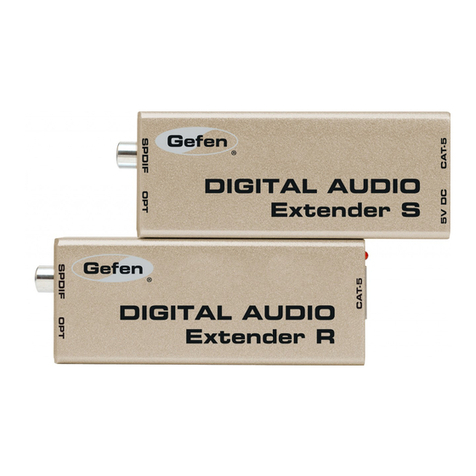
1. Plug one end of the Cat 5e (or better) cabling (not included) into the Link port (RJ45) on the local
extender.
2. Plug the other end of the Cat 5e cabling into the Link port (RJ45) on the remote extender.
With Premise Cabling
1. Plug one end of a Cat 5e patch cord (not included) into the Link port (RJ45) on the local extender.
2. Plug the other end of the patch cord into the Cat 5e information outlet near the host computer.
3. Plug one end of the second Cat 5e patch cord (not included) into the Link port (RJ45) on the remote
extender.
4. Plug the other end of the second patch cord into the Cat 5e information outlet near the USB device(s).
Connecting Power to the Local and Remote Extenders
1. Plug the 5V, 3A power adapter into a suitable AC outlet near the local extender.
2. Connect the power adapter to the local extender.
3. Plug the 5V, 3A power adapter into a suitable AC outlet near the remote extender.
4. Connect the power adapter to the remote extender.
Use only the power adapters supplied with the product. Use of substitute adapters may cause permanent damage to
the system and will void the warranty.
Checking the Installation
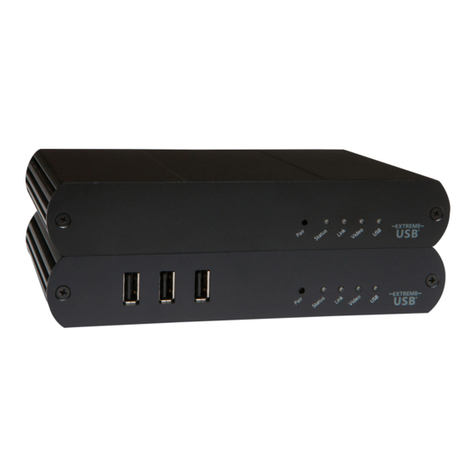
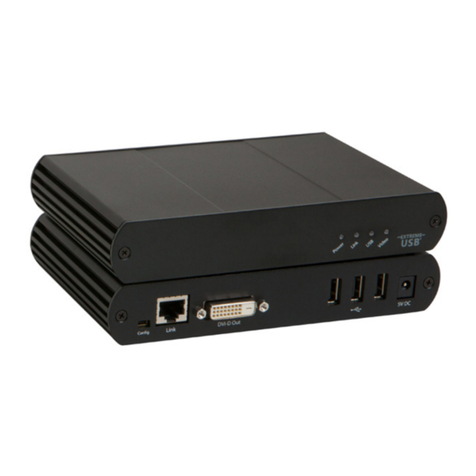
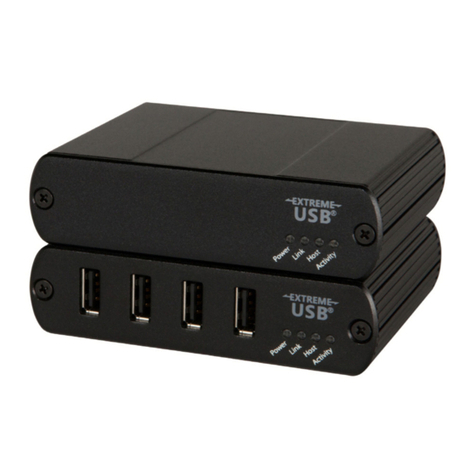
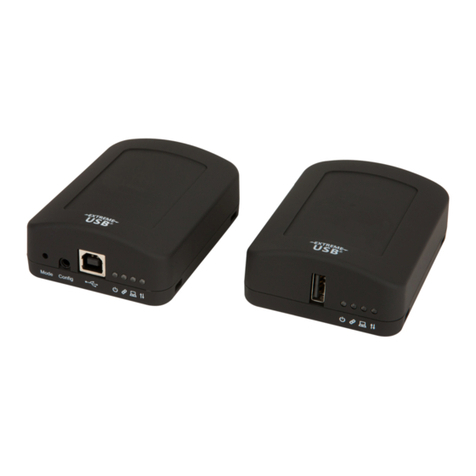
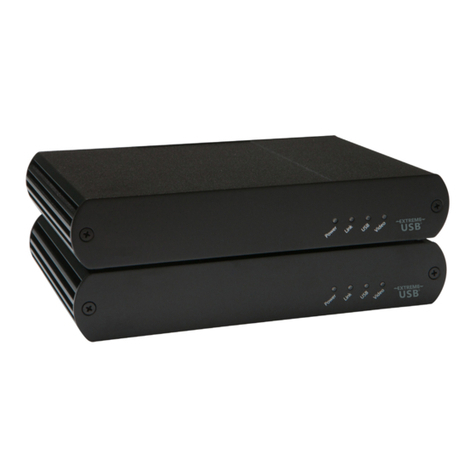
1. On the local and remote extender units, check that the Power, Link, USB, and Video LEDs are on. If the
Link LED is off, then the cabling between the local and remote extenders is not installed properly or is
defective.
2. Check to see if the USB LED is on and the Video LED is blinking or on; if they are not this indicates there
is no USB data or video data. Check the DVI and USB connections to the host computer, and the DVI
connection to the monitor. Check to see if any USB devices are connected to the remote extender.
3. If the product is not displaying video or your USB device fails to be detected by your operating
system, please consult the Troubleshooting Guide.
note
9