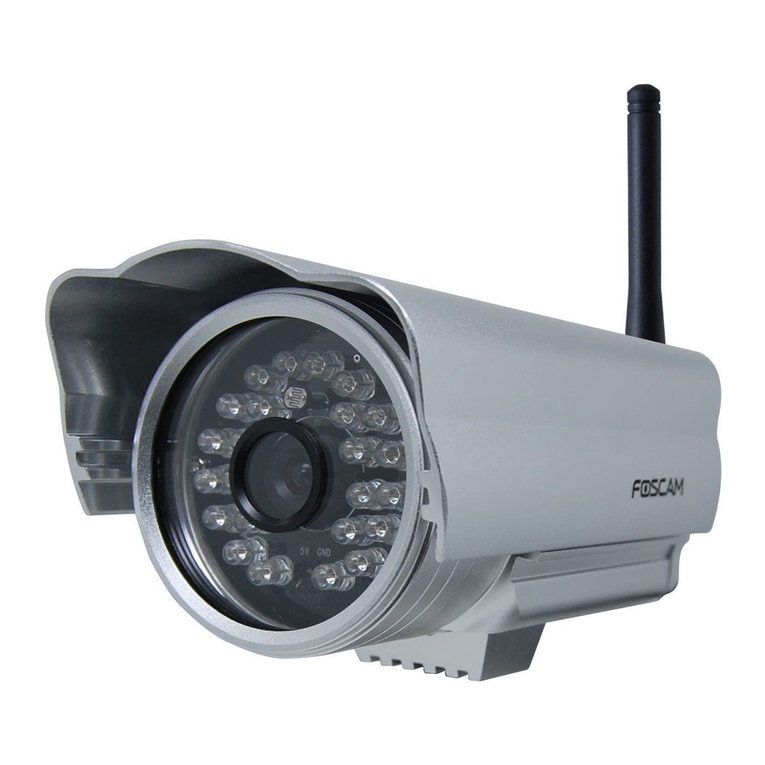
Foscam FI9831P User manual

User
User Manual
Manual
Model: FI9831P
Indoor HD Pan/Tilt Wireless IP Camera with P2P
(For Windows & Mac OS)

www
www.foscam.
.foscam.us
us
Foscam Digital Technologies LLC
Telephone: 1-800-930-0949
Table of Contents
Security Warning...................................................................................................................................................................1
1 Overviews........................................................................................................................................................................... 1
1.1 Key Features...........................................................................................................................................................2
1.2 Read Before Use....................................................................................................................................................2
1.3 Packing Contents................................................................................................................................................... 2
1.4 Physical Description.............................................................................................................................................. 3
1.5 SD Card................................................................................................................................................................... 4
2 Accessing the Network Camera......................................................................................................................................5
2.1 Access the Camera in LAN.................................................................................................................................. 5
2.2 Access the Camera in WAN.................................................................................................................................9
2.3 Using the VLC player.......................................................................................................................................... 13
2.4 IP camera connection to the server..................................................................................................................16
3 Surveillance Software GUI.............................................................................................................................................16
3.1 Login Window....................................................................................................................................................... 17
3.2 Modify the Username and Password............................................................................................................... 18
3.3 Surveillance Window........................................................................................................................................... 18
4 Advanced Camera Settings........................................................................................................................................... 25
4.1 Status..................................................................................................................................................................... 25
4.2 Basic Settings.......................................................................................................................................................28
4.3 Network..................................................................................................................................................................37
4.4 Video...................................................................................................................................................................... 49
4.5 Alarm...................................................................................................................................................................... 53
4.6 Record................................................................................................................................................................... 56
4.7 Pan/Tilt...................................................................................................................................................................60
4.8 Firewall...................................................................................................................................................................64
4.9 System................................................................................................................................................................... 65
5 Playback............................................................................................................................................................................68
6 Phone Apps...................................................................................................................................................................... 69
7 APPENDIX........................................................................................................................................................................70
7.1 Frequently Asked Questions..............................................................................................................................70
7.2 Default Parameters..............................................................................................................................................84
7.3 Specifications........................................................................................................................................................84
7.4 CE & FCC..............................................................................................................................................................85
8 OBTAINING TECHNICAL SUPPORT..........................................................................................................................86

www
www.foscam.
.foscam.us
us
Foscam Digital Technologies LLC
Telephone: 1-800-930-0949
1
Security Warning
Safeguarding Your Privacy
Foscam cameras require good security practices to safeguard your privacy. You can help protect your camera
by changing the default username and/or password. Input a username and/or password that is at least 8 – 10
characters or longer. Try to use a combination of lower-case and upper-case letters as well as numbers and
special characters. The more complex the username and password, the harder it will be to guess by an
unauthorized user.
You should update your camera regularly at http://www.foscam.us/firmware.html. Make sure your camera has
the latest firmware installed for your specific camera model. The latest firmware for Foscam cameras utilizes
protection against various types of online hacking, cracking, and unauthorized access. Doing so will make your
device more secure, may add features, and will contain bug fixes to make your device work faster.
1 Overviews
FOSCAM Indoor HD Pan/Tilt Wireless IP Camera with P2P is an integrated wireless IP Camera with a color
CMOS sensor enabling viewing in High Definition resolution. It combines a high quality digital video camera,
with a powerful web server, to bring clear video to your desktop and mobile devices from anywhere on your
local network or over the Internet.
Thanks to the P2P easy access technology, you don’t need to do complicated Port Forwarding and DDNS
settings, you just need to scan the QR code on the bottom of the camera to connect it on smart phone, or input
the UID on CMS software to do remote access.
With flexible 300-degree pan and 120-degree tilt, FI9831P gives users more comprehensive control over a
monitored site. The FI9831P supports the industry-standard H.264 compression technology, drastically
reducing file sizes and conserving valuable network bandwidth.
The IPCAM is based on the TCP/IP standard. There is a WEB server inside which could support Internet
Explore. Therefore the management and maintenance of your device is simplified by using the network to
achieve the remote configuration and start-up.
The camera is designed for indoor surveillance applications such as retail stores, offices or banks. Controlling
the IPCAM and managing images are simplified by using the provided web interface across the network
utilizing wireless connectivity.
FOSCAM provides Smart Phone APP for Android and iPhone users, please search and install Foscam Viewer
on App Store and Google Play for iOS and Android devices, then you can view your camera anywhere,

www
www.foscam.
.foscam.us
us
Foscam Digital Technologies LLC
Telephone: 1-800-930-0949
2
anytime on your smart mobile devices.
Please note to change your default username and password once you have initially logged into your
Foscam camera. Changing your default user settings enables better protection against any types of
attacks against your camera.
1.1 Key Features
Standard H.264 video compression algorithm to satisfy the transmission of high definition video in narrow
bandwidth network
1.3 Mega Pixel
Pan 300 degree, tilt 120 degree
Supports IE/Firefox/Google/Safari browser or any other standard browsers
Supports WEP,WPA and WPA2 Encryption
Wi-Fi compliant with wireless standards IEEE 802.11b/g/n
IR night vision (Range:8m)
Supports image snapshot
Supports dual-stream
Supports SD Card to 32G
Supports IR-Cut and the filter change automatically
Embedded FOSCAM DDNS(dynamic domain name service) Service
Supports two-way audio / remote viewing & record from anywhere anytime
Multi-level users management with password protection
Motion detection alert via email or upload image to FTP
Supporting Third Party Domain Name Service
Providing Phone APPs for Android and iPhone users
Supports multiple network protocols: HTTP /TCP /IP /UDP /FTP /DHCP /DDNS / UPNP/ONVIF
Providing Central Management Software to manage or monitor multi-cameras
1.2 Read Before Use
Please first verify that all contents received are complete according to the Package Contents listed below.
Before the Network Camera is installed, please carefully read and follow the instructions in the Quick
Installation Guide to avoid damage due to faulty assembly and installation. This also ensures the product is
used properly as intended.
1.3 Packing Contents
● IP Camera × 1 ● DC Power Adapter × 1
● Wi-Fi Antenna × 1 ● Mounting bracket × 1
● Ethernet Cable × 1 ● CD×1
● Quick Installation Guide × 1 ● Security Warning Card × 1

www
www.foscam.
.foscam.us
us
Foscam Digital Technologies LLC
Telephone: 1-800-930-0949
3
1.4 Physical Description
Front Panel
Figure 1.1
1.Speaker: Built-in speaker
2.LENS: Fixed focus lens
3.Infrared LED: Infrared LEDs for night vision
4.Microphone: Built-in microphone
5.WI-FI Antenna: Wireless Antenna
Rear Panel
Figure 1.3
9.Antenna
8.Audio Input
7.Audio Output
2.Power
1.LAN
6. SD Card Slot
5.WPS
4.Power
3.Network light

www
www.foscam.
.foscam.us
us
Foscam Digital Technologies LLC
Telephone: 1-800-930-0949
4
1.LAN: 10/100 Mbps RJ-45 port for wired connection
2.Power: DC 5V/2A Power supply
3.Network Light: The LED will blink slowly in wired connection, blink two times faster in wireless connection
4.Power Light: If the power supply works fine, the light will turn on
5.WPS: Push the WPS button on the camera and wireless router in 1 minutes, the camera will connect the
wireless router automatically, in WPS process, the Network Light will blink very fast
6. SD card Slot: Supports up to 32GB SD card for storing the video
7.Audio Output: This jack is used to plug an external speaker
8.Audio Input: This jack is used to plug an external microphone
9.Antenna: Used to connect external wireless antenna
Bottom View
Figure 1.4
1.Mounting Port: Port for mounting bracket
2.Reset Button: Push and hold for more than 5 seconds to set the camera to factory default
3.Product Label: There are MAC address, UID, DDNS URL, default username and password on the label
4.WI-FI Module Label: There is WI-FI MAC address and serial number of the WI-FI module on the label
5.SN Label: There is serial number of the camera on the label
6 The different features between the models involved
1.5 SD Card
This camera supports SD Card and the max size of SD card must be under 32G.
When you plug in the SD card during the camera work process, please reboot the camera again, or else the
SD Card may be cannot work well.
Go to the SettingsDevice StatusDevice Status page, you can see the SD card status.
1.Mounting Port
2.Reset Button
3.Product Label
4.WI-FI Module Label
5.SN Label

www
www.foscam.
.foscam.us
us
Foscam Digital Technologies LLC
Telephone: 1-800-930-0949
5
The default storage path of alarm record files is SD card, when the available size of SD card is less than 256M,
the old record files will be deleted automatically.
2 Accessing the Network Camera
This chapter explains how to access the network camera through web browsers and RTSP players.
2.1 Access the Camera in LAN
This camera support HTTP and HTTPS protocols, so here will allow you to use HTTP and HTTPS port no.
(1) Http:// LAN IP + Http Port NO.
Double click the IP Camera Tool icon and it should find the camera’s IP address automatically after you plug in
the network cable.
Figure 2.1
Double click the IP address of the camera; your default browser will open to the camera login page.
Https:// LAN IP + Https Port no.
The default Https port no. is 443. You can use the url to access the camera: https:// LAN IP + HTTPS port.
Go to Settings - Network - Port panel , you can see and change the https port NO.

www
www.foscam.
.foscam.us
us
Foscam Digital Technologies LLC
Telephone: 1-800-930-0949
6
Figure 2.2
HTTPS(Hypertext Transfer Protocol over Secure Socket Layer) is a safe way to access your camera, the data
transferred on the Internet will be encrypted. Since we can not apply license for every LAN or DDNS URL, the
webpage may pop up a warning like the following picture, you just need to click “Continue to this website (not
recommended).”
Figure 2.3
Open Internet Explorer if it is not already opened. Click on Tools, then click Internet Options.
Next, click the Security tab, then click the Trusted sites button.Finally ,click the Confirm button.

www
www.foscam.
.foscam.us
us
Foscam Digital Technologies LLC
Telephone: 1-800-930-0949
7
Figure 2.4
For Firefox, you can add the trusted as the following way:
Tools --- Options ---- Advanced --- View Certificates --- Servers
Figure 2.5

www
www.foscam.
.foscam.us
us
Foscam Digital Technologies LLC
Telephone: 1-800-930-0949
8
Click View Certificates, and go to Servers option.
Figure 2.6
Go to Add Exception panel.
Figure 2.7
Other manuals for FI9831P
1
This manual suits for next models
1
Table of contents
Other Foscam IP Camera manuals
Foscam
Foscam FI9821P User manual
Foscam
Foscam FI9802W User manual

Foscam
Foscam E1 User manual
Foscam
Foscam FI8919W User manual
Foscam
Foscam CGI User manual
Foscam
Foscam FI9818W User manual

Foscam
Foscam FI8903W User manual
Foscam
Foscam FI9803P User manual
Foscam
Foscam FI8906W User manual
Foscam
Foscam FI8909W User manual
Foscam
Foscam FI8910W User manual

Foscam
Foscam FI9818W User manual

Foscam
Foscam FI8918W User manual

Foscam
Foscam FI9805W User manual
Foscam
Foscam FI9804P User manual
Foscam
Foscam FI8910W User manual
Foscam
Foscam R2 User manual

Foscam
Foscam FI9801W User manual
Foscam
Foscam FI9804W User manual
Foscam
Foscam FI9803P User manual