manuals.online logo
Brands
  1. Home
  2. •
  3. Brands
  4. •
  5. Goldair
  6. •
  7. Heater
  8. •
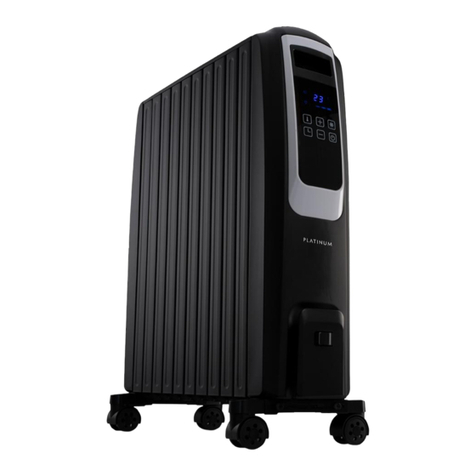
  9. Goldair PLATINUM GPCV330 User manual

Goldair PLATINUM GPCV330 User manual

Other manuals for PLATINUM GPCV330

1

Other Goldair Heater manuals

Goldair PLATINUM GPCH360 User manual

Goldair

Goldair PLATINUM GPCH360 User manual

Goldair GBH100 User manual

Goldair

Goldair GBH100 User manual

Goldair GOC215 User manual

Goldair

Goldair GOC215 User manual

Goldair Platinum GPPH610 Installation instructions

Goldair

Goldair Platinum GPPH610 Installation instructions

Goldair GFH225 User manual

Goldair

Goldair GFH225 User manual

Goldair GECO250 User manual

Goldair

Goldair GECO250 User manual

Goldair GFH150 User manual

Goldair

Goldair GFH150 User manual

Goldair GCT110 User manual

Goldair

Goldair GCT110 User manual

Goldair FFH220 User manual

Goldair

Goldair FFH220 User manual

Goldair GCT270 User manual

Goldair

Goldair GCT270 User manual

Goldair GCT260 User manual

Goldair

Goldair GCT260 User manual

Goldair GMH150 User manual

Goldair

Goldair GMH150 User manual

Goldair ecopanel GEPH215 User manual

Goldair

Goldair ecopanel GEPH215 User manual

Goldair GFH222 User manual

Goldair

Goldair GFH222 User manual

Goldair GCH255B User manual

Goldair

Goldair GCH255B User manual

Goldair GFH230 User manual

Goldair

Goldair GFH230 User manual

Goldair GCV100 User manual

Goldair

Goldair GCV100 User manual

Goldair Platinum Series User manual

Goldair

Goldair Platinum Series User manual

Goldair Platinum GPPH610 User manual

Goldair

Goldair Platinum GPPH610 User manual

Goldair GCV340 User manual

Goldair

Goldair GCV340 User manual

Goldair PLATINUM GPOC3310 User manual

Goldair

Goldair PLATINUM GPOC3310 User manual

Goldair GSCV280 User manual

Goldair

Goldair GSCV280 User manual

Goldair GCH320 User manual

Goldair

Goldair GCH320 User manual

Goldair GOC137T User manual

Goldair

Goldair GOC137T User manual

Popular Heater manuals by other brands
Porter-Cable PCXH80KT Operating instructions and owner's manual

Porter-Cable

Porter-Cable PCXH80KT Operating instructions and owner's manual

Dyna-Glo RA18LPDG user manual

Dyna-Glo

Dyna-Glo RA18LPDG user manual

Dimplex PLX050E instruction manual

Dimplex

Dimplex PLX050E instruction manual

EOS Herkules XL S120 installation instructions

EOS

EOS Herkules XL S120 installation instructions

Trebs Comfortheat 99209 manual

Trebs

Trebs Comfortheat 99209 manual

Biddle STYLE2 Series Installation operation & maintenance

Biddle

Biddle STYLE2 Series Installation operation & maintenance

Vermont Castings Non-Catalytic Convection Heater 2477CE Installation and operating manual

Vermont Castings

Vermont Castings Non-Catalytic Convection Heater 2477CE Installation and operating manual

Fagor RA-1505 Instructions for use

Fagor

Fagor RA-1505 Instructions for use

THERMAL FLOW Delta 175 Operating instructions manual

THERMAL FLOW

THERMAL FLOW Delta 175 Operating instructions manual

GET G2CH instructions

GET

GET G2CH instructions

ApenGroup PK Series User, installation, and maintenance manual

ApenGroup

ApenGroup PK Series User, installation, and maintenance manual

oventrop Regucor Series quick start guide

oventrop

oventrop Regucor Series quick start guide

Blaze King CLARITY CL2118.IPI.1 Operation & installation manual
Blaze King

Blaze King CLARITY CL2118.IPI.1 Operation & installation manual

ELMEKO ML 150 Installation and operating manual
ELMEKO

ELMEKO ML 150 Installation and operating manual

BN Thermic 830T instructions

BN Thermic

BN Thermic 830T instructions
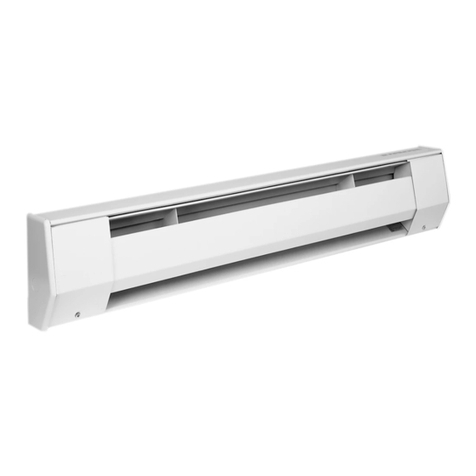
KING K Series Installation, operation & maintenance instructions

KING

KING K Series Installation, operation & maintenance instructions

Empire Comfort Systems RH-50-5 Installation instructions and owner's manual

Empire Comfort Systems

Empire Comfort Systems RH-50-5 Installation instructions and owner's manual
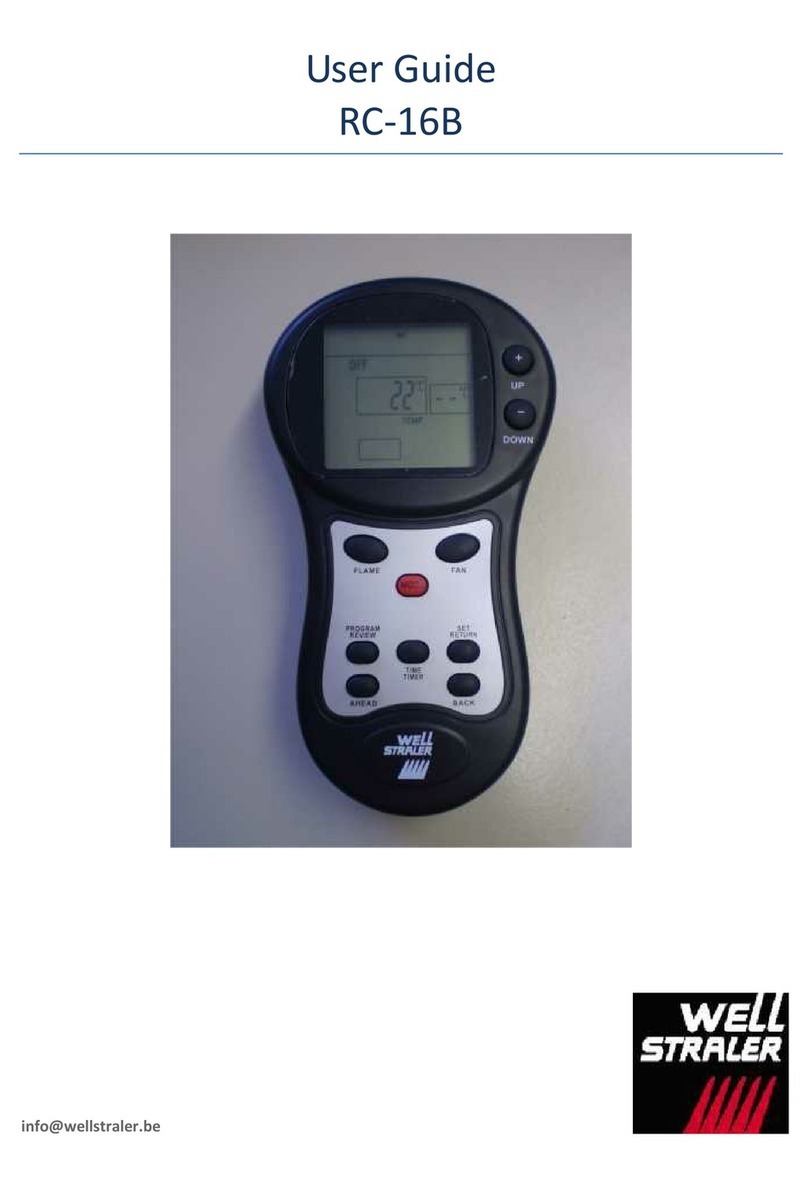
Well Straler RC-16B user guide

Well Straler

Well Straler RC-16B user guide

manuals.online logo
manuals.online logoBrands
  • About & Mission
  • Contact us
  • Privacy Policy
  • Terms and Conditions

Copyright 2025 Manuals.Online. All Rights Reserved.

2000W Electronic Panel Heater with WiFi
Operating Instructions
Model: GPCV330
Wifi –Downloading and Setting up APP
This APP is supported only on 2.4GHz Wifi channels.
The Goldair app and device pairing process require your 2.4ghz connection to
be separated from your 5ghz connection. For instructions on how to do this
please contact your internet provider.
Please note, we endeavour to keep our app up to date as devices and software
continue to adapt and evolve. However, with ever changing technology and
software we cannot guarantee as models age that their Wifi operation will
continue to be supported. If you feel like the day-to-day functionality of your
app is impacted, please contact our customer services team.
•Tap REGISTER near the bottom of the screen.
•Read and agree to the Privacy Policy.
•Add your email address.
•Tap 'Obtain verification code'
You will then receive an email with a verification
code.
Download Goldair mobile APP
•Open the APP Store or Google Play on your mobile phone.
•Open 'Search' and enter 'Goldair'
•Click 'GET' and begin to download and install.
Once downloaded to your phone open the APP
•Enter the verification code from your email.
•Create a password.
•Then tap confirm.
If you haven't received a verification code via
email, tap the resend button and when the
verification code is received follow above steps.
Your APP is now registered and ready for pairing
to your device.
Pairing APP to Device
Connect with 2.4ghz Wifi Network
On the Home screen,
tap ‘Add Device’ or
the ‘+’ icon.
Using the categories on
the left, navigate to
your device and tap on
the image.
Confirm you are connected
to a 2.4ghz network. If your
2.4ghz and 5ghz networks
are dual banded, click
‘Common router setting
method’ on how to split, or
contact your internet
provider.
Pairing APP to Device
Connect with 2.4ghz Wifi Network: EZ Mode
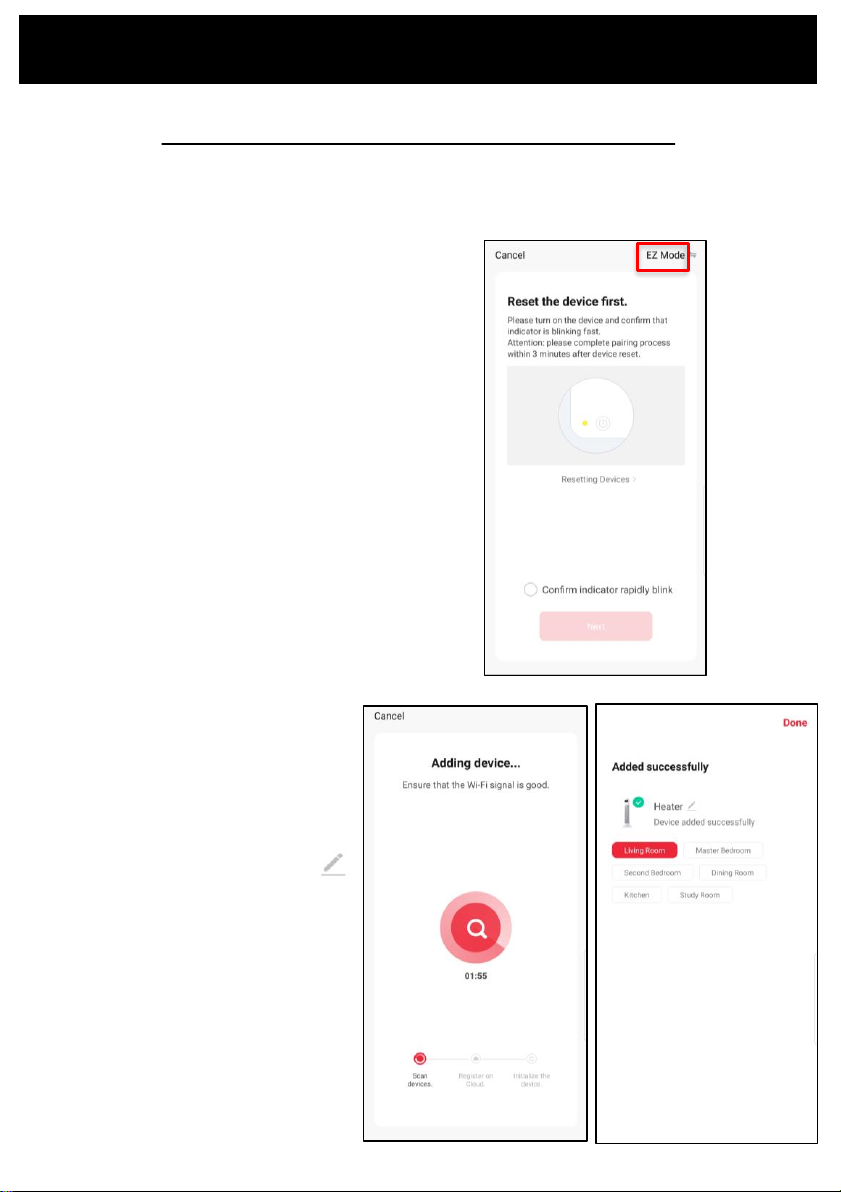
The app will default to EZ Mode in the
right hand corner.
Ensure your device’s Wifi LED is flashing
rapidly.
If it is not, hold down the heat setting
button for 5 seconds or until the Wifi
icon begins to flash.
Click ‘Confirm indicator rapidly blink’
and ‘Next’
See instructions below to finalise your device pairing via EZ mode.
Your device will now pair with the app.
Please ensure your device, modem and
phone are as close together as possible
and that your 2.4ghz Wifi signal is strong.
Once the device has paired, choose
to rename it by tapping the Pen icon
Choose the most suitable room type and
click ‘Done’ in the top right hand corner.
Pairing APP to Device
Change ‘EZ Mode’ to ‘AP Mode’ by
clicking in the top right hand corner
Ensure your device’s Wifi LED is
flashing slowly.
If it is not, hold down the heat
setting button for 5 seconds or
until the Wifi icon begins to flash.
Click ‘Confirm indicator slowly
blink’ and ‘Next’
Click ‘Go Connect’ to
connect to the device’s
Hotspot by selecting the
network highlighted on the
screen in your app, e.g.
‘SmartLife- XXXX’
Select the device’s Hotspot
network and you will be returned
to the app. If not, navigate back to
the Goldair app.
Note- if you get a notification
saying ‘Internet may not be
available’ press Dismiss.
Your device will now pair
with the app.
Please ensure your
device, modem and
phone are as close
together as possible.
Connect with 2.4ghz Wifi Network: AP Mode
See instructions below to finalise your device pairing via AP Mode.
Once the device has paired,
choose to rename it by
tapping the Pen icon
Choose the most suitable
room type and click ‘Done’
in the top right hand
corner.
Operating your Device from the APP
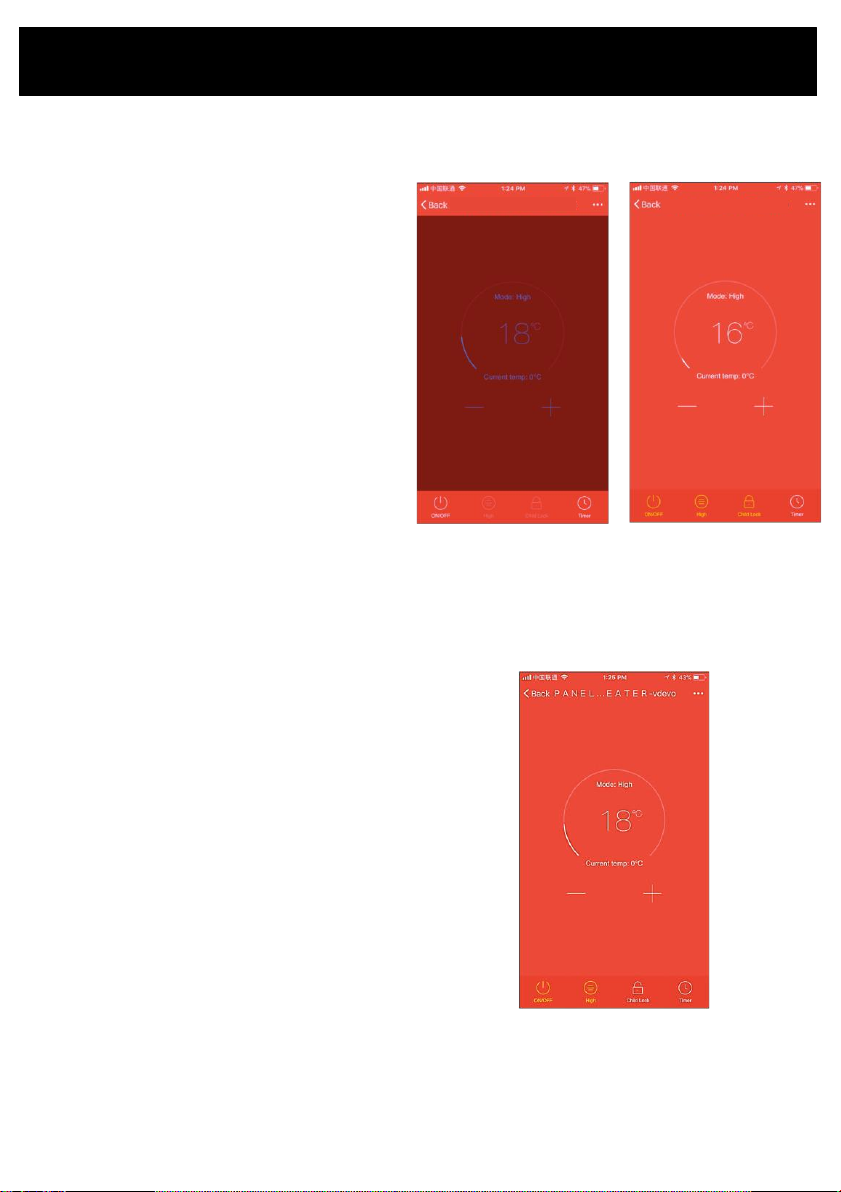
If the phone interface color is dark red, this
indicates that the heater is in the OFF standby
setting.
•Tap the OFF icon and the heater will turn on.
The display will change to bright red.
•You can now control the heater.
•To turn the heater off again tap the power icon
and the heater will revert to the dark screen.
TEMPERATURE SETTING:
The temperature can be set from 15 –35oC
•Tap the ‘+’ or ‘-’ button to set the temperature.
•When the set temperature is higher than the
ambient temperature, the heater begins to
heat.
•If the heater temperature setting is below
ambient temperature the heater will be in
standby mode and will not operate until the
ambient temperature drops below the set
temperature.
Dark Red –Heater Off Bright Red –Heater On
HEAT SETTINGS
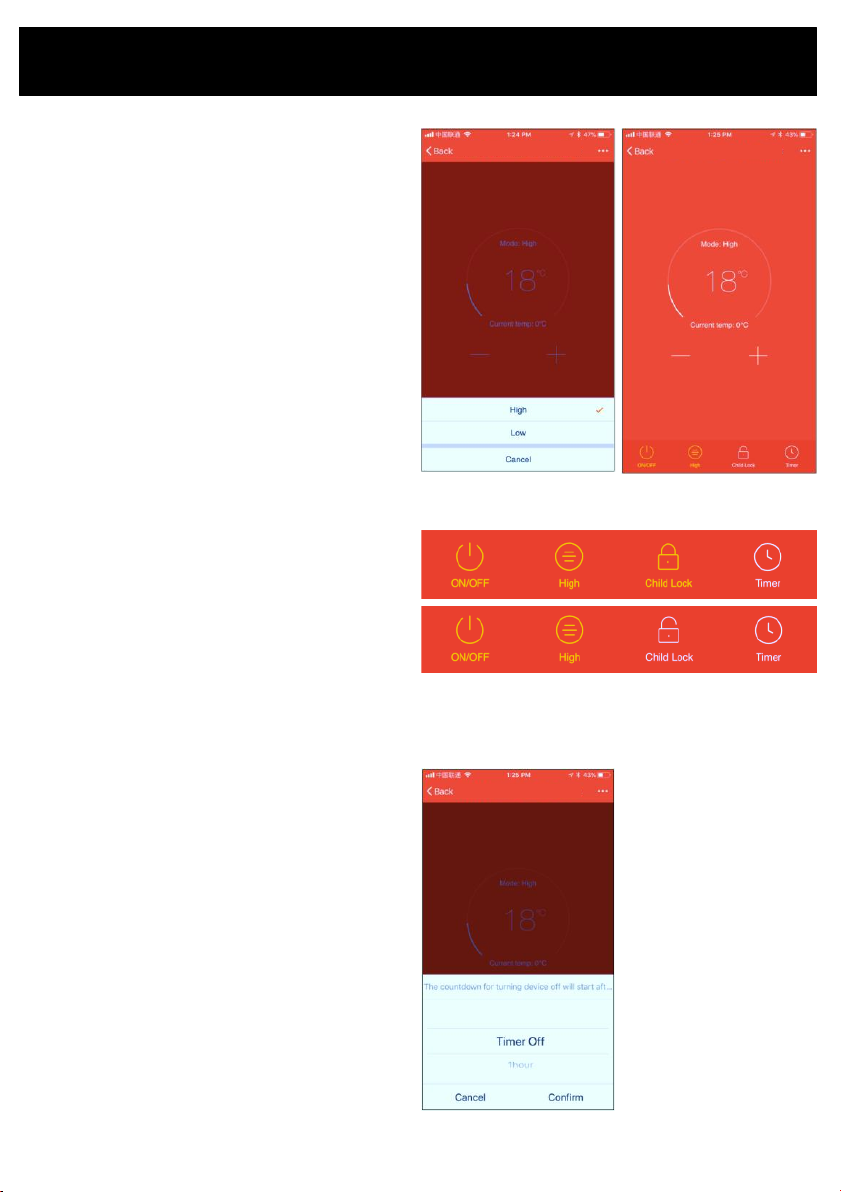
Press the HIGH/LOW button to switch between
high and low heat settings. The set level will be
shown on the bottom of the APP.
It will also show on the heater display as ‘Mode’
CHILD LOCK
Tap the padlock icon to display the closed padlock
indicating that the child lock is active.
Tap the padlock icon again to unlock the child lock.
You can adjust the heater settings with your mobile
phone without having to unlock the child lock.
Operating your Device from the APP
AUTO OFF TIMER
When the heater is ON you can set it to turn OFF
after a number of hours (1-24 hours) has elapsed.
•In the APP, tap the heater to be operated and
enter the operation interface.
•With the power icon on the lower left corner of
the mobile phone interface is displaying ON
and the heater is turned ON.
•Tap the timer button and scroll to select the
number of hours before the heater will turn
OFF and tap OK to return to the heater
operation interface.
•The timer icon on the lower right will display
how long before the timer will turn the heater
OFF.
To cancel the timer, touch the timer button again
and the numbers will disappear and just show
timer.
Set up Tap-To-Run & Create Smart Scenes
Store your favourite settings or set up automated
functions based on conditions in the ‘Smart’ part
of your Goldair app.
Warning- you must remember to turn off any
Smart functions prior to leaving the house or
going away. We recommend you only operate
your Goldair devices when someone is on the
premises.
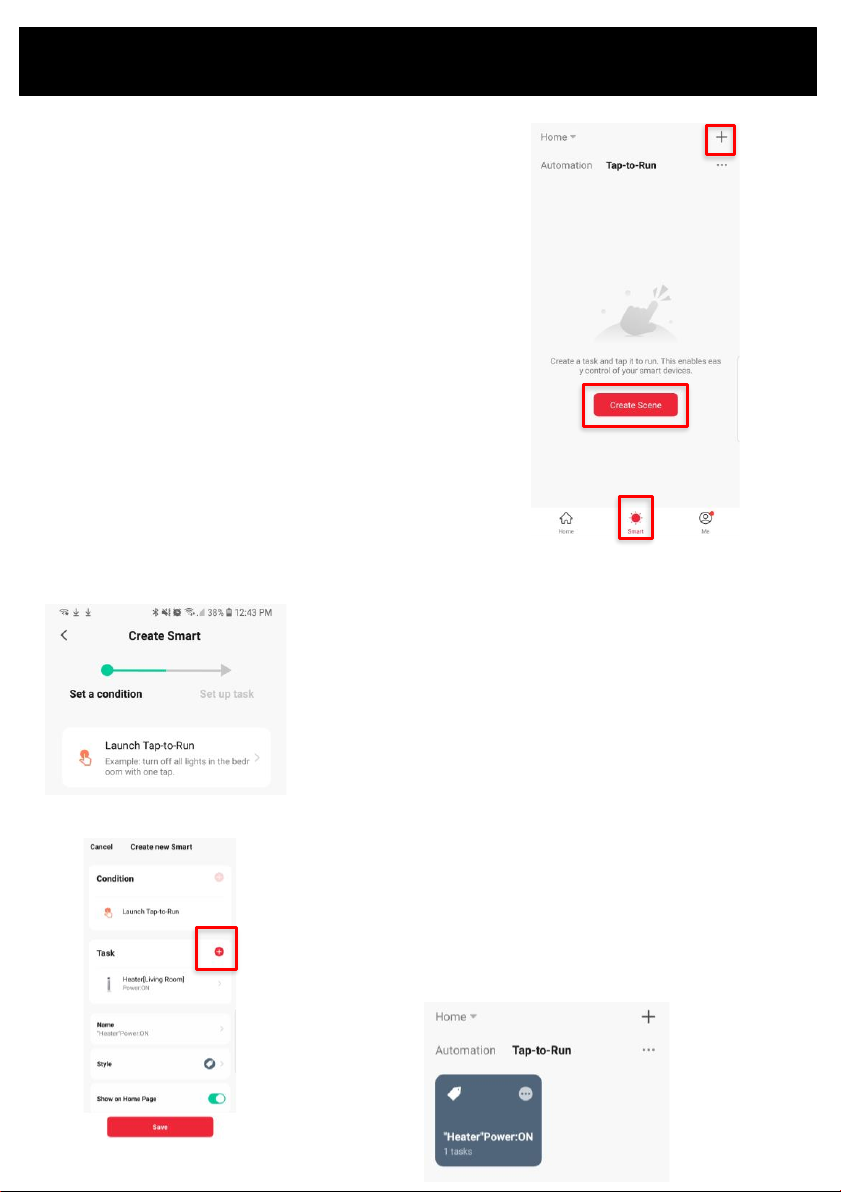
•Tap ‘Smart’ on the bottom of your mobile phone.
•Tap ‘Create Scene’ or the ‘+’ icon on the top
right.
Click ‘Launch Tap-to-Run’ to save your preferred settings
on your devices to launch at the click of a button. Click
‘Run the device’ and choose a device. Preset your desired
functions such as Power ON/OFF, temperature, mode and
timer as per on the device’s functions. Click ‘Next’
Review your conditions and tasks on this screen, or
choose to add another device or task by clicking the ‘+’
icon.
Click Save to store your settings and your new task will
appear on the Smart homepage. Click it to operate your
desired task.
Set up Tap-To-Run & Create Smart Scenes
As well as setting up automated Tap-to-Run
tasks, you can set conditions to operate your
devices.
Weather:
Click ‘When weather changes’ to create a task based on your local outside weather.
Choose between temperature, humidity, weather type, sunset/sunrise or wind speed.
Select your desired condition and click ‘Next’. Click ‘Run the device’ and choose a device.
Preset your desired functions such as Power ON/OFF, temperature, mode and timer as
per on the device’s functions. Click ‘Next’. Review your conditions and click save. Your
automation will appear on the main Smart homepage.
Schedule:
Click ‘Schedule’ to create a task for your device at selected times of the day. Click ‘Repeat’
to choose days of the week or leave as ‘Once’ to operate as a one off. Choose your
desired time from the scroll bar and click ‘Next’. Click ‘Run the device’ and choose a
device. Preset your desired functions such as Power ON/OFF, temperature, mode and
timer as per on the device’s functions. Click ‘Next’. Review your conditions and click save.
Your automation will appear on the main Smart homepage.
Status Change
Click ‘When device status changes’ to create a condition based on any function on your
device, for example turning the Power Off when any device function is changed (to act as
a child lock)
Voice Control
Once your smart scenes are set up, you can use Amazon Alexa or Google Home Routines
to operate the scenes via voice control. Refer to your Amazon or Google Home user
guides for instructions on how to pair your routine to smart scenes.
View compatible Voice
Control devices &
instructions on setting up.
Operating your Device from the APP
Change the name,
location & image of
your device
View your device
information
Device settings:
Turn on
notifications for
when device goes
Offline.
Share device with family
(see instructions on next
page)
Read FAQs & submit
feedback
Remove device from app
View your tap-to-
run and smart
scene automations
Create group of
devices (see
instructions on next
page)
Review device
network
Add device shortcut
to home screen
View device updates
& turn on automatic
updates