17
4DASHBOARD OPERATION
1:Power Switch: short press to power on, then use the NFC card to unlock the scooter. Drive after unlock the scooter by using
the NFC card, otherwise you can not drive the scooter. Long press to power off.
2:Mode Selection: 3 driving modes are available, which respectively are Limited speed is 11.25mph; Limited speed is 15.62mph;
and Limited speed is 18.75mph; Single click to switch the mode.
3:Speedometer: Indicates the current speed. Also displays error codes when faults are detected.
4: LED Lighting: Double-click to turn on.Double-click to turn off.
5:Switch Speed Unit: Three clicks in succession to switch between km/h and mph.
6: Bluetooth: A solid Bluetooth icon indicates that the vehicle is connected to a mobile device. You can view the vehicle status
after connecting to the APP via Bluetooth.
7:When power on,the NFC logo on the panel will light up,please put the NFC card close to the display panel, then the buzzer
will beep to indicate successful unlocking.
8: Over-temperature Display: If the internal temperature of the controller and motor is too high during the operation of the
vehicle, the panel will promptly display an over-temperature alarm.
9: Failure Alarm: When the controller fails, the alarm symbol will light up to warn.
10: Left and right turn signals: the left turn signal lights up when turning left, and so is the right side.
10: Power display: when the power is more than 85%, the display is full, and it will gradually go out as the power drops.
5CRUISING SPEED
Maintain the same speed for 7 seconds to enter cruise mode.Press the accelerator or brake to cancel the cruise mode.
6APP CONTROL
1.Download GYROOR app
Please search GYROOR from APPLE App Store or GOOGLE Play,download GYROOR app to your smart phone.Or you can download
GYROOR app by scan the QR cord.
2.Register an account
Open the GYROOR app,click "my" button on the bottom right corner,then click "register" button.Use your email and other informations
to register an account.Please remember choose your country and choose the checkbox "Read and agree Privacy Policy". Finally,click the
"REGISTER" button.You will receive a validation letter in your register email.Please click the validation letter,it will jumps to the web
gyroorboard.com automatically.You will see "Your email address is verified",it means register successfully.
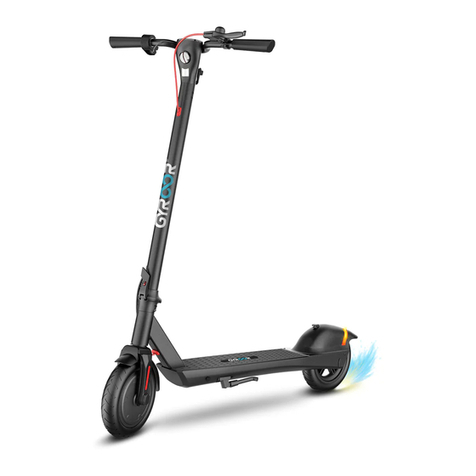
3.Pair with Gyroor X8 scooter
First,open your smart phone bluetooth.
Second,login in your GYROOR app account.
Third,power on your Gyroor X8 electric scooter and unlock it by NFC card.Cell phone and scooter must be within 10 meters of each other.
Forth,click the left bottom button on your GYROOR app home page.
Fifth,slide product thumbnails or check from the pull-down list to choose the Gyroor X8 electric scooter.
Sixth,click the "connecting device" to pair with the scooter.
4.APP Functions
After pair with the scooter, you can operate the scooter with your GYROOR app.You can check the riding speed and battery level directly
on the app page.Also there are five icon buttons.
Light: click it to turn on and turn off the head light and tail light.
Model: click it to choose between ECO mode (enegry-saving), D mode (Standard), and S
mode (Sports).ECO mode,the limited speed is 18km/h;D mode,the limited speed is 25 km/h;S mode,the limited speed is 30km/h.
Lock: open it and the scooter will be difficult to remove in case it gets wheeled away.
Find: open it,the scooter will sound the alarm to help you find it.
Setting: click it to enter into the subpage.In the subpage,the following functions are ready.
NFC Button: open it means you must use the NFC card to unlock the scooter;close it means you can ride the scooter without NFC card.
Current Unit: Switch between mph and km/h using the button.
Mileage: This function records the total mileage.
Trip: This function records the single mileage.
Set Limited Speed: you can drag progress bar to set the limited speed.
Serial Number: please pair with your smart phone first, then record the unique serial number.
07
Android QR Code IOS QR Code