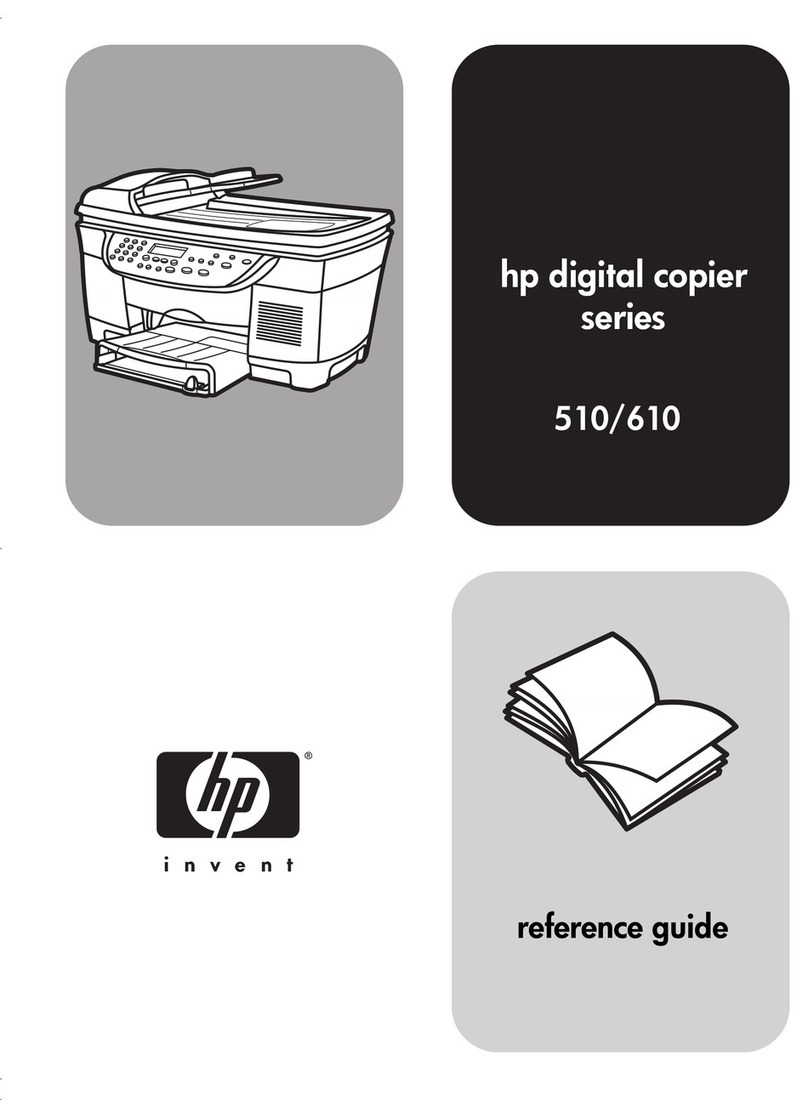
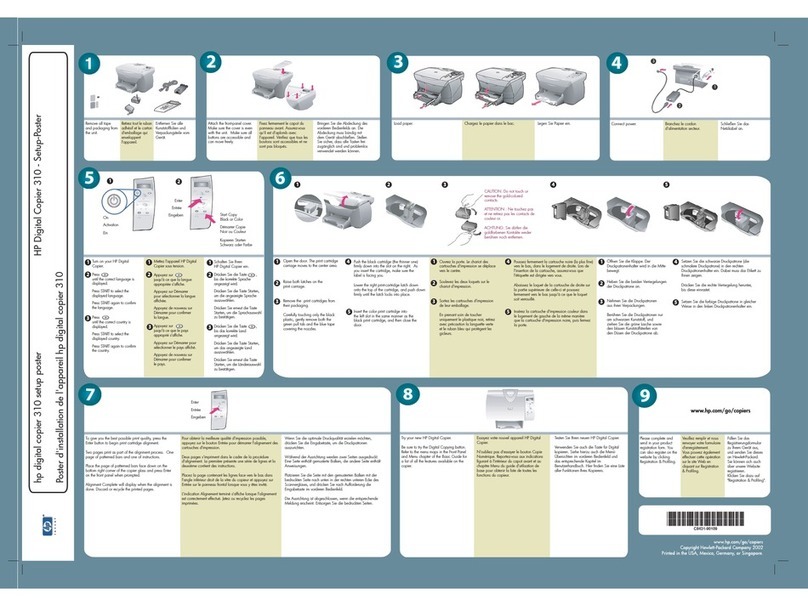
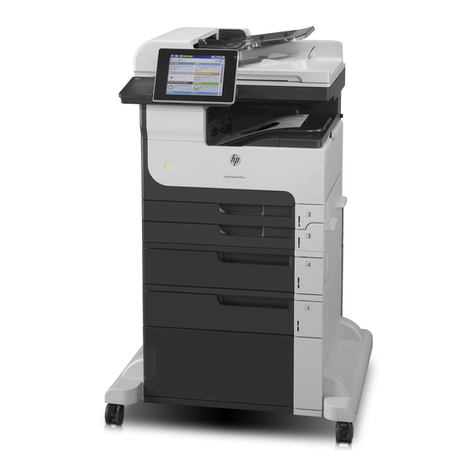
HP 210/210LX User manual

®
Users Guide
Color Copier 210/210LX

WARNINGWARNING
WARNINGWARNING
WARNING
The Warning label calls
attention to a procedure,
practice, or the like, which, if
not correctly performed or
adhered to, could result in
personal injury. Do not
proceed beyond a Warning
label until the indicated
conditions are fully under-
stood and met.
CAUTIONCAUTION
CAUTIONCAUTION
CAUTION
The Caution label calls
attention to an operating
procedure, practice, or the
like, which, if not correctly
performed or adhered to,
could result in damage to or
destruction of part or all of the
product. Do not proceed
beyond a Caution label until
the indicated conditions are
fully understood and met.
Regulatory information can
be found in the “Technical
Information” chapter of this
User’s Guide.
Notice
The information contained in
this document is subject to
change without notice and
should not be construed as a
commitment by the Hewlett-
Packard Company.
Hewlett-Packard assumes no
responsibility for any errors
that may appear in this
document nor does it make
expressed or implied warranty
of any kind with regard to this
material, including, but not
limited to, the implied
warranties of merchantability
and fitness for a particular
purpose. The Hewlett-Packard
Company shall not be liable
for incidental or consequential
damages in connection with,
or arising out of the furnishing,
performance, or use of this
document and the program
material which it describes.
© Copyright Hewlett-
Packard Company 1997
All rights are reserved. No part
of the document may be
photocopied, reproduced, or
translated to another language
without the prior written
consent of Hewlett-Packard
Company.
Publication number:
C5302-90000
First Edition,
March, 1997
Printed in U.S.A.
It is not lawful in many places
to make copies of the
following items. When in
doubt, check with a legal
representative first.
• Governmental paper or
documents
– Passports
– Immigration papers
– Selective service papers
– Identification badges,
cards, or insignias
• Governmental stamps
– Postage stamps
– Food stamps
• Checks or drafts drawn on
Governmental agencies
• Paper currency, traveler’s
check, or money orders
• Certificates of deposit
• Copyrighted works
Hewlett-Packard Company
San Diego Printer Division
16399 W. Bernardo Drive
San Diego, CA 92127-1899 U.S.A.
Owner’Owner’
Owner’Owner’
Owner’s Informations Information
s Informations Information
s Information
Please complete the following for future reference.
HP Color Copier 210: ______ HP Color Copier 210LX: ______
Serial Number:
Date of Purchase:
Place of Purchase:
Address:
Phone Number:
Service Contract Number:
Date of Contract Expiration:

User’User’
User’User’
User’s Guides Guide
s Guides Guide
s Guide
HP Color Copier 210/210LXHP Color Copier 210/210LX
HP Color Copier 210/210LX

ii
Safety symbolsSafety symbols
Safety symbols
If present, this symbol is placed on the copier
where it is necessary for you to refer to the
manual in order to understand a hazard.
!
If present, this symbol is placed on the copier
within the area where hazardous voltage is
present. Only trained service persons should
perform work in this area.
If present, this symbol is placed on the copier
within the area where electrostatic discharge
(ESD) may occur. ESD can damage the copier’s
electronic components. Avoid touching elec-
tronic components or circuit paths. Use proper
grounding devices when circuits are open to
outside areas.
If present, this symbol is placed on the product
within the area where hot surfaces are present.
Allow the product to cool before performing
work in this area.

ContentsContents
ContentsContents
Contents
Chapter 1Chapter 1
Chapter 1Chapter 1
Chapter 1 Getting StartedGetting Started
Getting StartedGetting Started
Getting Started
Features ......................................................................................................................................................................................... 1-2
Copier Location and Environment ............................................................................................................................................. 1-3
Ten Easy Steps to Set Up Your HP Color Copier 210 or 210LX .............................................................................................. 1-4
Unpack Your HP Color Copier 210 ....................................................................................................................................... 1-4
Attach the Front-Panel Overlay ........................................................................................................................................... 1-6
Unlock the Scanner ............................................................................................................................................................... 1-7
Load the Print Cartridges ...................................................................................................................................................... 1-8
Load the Paper ..................................................................................................................................................................... 1-10
Check the paper-width selector .................................................................................................................................. 1-10
Check the output tray .................................................................................................................................................... 1-10
Load the paper ................................................................................................................................................................ 1-11
Install the Optional Automatic Document Feeder .......................................................................................................... 1-12
Connect the Power Cord..................................................................................................................................................... 1-14
Turn the Copier On ............................................................................................................................................................... 1-15
Set the Front-Panel Language and Default Paper Size................................................................................................. 1-16
Test the Copier ...................................................................................................................................................................... 1-17
Product Registration .................................................................................................................................................................. 1-18
Chapter 2Chapter 2
Chapter 2Chapter 2
Chapter 2 Using Print Cartridges and Different Paper TUsing Print Cartridges and Different Paper T
Using Print Cartridges and Different Paper TUsing Print Cartridges and Different Paper T
Using Print Cartridges and Different Paper Typesypes
ypesypes
ypes
What You Need to Know About Print Cartridges.................................................................................................................... 2-1
Determining ink color (for users with color-vision deficiencies) ............................................................................ 2-2
Reading the ink-level indicator ...................................................................................................................................... 2-2
Out-of-ink sensing ............................................................................................................................................................ 2-2
What You Need to Know About Paper ..................................................................................................................................... 2-3
Paper Specifications ....................................................................................................................................................... 2-4
Papers to Avoid ................................................................................................................................................................ 2-4
Specifying the paper type............................................................................................................................................... 2-5
Copying on HP Premium InkJet Paper ......................................................................................................................... 2-6
Copying on HP Glossy Paper.......................................................................................................................................... 2-6
Copying on HP Premium Transparency Film ............................................................................................................... 2-6

Chapter 3Chapter 3
Chapter 3Chapter 3
Chapter 3 CopyingCopying
CopyingCopying
Copying
Start Copying................................................................................................................................................................................. 3-1
Copier Front Panel ....................................................................................................................................................................... 3-2
Setting Copy Quality .................................................................................................................................................................... 3-3
Reduce or Enlarge Copies .......................................................................................................................................................... 3-4
Make Copies Lighter or Darker .................................................................................................................................................. 3-5
Change Color Intensity ................................................................................................................................................................ 3-6
Clear/Stop ...................................................................................................................................................................................... 3-6
Menu Items ................................................................................................................................................................................... 3-7
Self-Test Page ................................................................................................................................................................... 3-7
Align Cartridges ................................................................................................................................................................ 3-7
Change Copy Paper Size................................................................................................................................................. 3-7
TE (Text Enhancement).................................................................................................................................................... 3-8
ELC (Enhance Light Colors) ............................................................................................................................................ 3-8
Setting Defaults ............................................................................................................................................................................ 3-8
Factory Defaults ........................................................................................................................................................................... 3-9
Copy Controllers ........................................................................................................................................................................... 3-9
Chapter 4Chapter 4
Chapter 4Chapter 4
Chapter 4 Automatic Document FeederAutomatic Document Feeder
Automatic Document FeederAutomatic Document Feeder
Automatic Document Feeder
Using the Automatic Document Feeder ................................................................................................................................... 4-2
Clearing a Paper Jam .................................................................................................................................................................. 4-3
Chapter 5Chapter 5
Chapter 5Chapter 5
Chapter 5 Copy Access ControllersCopy Access Controllers
Copy Access ControllersCopy Access Controllers
Copy Access Controllers
Installing a Copy Controller ........................................................................................................................................................ 5-2
Using a Copy Controller .............................................................................................................................................................. 5-2
Chapter 6Chapter 6
Chapter 6Chapter 6
Chapter 6 TT
TT
Troubleshooting and Maintenanceroubleshooting and Maintenance
roubleshooting and Maintenanceroubleshooting and Maintenance
roubleshooting and Maintenance
Using this Section ........................................................................................................................................................................ 6-1
Check the basics first ...................................................................................................................................................... 6-1
Front-Panel Messages ................................................................................................................................................................ 6-3
Print-Cartridge Problems .......................................................................................................................................................... 6-16
Clearing the print-cartridge nozzles ........................................................................................................................... 6-16
Clearing Jammed Paper in the Copier ................................................................................................................................... 6-20
Clearing Jammed Paper in the Automatic Document Feeder ........................................................................................... 6-23
Maintenance ............................................................................................................................................................................... 6-24
Cleaning the exterior case ........................................................................................................................................... 6-24
Cleaning the copy glass ................................................................................................................................................ 6-24
Cleaning inside the printer area .................................................................................................................................. 6-25
Cleaning under the copy glass .................................................................................................................................... 6-26
Reassembling the copier .............................................................................................................................................. 6-28
Getting Help................................................................................................................................................................................. 6-29
HP Support Services ..................................................................................................................................................... 6-29
HP Audio Tips/HP FIRST ................................................................................................................................................ 6-30
CompuServe .................................................................................................................................................................... 6-31

Internet ............................................................................................................................................................................. 6-31

HP Customer Support ................................................................................................................................................................ 6-31
Calling in the U.S. and Canada during warranty ...................................................................................................... 6-31
Calling in the U.S. and Canada post warranty .......................................................................................................... 6-31
Calling in Europe ............................................................................................................................................................ 6-32
Calling in Australia and New Zealand ........................................................................................................................ 6-32
Calling elsewhere in the world .................................................................................................................................... 6-32
Returning Your HP Color Copier 210 for Service ................................................................................................................... 6-33
Prepare your HP Color Copier 210 for shipment....................................................................................................... 6-34
Ordering accessories and supplies ........................................................................................................................................ 6-35
Chapter 7Chapter 7
Chapter 7Chapter 7
Chapter 7 Hewlett-Packard Limited WHewlett-Packard Limited W
Hewlett-Packard Limited WHewlett-Packard Limited W
Hewlett-Packard Limited Warrantyarranty
arrantyarranty
arranty
Extent of Limited Warranty ......................................................................................................................................................... 7-1
Limitations of Warranty ............................................................................................................................................................... 7-3
Limitations of Liability .................................................................................................................................................................. 7-4
Warranty Service ......................................................................................................................................................................... 7-4
Express service ................................................................................................................................................................ 7-4
Warranty Upgrades ..................................................................................................................................................................... 7-4
IndexIndex
IndexIndex
Index

1
chapter onechapter one
chapter one
HP Color Copier 210/210LX User’s Guide 1-11-1
1-11-1
1-1
Getting StartedGetting Started
Getting Started
Congratulations!You have just entered a new era in copying freedom.The HP
Color Copiers 210 and 210LX produce high-quality, color and black-and-white
copies on a variety of paper types and sizes:
✦Letter-sized paper
✦A4 (European standard)
✦Legal-sized paper
✦Plain paper
✦Inkjet paper
✦Glossy paper
✦Transparencies for overhead display
This user’s guide will get you set up and copying and will show you how to get
the most from your HP Color Copier 210.
WARNINGWARNING
WARNINGWARNING
WARNING Do not lift the HP Color Copier 210 by yourself. The box weighs 70 lbs (32 kgs)
(210LX: 85 lbs (39 kgs)) and requires at least two people to lift it.

1-21-2
1-21-2
1-2 Getting Started
document cover
front panel
paper-width selector
paper-length adjuster
paper tray out tray switch
lid release button
lid
FeaturesFeatures
FeaturesFeatures
Features
Your HP Color Copier 210 provides:
✦Professional-quality color and black-and-white copies.
✦A simple, easy-to-use control panel.
✦A port (on the back of the copier) to connect an optional copy
access controller.
✦In addition, the Color Copier 210LX includes an automatic document
feeder for loading up to 40 sheets at a time.
NOTENOTE
NOTENOTE
NOTE You can also purchase the automatic document feeder (C5305A) as a separate
item and add it to the HP Color Copier 210.

HP Color Copier 210/210LX User’s Guide 1-31-3
1-31-3
1-3
Copier Location and EnvironmentCopier Location and Environment
Copier Location and Environment
✦Use only within normal office temperature and humidity ranges. The
recommended range is 59-95°F (15-35°C) and 20-80% relative humidity.
✦Avoid direct sunlight or locations where a quick change in temperature might
cause condensation inside the machine.
✦Make sure the location is well ventilated. Dust, gasses, or fumes (such as
ammonia or paint thinner) can damage the machine.
✦Choose a site that is level, flat, and stable. The copier will produce some
shaking and needs to be on a sturdy surface.
✦Be sure a grounded outlet is nearby and easily accessible.
WW
WW
WARNINGARNING
ARNINGARNING
ARNING Do not lift the HP Color Copier 210 by yourself. The box weighs 70 lbs (32 kgs)
(210LX: 85 lbs (39 kgs)) and requires at least two people to lift it.
This manual suits for next models
2
Table of contents
Other HP Copier manuals

HP
HP LaserJet Enterprise M601 Series User manual

HP
HP Designjet 5500mfp User manual

HP
HP Compaq 610 User manual

HP
HP C5370A User manual

HP
HP Designjet cc800ps User manual

HP
HP LASERJET ENTERPRISE MFP M725dn Programming manual

HP
HP Compaq 610 Configuration guide

HP
HP Compaq 610 How to use

HP
HP Designjet cc800ps User manual

HP
HP ProSignia 310 User manual