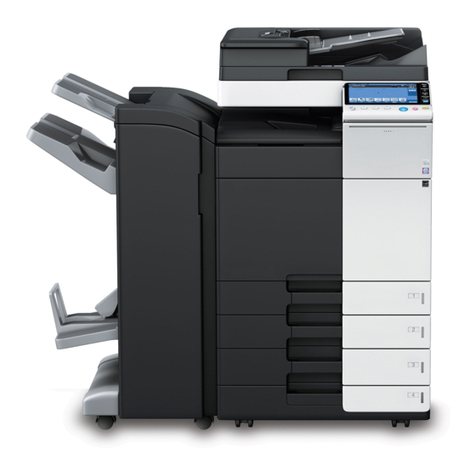
Ricoh FW740 User manual

i
SAFETYINFORMATION
When using your machine, the following safety precautions should be always be followed.
In this manual, the following important symbols are used:
R
WARNING:Ignoring this warning could cause serious injury or even death.
R
CAUTION: Ignoring this caution could cause injury or damage to property.
Symbol Rmean a situation that requires you take care.
Symbol vmean “Hot surface”.
Do NOT carry out the operation represented by this symbol m.
This example means “Do not take apart”.
Symbols lmean you MUST perform this operation.
This example means “You must remove the wall plug”.
INTRODUCTION
This copier is a console plain paper copier carefully manufactured to exacting standards of high
performance. it consistently yields high contrast copies with a superior finish.
This manual contains detailed instructions on the operation and maintenance of this copier. To get
maximum versatility from this copier, all operators should carefully read and follow the instruc-
tions in this manual. Please keep this manual in a handy place near the copier.
Please read the next section before using this copier. It contains important information related to
USER SAFETY and PREVENTING EQUIPMENT PROBLEMS.
SafetyDuringOperation
ExamplesOfIndications
R
v
q
r

ii
• Only connect the machine to the power source described on the
inside front cover of this manual.
• Avoid multi-wiring.
• Do not damage, break or make any modifications to the power
cord. Do not place heavy objects on it, pull it hard or bend it more
than necessary. These actions could cause an electric shock or
fire.
• Do not plug or unplug the power cord with your hands wet. Other-
wise, an electric shock might occur.
• Make sure the wall outlet is near the machine and freely acces-
sible so that in event of an emergency it can be unplugged easily.
• Do not remove any covers or screws other than those specified
in this manual. Some parts of the machine are at a high voltage
and could give you an electric shock. Also, if the machine has
laser systems, direct(or indirect)reflected eye contact with the
laser beam may cause serious eye damage. When the machine
needs to be checked, adjusted, or repaired, contact your service
representatives.
• Do not take apart or attempt any modifications to this machine.
There is a risk of fire, electric shock, explosion or loss of sight. If
the machine has laser systems, there is a risk of serious eye
damage.
• If the machine looks damaged or breaks down, smoke is coming
out, there is a strange smell or anything looks unusual, immedi-
ately turn off the operation and main power switches then unplug
the power cord from the wall. Do not continue using the machine
in this condition. Contact your service representative.
• If metal, liquid, or foreign matter falls into the machine, turn off the
operation and main power switches, and unplug the main power
cord. Contact your service representative. Do not keep using the
machine with a fault or defect.
• Do not put any metal objects or containers holding water(e.g.
vases, flowerpots, glasses) on the machine. If the contents fall
inside the machine, a fire or electric shock could occur.
RR
RR
R WARNING:
m
r
q
o
m

iii
• Do not incinerate used toner, toner bottles or toner cartridges.
Toner dust might ignite when exposed to an open flame. Dispose
of the used toner cartridges according to local regulations for
plastics.
s

iv
• Keep the machine away from humidity and dust. A fire or an
electric shock might occur.
• Do not place the machine on an unstable or tilted surface. If it
topples over, it could cause injury.
• After you move the machine, fix it with the caster fixture. Other-
wise, the machine might move or come down to cause a per-
sonal injury.
• When you move the machine, unplug the power cord from the
wall outlet to avoid fire or electric shock.
• When the machine will not be used for a long time, unplug the
power cord.
• When you pull out the plug from the socket, grip the plug to avoid
damaging the cord and causing fire or electric shock.
• If you use the machine in a confined space, make sure there is a
continuous air turnover.
• Do not reuse stapled paper. Do not use aluminium foil, carbon
containing paper or other conductive paper. Otherwise, a fire
might occur.
• When removing misfed paper, do not touch the fusing section
because it could be very hot.
• This machine has been tested for safety using this supplier’s
partsandconsumables.Werecommendyou only use thesespeci-
fied supplies.
• Do not eat or swallow toner.
• Keep toner(used or unused) and toner cartridges out of reach of
children.
• This equipment is only to be installed by a qualified service
personnel.
RR
RR
RCAUTION:
m
o
r
t
o
m
n
R
R
R

v
• Deliver to collection point for waste products. Do not be disposed
of via domestic refuse collection.
R

vii
TABLE OF CONTENTS
1. GETTINGSTARTED ................................................... 1
HOW TO USE THIS COPY MACHINE............................. 1
WHERE IT IS & WHAT IT IS............................................ 4
CopierExterior ............................................................. 4
OperationPanel ........................................................... 6
RECOMMENDEDORIGINALS ........................................ 8
RECOMMENDEDPAPER ............................................ 10
TONER......................................................................... 12
2. COPYING................................................................. 13
BASICCOPYING ......................................................... 13
Using the Rear Table .................................................. 18
COPYINGONTO ROLLPAPER.................................... 19
Synchro Cutting ......................................................... 20
Preset Cutting ............................................................ 22
VariableCutting.......................................................... 23
3. COPY SETTINGS .................................................... 25
COPYING ONTOOTHER MEDIA .................................. 25
ADJUSTINGCOPYIMAGEDENSITY ........................... 27
SETTINGTHE NUMBEROF COPIES
(REPEATEDCOPYING) ................................................28
SETTINGALEADING/TRAILINGEDGEMARGIN .......... 29
PARTIALCOPYING ...................................................... 31
PROGRAMMINGSETTINGYOU OFTENUSE .............. 33
A) Program key ......................................................... 33
B) Changing TheDefault Setting ................................ 34
USERTOOLS ...............................................................35
WHAT YOURSERVICEREPRESENTATIVE
CANCHANGE...............................................................37

viii
4. MAINTAININGYOURCOPIER ..................................39
CHANGINGTHETONERBOTTLE .................................39
ADDINGTONER............................................................42
LOADING A ROLL PAPER ............................................45
5. TROUBLESHOOTING ...............................................49
If Something Goes Wrong ...........................................49
If A Service Indicator Lights Up ....................................49
IFJAMS OCCUR ...........................................................50
OTHERS .......................................................................56
THINGS TO DO EVERY DAY.........................................58
DO’S & DON’TS ............................................................59
WHERE TO PUT YOUR COPIER...................................60
6. SPECIFICATIONS .....................................................63
COPIER ........................................................................63
OPTIONS ......................................................................64
INDEX ...........................................................................65

1
1. GETTING STARTED
HOWTO USE THIS COPYMACHINE
1Turn the machine switch on.
When the “Wait “ indicator goes off and the ”Set Original” indicator goes on, the copier enters
the ready condition.
2Select any copy settings you require, such as the media type or copy density.
If you have Roll Feeder (option), press the Bypass Select key to select “Roll Feeder”.
3Center the paper face up on the Bypass Table and slide the paper straight into the copier.
pThese illustration show the copier with the Paper Guides, the Copy Stacker, and other optional
equipment.
PM001
PM002
Paper Length
Synchro
Preset/
Variable
Leading Edge
Trailing Edge
Copy Counter
Function Select
Bypass Select/
Roll Paper Cut
Copy Media
Lighter Darker
Clear/Stop
Emergency Stop
Program
Clear Modes/
Energy Saver
Wait
Vellum
Film
Cut Select
Preset Cut
Lighter Copy
Set
Original
Energy
Saver
Paper Length
Synchro
Preset/
Variable
Leading Edge
Trailing Edge
Copy Counter
Function Select
Bypass Select/
Roll Paper Cut
Copy Media
Lighter Darker
Clear/Stop
Emergency Stop
Program
Clear Modes/
Energy Saver
Wait
Vellum
Film
Cut Select
Preset Cut
Lighter Copy
Set
Original
Energy
Saver

2
4Set the Original Guide to match the original size mark. Set the original face down and slide it
straight into the copier along the Original Guide.
5First, the original is fed through to the Rear Table.
6When the original is being sent back, the machine reads the original and starts copying.
With Repeated Copying, the original is repeatedly fed through and sent back until all copies have
been made.
PM004
PM005
PM006

3
7Copies are delivered at the rear of the machine.
pSet the Manual Pocket as shown
in the figure.
PM007
SM062
Other manuals for FW740
1
This manual suits for next models
4
Table of contents
Other Ricoh Copier manuals
Ricoh
Ricoh Aficio MP 1900 User manual

Ricoh
Ricoh FW770 User manual
Ricoh
Ricoh Di-C1 User manual
Ricoh
Ricoh MP C401 User manual
Ricoh
Ricoh D037 User manual

Ricoh
Ricoh Aficio A080 User manual
Ricoh
Ricoh Aficio MP C2051 User manual
Ricoh
Ricoh A251 User manual
Ricoh
Ricoh MP 2014 Series User manual

Ricoh
Ricoh Aficio FX10 User manual

Ricoh
Ricoh FT3813, FT4615, FT4618 User manual

Ricoh
Ricoh A-C4 User manual
Ricoh
Ricoh M281 Series User manual

Ricoh
Ricoh A217 User manual
Ricoh
Ricoh FT7770 User manual
Ricoh
Ricoh IS 2060 User manual

Ricoh
Ricoh FW750 User manual

Ricoh
Ricoh PE-P1 User manual
Ricoh
Ricoh A183 User manual

Ricoh
Ricoh A193 User manual