manuals.online logo
Brands
  1. Home
  2. •
  3. Brands
  4. •
  5. i3 International
  6. •
  7. Security Camera
  8. •
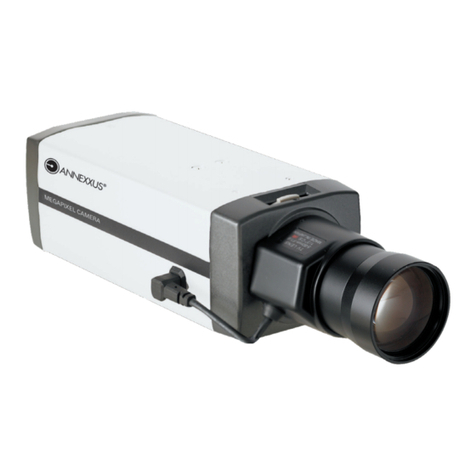
  9. i3 International ANNEXXUS Ax41V1MVR User manual

i3 International ANNEXXUS Ax41V1MVR User manual

Other i3 International Security Camera manuals
i3 International C-Di210 User manual

i3 International

i3 International C-Di210 User manual

i3 International M77R2 User manual

i3 International

i3 International M77R2 User manual

i3 International Ax45RM series User manual

i3 International

i3 International Ax45RM series User manual

i3 International Am52 Series User manual

i3 International

i3 International Am52 Series User manual

i3 International Di721 User manual

i3 International

i3 International Di721 User manual

i3 International DB78BB User manual

i3 International

i3 International DB78BB User manual

i3 International Ax85 User manual

i3 International

i3 International Ax85 User manual

i3 International Ax45RM series User manual

i3 International

i3 International Ax45RM series User manual

i3 International Ax45RM series User manual

i3 International

i3 International Ax45RM series User manual

i3 International Ax32VD14 User manual

i3 International

i3 International Ax32VD14 User manual

i3 International Di210 User manual

i3 International

i3 International Di210 User manual

i3 International Ax47R series User manual
i3 International

i3 International Ax47R series User manual

i3 International Ax61 series Operating and maintenance instructions

i3 International

i3 International Ax61 series Operating and maintenance instructions

i3 International Ax47R series User manual

i3 International

i3 International Ax47R series User manual

i3 International i3F417U User manual
i3 International

i3 International i3F417U User manual

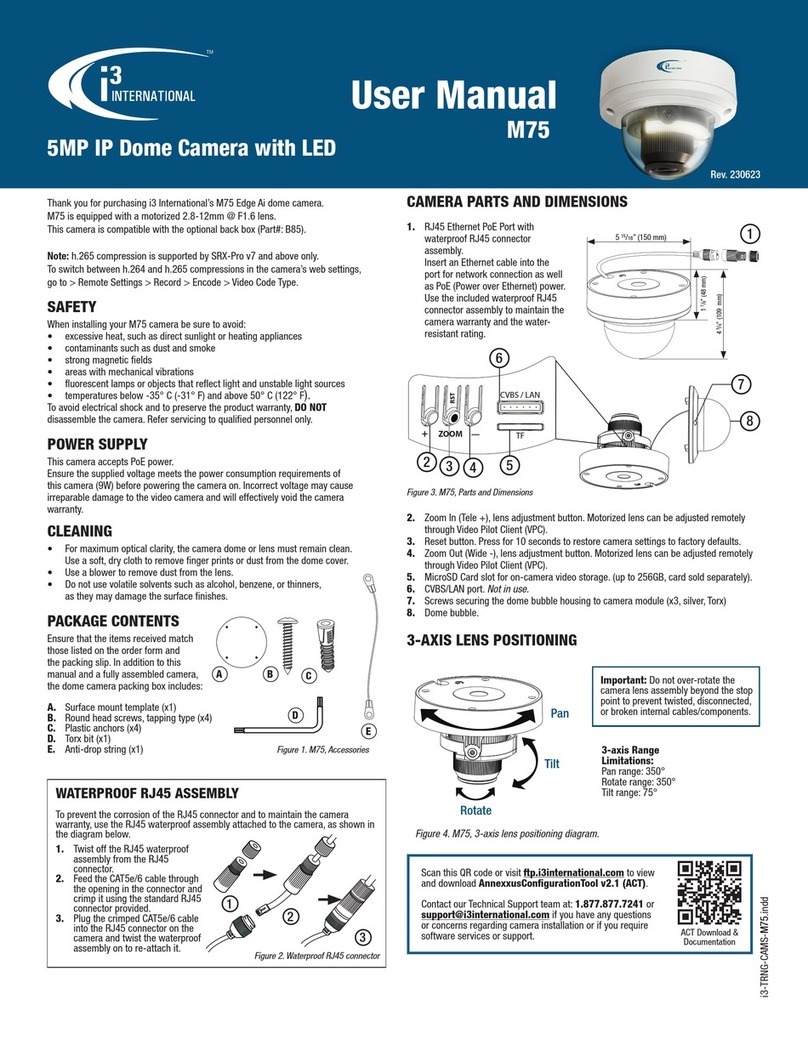
i3 International M75 User manual

i3 International

i3 International M75 User manual

i3 International Ax65W User manual

i3 International

i3 International Ax65W User manual

i3 International i3B261 User manual

i3 International

i3 International i3B261 User manual

i3 International AM42R User manual

i3 International

i3 International AM42R User manual

i3 International Am57 User manual

i3 International

i3 International Am57 User manual

i3 International Ax73RM-series User manual

i3 International

i3 International Ax73RM-series User manual

i3 International Ax83C User manual

i3 International

i3 International Ax83C User manual

i3 International Annexxus 52C User manual

i3 International

i3 International Annexxus 52C User manual

i3 International Ax47DC User manual

i3 International

i3 International Ax47DC User manual
Popular Security Camera manuals by other brands

ADEMCO RapidDome Owners Operating & Installation Guide

ADEMCO

ADEMCO RapidDome Owners Operating & Installation Guide

EverFocus EBA2880 user manual
EverFocus

EverFocus EBA2880 user manual

Honeywell OptiCAM-IR Installation and setup guide

Honeywell

Honeywell OptiCAM-IR Installation and setup guide

Uniq UC-600 user manual
Uniq

Uniq UC-600 user manual

OPTICOM NVD-120-S datasheet

OPTICOM

OPTICOM NVD-120-S datasheet

Steren CCTV-221 instruction manual

Steren

Steren CCTV-221 instruction manual

Arm Electronics C420BCDNVFIR Features

Arm Electronics

Arm Electronics C420BCDNVFIR Features

Eneo PLD-2036PTZ installation guide

Eneo

Eneo PLD-2036PTZ installation guide

Axis AXIS M20 Series installation guide

Axis

Axis AXIS M20 Series installation guide

Panasonic KX-HCM230 operating instructions

Panasonic

Panasonic KX-HCM230 operating instructions

COP-USA CC15NV-SL Specifications

COP-USA

COP-USA CC15NV-SL Specifications

Active Silicon HARRIER H.264 quick start guide

Active Silicon

Active Silicon HARRIER H.264 quick start guide

Motorola Avigilon 1.3C-H5SL-BO1-IR installation guide

Motorola

Motorola Avigilon 1.3C-H5SL-BO1-IR installation guide

INSTEON 2864-232 user manual

INSTEON

INSTEON 2864-232 user manual

Wisenet XNB-6002 quick start guide

Wisenet

Wisenet XNB-6002 quick start guide

Axis M5525-E user manual

Axis

Axis M5525-E user manual

Vitek VTC-IR62NZ922 user guide

Vitek

Vitek VTC-IR62NZ922 user guide

Panasonic WV-SF342 Specifications

Panasonic

Panasonic WV-SF342 Specifications

manuals.online logo
manuals.online logoBrands
  • About & Mission
  • Contact us
  • Privacy Policy
  • Terms and Conditions

Copyright 2025 Manuals.Online. All Rights Reserved.

Ax41V1MVR Megapixel
Dome Camera
Instruction Manual
Before attempting to connect or operate this product, please read these
instructions carefully and save this manual for future use.
CONTENTS
SAFETY INFORMATION...
..................................................
Product Overview .............................................................
SPECIFICATION..................................................................
INSTALLATION................................................................
1
3
6
8
AX41V1MVR
1.1 Precautions
When installing your Annexxus system, be sure to avoid:
excessive heat, such as direct sunlight or heating appliances
moisture, dust, and smoke
strong magnetic fields
close to sources of powerful electromagnetic radiation, such as radios or TV transmitters
close to humid or excessively dusty places
where exposed to mechanical vibrations
close to fluorescent lamps or objects reflecting light
under unstable light sources (may cause flickering)
temperatures below 10° Celsius or 14° Fahrenheit and above 50° Celsius or 122° Fahrenheit for
AX41V1MVR
Power Supply
Ensure the supplied voltage meets the power consumption requirements of this camera before powering the
camera on. Incorrect voltage may cause irreparable damage to the video camera and will effectively void the
camera warranty
Cleaning
For maximum optical clarity, the camera dome or lens must remain clean. Use a soft, dry cloth to
remove finger prints or dust from the dome cover.
Use a blower to remove dust from the lens.
Clean the body with a soft, dry cloth. If it is very dirty, use a cloth dampened with a small quantity of
neutral detergent, then wipe dry.
Do not use volatile solvents such as alcohol, benzene, or thinners, as they may damage the surface
finishes.
Servicing
To avoid electrical shock and to preserve the product warranty, DO NOT disassembles the camera. Refer
servicing to qualified personnel only.
Product Overview
Key Features
Exceptional Images
This camera employs a 5MP CMOS sensor that quadruples sensitivity without blurring. The camera’s
technology provides picture with greater detail in even the most difficult lighting conditions. It delivers crisp
images that are perfect for object- and person-recognition.
Smart focus
A built-in nine-point focus indicator enables the camera to focus precisely and automatically on objects,
relieving users of the need to adjust the focus manually.
Powerful IR Illuminator
The powerful IR illuminator lights objects evenly, reducing image noise and storage requirements. The IR
illuminator activates automatically when the lighting dims to less than 10 lux. In night mode, the illuminator
enables the camera to capture images at 0 lux.
ICR Day/Night Switching
The camera incorporates a mechanical ICR filter to capture perfect pictures at any light level. The camera
switches between day and night modes automatically depending on the lighting conditions, video can
capture at 0.3-lux and black/white video at 0 lux, ensuring crisp, clear images at all times. The camera’s
megapixel resolution and mechanical ICR filter deliver sharp, detailed captures and images of distant objects
in even total darkness.
Housing Certified to IP66 and IP67
Certified to IP66 and IP67, die-cast aluminum alloy housing protects the camera against extremely bad
weather, making it perfect for outdoor surveillance.
Easy Installation
The cable-management bracket enables easy installation in any location, including walls, surfaces, and
ceilings. The camera’s built-in user-friendly I/O connectors also help reduce installation time and
maintenance costs.
SD Memory Card Storage
The camera is equipped with an SD card that enables round-the-clock monitoring, ensuring that the camera
can store captured images even in the event that its network connection goes down. The camera delivers all-
day surveillance and round-the-clock security.
Camera Overview
2.0 Camera Parts and Definition
1. Power In (Red+/Black-): power connector, DC12V/AC24V
2. RJ-45 Ethernet Connector: network connection. Support PoE (Power over Ethernet)
3. BNC: video output
4. Audio Out (Green): audio output
5. Audio In (Red): audio input
6. Alarm Out (Orange): alarm signal output port
RS485+(Green): function reserved
RS485- (Yellow): function reserved
7. GND: ground (electricity) in electrical circuits
Alarm In (Red): alarm signal input port
Alarm Reset (Brown): for resetting an external alarm device
8. Level adjustment: for future use
9. Monitor: video out
10. SD card slot: insert a SD card for image storage
11. Zoom lever: adjust the image view
12. Focus lever: adjust picture sharpness
13. Pan adjustment: adjust the pan/tilt angle
14. Main bracket: adjust the pan angle
15. Reset: use an appropriate tool to press the button for few seconds to reset the camera
2.1 Specification
Specification
Image System
Image sensor 1/2.5" 5 MP CMOS image sensor optimized for low-light
performance
Effective pixels 2592 (H) X 1944 (V)
Image Compression
Method
Triple Streaming : MPEG4 x2/ Motion JPEG x1
Resolution/ Frame Rate MPEG4: HD 720P 1280 X 720 @30fps, 640 X480@30fps, 352
X192@30fps MJPEG: 640 X 480@30fps, 640 X 352@30fps
Electric
Sync system Internal
Built-in lens f=2.7 ~ 9 mm, F1.2, Varifocal Megapixel lens
IR-corrected, Angle of view: 30◦~ 101◦(Horizontal)
Shutter time AES 1/10000 to 1/3.75 sec
Audio Two-way Mono Audio, Full-duplex, G.711 PCM 8kHz 64kbit/s
Alarm Yes; 1x Alarm-in, 1x Alarm-out
Motion detection Yes; 4 x 3 MD window & 5 level sensitivity
SD Card Support micro SDHC card (up to 32 Gb)
Day & Night Mode Mechanical ICR Filter
Minimum illumination IR LED OFF: 0.3lux (F1.2, 50 IRE)
IR LED ON: 0lux
IR LED IR LED 24pcs(850nm)
IR distance 25 meters (82 ft.)
IR turn on status Under 10 lux by auto control
LED life More than 10,000 hours (50ºC)
TV output 720 X 480 @30fps (NTSC) 720 X 576 @25fps(PAL)
Feature
BLC ON/Off
White Balance Auto/Daylight/Fluorescent/Incandescent
Sharpness Low/ Middle/High
Saturation Low/ Middle/High
Brightness Low/ Middle/High
Contrast Low/ Middle/High
Other Mirror, Flip, system log, snapshot
Power supply
Power requirement DC12V/ AC24V±10%/ PoE(IEEE 802.3af)
When using the heater:DC24V/ AC24V±10%
Power consumption < 8W (When using the heater: < 18W)
Power connector Screwless Terminal block
Environment
Operating temperature -10ºC ~ 50ºC (14ºF ~ 122 ºF) -40ºC ~ 50ºC (-40ºF ~ 122 ºF)
Operating humidity 10~ 90% RH
Storage temperature -20ºC ~ 60ºC (-4ºF ~ 140 ºF)
Network
Ethernet 10Base-T/100Base-TX
Internet protocol TCP/IP, UDP, HTTP, SMTP, DNS, DHCP, NTP, FTP, RTP,RTSP,
ICMP, uPNP
Connectors RJ-45 Ethernet 10Base-T/100Base-TX
Browser IE browser 6.0 or above
I/O connector
Video port BNC X1, 1.0Vp-p, 75Ω
Alarm port Terminal block
Audio port 3.5mm Phone Jack
Mechanism
Dimensions(øxH) ø158mmx144mm (ø6.22" x 5.67")
Weight 1.28 kg (2.82 lb.)
Protection Class IP66/IP67, vandal-proof: 1000 kg impact resistance
Option Without Heater With Heather
Warranty One year parts and labour
3. Camera Installation
Use the appropriate brackets and equipment to mount this camera.
After installing the camera, your network camera should be accessed from your local network. Configure
network routers first.
Package Content:
Camera x1
Screwdriver x1
Self-tapping screws (4x31mm) x3
Guide Pattern Sticker x1
Self-tapping screws (4x45mm) x3
Plastic anchor x3
Cable adaptor x1
BNC connector x1
Printed Quick Start Guide x1
Document CD x1
This section details how to set up the camera.
3.1.1 Drill the Mounting Location
1. Place the “guide pattern sticker” on the desired mounting location.
2. Drill the marked holes
3. Install the camera onto the ceiling/wall and fasten securely using the screws provided.
Use the screws to security fasten!
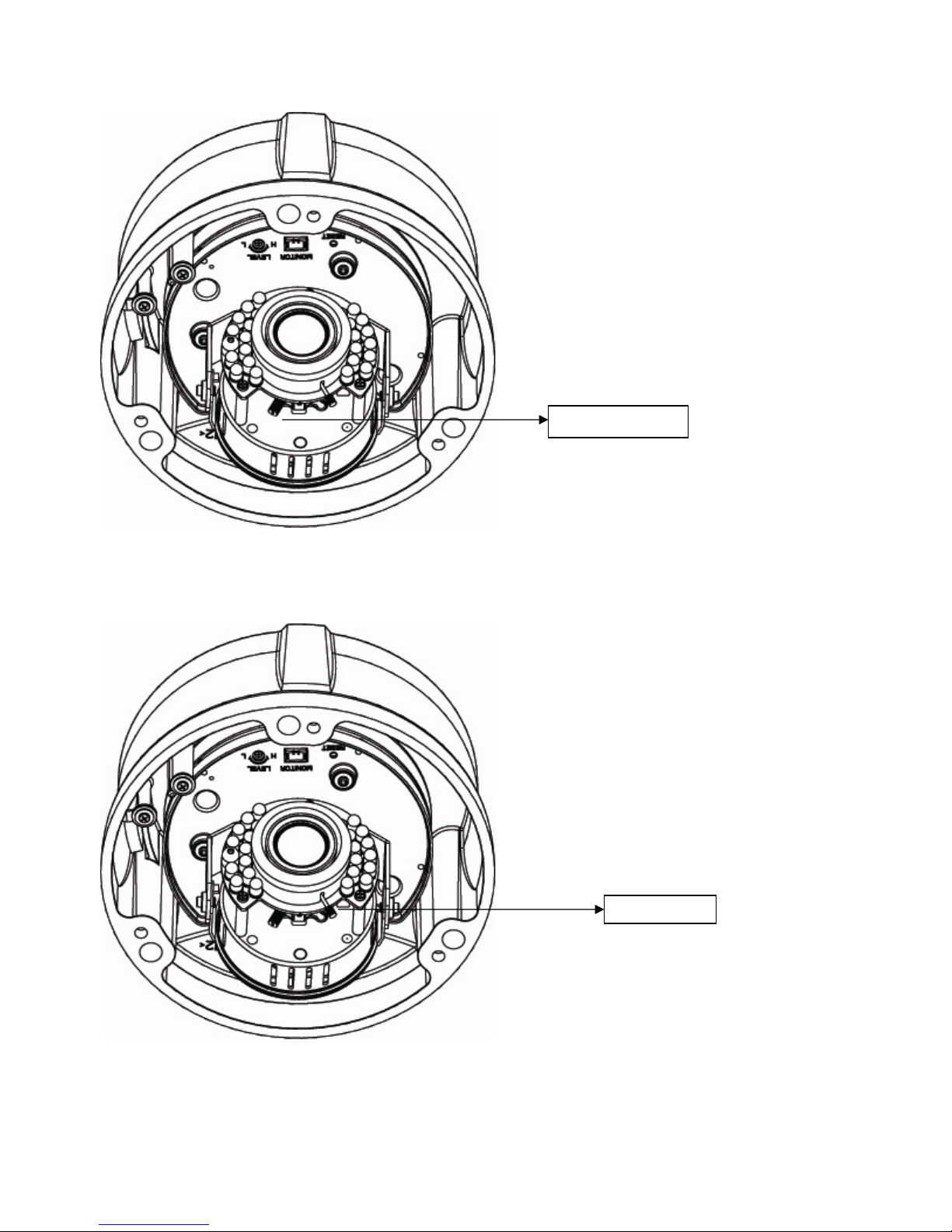
Rotate the main bracket
4. Adjust the pan/tilt angle: rotate the main bracket (or the pan adjustment) adjust the pan angle and rotate
the pan adjustment to adjust the tilt angle. Then adjust the camera zoom.
Zoom lever
5. Adjust focus lever: loosen the focus lever counterclockwise and adjust the focus for optimum picture
sharpness.
Focus lever
6. Install the dome cover: place the dome cover to match the screw positions and then tighten 3 screws to
lock it securely using the allen (hex) key provided.
3.1.5 Using “Smart Focus” to Adjust Focus Smartly
This network box camera provides “Smart Focus” to obtain correct focus on a subject, instead of requiring
users to adjust focus manually. 9 view zones are provided. When you obtain correct focus on each view
zone, the green light will be turned on.
1. Directly connect the video output cable to your monitor.
2. Press the reset button until the power is on.
3. The nine zones will appear in your monitor. Adjust the lens focus and symbols will be displayed on the
top left corner of each zone.
The green light: it means each view zone’s best focus position.
The red arrow: it means it is near the best focus position. You just need to fine-tune it.
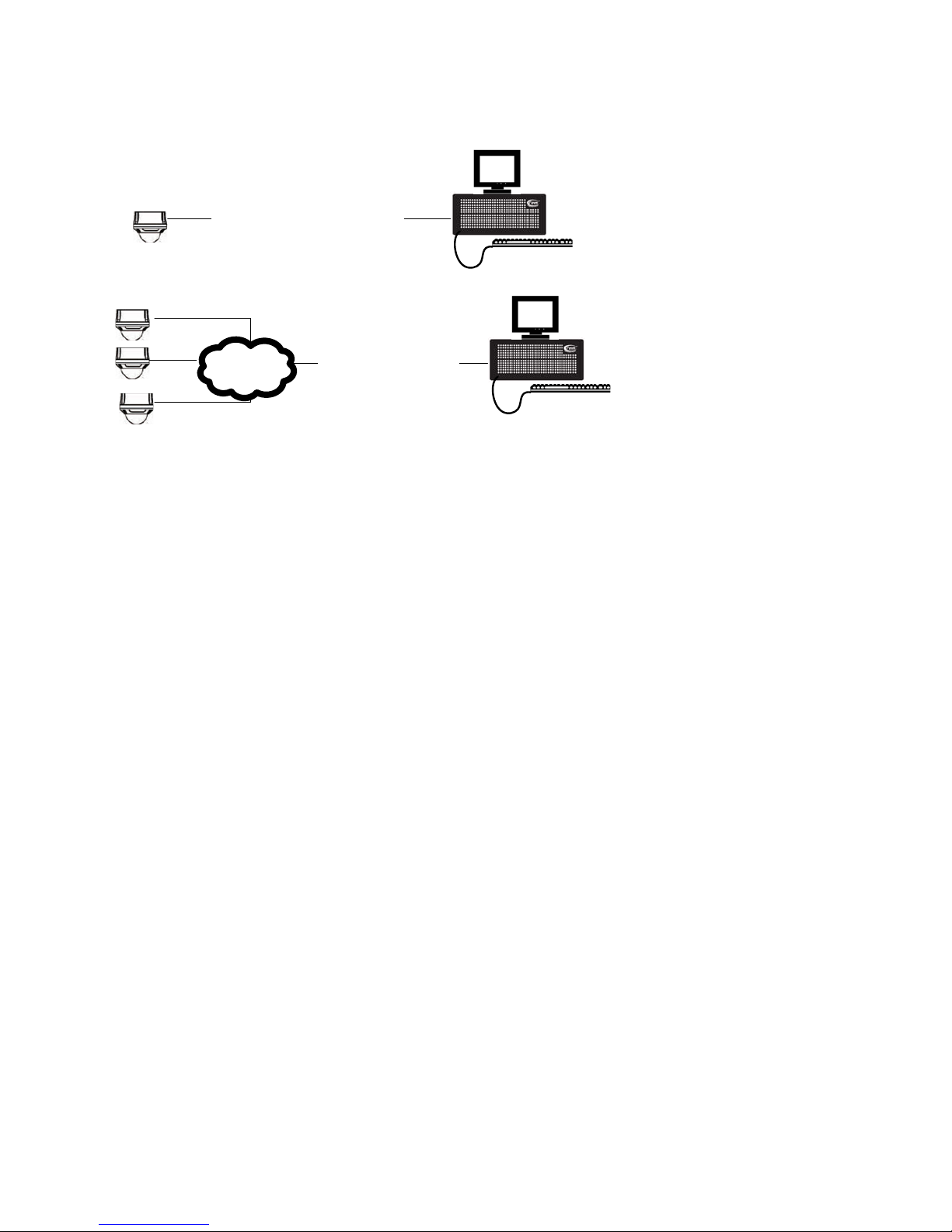
3.2 Network Camera Diagram
i³ iP-Pro Server
Crossover direct connection
LAN VIA a Gigabit Switch
i³ iP-Pro Server
Connection type: 1
Connection type: 2
3.3 Hardware/Software Requirement
Computer
i³ SRX-Pro/iP-Pro Version 1.610 or higher
Windows Vista or XP as OS
Internet Explorer Version 6.0 or later
CPU: Intel Pentium 4.2 GHz or higher
Memory: 512 MB or more
VGA card--support Direct X 9.0 or above
Power Supply
The camera requires a DC12V/AC24V/PoE power supply. Make sure you use the correct power supply
before connecting to this network camera. Use a RJ45 network connector to connect the camera to your
computer or hub switch.
Switch
A 1 Gigabit Switch is required to monitor two or more cameras from the same computer.
3.4 Connecting the Camera to a Personal Computer
This section details how to access the camera from a computer.
3.4.1 Setting IP
This is a network-based camera and must be assigned an IP address first.
Enter a default IP address manually. The camera’s default IP address is 192.0.0.16 and subnet mask
address is 255.255.255.0.
Obtain an IP address automatically from the DHCP server. You don’t need to change the camera’s IP
address if your network uses a DHCP server.
3.4.2 Connect the Camera to a Personal Computer
1. Connect the network cable to the camera and then turn on the camera’s power.
2. Set the personal computer’s IP address. The camera’s default IP address: 192.0.0.16 and subnet mask
is 255.255.255.0.