manuals.online logo
Brands
  1. Home
  2. •
  3. Brands
  4. •
  5. i3 International
  6. •
  7. Security Camera
  8. •
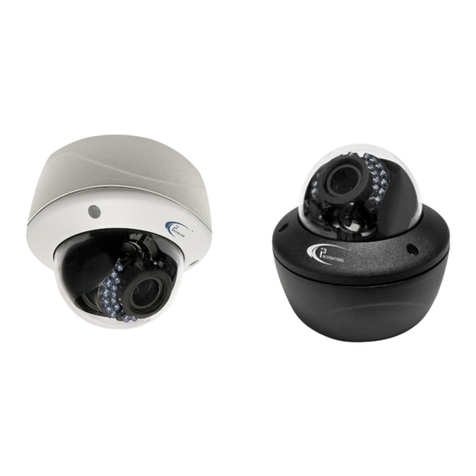
  9. i3 International Ax32VD14 User manual

i3 International Ax32VD14 User manual

This manual suits for next models

1

Other i3 International Security Camera manuals
i3 International Ax78R User manual

i3 International

i3 International Ax78R User manual

i3 International Am53 User manual

i3 International

i3 International Am53 User manual

i3 International Di210 User manual

i3 International

i3 International Di210 User manual

i3 International ANNEXXUS Ax41V1MVR User manual

i3 International

i3 International ANNEXXUS Ax41V1MVR User manual

i3 International Annexxus 52C User manual

i3 International

i3 International Annexxus 52C User manual

i3 International Ax46-series User manual

i3 International

i3 International Ax46-series User manual

i3 International C-AX401C1MN User manual

i3 International

i3 International C-AX401C1MN User manual

i3 International Ax49D User manual

i3 International

i3 International Ax49D User manual

i3 International Am52RM User manual

i3 International

i3 International Am52RM User manual

i3 International Ax46DC User manual

i3 International

i3 International Ax46DC User manual

i3 International Ax40W2 series User manual

i3 International

i3 International Ax40W2 series User manual

i3 International Am42 Series User manual

i3 International

i3 International Am42 Series User manual

i3 International Ax85 User manual

i3 International

i3 International Ax85 User manual
i3 International Ax68R User manual

i3 International

i3 International Ax68R User manual

i3 International Am57 User manual

i3 International

i3 International Am57 User manual

i3 International C-AX401D1M User manual

i3 International

i3 International C-AX401D1M User manual

i3 International Ax68R/Ax78R User manual

i3 International

i3 International Ax68R/Ax78R User manual

i3 International Am52R User manual

i3 International

i3 International Am52R User manual

i3 International Di721 User manual

i3 International

i3 International Di721 User manual

i3 International A 65W Series User manual

i3 International

i3 International A 65W Series User manual

i3 International Ax32V Series User manual

i3 International

i3 International Ax32V Series User manual

i3 International i3-B731 User manual
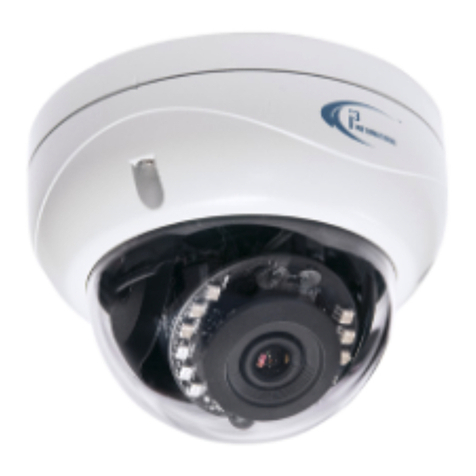
i3 International

i3 International i3-B731 User manual

i3 International Ax52 Series User manual

i3 International

i3 International Ax52 Series User manual

i3 International Ax47DC User manual

i3 International

i3 International Ax47DC User manual

Popular Security Camera manuals by other brands

ADEMCO RapidDome Owners Operating & Installation Guide

ADEMCO

ADEMCO RapidDome Owners Operating & Installation Guide

EverFocus EBA2880 user manual

EverFocus

EverFocus EBA2880 user manual

Honeywell OptiCAM-IR Installation and setup guide

Honeywell

Honeywell OptiCAM-IR Installation and setup guide

Uniq UC-600 user manual

Uniq

Uniq UC-600 user manual

OPTICOM NVD-120-S datasheet

OPTICOM

OPTICOM NVD-120-S datasheet

Steren CCTV-221 instruction manual

Steren

Steren CCTV-221 instruction manual

Arm Electronics C420BCDNVFIR Features

Arm Electronics

Arm Electronics C420BCDNVFIR Features

Eneo PLD-2036PTZ installation guide

Eneo

Eneo PLD-2036PTZ installation guide

Axis AXIS M20 Series installation guide

Axis

Axis AXIS M20 Series installation guide

Panasonic KX-HCM230 operating instructions

Panasonic

Panasonic KX-HCM230 operating instructions

COP-USA CC15NV-SL Specifications

COP-USA

COP-USA CC15NV-SL Specifications

Active Silicon HARRIER H.264 quick start guide

Active Silicon

Active Silicon HARRIER H.264 quick start guide

Motorola Avigilon 1.3C-H5SL-BO1-IR installation guide

Motorola

Motorola Avigilon 1.3C-H5SL-BO1-IR installation guide

INSTEON 2864-232 user manual

INSTEON

INSTEON 2864-232 user manual

Wisenet XNB-6002 quick start guide

Wisenet

Wisenet XNB-6002 quick start guide

Axis M5525-E user manual

Axis

Axis M5525-E user manual

Vitek VTC-IR62NZ922 user guide

Vitek

Vitek VTC-IR62NZ922 user guide

Panasonic WV-SF342 Specifications

Panasonic

Panasonic WV-SF342 Specifications

manuals.online logo
manuals.online logoBrands
  • About & Mission
  • Contact us
  • Privacy Policy
  • Terms and Conditions

Copyright 2025 Manuals.Online. All Rights Reserved.

Ax32V Camera Series
Instruction Manual
Before attempting to connect or operate this product, please read these instructions carefully and save this
manual for future use.
CONTENTS
INTRODUCTION .................
....................................................
SPECIFICATIONS ...............................................................
INSTALLATION..................................................................
2
3
5
Annexxus Mini Network Dome Camera User Guide Ax32V Models
All rights reserved. No part of this manual may be reproduced or transmitted in any form or by
any means, electronic or mechanical, including photocopying, recording, or by any information
storage or retrieval system, without the prior written permission of the copyright owner and the
publisher. Annexxus is a registered trademark of i³ International. i³ reserves the right to change
the contents of this manual without notice.
Disclaimer
Annexxus Mini Network Dome Camera User Guide is provided as is, without warranty of any
kind, expressed or implied, including but not limited to performance, merchantability, or fitness for
any particular purpose. Neither i³ International Inc. nor its dealers or distributors shall be liable to
any person or entity with respect to any liability, loss, or damage, caused or alleged to have been
caused directly or indirectly by this information. Furthermore i³ International Inc. reserves the
right to revise this publication, and to make changes to the content at any time, without notice.
FCC
This device complies with part 15 of the FCC Rules. Operation is subject to the following two
conditions: (1) This device may not cause harmful interference, and (2) this device must accept
any interference received, including interference that may cause undesired operation.
Address:
i³ International Inc. • 780 Birchmount Road, Unit 16 • Scarborough • Ontario • Canada M1K 5H4
Tech Support: 1.877.877.7241 or email to: supp[email protected]
Web Site: www.i3international.com
1
1 Introduction
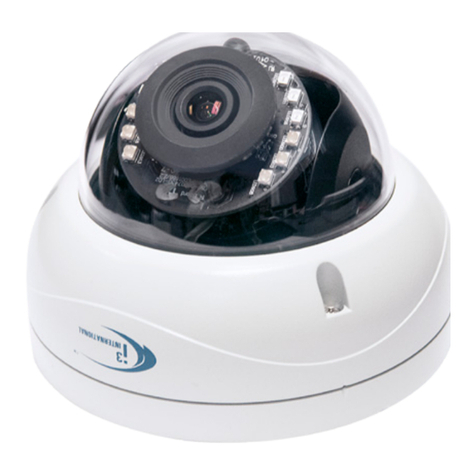
Thank you for purchasing an i³ Annexxus Network Camera. The Ax32V models are vandal-proof
dome cameras that can be viewed on site or remotely. They come with i³’s Annexxus Web Viewer
software which operates on an Internet Explorer web browser platform so is easy to install and
offers a range of user-friendly video functions.
The Ax32V cameras integrate perfectly into i³ International’s SRX-Pro DVMS systems.
1.1 Precautions
Safety
1. This quick start guide is designed for users who have an adequate knowledge of network
cameras.
2. Do not touch the imaging surface of the sensor. Use a soft cloth moistened with alcohol to
clean the surface if it is touched accidentally.
3. Ensure the power supply voltage is correct for the particular variant of camera before
operation.
4. Do not attempt to service this camera yourself unless you are authorized to do so. Opening the
camera may expose you to electrocution or other hazards. Refer all servicing to qualified
personnel only.
5. For more details on installation and operation, please refer to the CD provided.
1.2 Unpacking
Camera Parts and Definition
Hardware/Software Requirements
2
Ax32V2M series Specifications:
Model Ax32V2M series
Parameter 2 megapixel CMOS IP Vandal-Proof Indoor Dome Camera
Camera
Image Sensor 1/3 inch CMOS
Electronic Shutter 1/25s ~1/100,000s
Min. Illumination
Color: 0.5Lux @ F1.2
B / W: 0.1Lux @ F1.2
Lens
4mm, F1.2 Fixed Iris (2.8, 6, 8mm optional)
Angle of view: 90°
Day / Night Electronic
Video Parameter Saturation/Brightness/Contrast/ adjustable through client software or web browser
Adjustment Range Pan±15°, Tilt0~90°, Rotation±15°
Compression Standard
Video Compression H.264/Mpeg4/MJpeg
Bit rate 32 Kbps~16Mbps
Audio Compression OggVorbis
Image
Max. Image
Resolution 1600 x 1200
Frame Rate 15fps (1600 x 1200), 30fps (1280 x 720)
Function
e-PTZ Yes
Storage Support NAS, ISCSI
Intelligent Alarm Motion Detection, Video Tampering, Video Loss, Network Broken, IP address
conflict, Storage exception
Protocols TCP/IP,HTTP,DHCP,DNS,DDNS,RTP/RTCP,PPPoE,FTP,SMTP,NTP,SNMP,HTTP
S, SIP, 802.1x, IPV6
Basic Initial Set button, Anti-flicker, Dual Stream, Heartbeat, Password Protection,
watermark
3-Axis adjustment Yes
Interface
Audio Internal Microphone optional
Communication
Interface 1 RJ45 10M / 100M self adaptive Ethernet port
General
Operating Condition -10°~60°, Humidity 90% or less(non-condensing)
Power Supply DC12V±10% / PoE
Power
Consumption 3W MAX
Impact Protection IEC60068-275Eh,50J;EN50102, exceeding IK10
Weather Proof IP66
Dimensions(mm) 100×97.5×46.5
Weight 250g
3
Ax32VD1 Series Specifications
Model Ax32VD1 Series
Parameter VGA Real-time CMOS Mini IP Vandal-proof Dome Camera
Camera
Image Sensor 1/4 inch CMOS
Electronic Shutter 1/25s ~1/100,000s
Min. Illumination
Color: 0.1 Lux @ F1.2
B / W: 0.01Lux @ F1.2
Lens
4mm, F1.2 Fixed Iris(2.8, 6, 8mm optional)
Angle of view: 71°
Day / Night Electronic
Video Parameter Saturation/Brightness/Contrast/ adjustable through client software or web browser
Adjustment Range Pan±15°, Tilt0~90°, Rotation±15°
Compression Standard
Video Compression H.264/Mpeg4/MJpeg
Bit rate 32 Kbps~8Mbps
Audio Compression OggVorbis
Image
Max. Image Resolution 640×480
Frame Rate 30fps @ 640×480
Function
Storage Support NAS, ISCSI
Intelligent Alarm Motion Detection, Video Tampering, Video Loss, Network Broken, IP address conflict,
Storage exception
Protocols TCP/IP,HTTP,DHCP,DNS,DDNS,RTP/RTCP,PPPoE,FTP,SMTP,NTP,SNMP,HTTPS,
SIP, 802.1x, IPV6
Basic Initial Set button, Anti-flicker, Dual Stream, Heartbeat, Password Protection,
watermark
3-Axis adjustment Yes
Interface
Audio Internal Microphone optional
Communication Interface 1 RJ45 10M / 100M self adaptive Ethernet port
General
Operating Condition -10°~60°, Humidity 90% or less(non-condensing)
Power Supply DC12V±10% / PoE
Power Consumption 3W MAX
Impact Protection IEC60068-275Eh,50J;EN50102, exceeding IK10
Weather Proof IP66
Dimensions(mm) 100×97.5×46.5
Weight 250g
4
2 Camera connection & Annexxus Installation
Topics covered
Connecting the network camera
Network camera IP configurations
Annexxus Web Viewer Installation and Setup details
Annexxus Advanced Setup
Note: Internet Explorer version 6.0 or higher is necessary to connect with an i3 International
network camera.
2.1 Connecting a network camera
Two methods of connecting a network camera and PC are shown below:
i³ iP-Pro Server
Crossover direct connection
LAN VIA a Gigabit Switch
i³ iP-Pro Server
Connection type: 1
Connection type: 2
Network camera
Network camera
Network camera
Network camera
2.2 Network Camera Default IP Configurations
The RJ-45 Network Port on the network camera will connect to an Ethernet/Fast Ethernet
standard (10/100Base-TX) network, complying with the IEEE 802.3U standard. Annexxus device
may be connected to a hub, switch or router with a straight through CAT5e cable, or directly to
the DVR/NVR with a crossover CAT5e cable.
Network Settings:
Ax32V Default IP configurations :
IP Address: 192.0.0.16
Subnet Mask: 255.255.255.0
2.3 Annexxus Web Viewer Installation and Setup details
Note: Internet Explorer version 6.0 or higher is necessary to connect with an i3 International
network camera.
2.3.1 Installing Annexxus Web Viewer and accessing Setup mode
1. Connect the network camera to the supported power source in accordance with the
connections diagram.
5
2. Connect the camera to a LAN/WAN network.
3. Before viewing, you may need to adjust your browser’s security settings. To do so:
From the Tool menu, click Internet Options.
Click on the Security tab.
If the camera is using the intranet, click the Local intranet icon. If the camera is using
the internet, click the Interneticon.
Click on Custom level. Under ActiveX controls and plug-ins, enable the following three
functions: ‘Download signed ActiveX controls’ ‘Run ActiveX control and plug-ins’
‘Script ActiveX controls marked safe for scripting”.
Click OK.
4. Open Internet Explorer browser window on a local PC/laptop and enter Annexxus IP address
(192.0.0.16 for Ax32V) in the address line.
5. When connecting for the first time, you may be prompted to install Annexxus 300 Active X
control. Click on the banner and select install the following Active X control ‘Annexxus 300’
from ‘I3 International Inc.’... from the context menu.
6
6. In the Internet Explorer - Security Warning window, click Install.
7. The Annexxus Web Viewer screen will be displayed with the Login window. Enter Annexxus
Username and Password and click Login.
Note
The login is case sensitive. The default administrative login is: Username: admin; Password:
1234
8. Annexxus Web Viewer opens and a live view from the camera appears.
9. To adjust parameters click the Setup button on the main screen . See the Annexxus
Advanced Setup section (s.2.4) of this manual for more information.
2.3.2 Changing IP Address
Your Ax32V2M series Network camera comes with the pre-assigned IP scheme: IP Address
192.0.0.16; Subnet mask: 255.255.255.0
To change camera IP Address:
1. Install Annexxus Active X as in section (2.3). Open and login to Annexxus.
2. Click the Setup button on the main screen and open the Network setup tab.
3. In the Network setup tab, configure IP settings, such as IP Address and Subnet Mask for LAN
connections or IP Address, Subnet Mask, and Gateway IP for WAN connections.
It is entirely the responsibility of a technician to be able to configure this setup page according to
customer’s network configurations.
7
4. Click the Save button and wait for the "Settings changes have been successfully saved”
message window to pop up. Click OK to close the message window.
5. Wait for “Please reboot Annexxus device to apply changes” window to pop up. Click OK. Click
Reboot button.
6. Wait for “Would you like to reboot Annexxus device?” window to pop up. Click OK.
7. Wait for “Annexxus device is rebooting. Close Internet Explorer browser, wait 45 seconds and
connect to Annexxus Viewer again” window to pop up. Click OK.
2.4 Annexxus Advanced Setup
To change additional network camera settings, click the Advanced Setup button .
Four setup tabs are available in Advanced Setup: Device Information, Channels, Network and
User Management.
In the bottom of each setup window there are four control buttons: Restore,Reboot,Save and
Close.
The Restore button is available to authorized users only. Click it to restore the Annexxus device
settings to the factory default settings. Settings must be restored to factory default after each
firmware upgrade. WARNING: All custom settings will be lost, including any additional users.
The Reboot button is available to authorized users only. Click it to reboot the Annexxus device. A
device reboot is required after the video recording settings have been changed or after a firmware
upgrade. Read related section for instructions on rebooting the device.
8
The Save button is available to authorized users only. Click it to save any setting changes. To
prevent unauthorized users from making changes to the Annexxus device, disable the Save
button in the User Management setup tab.
The Close button closes the Advanced Setup window.
2.4.1 Device Information Setup
The following information about the Annexxus device can be found in the Device Information
setup: the number of video channels, sensor inputs, control outputs and internal storage devices
connected to the network, the current device firmware version and the device’s serial number.
Authorized users can also assign/change the device name, change the overwrite mode and
upgrade the device's firmware version.
NOTE: Overwrite Mode only functions when used in conjunction with SRX-Pro software.
Device Name
In Device Name, enter the camera’s custom name.
Firmware Upgrade
This function is only available to authorized users. Read the Upgrading Firmware section for
instructions on how to upgrade Annexxus device firmware.
9
V3.0 build 10/206