Introduction
Please write your serial number here for future reference:
Purchased at:
Date of purchase:
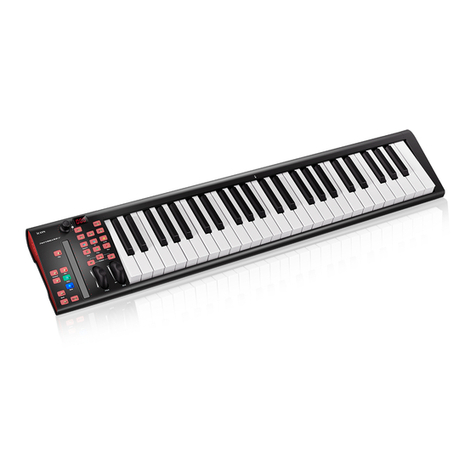
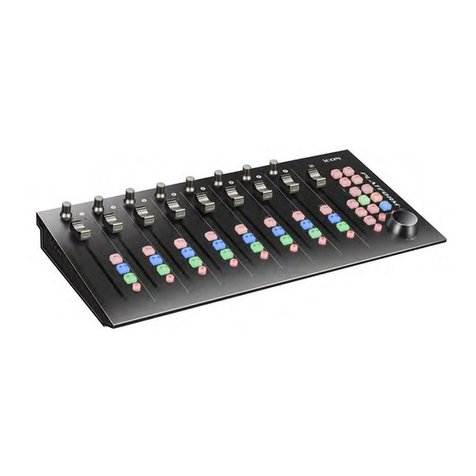
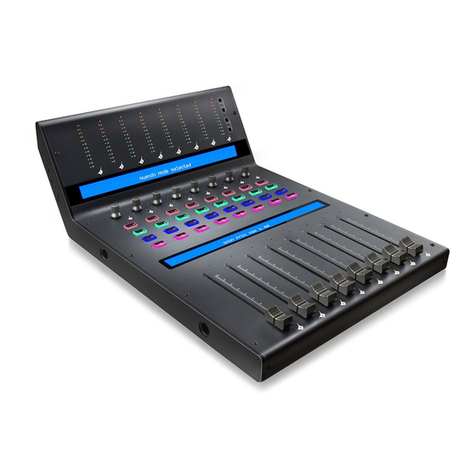
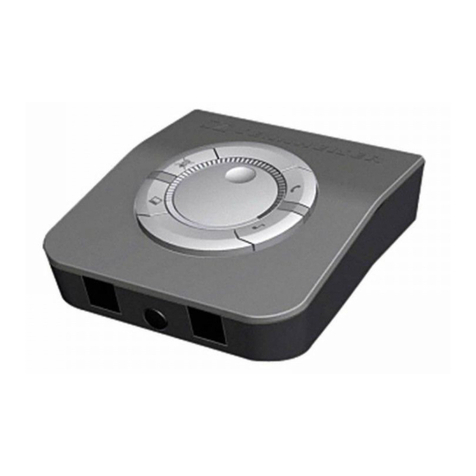
Thank you for purchasing the ICON iControls USB MIDI controller. We sincerely
trust this product will provide years of satisfactory service, but if anything is not to
your complete satisfaction, we will endeavor to make things right.
In these pages, you'll find a detailed description of the features of the iControls,
as well as a guided tour through its front and side panels, step-by-step
instructions for its setup and use, and full specifications.
You'll also find a warranty card enclosed. Please don't forget to fill it out and mail
it so that you can receive online technical support at: www.icon-global.com. And
so we can send you updated information about these and other ICON products in
the future. As with most electronic devices, we strongly recommend you retain
the original packaging. In the unlikely event the product must be returned for
servicing, the original packaging (or reasonable equivalent) is required.
With proper care and adequate air circulation, your iControls will operate without
any trouble for many years. We recommend that you record your serial number
in the space provided below for future reference.
What's in the package?
iControls USB MIDI controller x 1
Software CD x 1
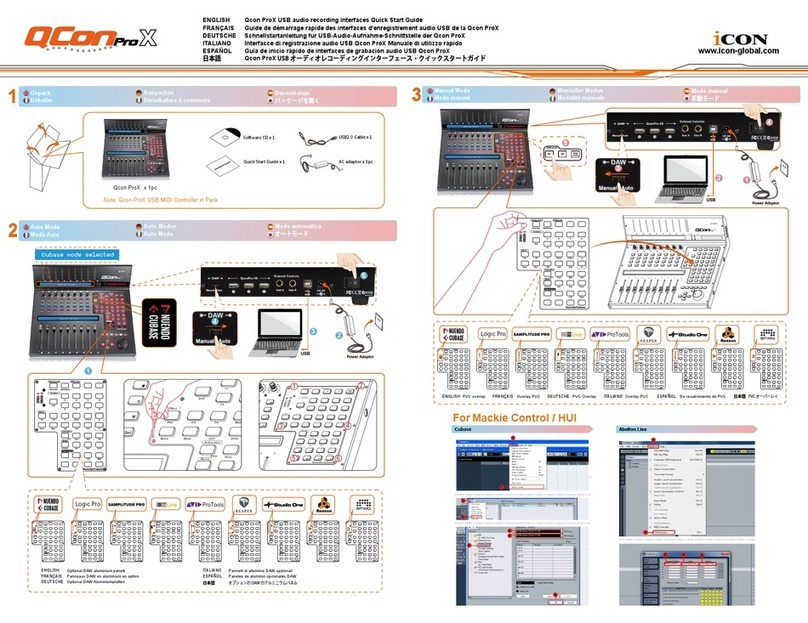
Quick Start Guide
USB2.0 Cable
1
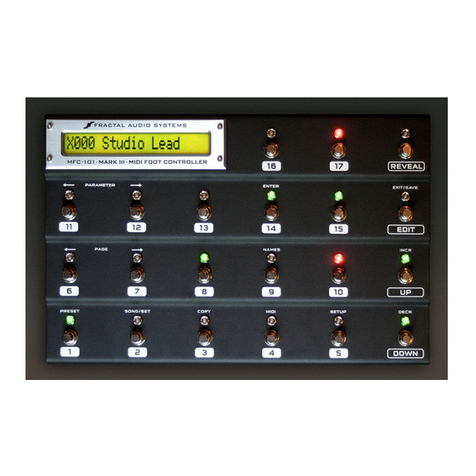
C o n t ro l s
Co n t r o l s
e1
Layer
e2 e3 e4 e5 e6 e7 e8 e9
1 2
3 4
f1 f2 f3 f4 f5 f6 f7 f8 f9
- +
1394USB1USB2
Make Connections
1
www.icon-global.com
QuickStart Guide for Mac & Windows
1
ICPK PD3AV100
www.icon-global.com
Unpack
2
2
3
3
4
4
TM
Note: Launch the iMap software
and choose the device whose settings
you wish to adjust. After you have
adjusted the settings, upload it to your
i-series controller with the "Send Data"
button.
5
5
Setup the MIDI functions
TM
with iMap software
12
3
45
6
7
8
9
ab
10
Series
CUBE
Note: iKey / iPad / iControls USB MIDI Controller in Pack
Insert the CD into your CD-Rom,
an installation CD icon appears in
desktop; click the icon to start the
install wizard
Turn on your Mac
MACTurn on your computer
PC
TM
Install iMap software
Note: please do not connect your
i-series controller at this stage.
Make Connections
34
5
12
6
a
b
7
Controls
e1
Layer
e2 e3 e4 e5 e6 e7 e8 e9
12
34
f1 f2 f3 f4 f5 f6 f7 f8 f9
-+
P
ad
p5 p6
p7 p8 p9 p
10 p
11p
12
Artist Hold
Flam
Roll
f1
1234
key
Octave
Sustain
Mod Pitch
or
or
Note: please do not connect your
i-series controller at this stage.
TM
Install iMap software
TM
Note: Launch the iMap software and
choose the device whose settings you
wish to adjust. After you have adjusted
the settings, upload it to your i-series
controller with the "Send Data" button.
Note: Connect the USB cable which is
provided from your Mac's USB port
to your i-series controller's USB port
(B-Type).
Note: Connect the USB cable which is
provided from your PC's USB port to
your i-series controller's USB port
(B-Type).
Setup the MIDI functions
TM
with iMap software
8
9
10
CUBE