7
While the IPEVO Presenter (for iPad) focuses more on live view controls than
annotation functions, the IPEVO Whiteboard is quite the contrary. For those
who are looking for more annotation functions, or wish to annotate onto
blank “whiteboards”, you can choose to download the IPEVO Whiteboard
app instead.
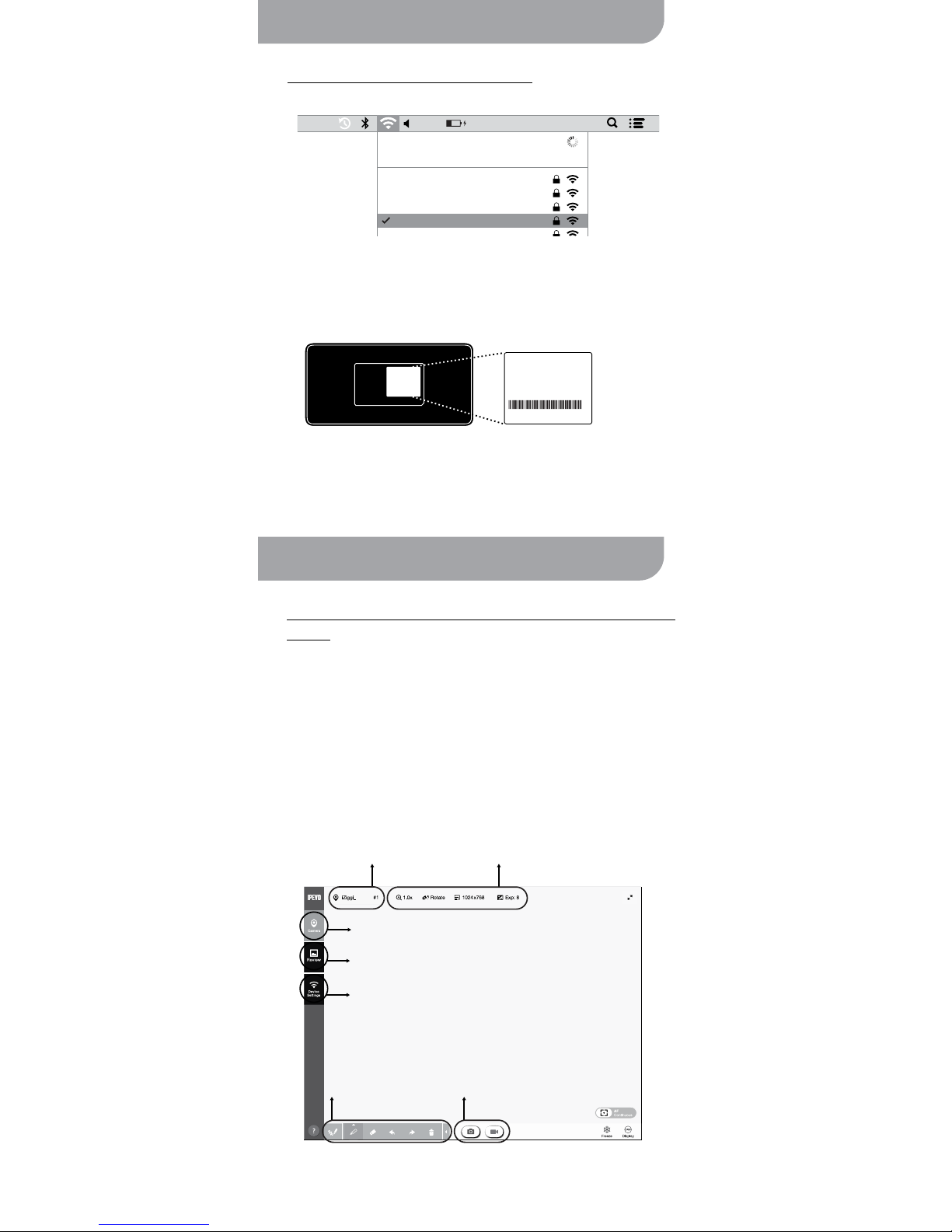
• Camera Mode: View the live view from your document camera. Tap on
the “Select Video Device” menu to choose your preferred device from
the list of devices available.
• Review Mode: Allows you to easily view and manage captured snap-
shots or videos.
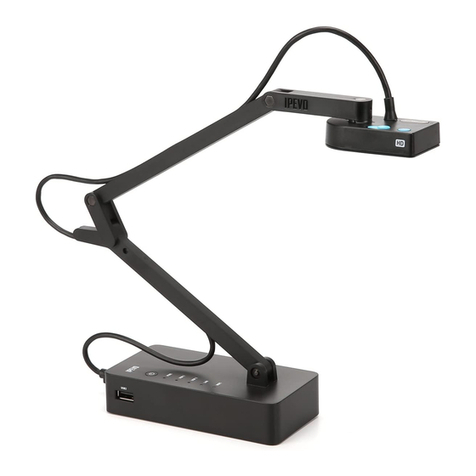
• Device Settings Mode: Allows you to manage Wi-Fi connection, enable
Wireless Disk function and adjust other advanced settings of iZiggi-HD.
• Image Customizations: Choose from a range of functions available to
customize the live view, including Zoom, Rotate, Focus, Resolution and
Exposure adjustments, and more.
• Annotation Functions: You can draw and annotate directly onto the live
view or images/videos captured using the Pen tool.
• Snapshots and Videos: Take snapshots and record videos, voiceover/
audio and any annotation you create.
Using iZiggi-HD with IPEVO Apps/Software (cont’d)
B. iPad: Using iZiggi-HD with IPEVO Whiteboard
Follow these steps to connect IPEVO Whiteboard app and iZiggi-HD:
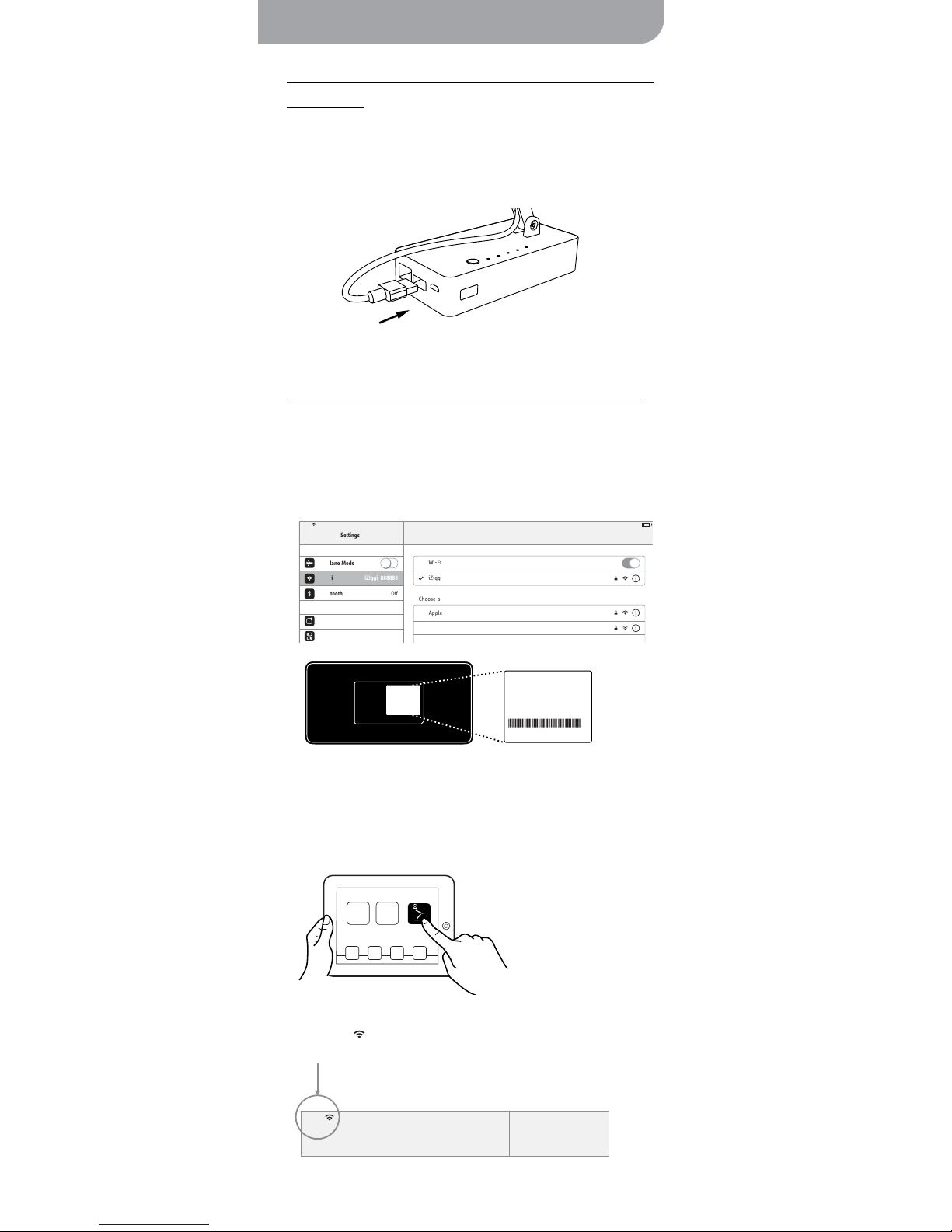
1. Connect your iPad to iZiggi-HD’s SSID. Refer to Section D on page 5.
2. Launch IPEVO Whiteboard.
3. Tap on the “Live View” icon and the live view coming from the iZiggi-HD
will appear on your iPad.
With IPEVO Whiteboard, you can save your drawings and annotations to
an external USB storage connected to the iZiggi-HD’s USB port, or import
images from the USB storage for presentation.
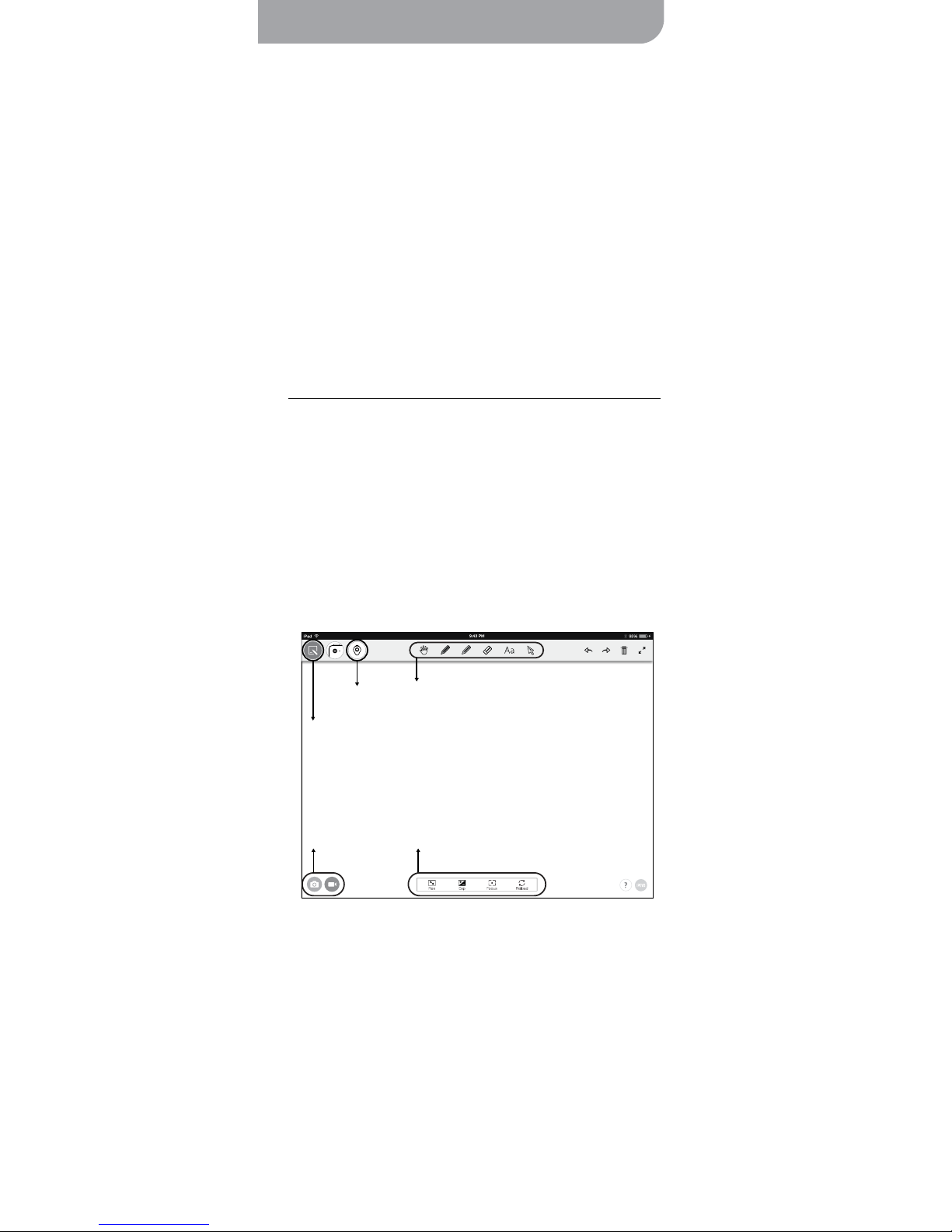
• Live View: Tap the “Live View” icon to select and view the live view
from your connected iZiggi-HD, and to access its settings.
• Whiteboard Mode: Turn your iPad into blank “whiteboard” for drawing
or annotating.
• Annotation Functions: Draw and annotate directly onto the live view
using the pen brush function. You can choose from a variety of sizes
and colors. You can also add texts onto the live view.
• Image Customizations: Choose from a range of functions available to
customize the live view, including Resolution, Exposure and Focus.
• Snapshots and Videos: Take snapshots and record videos, voiceover/
audio and any annotation you create.