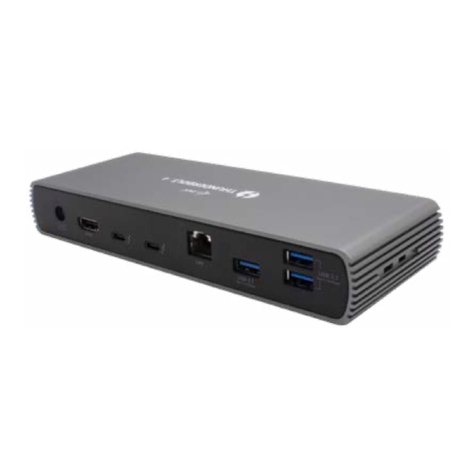
Notes for using the docking station with monitors:
Working on the connected monitor when the Mac monitor is closed is possible with the power
supply from the grid (there are some limitations when using a HDMI monitor on older versions of
Mac). When the power supply is from the battery, the use of a HDMI monitor is limited by the Mac
(in some situations in case of problems with displaying it is possible to use the method described in
the following paragraph).
Most problems with renewing the screen on the connected monitor after hibernation of the Mac,
after using screensaver, after restarting the Mac, after turning the Mac OFF / ON can be solved by
disconnecting the Thunderbolt™ cable of the docking station from the Thunderbolt™ port on the
Mac and reconnecting it after approximately 10s. Please wait for completion of connection of all
peripherals.
B: After connecting other devices to the docking station (e.g., Ethernet cable to the GLAN port,
Thunderbolt™external HDD, USB external HDD, USB keyboard, USB mouse) these devices are used in a
standard way.
Most problems with the docking station and the connected peripherals can be solved by disconnecting
the Thunderbolt™ cable of the docking station from the Thunderbolt™ port on the Mac and reconnecting
it after approximately 10s.
CHARGING
The docking station supports charging of the connected USB mobile devices such as smart phones, e-book
readers, multimedia players, navigation devices, and tablets. Simply connect the device that you want to
charge using the original cable to the USB port of the docking station.
AUDIO
Audio output devices for earphones connected to the docking station need to be set / verified here:
System Preferences-Sound-Output –select USB Advanced Audio Device.
Setting the audio output device to both the earphones and the monitor simultaneously can be
done in Open-Applications-Utilities-Audio settings MIDI.app –click on „+“ on the left at the
bottom –Create device with multiple outputs and select the desired outputs from the offered
options on the Device with multiple outputs.
Input device for a microphone connected to the docking station needs to be set / verified here:
System Preferences-Sound-Input –select USB Advanced Audio Device.
SAFETY INSTRUCTIONS
Do not expose to extreme temperatures and air humidity
Use the device on flat surfaces –you will prevent it from slipping and falling to the ground.
Save the drivers and the user manual for a possible use later.
In cooperation with the service department:
Check functionality after falling to water or to the ground.
Check functionality when the cover is broken.
Send the device back if it does not work in accordance with the user manual.
FREQUENTLY ASKED QUESTIONS FOR MAC
Question: What are the requirements for primary graphics cards to use with the chipsets in the i-tec
THUNDERBOLT™ 2 docking station?
Answer: We recommend a Mac with Intel i5 and higher for mostly office work and Intel i7 for playback of
one video at a time.
Question: Where can I check the connection of the docking station i-tec THUNDERBOLT™ 2 and other
connected peripherals in the Mac?
Answer: After connecting the docking station to the Thunderbolt™port in the Mac you can check the
connection here: About this Mac-System Profile-Hardware-Thunderbolt. You can see the parameters of
the Thunderbolt™ port in the Mac and in the docking station. Connection of other devices to the docking
station can be checked here: