manuals.online logo
Brands
  1. Home
  2. •
  3. Brands
  4. •
  5. König
  6. •
  7. Security Camera
  8. •
  9. König SAS-IPCAM110 User manual

König SAS-IPCAM110 User manual

This manual suits for next models

1

Other König Security Camera manuals

König SEC-DUMMYCAM40 User manual

König

König SEC-DUMMYCAM40 User manual

König SAS-DUMMYCAM30 User manual

König

König SAS-DUMMYCAM30 User manual

König SAS-IPCAM2 Series User manual

König

König SAS-IPCAM2 Series User manual

König SEC-CAM395 User manual

König

König SEC-CAM395 User manual

König SAS-IPCAM111B User manual

König

König SAS-IPCAM111B User manual

König CSACWG100 User manual

König

König CSACWG100 User manual

König SAS-IPCAM300W User manual

König

König SAS-IPCAM300W User manual

König SAS-DUMMYCAM25 User manual

König

König SAS-DUMMYCAM25 User manual

König SEC-CAM780 User manual

König

König SEC-CAM780 User manual

König SAS-DUMMYCAM90 User manual

König

König SAS-DUMMYCAM90 User manual

König SAS-DUMMYCAM70 User manual

König

König SAS-DUMMYCAM70 User manual

König SAS-DUMMYCAM80 User manual

König

König SAS-DUMMYCAM80 User manual

König SAS-DUMMYCAM10 User manual

König

König SAS-DUMMYCAM10 User manual

König SAS-DUMMYCAM60 User manual

König

König SAS-DUMMYCAM60 User manual

König SAS-DUMMYCAM95 User manual

König

König SAS-DUMMYCAM95 User manual

Popular Security Camera manuals by other brands

ADEMCO RapidDome Owners Operating & Installation Guide

ADEMCO

ADEMCO RapidDome Owners Operating & Installation Guide

EverFocus EBA2880 user manual

EverFocus

EverFocus EBA2880 user manual

Honeywell OptiCAM-IR Installation and setup guide

Honeywell

Honeywell OptiCAM-IR Installation and setup guide

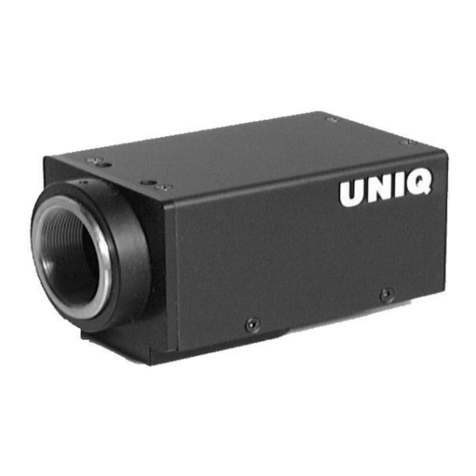
Uniq UC-600 user manual

Uniq

Uniq UC-600 user manual

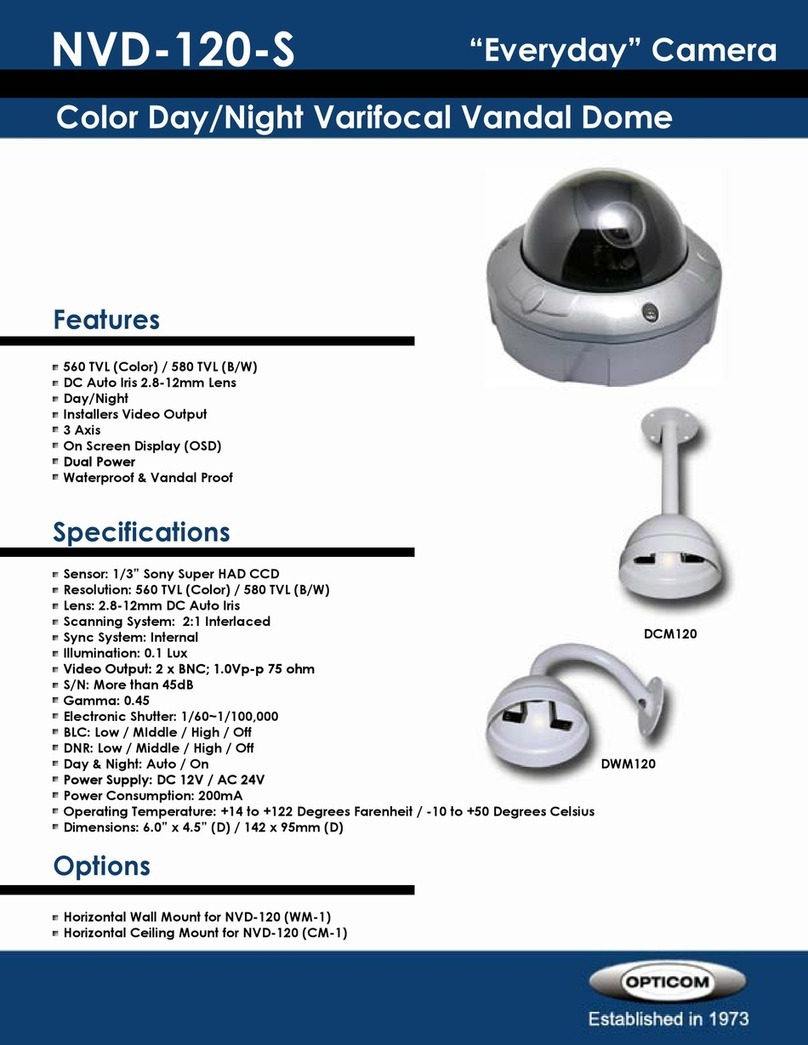
OPTICOM NVD-120-S datasheet

OPTICOM

OPTICOM NVD-120-S datasheet

Steren CCTV-221 instruction manual

Steren

Steren CCTV-221 instruction manual

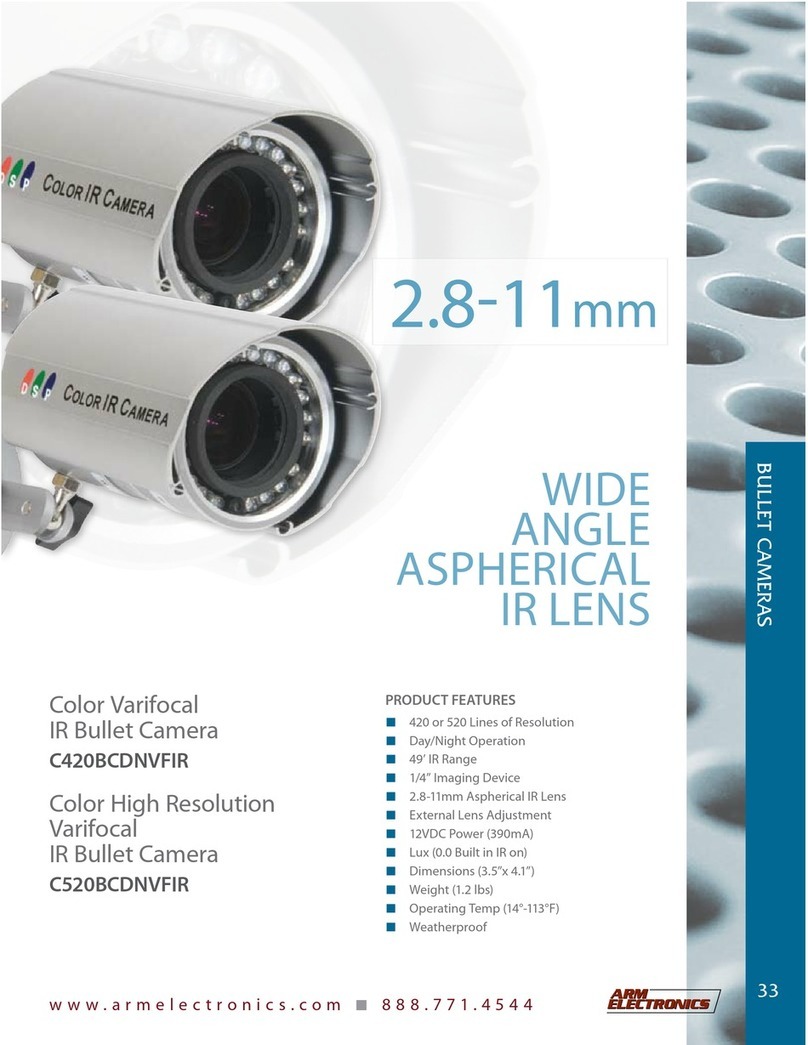
Arm Electronics C420BCDNVFIR Features

Arm Electronics

Arm Electronics C420BCDNVFIR Features

Eneo PLD-2036PTZ installation guide

Eneo

Eneo PLD-2036PTZ installation guide

Axis AXIS M20 Series installation guide

Axis

Axis AXIS M20 Series installation guide

Panasonic KX-HCM230 operating instructions

Panasonic

Panasonic KX-HCM230 operating instructions

COP-USA CC15NV-SL Specifications

COP-USA

COP-USA CC15NV-SL Specifications

Active Silicon HARRIER H.264 quick start guide

Active Silicon

Active Silicon HARRIER H.264 quick start guide

Motorola Avigilon 1.3C-H5SL-BO1-IR installation guide

Motorola

Motorola Avigilon 1.3C-H5SL-BO1-IR installation guide

INSTEON 2864-232 user manual

INSTEON

INSTEON 2864-232 user manual

Wisenet XNB-6002 quick start guide

Wisenet

Wisenet XNB-6002 quick start guide

Axis M5525-E user manual

Axis

Axis M5525-E user manual

Vitek VTC-IR62NZ922 user guide

Vitek

Vitek VTC-IR62NZ922 user guide

Panasonic WV-SF342 Specifications

Panasonic

Panasonic WV-SF342 Specifications

manuals.online logo
manuals.online logoBrands
  • About & Mission
  • Contact us
  • Privacy Policy
  • Terms and Conditions

Copyright 2025 Manuals.Online. All Rights Reserved.

SAS-IPCAM110
MANUAL
IP CAMERA
Questo manuale d’istruzione è fornito da trovaprezzi.it. Scopri tutte le offerte per König SAS-
IPCAM110B o cerca il tuo prodotto tra le migliori offerte di Videosorveglianza
ENGLISH
2
Introduction:
Install the IP camera in your home and watch over your properties. It is easy to set up and
requires no complex conguration: just plug and play. The free uCare Cam app, available
on Google Play and the Apple App Store, allows you to view the camera remotely on your
smartphone or other mobile devices anytime, anywhere. Equipped with pan & tilt function,
which enables you to remotely move it both vertically and horizontally. The camera features
two-way audio so you can also use it as a baby monitor.
• We recommend that you read this manual before installing/using this product.
• Keep this manual in a safe place for future reference.
Safety precautions:
This product should ONLY be opened by an authorized technician when service is required.
Disconnect the product from mains and other equipment if a problem should occur. Do not
expose the product to water or moisture.
Packaging content:
1x IP camera
1x Camera mount
1x AC/DC adapter
1x Quick start guide
1x CD with complete manual
System requirements:
• Device running on iOS 5.0 and above
• Device running on Android 4.0 and above
• WiFi Router
Table of contents
• Introduction:
• Safety precautions:
• Packaging content:
• System requirements:
• Product description:
• User instructions:
• Maintenance:
• Warranty:
• Disclaimer:
• Disposal:
ENGLISH
3
Product description:
1. Microphone
2. Light intensity sensor
3. Lens
4. IR LED
5. Loudspeaker
6. Antenna
7. Micro SD card slot
8. 5V DC input
9. IO alarm connector
10. Ethernet connector
Bottom:
• Wi/Ethernet switch
• Connection for wall mount
• WPS/RESET button
User instructions:
A. Hardware Installation
1. Please nd a location to install uCare Cam that is within good WiFi signal reach of your
home Router.
2. If you plan to hang the uCare Cam, you can use the included mounting kit found in inside
box.
3. If the included power cable does not have sucient length to reach power outlet, please
purchase an extender cable from your local electronics store.
4. Connect the camera power adapter.
ENGLISH
4
Warning:
Please use the power adapter included with your camera to avoid damage to
the camera.
When the camera powers up, the status LED will be Green for about 15 seconds before
ashing Red. If there is no Red LED ashing, please unplug the power cord, wait 5 seconds,
then re-connect the power again. It will take about 60 seconds for the uCare Cam to nish
starting up. The status LED should alternate between Red and Green. If the status LED does
not ash Red and Green, please press the WPS/REST button at the back of uCare Cam for
10seconds.
B. Hardware Installation
1. Download the Smartphone APP “uCare Cam” from App
store(iOS) or Play Store (Android).
2. Search for APP name “uCare Cam”, then download and install
it into Smartphone.
3. After the software installation is complete, the icon will
appear .
Click on this to run the APP.
C. uCare Cam APP Overview
Default camera password: 0000
Default manager name: admin
Default manager password: 0000
There are 4 major function Tabs at the bottom of the APP main screen.
Camera List Tab
This is the main APP screen. In this Tab, all the cameras which have been added will be listed.
WiFi Setting or WiFi Connect Tab
Please go to this Tab to congure uCare Cam WiFi settings.
There are two methods to install a new uCare Cam and connect it to a WiFi Router.
ENGLISH
5
1. Router Mode
2. WPS (WiFi Protect Setup) Mode (Requires a Router with WPS function using WPA/WPA2
encryption - WEP encryption will not work)
Play List Tab
Go to this Tab to view all Pictures taken by User via Smartphone. The Pictures will be listed by
camera.
Setting Tab
Congure uCare Cam settings and playback remote microSD Card video.
User will need to input a management ID and Password to enter this Tab.
Default management ID: admin
Default Password: 0000
If you forget your password, you can reset the uCare Cam by pressing the WPS/REST button at
the back of the camera for 10 seconds. This will restore uCare Cam to factory settings. You will
need to set up the WiFi connection again after you reset the camera.
D. iOS – Setup uCare Cam WiFi
Method 1: Use WPS (WiFi Protected Setup)
Available if your WiFi Router supports WPS and it is set to use WPA or WPA2 security
encryption. WEP security encryption is not supported in WPS mode. An easy way to check if
your Router supports WPS is to look for a button that says “WPS” on the Router. It may also be
called “AOSS” or “QSS”.
1. Press and hold the WPS/REST button for 10 seconds at the back of the camera. It will reset
and restart the uCare Cam. After about 60 seconds, the LED color should ash Green and
Red.
2. Press “WPS” button on WiFi Router
3. Press the WPS/REST Button on the back of the uCare Cam for 2 seconds.
If uCare Cam has entered the WPS connection mode, the status LED color will turn a fast
blinking Green.
4. uCare Cam will try for up to 2 minutes to connect to the WiFi Router using WPS.
5. If the LED color changes to Orange, your uCare Cam has successfully connected to your
Router. If the LED does not change to Orange, the setup has failed. Please make sure
the uCare Cam is within WiFi distance of your Router, press the WPS/REST button for
10seconds to reset uCare Cam, and try the setup again.
6. Use Smartphone APP to add uCare Cam into Camera list. See instruction manual –
“iOS-Add uCare Cam (already connected to Router) to APP”.
Method 2: Use Router Mode
You will rst need to connect to the Router that is available inside uCare Cam, congure the
WiFi settings for your home Router, then uCare Cam will restart and connect to your home
Router.
Write down or have handy, the SSID of your WiFi Router and your WiFi Password. For
example, the SSID may be something like “TP-Link-XXXXX” or “NETGEAR”. You will need
both the SSID and the Password during this process.
ENGLISH
6
1. Make sure the status LED on uCare Cam is blinking Red and
Green. If the status LED is not blinking Red and Green, please
press and hold the WPS/REST button for 10 seconds to reset
uCare Cam. Wait for 1-2 minutes for it to restart and the LED
should become Red and Green.
2. Connect your iOS device to the router inside uCare Cam. To
connect to uCare Cam router, open up “Settings” , then
“Wi-Fi” and let it search for network. The network will be “wi-
cam-p2p”. Click on “wi-cam-p2p” to connect.
3. Now, open the Smartphone APP “uCare Cam” and click on the
Tab at the bottom of the screen that says “WiFi Connect”.
Click on “Router mode”, then “Next”. You will see live video.
4. Enter the WiFi router SSID and password for your home
router. Click on “Next” button and again, on the next screen,
the “Next” button.
5. Please enter a Camera name (2 to 20 characters) and default
password “0000”. You are encouraged to change the default
password after setup for security purposes. Then click “Finish”.
6. After uCare Cam receives this information, it will restart.
Please wait for it to start up and connect to your home router.
When it successfully connects, the status LED color will turn
Orange. It may take up to 10 minutes. If the status LED color
does not turn Orange, please check your router and make
sure uCare Cam is within the signal area of your WiFi router.
Then try setup again, starting from Step3.
7. Your iOS device should have disconnected from “wi-cam-
p2p” and reconnected to your home Router. Please check
that your iOS device has connected to your home Router now,
via “Settings” -> “Wi-Fi”. If it has not, please connect your
Smartphone to your home Router WiFi.
8. Open “uCare Cam” Smartphone App, you can click on the
camera name in Camera List view to connect.
E. Android – Setup uCare Cam WiFi
There are two methods to setup uCare Cam to connect to a new WiFi Router.
Method 1: Use WPS (WiFi Protected Setup)
Available if your WiFi Router supports WPS and it is set to use WPA or WPA2 security
encryption. WEP security encryption is not supported for WPS mode. An easy way to check if

ENGLISH
7
your Router supports WPS is to look for a button that says “WPS” on the Router. It may also be
called “AOSS” or “QSS”.
1. Press and hold the WPS/REST button for 10 seconds at the back of the camera. It will reset
and restart the uCare Cam. After about 60 seconds, the LED color should ash Green and
Red.
2. Press “WPS” button on WiFi Router.
3. Press the WPS/REST Button on the back of the uCare Cam for 2 seconds.
If uCare Cam has entered the WPS connection mode, the status LED color will turn a fast
blinking Green.
4. uCare Cam will try for up to 2 minutes to connect to the WiFi Router using WPS.
5. If the LED color changes to Orange, your uCare Cam has successfully connected to your
Router. If the LED does not change to Orange, the setup has failed. Please make sure
the uCare Cam is within WiFi distance of your Router, press the WPS/REST button for 10
seconds to reset uCare Cam, and try the setup again.
6. Use Smartphone APP to add uCare Cam into Camera list. See instruction manual –
“Android - Add uCare Cam (already connected to Router) to APP”.
Method 2: Use Router Mode
Please have your WiFi password readily available as you will need it in this process.
1. Open the Smartphone APP “uCare Cam” and click on the
Tab at the bottom of the screen that says “WiFi Setting”.
2. Click on “Router mode”.
3. Make sure the status LED on uCare Cam is blinking Red and
Green. If the status LED is not blinking Red and Green, please
press and hold the WPS/REST button for 10 seconds to reset
uCare Cam. Wait for 1-2 minutes for it to restart and the LED
should become Red and Green.
4. Click “Next”. Your Smartphone will start to search for uCare
Cam. Once it nds it, you will see live video. Click on “Next”
button.
5. Your Smartphone will search for nearby WiFi signals. Once
they are found, you will see a list of Routers.
6. Click on your Router name and enter your WiFi password in
the pop-up screen.
ENGLISH
8
7. Please enter a Camera name (2 to 20 characters) and default
password “0000”. You are encouraged to change the default
password after setup for security purposes. Then click “OK” in
the top right corner.
8. The camera will restart and the Smartphone App will
automatically connect to the camera in Live View.
9. When uCare Cam successfully connects to your Router,
the status LED color will turn Orange. It may take up to 10
minutes. If the status LED color does not turn Orange, please
check your Router and make sure uCare Cam is within the
signal area of your WiFi Router. Then try the setup again.
10. If the setup is successful, the uCare Cam will be automatically added to your Camera List
window and you can click on the camera name to view Live Video.
F. iOS – Add uCare Cam (already connected to Router) to APP
There are three ways to add a uCare Cam to the Camera List view if the uCare Cam is already
connected to the internet. You can:
• Scan for uCare Cam in local intranet
• Scan QR code at back of uCare Cam
• Type in 20 digit code
Method 1: Scan for uCare Cam in local intranet
1. Make sure your Smartphone is connected to the same Router
as your uCare Cam. Open up the Smartphone APP “uCare
Cam” and click on the “+” at the top right of the screen.
2. Click on “Scan Camera’s UID in intranet”.
3. You will see a list of UID’s that were found on your local
intranet.
4. Click on the UID you would like to add.
5. Please enter a Camera name (2 to 20 characters) and the
camera password. Default password is 0000. Click “Done” on
top right of window.
6. You will see the Camera name now in Camera List view. It
should indicate that the Camera is “Online”. To connect to
the Camera, please click on Camera name. If the Camera is
not “Online”, you may need to force Reconnect. To force
Reconnect, click on the right arrow and click on “Reconnect”.
Click on Camera name once it shows “Online”.
ENGLISH
9
Method 2: Scan QR Code at back of uCare Cam
1. Make sure your Smartphone is connected to the internet. Open up the Smartphone APP
“uCare Cam” and click on the “+” at the top right of the screen.
2. Click on “Scan camera QR code”.
3. You will see your Smartphone camera live view. Face your Smartphone camera towards
the QR code found on the back of uCare Cam. Please make sure the QR code is clear and
fully viewable in the screen. Once the QR code has been detected, the APP will display the
UID in the APP window.
4. Please enter a Camera name (2 to 20 characters) and the camera password. Default
password is 0000. Click “Done” on upper right of the screen.
5. You will see the Camera name now in Camera List view. It should indicate that the Camera
is “Online”. To connect to the Camera, please click on Camera name. If the Camera is not
“Online”, you may need to force Reconnect. To force Reconnect, click on the right arrow
and click on “Reconnect”. Click on Camera name once it shows “Online”.
Method 3: Type in 20 digit QR code
1. Make sure your Smartphone is connected to the internet. Open up the Smartphone APP
“uCare Cam” and click on the “+” at the top right of the screen.
2. Click in the “UID” eld to enter typing mode.
3. Type in 20 digit code exactly as printed underneath the QR code in back of uCare Cam.
4. Please enter a Camera name (2 to 20 characters) and the camera password. Default
password is 0000. Click “Done” on upper right of the screen.
5. You will see the Camera name now in Camera List view. It should indicate that the Camera
is “Online”. To connect to the Camera, please click on Camera name. If the Camera is not
“Online”, you may need to force Reconnect. To force Reconnect, click on the right arrow
and click on “Reconnect”. Click on Camera name once it shows “Online”.
G. Android – Add uCare Cam (already connected to Router) to APP
There are three ways to add a uCare Cam to the Camera List view if the uCare Cam is already
connected to the internet. You can:
• Scan for uCare Cam in local intranet
• Scan QR code at back of uCare Cam
• Type in 20 digit code
ENGLISH
10
Method 1: Scan for uCare Cam in local intranet
1. Make sure your Smartphone is connected to the same Router
as your uCare Cam. Open up the Smartphone APP “uCare
Cam” and click on the “Click here to import installed
WiFiCam” at the top of the screen.
2. Click on “Search”.
3. You will see a list of UID’s that were found on your local
intranet (Figure XX).
4. Click on the UID you would like to add.
5. Please enter a Camera name (2 to 20 characters) and the
camera password. Default password is 0000. Click “OK” on the
bottom of the screen.
6. You will see the Camera name now in Camera List view. It
should indicate that the Camera is “Online”. To connect to
the Camera, please click on Camera name. If the Camera is
not “Online”, you may need to force Reconnect. To force
Reconnect, click and hold on Camera name. A pop-up window
will give you options to Reconnect, Edit, and Remove Camera.
Click on “Reconnect” then click on Camera name once it
shows “Online”.
Method 2: Scan QR Code at back of uCare Cam
1. Make sure your Smartphone is connected to the internet. Open up the Smartphone APP
“uCare Cam” and click on the “Click here to import installed WiFiCam” at the top of
the screen.
2. Click on “QRCode”. \You are required to have a QR code reader installed on your Android
phone. A popular QR code reader might be “QR Droid”.
3. You will see your Smartphone camera live view. Face your Smartphone camera towards
the QR code found on the back of uCare Cam. Please make sure the QR code is clear and
fully viewable in the screen. Once the QR code has been detected, the APP will display the
UID in the APP window.
4. Please enter a Camera name (2 to 20 characters) and the camera password. Default
password is 0000. Click “OK” on the bottom of the screen.
5. You will see the Camera name now in Camera List view. It should indicate that the Camera
is “Online”. To connect to the Camera, please click on Camera name. If the Camera is not
“Online”, you may need to force Reconnect. To force Reconnect, click and hold on Camera
name. A pop-up window will give you options to Reconnect, Edit, and Remove Camera.
Click on “Reconnect” then click on Camera name once it shows “Online”.
Method 3: Type in 20 digit QR code
1. Make sure your Smartphone is connected to the internet. Open up the Smartphone APP
“uCare Cam” and click on the “Click here to import installed WiFiCam” at the top of
the screen.