(4) Recording
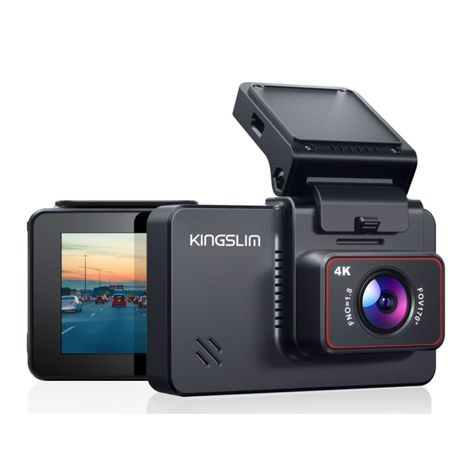
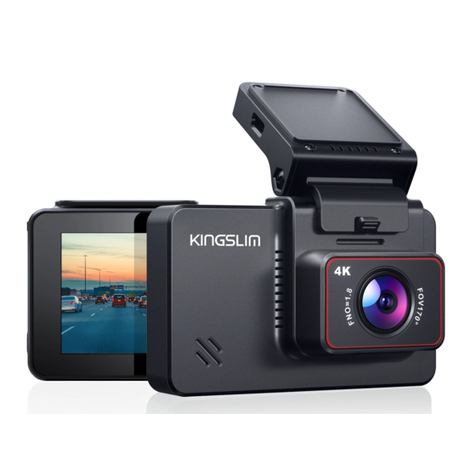
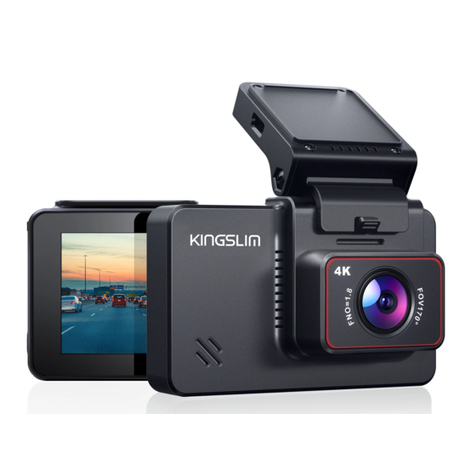
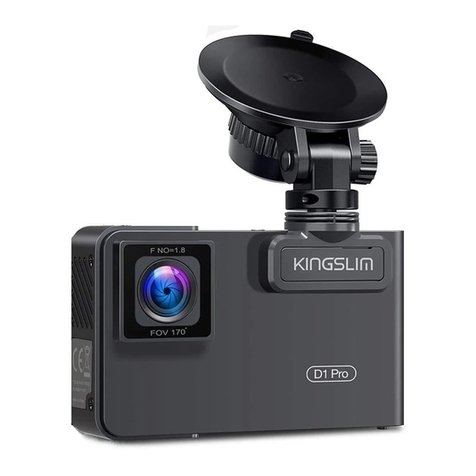
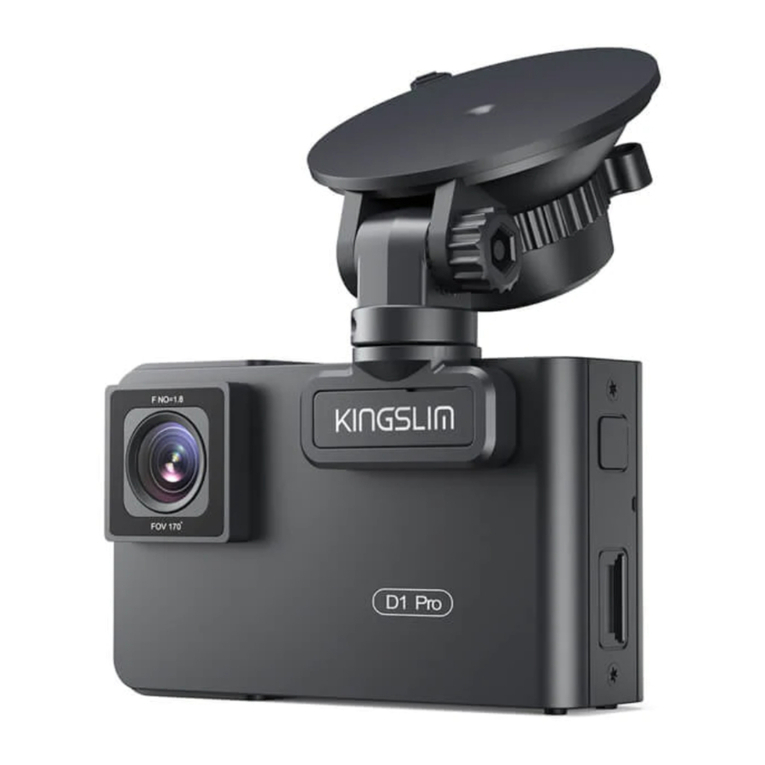
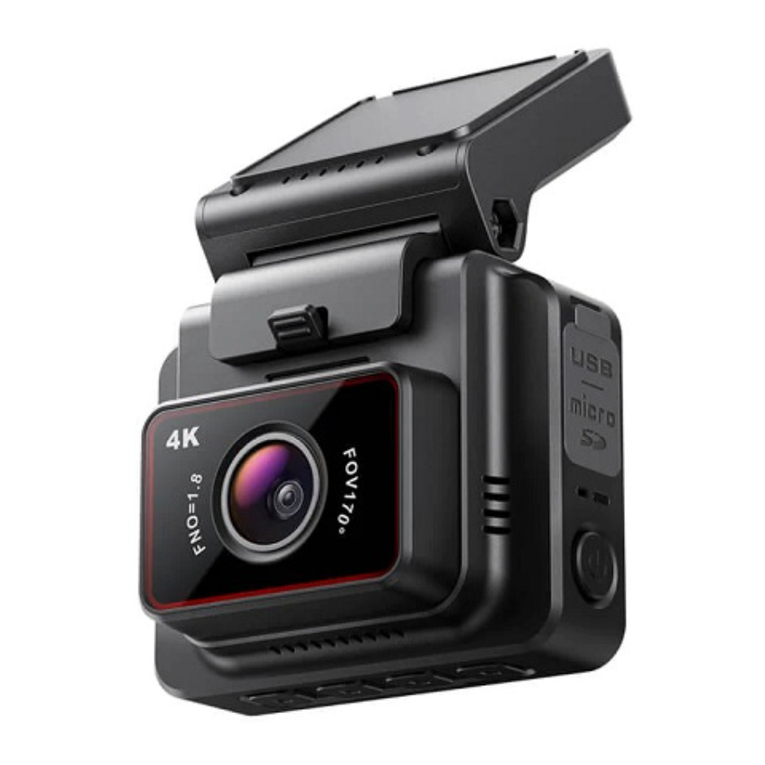
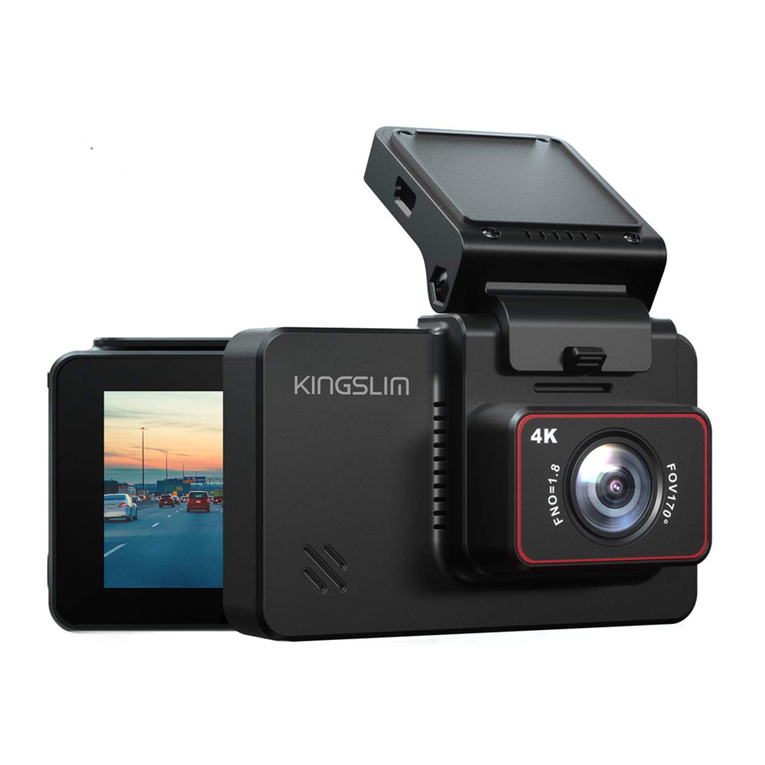
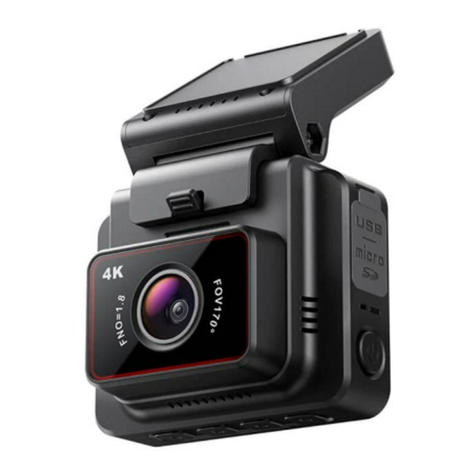
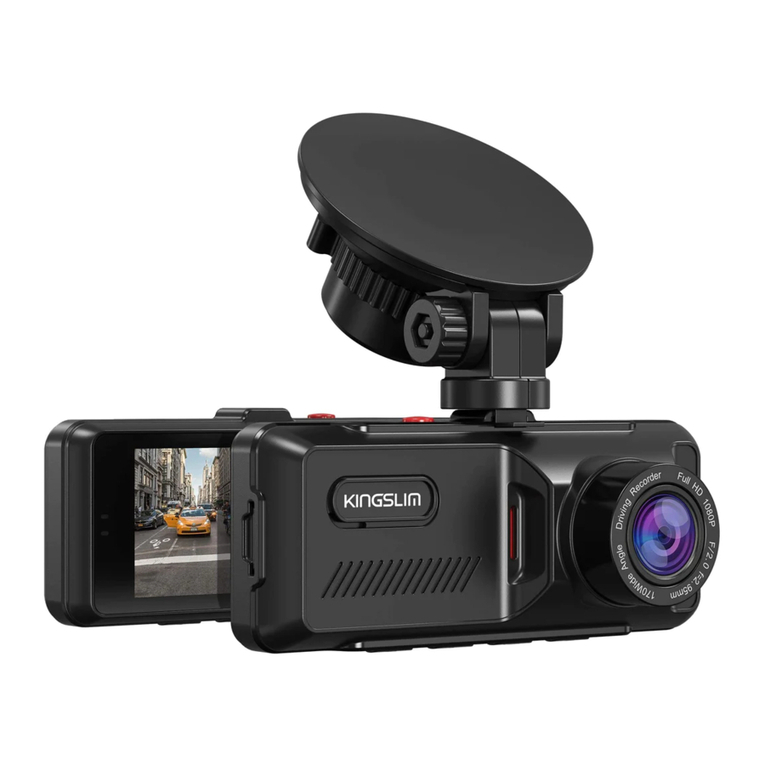
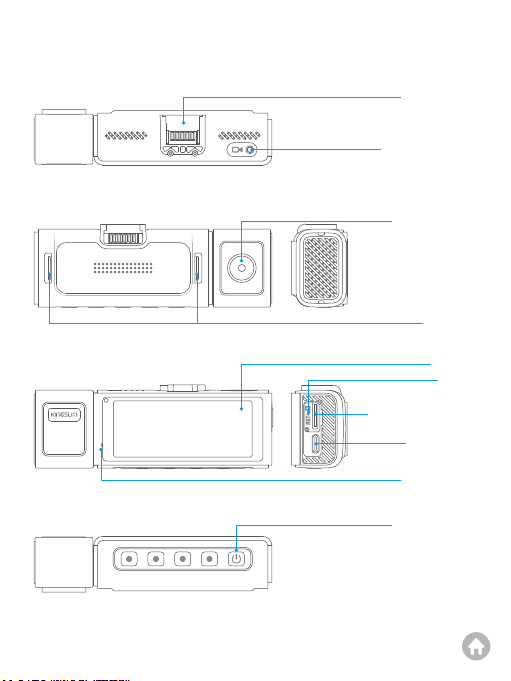
KINGSLIM 4K D4Pro dash cam is programmed to turn on and start recording
automatically when it receives power. It will also start recording after you finish
changing settings. To pause recording, simply press the button . When unplugged,
this dash cam will also automatically stop recording, safely save the last video, and
shut down within 5 seconds.
(5) Setting time zone
Before using this dash cam, please manually set the time zone according to your
location. To do this, please press the Settings button to enter the Setup screen,
then navigate to “Time Zone Setting”, and then press the OK button to complete
the setting. When the GPS is functioning properly, the dash cam's date and time
will automatically synchronize with your local time. You can also manually set the
date and time by accessing the setup menu.
(6) How to hide power cable inside your car’s dash board?
Many people on YouTube already demonstrated how and where to hide the power
cable inside your car. You can view one of the possible ways by visiting the link
attached: https://www.youtube.com/watch?v=CZYaV5Dh4ok. (Note: The video is
NOT recorded by us).
(7) How to transfer videos to PC/MAC?
To transfer videos to your PC/MAC, first, you can either insert the memory card into
your PC/MAC with a card reader, or connect your camera to the PC/MAC with a USB
data cable. Then, select the option to connect as "USB Storage" when the message
pops up. Your PC or MAC will then recognize the memory card. Please follow the
prompts to find the memory card drive on your PC or MAC, you will be able to see
all video or photo files in the memory card.