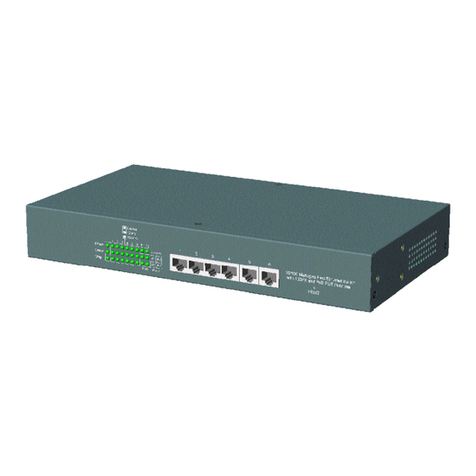
KTI KS-180 User manual

-12-
Installation Guide
10/100 Fast Ethernet Switch
KS-180
P/N:750-0127-001
DOC.990809-KS180-K

-13-
1999 KTI Networks Inc. All rights reserved. No part of this documen-
tation may e reproduced in any form or y any means or used to make
any directive work (such as translation or transformation) without per-
mission from KTI Network Inc.
KTI Networks Inc. reserves the right to revise this documentation and to
make changes in content from time to time without o ligation on the part
of KTI Networks Inc. to provide notification of such revision or change.
For more information, contact:
United States KTI Networks Inc.
P.O. BOX 631008
Houston, Texas 77263-1008
Phone: 713-2663891
Fax: 713-2663893
E-mail: [email protected]
WWW: http://www.ktinet.com/
International Fax: 886-2-26983873
E-mail: [email protected]
WWW: http://www.ktinet.com.tw/

-15-
The information contained in this document is subject to change without prior notice.
Copyright KTI. All Rights Reserved.
TRADEMARKS
Ethernet is a registered trademark of Xerox Corp.
This equipment has been tested and found to comply with the limits for a Class B digital de ice,
pursuant to Part 15 of the FCC Rules. These limits are designed to pro ide reasonable protection
against harmful interference when the equipment is operated in a residential installation. This equip-
ment generates, uses, and can radiate radio frequency energy and if not installed and used in accordance
with the instruction manual may cause harmful interference to radio and tele ision reception, which
can be determined by turning the equipment off and on, the user is encouraged to try to correct the
interference by one or more of the following measures:
. Reorient or relocate the recei ing antenna.
. Increase the separation between the equipment and recei er.
. Connect the equipment into an outlet on a circuit different from that to which the recei er is connected.
. Consult the dealer or an experienced radio TV technician for help.
Notice: The changes or modifications not expressly appro ed by the party responsible for compliance
could oid the user authority to operate the equipment.
CISPRACOMPLIANCE:
This de ice complies with EMC directi e of the European Community and meets or exceeds the follow-
ing technical standard.
EN 55022 - Limits and Methods of Measurement of Radio Interference Characteristics of Information
Technology Equipment. This de ice complies with CISPR Class A.
WARNING: This is a Class A product. In a domestic en ironment this product may cause radio inter-
ference in which case the user may be required to take adequate measures.
CE NOTICE
Marking by the symbol indicates compliance of this equipment to the EMC directi e of the
European Community. Such marking is indicati e that this equipment meets or exceeds the following
technical standards:
EN 55022: Limits and Methods of Measurement of Radio Interference characteristics of Information
Technology Equipment.
EN 50082/1:Generic Immunity Standard -Part 1: Domestic Commercial and Light Industry.
EN 60555-2: Disturbances in supply systems caused by household appliances and similar electrical equip-
ment - Part 2: Harmonics.

-11-
Table of Contents
1. Introduction ................................................................................. 1
1.1 Features ................................................................................................................. 2
1.2 Specifications ....................................................................................................... 3
2. Installing the Switch ................................................................... 4
2.1 Unpacking ............................................................................................................ 4
2.2 Checking AC Power ............................................................................................ 4
2.3 Installing the Switch ............................................................................................
3. Making Network Connections .................................................... 6
3.1 Network Switched Ports ..................................................................................... 6
3.2 UTP Cable ............................................................................................................ 7
3.3 UTP Connections................................................................................................ 8
4. ED Indicators ........................................................................... 10
4.1 LED Panel .......................................................................................................... 1 0
4.2 Interpretation .................................................................................................... 1 0

-1-
1. Introduction
Driven by recent advances in desktop computing technology, todays
network applications have increased in speed, power and the ability to
process information. To meet the demands of these more powerful appli-
cations, the switch was developed to alleviate congestion and improve
performance on your Ethernet or Fast Ethernet network. This -port switch
comes with multiple ports, each capable of transmitting or receiving in-
formation simultaneously at full wire speed to control and allocate the
network bandwidth.
The key features of this switch unit are:
Optimized Bandwidth : Combining eight 10/100Mbps-based Fast
Ethernet switched ports, the switch delivers a high network
bandwidth for your Fast Ethernet network
Easy Migration : With 10BASE-T support on each port, the switch
provides a non-disruptive and smooth migration path from
Ethernet to a Fast Ethernet network.
Easy Installation : With the functions of auto-speed-sensing and
auto-negotiation on each port, the switch supports plug-and-play
installation which eliminates configuration problems.

-2-
1.1 Features
Designed for resolving congestion problems caused by bandwidth-hun-
gry devices and bandwidth-intensive applications as well as a high num-
ber of users, the switch not only adheres to the IEEE 02.3 10BASE-T and
IEEE 02.3u 100BASE-TX standards, but also features:
Eight 10/100BASE-TX auto-negotiation switched ports for flexible
connections to desktop PCs, servers and hubs.

The 10/100BASE-TX switched ports support:
- auto speed sensing for 100Mbps or 10Mbps connection
- auto configuration with auto-negotiation devices
Self learning for network configuration
Store and forward switching to ensure only good packets are forwarded
Full-duplex or half-duplex operation support for all switched ports
Forwarding and filtering at full wire speed
Comprehensive LED indicators provide quick, easy to read port
and switch information
Additional uplink jack for port allow easy connection to different
types of devices with a straight cable instead of a modified
crossover cable

-3-
1.2 Specifications
Port 1 - 7 10BASE-T/100BASE-TX connectivity
One MDI-X RJ-45 jack
Port 8 10BASE-T/100BASE-TX connectivity
One MDI-X and one MDI RJ-45 jacks
Cables 10BASE-T Cat. 3, 4, 5 UTP cable (100 meters max.)
100BASE-TX Cat. 5 UTP cable (100 meters max.)
LE indications Power status
Link/Activity/Duplex status per port
Filtering rate 14, 0 pps for Ethernet (10BASE-T)
14 , 00 pps for Fast Ethernet (100BASE-TX)
Forwarding rate 14, 0 pps for Ethernet (10BASE-T)
14 , 00 pps for Fast Ethernet (100BASE-TX)
Filtering address Multicast/Broadcast/Unicast address
1K MAC addresses per unit
RAM buffers 1MB
Environment Temperature 0oC to 40oC
Relative humidity 10% to 90% non-condensing
imension 202mm x 11 mm x 3 mm ( .0 x 4.6 x 1.5 inch)
Power +12 VDC, 00mA

-4-
2. Installing the Switch
Unpacking
Check to see that you have everything before you start the installation.
Installation guide
The switch unit
One AC power adapter for the unit
Checking AC Power
Before you begin the installation, check the AC voltage of your area. The
AC power adapter which is used to supply the DC power for the unit should
have the AC voltage matching the commercial power voltage in your area.
The specifications of the AC power adapter are:
AC input power: AC power voltage of your area
DC output power: +12 VDC 00mA min.
DC plug type:

-5-
The power socket for the AC power adapter is located on the rear of the
switch as shown below:
Installing the Switch
1. Install the switch with the AC power adapter provided.
2. Connect the power adapter cable to the switch before connecting
the adapter to the AC outlet.

-6-
3. Making Network Connections
3.1 Network Switched Ports
There are eight ports on the switch for connection to eight LAN seg-
ments. Each segment is an independent shared network in one collision-
domain.
Eight 10/100BASE-TX switched ports (Port 1- 8)
Each port consists of an RJ-45 connector (MDI-X type) and is used
for connection to a 10BASE-T or 100BASE-TX device. An MDI-X
jack is designed with internal crossover function. It allows a connec-
tion to an end station using straight-through UTP cable.
Uplink RJ-45 connector for Port 8
The additional MDI RJ-45 connector is also provided on Port for
easy uplink via standard straight-through UTP to other device that
supports MDI-X RJ-45 connector. For Port , only one connector can
be used at the same time.
The pin definitions for MDI-X jacks and MDI jack are:
PIN# MDI-X Jacks MDI Jack
1 Rx+ Tx+
2 Rx- Tx-
3 Tx+ Rx+
6 Tx- Rx-
4,5,7,8 NC NC

-7-
3.2 UTP Cable
When making a connection to another device using straight-through
UTP cable, make sure MDI-X to MDI connection rule is followed. The
following figure illustrates the pin assignments of a straight-through
UTP and a crossover UTP cable:
It is suggested to use straight-through UTP cables for all UTP connec-
tions. The maximum length and UTP cable categories used for the con-
nections to a 10BASE-T device and 100BASE-TX device are:
CONNECTEDDEVICE UTP CABLE USED & MAXIMUM LENGTH
10BASE-T device Cat. 3, 4, 5 UTP (100 meters)
100BASE-TX device Cat. 5 UTP (100 meters)

-8-
3.3 UTP Connections
The switch can support connections to the following devices:
_10BASE-T network cards
_10/100BASE-TX network cards
_10BASE-T hub ports
_100BASE-TX hub ports
_10/100BASE-TX dual speed hub ports
_10/100BASE-TX switch ports
The following figure illustrates some connection examples and also speci-
fies the maximum distance of each connections:

-9-
3.4 Operating Mode
All switched ports are designed as auto-negotiation capable switched
ports. Each port can determine the speed and duplex type used automati-
cally through an auto-negotiation process with the remote connected
auto-negotiation capable device. The auto-negotiation process is per-
formed upon the connection is made.
When connecting to a non-auto-negotiation device, each port also fea-
tures the capability to auto-sense the connection speed.
The following table lists the operation mode used for the switched port
when it connects to different devices. The operating mode includes the
connection speed and duplex type.
Device Connected Operation Mode Used
10BASE-T hub 10Mbps, half-duplex
100BASE-TX hub 100Mbps, half-duplex
Auto-negotiation device Auto-negotiation *2
Non-auto*1 half-duplex device auto-speed-sensing *3, half-duplex
Non-auto full-duplex device Not supported
*1 Non-auto : non-auto-negotiation
*2 determined through auto-negotiation process
*3 speed is determined by auto-sensing function
Most of 10BASE-T hubs and 100BASE-TX hubs are non-auto-negotia-
tion devices and operates on half-duplex mode.

-10-
4. LED Indicators
4.1 LED Panel
The switch provides comprehensive LED indicators for diagnosing and
monitoring the operation of the unit as illustrated below:
4.2 Interpretation
POWER LE : indicates the status of the power supplied to the switch.
Link/Act. LE : Each port has one LEDs to indicate the port status
including cable link, activity, and duplex mode. Every port has identical
interpretations for the LED display. The LED can display two different
colors. Different colors present different indications as the table shown
below:
COLOR STATE INDICATION
- Off No active cable link
Green On An active link is established. (Half duplex mode).
Green Blink Tx or Rx activities (Half duplex mode)
Orange On An active link is established. (Full duplex mode).
Orange Blink Tx or Rx activities (Full duplex mode)
* TX : Transmission , RX : Receiving
Table of contents
Other KTI Switch manuals
Popular Switch manuals by other brands

ZyXEL Communications
ZyXEL Communications ZyXEL Dimension ES-2108PWR release note

Allied Telesis
Allied Telesis AT-9424Ts/XP AC datasheet

SMC Networks
SMC Networks EZ Connect SMC-EZ6505TX Technical specifications

TEUCER
TEUCER TSS-2G manual

TRENDnet
TRENDnet TEG-S2400I - DATA SHEETS datasheet

Logitech
Logitech G HUB manual

Heltun
Heltun HE-HLS01 user manual

IOGear
IOGear GCS92 quick start guide

Altinex
Altinex MULTI-TASKER MT104-108 user guide

Allied Telesis
Allied Telesis AT-SBx908 installation guide

D-Link
D-Link xStack DGS-3600 Series user manual

Weidmüller
Weidmüller Gigabit Advanced IE-SW-AL06M-4GTPoE-2GESFP Hardware installation guide