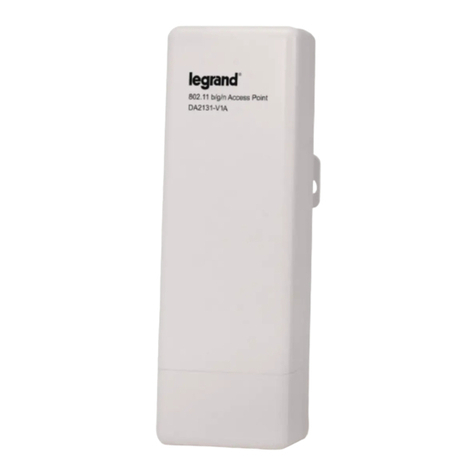
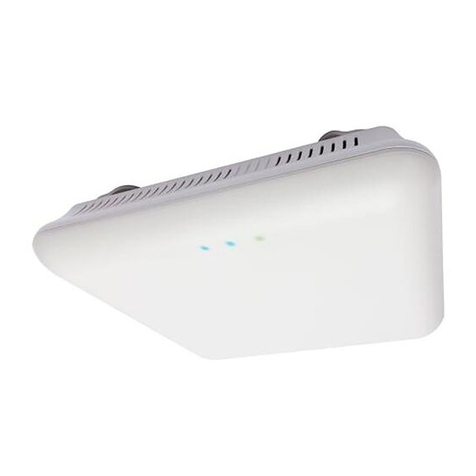
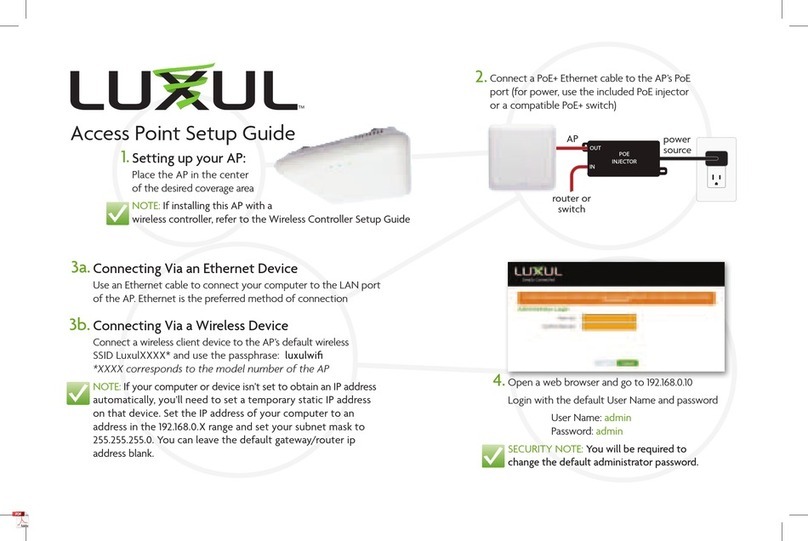
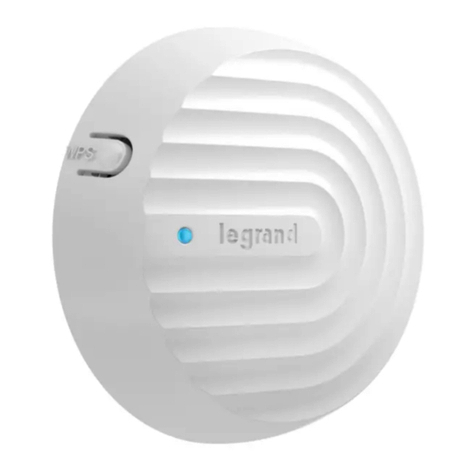
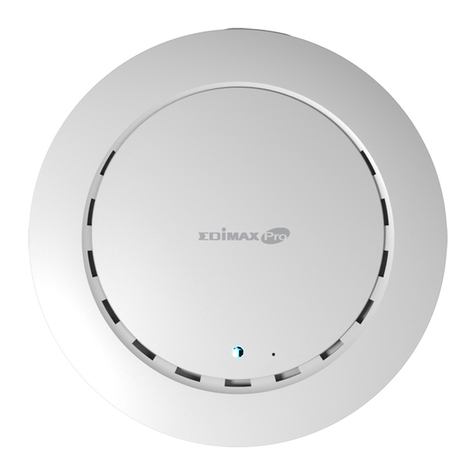
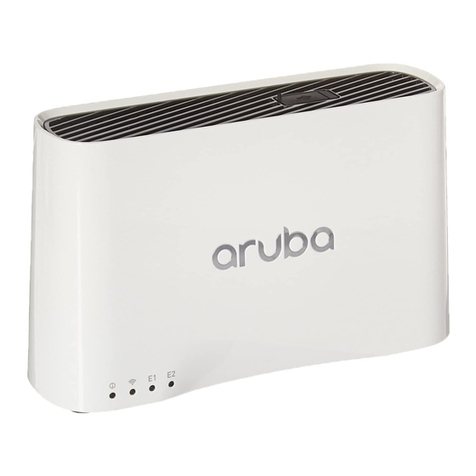
AP-3064Wi-Fi 6 AX3600 Dual-Band 4x4 Indoor Access Point Quick Installation Guide
4
Configuring the access point
You will need to do these things before you can use the access point:
nOpen the admin interface
nConfigure the device's SSID and preshared key
nOptional:Assign a new hostname
nCheck for firmware updates
Discovering the device's IP address
In a DHCP network, devices automatically receive IP addresses.
If the network does not automatically assign IP addresses (static addressing), check the
label on the bottom of the device for the IP: DHCP Failover address. This is the default IP
address that it uses if it does not automatically receive one. If you have only one access
point and your network uses static addresses in the 192.168.0.x range, you do not need to
change the access point's IP address.
Find the IP address in the router's client list:
1. Open the router's admin interface.
2. Open the client list. On a Luxul router, this is on the Status > Connected Clients page.
3. Locate the access point by its hostname, and use the IP address listed. Luxul devices'
default hostnames are formed from the model name and the last three octets of the
MAC address – for example, AP-3064-xxxxxx.
Accessing the admin interface
1. In a web browser, go to the device’s IP address.
2. If the device has not been in service already, log in as admin, with the password
admin. You will be required to change the password. You only need to do this the first
time you log in, or after restoring factory defaults.
If the device has been in service, log in as admin, with the current password.
Note
When you make changes in the admin interface, always select Save before going to a
different page. Then select Continue if you have more changes to make, or select Apply.
When you apply your changes, the device reboots and is unavailable for about 60
seconds.