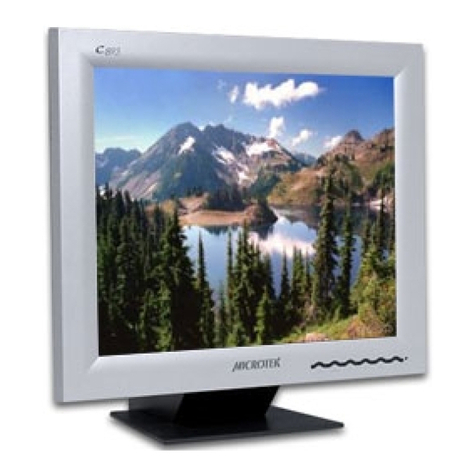
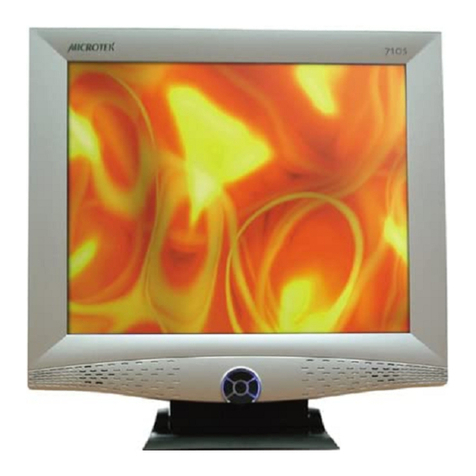
Microtek 714M User manual


i
Copyright © 2005 Microtek International,Inc.
Microtek® is a registered trademark of Microtek International, Inc. All other
trademarks or registered trademarks are the property of their respective holders.
Specifications, software and hardware bundles are subject to change without notice.
Delivery of technical support services subject to change without notice. Not
responsible for typographical errors.
A new FCC Compliance Statement
This device complies with part 15 of the FCC Rules. Operation is subject to the
following two conditions:
1. This device may not cause harmful interference, and
2. This device must accept any interference received, including interference that
may cause undesired operation.
FCC Warning
This equipment has been tested and found to comply with the limits for a Class B
digital device, pursuant to Part 15 of the FCC Rules.These limits are designed to
provide reasonable protection against harmful interference in a residential
installation.
This equipment generates, uses and can radiate radio frequency energy and, if not
installed and used in accordance with the instructions, may cause harmful
interference to radio communications.
However, there is no guarantee that interference will not occur in a particular
installation. If this equipment does cause harmful interference to radio or television
reception, which can be determined by turning the equipment off and on, the user is
encouraged to try to correct the interference by one or more of the following
measures:
• Reorient or relocate the receiving antenna.
• Increase the separation between the equipment and the receiver.
• Connect the equipment into an outlet different from that to which the receiver is
connected.
• Consult the dealer or an experienced radio/TV technician for help.
Caution:
To comply with the limits for an FCC Class B computing device, always use the
shielded signal cord supplied with this unit.
The Federal Communications Commission warns that changes or modifications of
the unit not expressly approved by the party responsible for compliance could void
the user’s authority to operate the equipment.

ii
CE mark for Class B ITE (Following European standard EN55022/
1998; EN61000-3-2/1995; EN61000-3-3/1995, EN55024/1998,
EN60950/1992+A1+A2+A3+A4+A11)
Radio Frequency Interference Statement
Warning:
This is a Class B product. In a domestic environment, this product may cause radio

interference in which case the user may be required to take adequate measures.

Canadian Doc Notice
For Class B Computing Devices
This digital apparatus does not exceed the Class B limits for radio noise emissions
from digital apparatus as set out in the Radio Interference Regulation of the
Canadian Department of Communications.
“Le présent appareil numérique n’èmet pas de bruits radioélectriques dépassant les
limites applicables aux appareils numériques de la class B prescrites dans le
Règlement sur le brouillage radioélectrique édicté par le ministère des
Communications du Canada.”
219-20-990430

iii
Table of Contents
Introduction .................................................................................. 1
Product Features..................................................................... 1
Unpacking ............................................................................... 2
Precautions ............................................................................. 2
Cleaning .................................................................................. 3
Installation .................................................................................... 4
Before Using the Monitor ...................................................... 4
Connecting the Monitor ......................................................... 4
Adjusting theViewing Angle ................................................. 5
Operating the Monitor .................................................................. 6
A.The LCD Monitor’s Control Panel ...................................... 6
B. Adjusting the Monitor’s Display ....................................... 7
The MenuTable ...................................................................... 8
Specifications ............................................................................... 9
SupportedTiming ........................................................................10
Troubleshooting........................................................................... 11

1
Introduction
Congratulations on the purchase of your new Microtek LCD
monitor!With a 17"TFT active matrix color crystal display and
offering a maximum resolution of 1280 x 1024 pixels, your LCD
monitor offers sharp and vibrant color display with low
radiation emission. And with its low power consumption, the
monitor helps you reduce your power bill as well.
Product Features
• 17”TFT color Liquid Crystal Display
• Supports SXGA resolution of 1280 x 1024 pixels
• Wide viewing and tilting angle
• VESA PMS-compliant power saving:Automatically powers
down the monitor after a defined period of inactivity
• Compatible withWindows 95/98/2000/XP and Macintosh
• Easy-to-use OSD (On-Screen Display)
• Plug & Play: Conforms to IBM VGA, VESA standards and
supports DDC1/2B specifications
• Multiscan functions of SXGA 1280 x 1024, XGA 1024 x 768,
SVGA 832 x 624, 800 x 600,VGA 640 x 480, 720 x 400, and 720
x 350 for perfect graphics performance
• Extra-slim design to maximize your desk space
• Includes built-in speakers

2
Unpacking
Before unpacking your LCD monitor, prepare a stable, level, and
clean surface near a wall outlet for your LCD monitor.
1. Set the LCD monitor box in an upright position and open
from the top of the box before removing the right/left
cushions.
2. Check to see that you have the following accessories shown
below:
• LCD monitor
• Power cord
• 15-pin D-sub signal cable
• Audio cable
• User Guide
Note: Remember to save your original box and packaging
material in case you need to transport or ship the monitor. If
you have to return your unit for service and the original
packaging has been discarded, please contact your dealer or
nearest service center for advice or replacement of packaging.
Precautions
• Read all of these warnings and save the manual for later use.
• Follow all warnings and instructions on the product.
• Do not cover or block the vent holes in the case.
• Do not insert sharp objects or spill liquid into the LCD
monitor through the cabinet slots; this may cause accidental
fire, electric shock or failure.
• Disconnect the power plug from the AC outlet if you are not
going to use the monitor for an extended period of time.
• Do not attempt to service this product yourself, as opening or
removing the cover may expose you to dangerous voltage
points or other risks.
• Do not touch the screen directly with your fingers as you may
damage the screen, and oil from your skin is difficult to
remove.

3
• Do not apply pressure to the screen, as the screen is very
delicate.
• Keep the monitor away from extremely hot, cold or humid
places.
• Do not place the monitor directly under sunlight, in dusty
surroundings, or near equipment which may generate strong
magnetic fields.
Cleaning
Warning:
If you drop any material or liquid such as water onto the
monitor when cleaning, unplug the power cable immediately
and contact your dealer or the nearest service center. Always
make sure your hands are dry when unplugging the power
cable.
Caution:
• For safety reasons, turn off the power switch and unplug the
monitor before cleaning.
• Do not scratch or rub the screen with a hard object.
• Never use any of the following solvents on the LCD monitor:
Thinner; spray-type cleaners; benzene; wax; abrasive
cleaners; and acid or alkaline solvents. Such harsh chemicals
may cause damage to the cabinet and the LCD screen.
• Rubbing the cabinet with products made of rubber or plastic
for prolonged periods may cause degeneration or loss of
paint on the cabinet.
Cabinet
• Remove dirt with a lightly moistened cloth and a mild solvent
detergent.Then wipe the cabinet with a soft dry cloth.
LCD
• Periodic cleaning with a soft dry cloth is recommended.
• Do not use tissue to clean the LCD screen, as this may
damage the screen.

4
Figure 1: The LCD Monitor Rear View
1. AC Power: Plugs into the AC power adapter.
2. PC IN: Connects with the 15-pin D-Sub signal cable.
3. Audio jack: Connects with the Audio cable.
Installation
Before Using the Monitor
• Turn off your PC and the LCD monitor before connecting your
LCD monitor to the computer.
• Place the monitor on a flat and level surface.
• Do not operate the LCD monitor without verifying your power
supply first. Incorrect voltage will cause your monitor to
malfunction, and may also cause fire or electric shock.
• Do not pull or bend the power cable or place the monitor or
any heavy objects on the cables. If the cables are damaged,
they may cause fire or electric shock.
Connecting the Monitor
123

5
Adjusting the Viewing Angle
Your LCD monitor is designed to allow adjustment for optimal
viewing angles.You can adjust the monitor upward to 35
degrees and downward to -5 degrees.
Note: Do not touch the screen while changing the viewing
angle, as this may damage the screen. In addition, make sure
your fingers do not get caught in any of the monitor’s parts
while adjusting the viewing angle.

6
Operating the Monitor
A. The LCD Monitor’s Control Panel
Figure 2: The Control Panel
1. Auto: Automatically fixes, centers and fine-tunes the video
signal to eliminate noise and distortion.
2. OSD Menu/select: Displays the OSD menu and selects a
submenu item.
3. Adjustment button —: Indicates cursor movement, or
decreases the value of a selected OSD setting.
4. Adjustment button +: Indicates cursor movement, or
increases the value of a selected OSD setting.
5. Power switch: Turns power for the LCD monitor ON
or OFF.
6. Power LED: Indicates various status levels for the monitor,
such as Green (Normal operation) or Orange (Power
management), depending on the monitor’s operating mode.
Table of contents
Other Microtek Monitor manuals

Microtek
Microtek 515M User manual

Microtek
Microtek 815C User manual

Microtek
Microtek C997SD User manual

Microtek
Microtek 527C User manual

Microtek
Microtek C589P User manual

Microtek
Microtek 201SD User manual

Microtek
Microtek C588 User manual

Microtek
Microtek C893 User manual

Microtek
Microtek 211SD User manual

Microtek
Microtek C593 User manual

Microtek
Microtek C580 User manual

Microtek
Microtek 715C User manual

Microtek
Microtek 512M User manual

Microtek
Microtek 525M User manual

Microtek
Microtek C593 User manual

Microtek
Microtek 515C User manual

Microtek
Microtek 729S User manual

Microtek
Microtek C580 User manual

Microtek
Microtek C786 User manual

Microtek
Microtek 710S User manual