1
Step 2: Install Software
Start Here
Installing your Microtek ScanMaker 1000XL Plus
Important: Do not remove the yellow stickers from your scanner
until you are told to do so.
You must install software before connecting your scanner. Always
close any open programs, and turn off Anti-virus utilities before
installing software.
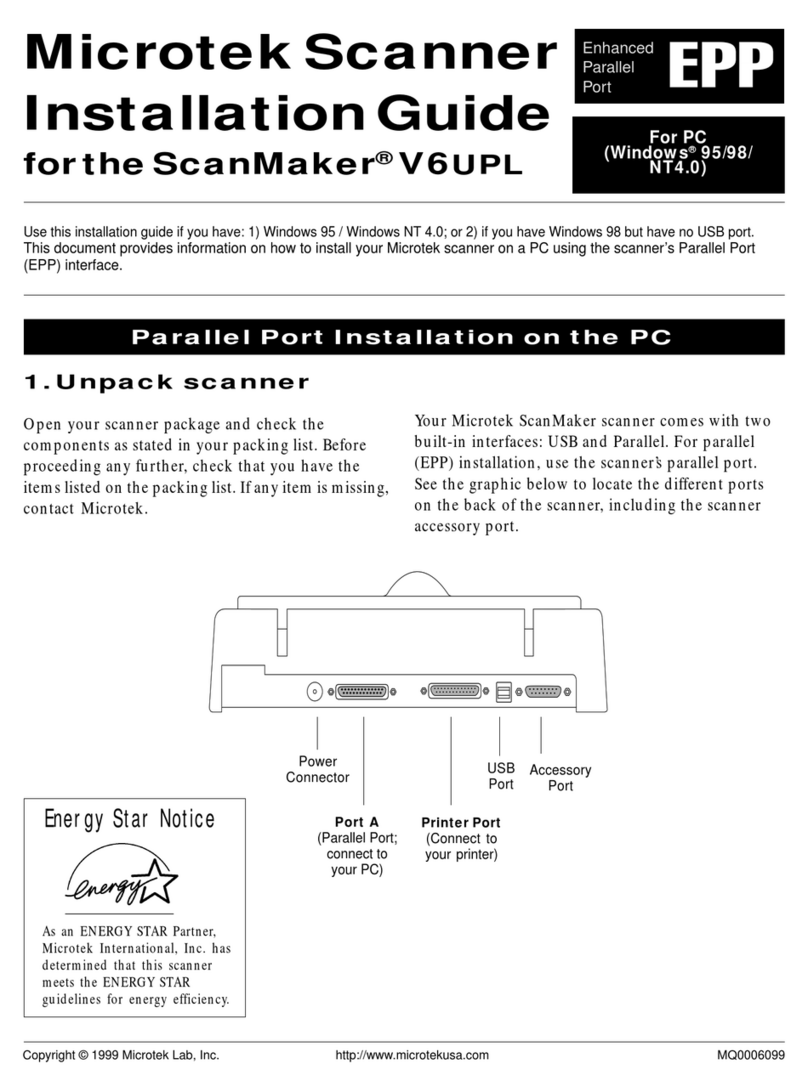
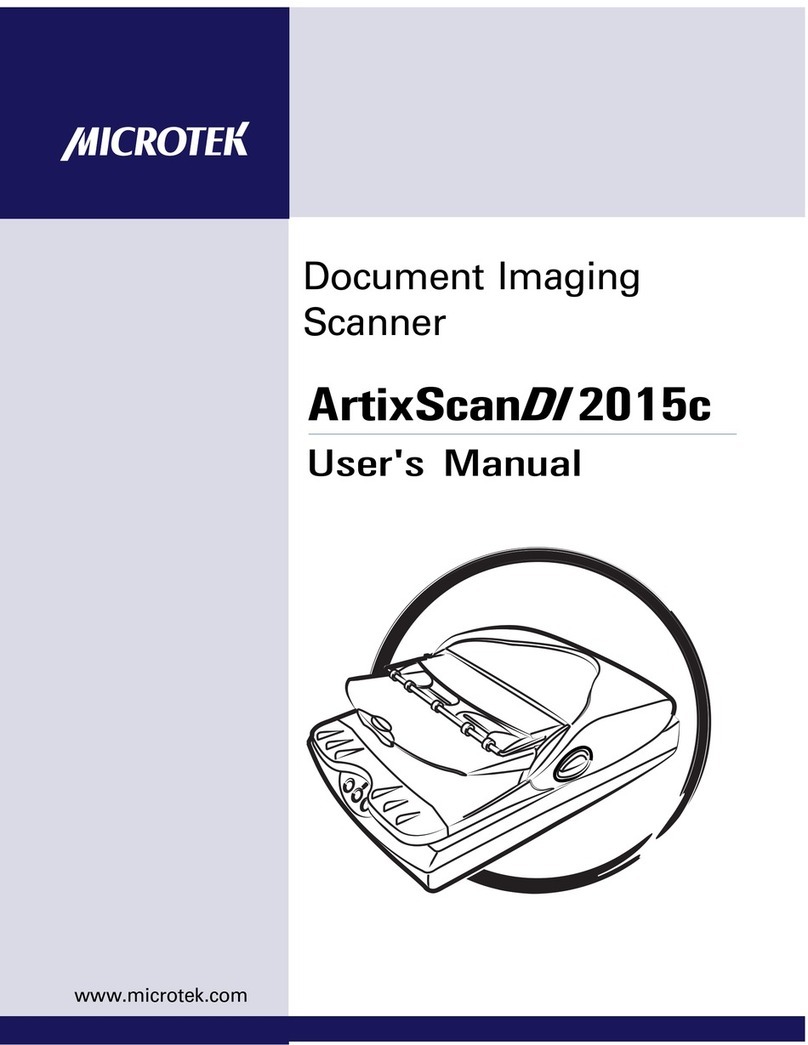
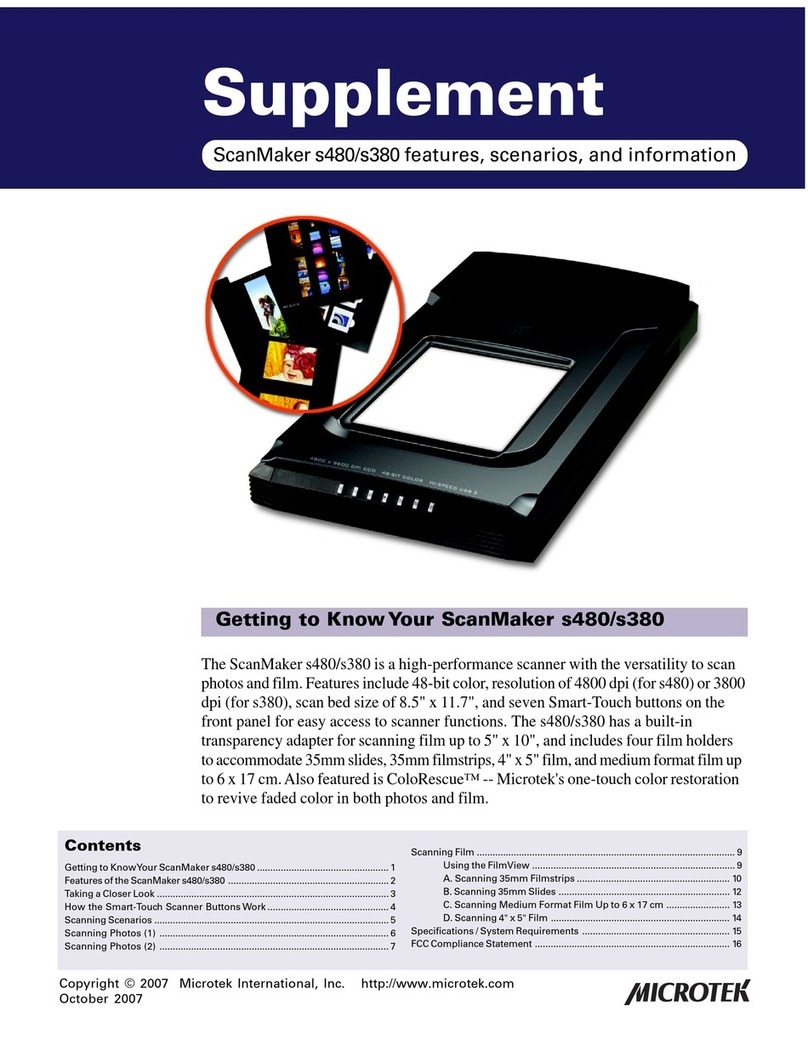
Step 1: Unpack Contents
Copyright © 2013 Microtek International, Inc. http://www.microtek.com
I49-004945 B, September 2013
2
1
3
4
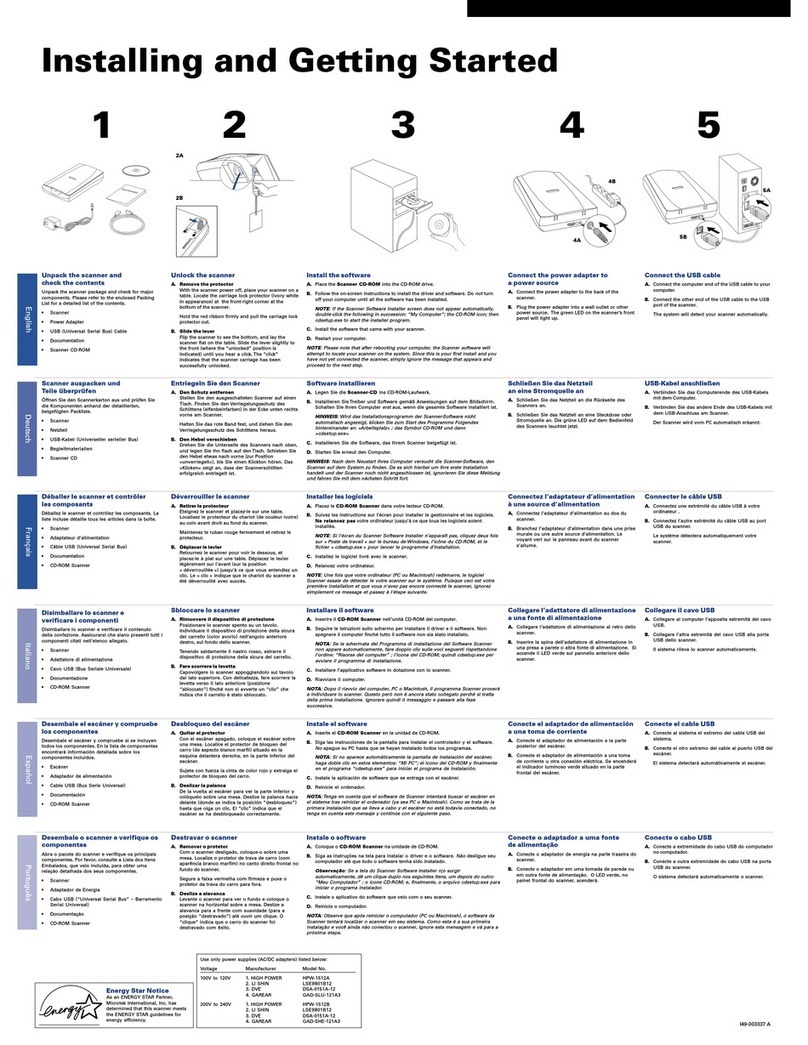
Unpack your scanner package and
check for major components.
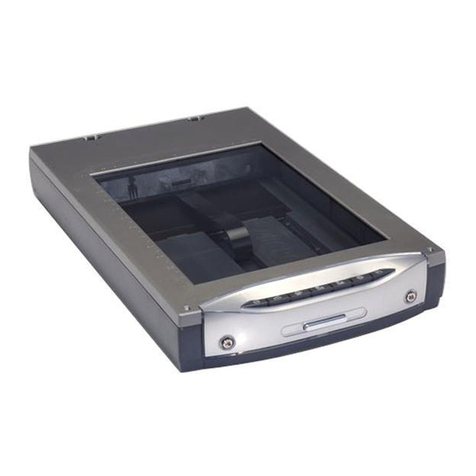
1. ScanMaker 1000XL Plus
2. USB cable
3. Power cord
4. Software CDs/DVDs
5. TMA 1600-III (Optional)
5-1. TMA 1600-III unit
5-2. Black Plate
5-3. 35mm Slide Template
5-4. 35mm Filmstrip Template
5-5. 120 Film Template with Black Plate
5-6. 4" x 5" Film Template
5-7. Film Alignment Ruler
MAC:
A. Place the Adobe DVD into a drive, and install
the software. Skip this step if you have a newer
version of Photoshop Elements already installed
on your computer.
B. Place the Microtek Software CD/DVD
(ScanPotter) into a drive, and double-click the
ScanPotter installer icon to install ScanPotter.
C. Install the remaining software components, then
restart your computer at the end of all software
installation.
NOTE: After rebooting your Macintosh, the Microtek
software will attempt to locate your scanner on the
system. Since this is your first install and you have not yet
connected the scanner, simply ignore the message that
appears and proceed to the next step.
PC:
A. Place the Adobe DVD into a drive, and install
the software. Skip this step if you have a
newer version of Photoshop Elements already
installed on your computer.
B. Place the Microtek Software CD/DVD into a
drive, and follow the on-screen instructions to
install the scanner driver and software.
C. Restart your computer at the end of all
software installation.
NOTE: If the Microtek Software Installer screen does not
come up automatically, double-click the following in
succession: “My Computer”; the CD-ROM (or DVD-ROM)
icon; then cdsetup.exe to start the installer program.
For TMA 1600-III only
5-1 5-2
5-3
5-4
5-5
5-6
5-7