EnglishDeutsch
 logo
Brands
  1. Home
  2. •
  3. Brands
  4. •
  5. Motorola
  6. •
  7. Cell Phone
  8. •
  9. Motorola V65 User manual

Motorola V65 User manual

Other Motorola Cell Phone manuals

Motorola C336 User manual

Motorola

Motorola C336 User manual

Motorola Moto G5 Instruction sheet

Motorola

Motorola Moto G5 Instruction sheet

Motorola ATRIX User manual

Motorola

Motorola ATRIX User manual

Motorola MOTOSLVR L6 User manual

Motorola

Motorola MOTOSLVR L6 User manual

Motorola Motoluxe XT User manual

Motorola

Motorola Motoluxe XT User manual

Motorola MOTORIZR Z3 User manual

Motorola

Motorola MOTORIZR Z3 User manual

Motorola E380 User manual

Motorola

Motorola E380 User manual

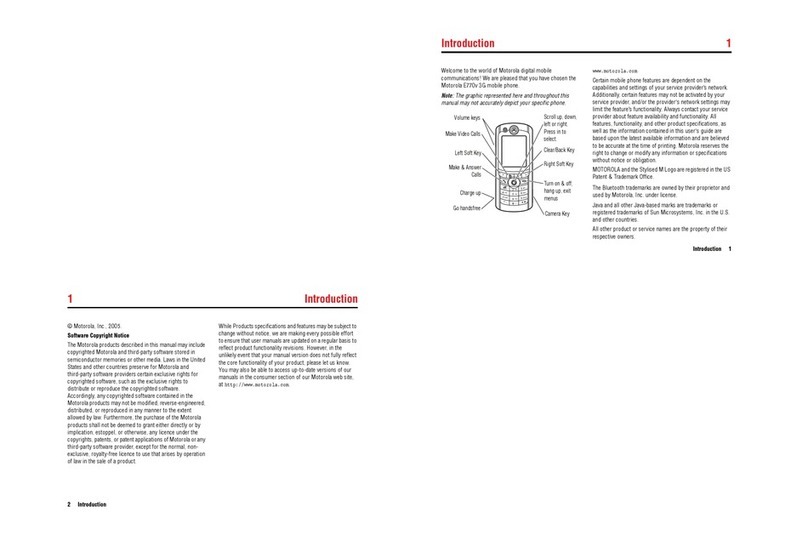
Motorola E770v 3G User manual

Motorola

Motorola E770v 3G User manual

Motorola CDMA User manual

Motorola

Motorola CDMA User manual

Motorola Moto e User manual

Motorola

Motorola Moto e User manual

Motorola st7868w User manual

Motorola

Motorola st7868w User manual

Motorola PRO Series User manual

Motorola

Motorola PRO Series User manual

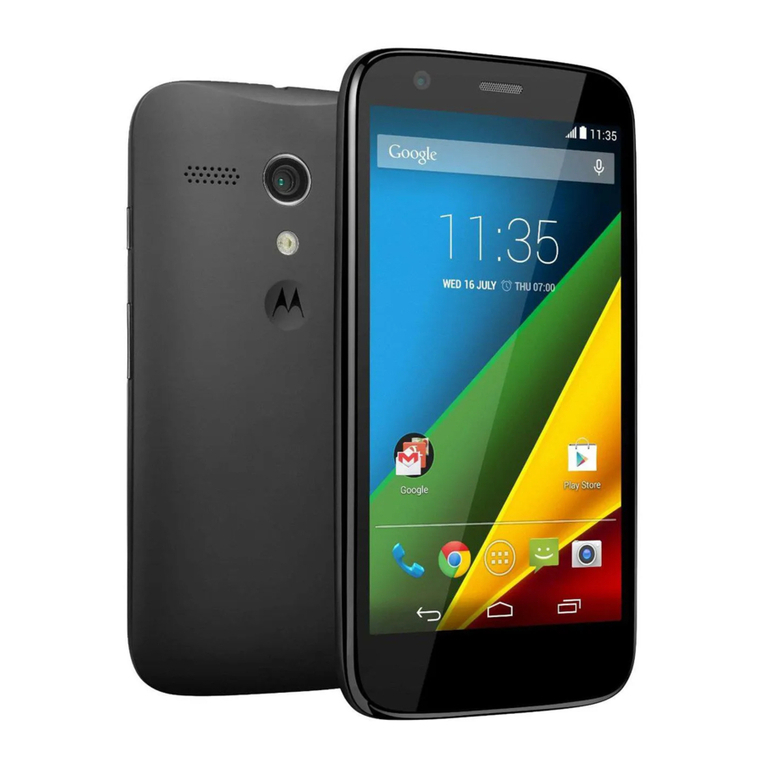
Motorola Moto G User manual

Motorola

Motorola Moto G User manual

Motorola L2 User manual

Motorola

Motorola L2 User manual

Motorola Moto e User manual

Motorola

Motorola Moto e User manual

Motorola MOTOKRZR K1m User manual

Motorola

Motorola MOTOKRZR K1m User manual

Motorola moto G9 PLAY User manual

Motorola

Motorola moto G9 PLAY User manual

Motorola MING User manual

Motorola

Motorola MING User manual

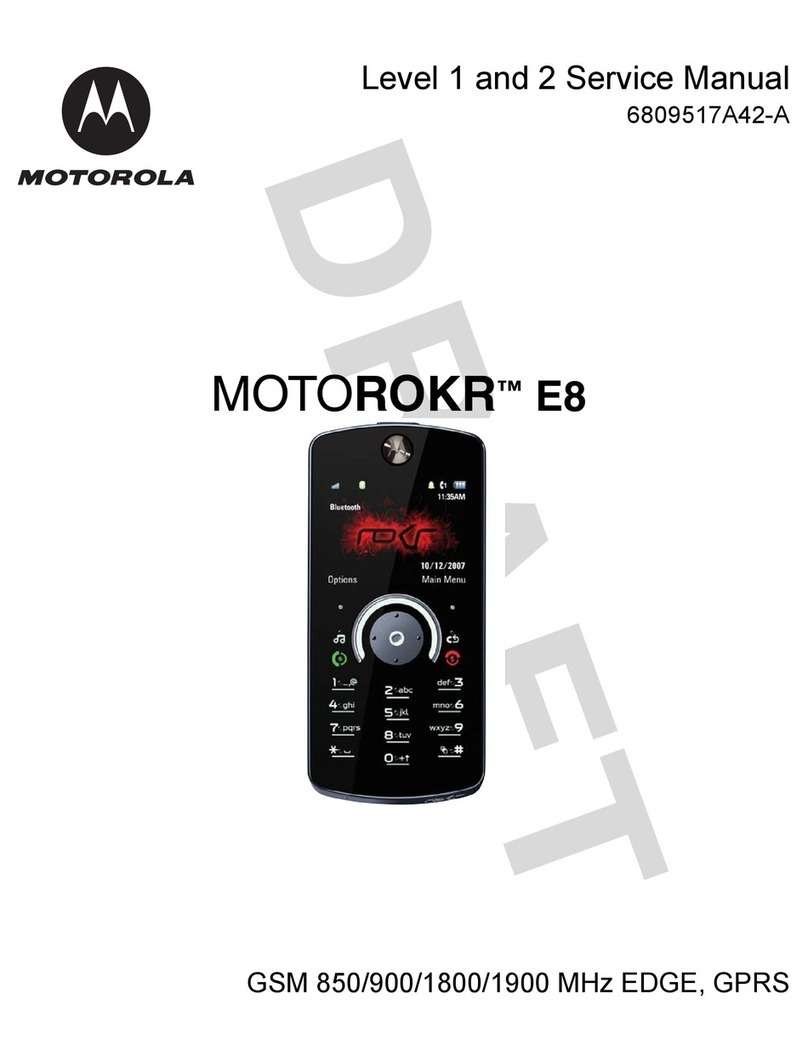
Motorola MOTOROKR E8 User manual

Motorola

Motorola MOTOROKR E8 User manual

Motorola hint User manual

Motorola

Motorola hint User manual

Motorola 6200 User manual

Motorola

Motorola 6200 User manual

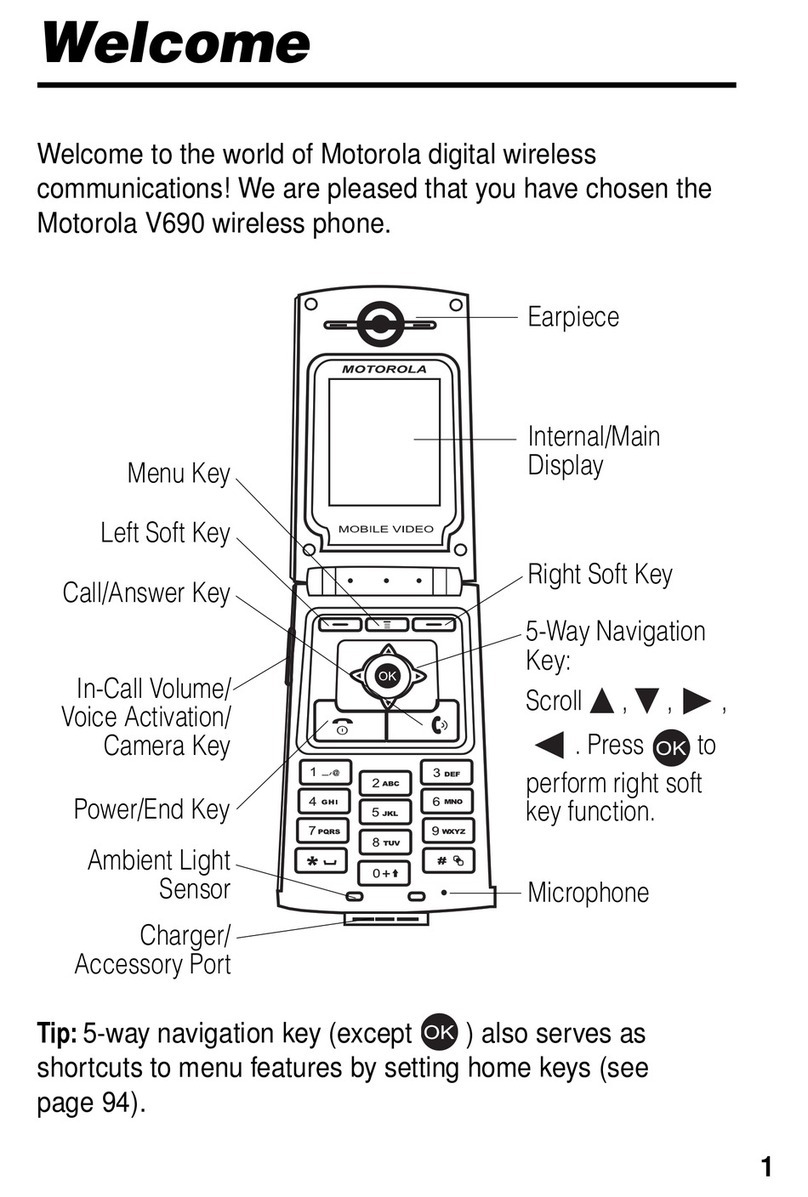
Motorola V690 User manual

Motorola

Motorola V690 User manual

Motorola Motorazr2 User manual

Motorola

Motorola Motorazr2 User manual

Motorola V323i User manual

Motorola

Motorola V323i User manual

Popular Cell Phone manuals by other brands

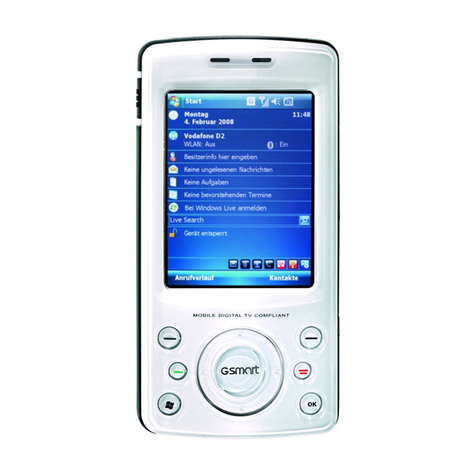
Gigabyte GSmart t600 null

Gigabyte

Gigabyte GSmart t600 null

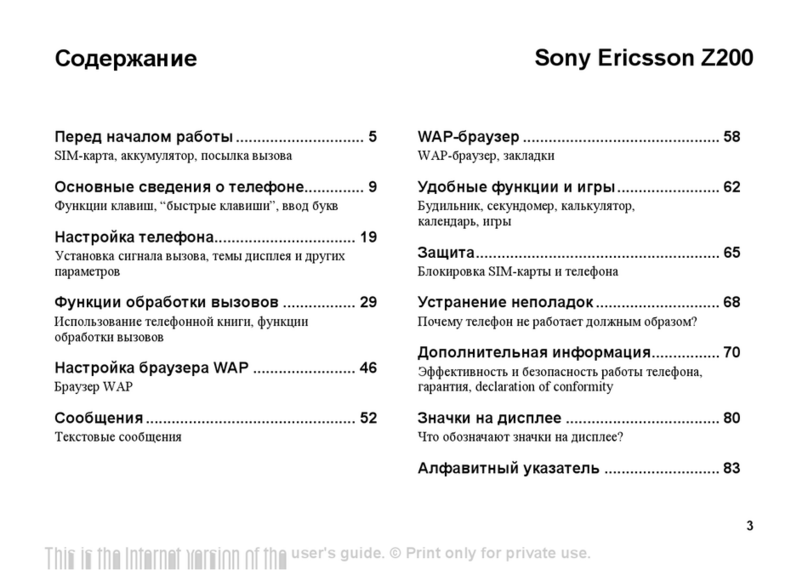
Sony Ericsson Z200 null

Sony Ericsson

Sony Ericsson Z200 null

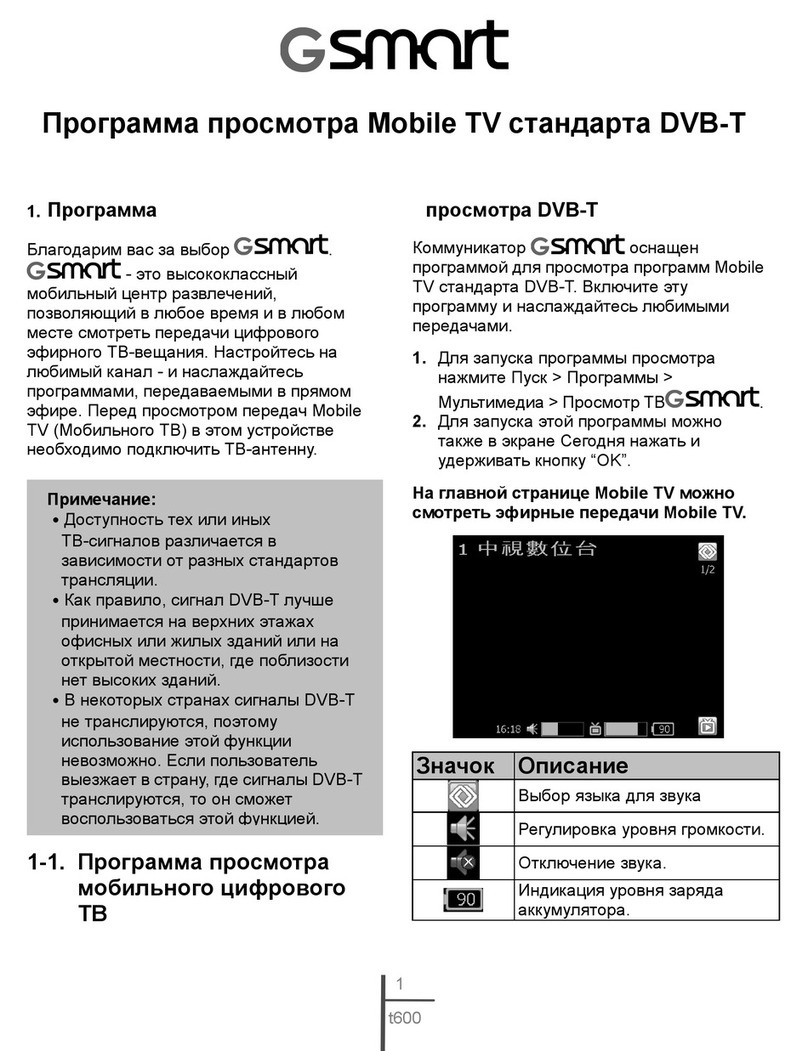
Gigabyte GSmart t600 null

Gigabyte

Gigabyte GSmart t600 null

Gigabyte GSmart t600 null

Gigabyte

Gigabyte GSmart t600 null

Sony Ericsson K700i null

Sony Ericsson

Sony Ericsson K700i null

Zte BLADE A520 quick start guide

Zte

Zte BLADE A520 quick start guide

Nokia Lumia 620 user guide

Nokia

Nokia Lumia 620 user guide

Blackbe;rry KEYone Safety and product information

Blackbe;rry

Blackbe;rry KEYone Safety and product information

Bea-fon X5 Premium quick guide

Bea-fon

Bea-fon X5 Premium quick guide

Blackbe;rry 8707 Series user guide

Blackbe;rry

Blackbe;rry 8707 Series user guide

Blackbe;rry Storm Troubleshooting

Blackbe;rry

Blackbe;rry Storm Troubleshooting

LG LM-X420QN user guide

LG

LG LM-X420QN user guide

LifeWatch V user guide

LifeWatch

LifeWatch V user guide

Bea-fon SILVER LINE SL860 user guide

Bea-fon

Bea-fon SILVER LINE SL860 user guide

IKI Mobile KF4.5i user manual

IKI Mobile

IKI Mobile KF4.5i user manual

Hitech HT-850 user guide

Hitech

Hitech HT-850 user guide

Yezz Fashion F10 user manual

Yezz

Yezz Fashion F10 user manual

Point Mobile PM60 user manual

Point Mobile

Point Mobile PM60 user manual

https://manuals.online logo
https://manuals.online logoBrands
  • About & Mission
  • Contact us
  • Privacy Policy
  • Terms and Conditions

Copyright 2026 Manuals.Online. All Rights Reserved.

SHORT USER’S GUIDE
ACTIVATION
Turning On/Off Press and hold until the display turns on/off.
Answering a Call Open the flip or press when the phone is open.
Ending a Call Close the flip or press .
Making a Call Dial the phone number including the area code and
press .
Redial Press twice to redial the last phone number.
Scrolling through Press Menu Key , use 4-Way Navigation Key
Menus to select .
PELEPHONE WALKIE-TALKIE
Walkie-Talkie Calls Press the Walkie-Talkie Key, choose the name you
wish to call (by scrolling and selecting the name or
by pressing the first letter of the name). Press and
hold the key until you hear the sound that allows
the conversation to start, and begin talking. When
you finish speaking, release the key and wait for the
reply. When your correspondent has finished
speaking, you will hear the sound that allows you
to again press the Walkie-Talkie Key and speak. At
the end of the call, close the flip or press .
Answering a Call At the time of the call, the caller’s voice will be
heard. When the caller has finished speaking, press
and hold the Walkie-Talkie Key and speak.
Sending a Call Alert So as not to call another subscriber with a walkie-
talkie call, you can send an alert that indicates a
request to start a call. This alert may be sent to an
individual subscriber only, and not to a group.
Press the Walkie-Talkie Key, scroll to the name you
wish to call and press “Alert”. Press the Walkie-
Talkie Key. When you get an alert, press
“Answer”.
Group Calls Press the Walkie-Talkie Key, choose the name of the
group you wish to call (by scrolling and selecting the
name or by pressing the first letter of the name).
Press and hold the key until you hear the sound that
allows the conversation to start, and begin talking
to the group. When you finish speaking, release the
key and wait for the reply. When your correspondent
has finished speaking, you will hear the sound that
allows you to again press the Walkie-Talkie Key and
speak. At the end of the call, close the flip or press
. If the conversation continues, press and
the group conversation will be disconnected.
Turning Speaker Press and hold the Speaker Key located on the upper
On/Off part of the outside of the phone. You can also press
the “Speaker” key during a walkie-talkie
conversation.
Engaged If the person or group you wish to call is engaged,
the sign Xwill appear next to their icon.
PHONEBOOK
Storing a Number Enter the phone number and press “Store”, then
add the name and press “OK”. Select a type
(work, mobile etc.), press “Done” to finish.
Searching a Number Press Left Soft Key “Phonebook”. Scroll and
select the name or press the first letter of the name.
Press to dial.
Speed Dial Press the number of the phonebook entry and then
press to view the number. Press to speed dial.
(To call phonebook entries 1 through 9, press and
hold the one digit speed dial number.)
Voice Dial You can record a voice name for a new or existing
phonebook entry. Press Left Soft Key
“Phonebook”, scroll to the desired phone number,
select “View” then select “Edit”. Scroll to Voice
Name and select “Record”. Make your recording in
a quiet location and in a normal tone of voice. Press
and release the Voice Key on the side of the phone,
and say the entry’s name distinctly. Repeat the
action. Press “Done” to finish.
To use voice dial, press the voice key and say the
entry’s name.
TEXT MESSAGES – SMS
You can send and receive text messages in English and
in Hebrew. (There could be some changes depending
on service provider. Some services require an additional
payment set by the service provider.)
Sending a Text Press Right Soft Key “Messages”, scroll and
Message
select New Message. Enter the phone number or press
“Phonebook” to select phone number from phonebook.
Enter the text. Press “OK” then press “Yes” to send message.
Reading a Text Press Right Soft Key “Messages,” scroll and
Message select Inbox, select the desired message and press
“Read”. Now you can press to delete the message,
to answer the message etc.
Scrolling through From the Messages screen press down/up
Messages Navigation Key to scroll through the different messages.
RING TONES
Ringer Volume Press the up and down volume keys on the side of the
phone to increase and decrease the ringer volume, for
vibrate mode or for silent mode. Press the down volume
key continuously for vibrate mode and then silent mode.
Press the up volume key to reset ring alert.
Earpiece Volume Press the up and down volume keys to increase and
decrease Earpiece Volume during a call.
Setting a Ring Type Press , then scroll and select “Ring Styles”. Scroll
to the “Style Detail” to select an alert type. Select
“Calls” to set the desired ring tone.
Turn Off a Call Alert While the phone is ringing, press one of the Volume
Keys.
INTERNET
Web Access Press Navigation Key to scroll left. Select Portal
and press “Launch” to connect. Scroll by using
the Navigation Key . Use the Soft keys to link or
to go back to the previous page.
There could be some changes depending on the service
provider. Some of the services require an additional
payment set by the service provider.
MULTIMEDIA – GAMES AND APPLICATIONS
Download Application Press Navigation Key to scroll down to Multimedia.
Press “Select” for “Mobile Shop.” Press
“Select” to connect. Select category and download the
desired application.
Launch Application Scroll to the application by Navigation Key , press
“Select” and launch the application.
There could be some changes depending on the service
provider. Some of the services require an additional
payment set by the service provider.
MISCELLANEOUS
Calculator Press Menu Key , scroll to “More” and select
“Calculator.”
Selecting Language Press Menu Key , select “Settings,” scroll to “Initial
Setup,” scroll and select Language, then select the
desired language.
Voice Notes To record a voice note, press and hold Voice Key during
the record. To hear recorded voice notes, press ,
scroll to “More” and select “Voice Notes”.
To See Phone Number Press , then press .
Programming Menu Press Menu Key , select “Settings”, select
& Speed Access Keys “Personal Settings”, select “Menu” to change the order
of menu items or select “Start Keys” to change navigation
keys or select keys.
6803605B97
Right Soft Key
Voice Key
Speaker Key
Headset Jack
Left Soft Key
Volume Keys
Send Key
Walkie-Talkie Key
Accessory Connector Port
Menu key
V65
Power Key & End Key
4-Way Navigation Key

SHORT USER’S GUIDE
ACTIVATION
Turning On/Off Press and hold until the display turns on/off.
Answering a Call Open the flip or press when the phone is open.
Ending a Call Close the flip or press .
Making a Call Dial the phone number including the area code and
press .
Redial Press twice to redial the last phone number.
Scrolling through Press Menu Key , use 4-Way Navigation Key
Menus to select .
PELEPHONE WALKIE-TALKIE
Walkie-Talkie Calls Press the Walkie-Talkie Key, choose the name you
wish to call (by scrolling and selecting the name or
by pressing the first letter of the name). Press and
hold the key until you hear the sound that allows
the conversation to start, and begin talking. When
you finish speaking, release the key and wait for the
reply. When your correspondent has finished
speaking, you will hear the sound that allows you
to again press the Walkie-Talkie Key and speak. At
the end of the call, close the flip or press .
Answering a Call At the time of the call, the caller’s voice will be
heard. When the caller has finished speaking, press
and hold the Walkie-Talkie Key and speak.
Sending a Call Alert So as not to call another subscriber with a walkie-
talkie call, you can send an alert that indicates a
request to start a call. This alert may be sent to an
individual subscriber only, and not to a group.
Press the Walkie-Talkie Key, scroll to the name you
wish to call and press “Alert”. Press the Walkie-
Talkie Key. When you get an alert, press
“Answer”.
Group Calls Press the Walkie-Talkie Key, choose the name of the
group you wish to call (by scrolling and selecting the
name or by pressing the first letter of the name).
Press and hold the key until you hear the sound that
allows the conversation to start, and begin talking
to the group. When you finish speaking, release the
key and wait for the reply. When your correspondent
has finished speaking, you will hear the sound that
allows you to again press the Walkie-Talkie Key and
speak. At the end of the call, close the flip or press
. If the conversation continues, press and
the group conversation will be disconnected.
Turning Speaker Press and hold the Speaker Key located on the upper
On/Off part of the outside of the phone. You can also press
the “Speaker” key during a walkie-talkie
conversation.
Engaged If the person or group you wish to call is engaged,
the sign Xwill appear next to their icon.
PHONEBOOK
Storing a Number Enter the phone number and press “Store”, then
add the name and press “OK”. Select a type
(work, mobile etc.), press “Done” to finish.
Searching a Number Press Left Soft Key “Phonebook”. Scroll and
select the name or press the first letter of the name.
Press to dial.
Speed Dial Press the number of the phonebook entry and then
press to view the number. Press to speed dial.
(To call phonebook entries 1 through 9, press and
hold the one digit speed dial number.)
Voice Dial You can record a voice name for a new or existing
phonebook entry. Press Left Soft Key
“Phonebook”, scroll to the desired phone number,
select “View” then select “Edit”. Scroll to Voice
Name and select “Record”. Make your recording in
a quiet location and in a normal tone of voice. Press
and release the Voice Key on the side of the phone,
and say the entry’s name distinctly. Repeat the
action. Press “Done” to finish.
To use voice dial, press the voice key and say the
entry’s name.
TEXT MESSAGES – SMS
You can send and receive text messages in English and
in Hebrew. (There could be some changes depending
on service provider. Some services require an additional
payment set by the service provider.)
Sending a Text Press Right Soft Key “Messages”, scroll and
Message
select New Message. Enter the phone number or press
“Phonebook” to select phone number from phonebook.
Enter the text. Press “OK” then press “Yes” to send message.
Reading a Text Press Right Soft Key “Messages,” scroll and
Message select Inbox, select the desired message and press
“Read”. Now you can press to delete the message,
to answer the message etc.
Scrolling through From the Messages screen press down/up
Messages Navigation Key to scroll through the different messages.
RING TONES
Ringer Volume Press the up and down volume keys on the side of the
phone to increase and decrease the ringer volume, for
vibrate mode or for silent mode. Press the down volume
key continuously for vibrate mode and then silent mode.
Press the up volume key to reset ring alert.
Earpiece Volume Press the up and down volume keys to increase and
decrease Earpiece Volume during a call.
Setting a Ring Type Press , then scroll and select “Ring Styles”. Scroll
to the “Style Detail” to select an alert type. Select
“Calls” to set the desired ring tone.
Turn Off a Call Alert While the phone is ringing, press one of the Volume
Keys.
INTERNET
Web Access Press Navigation Key to scroll left. Select Portal
and press “Launch” to connect. Scroll by using
the Navigation Key . Use the Soft keys to link or
to go back to the previous page.
There could be some changes depending on the service
provider. Some of the services require an additional
payment set by the service provider.
MULTIMEDIA – GAMES AND APPLICATIONS
Download Application Press Navigation Key to scroll down to Multimedia.
Press “Select” for “Mobile Shop.” Press
“Select” to connect. Select category and download the
desired application.
Launch Application Scroll to the application by Navigation Key , press

“Select” and launch the application.
There could be some changes depending on the service
provider. Some of the services require an additional
payment set by the service provider.
MISCELLANEOUS
Calculator Press Menu Key , scroll to “More” and select

“Calculator.”
Selecting Language Press Menu Key , select “Settings,” scroll to “Initial

Setup,” scroll and select Language, then select the
desired language.
Voice Notes To record a voice note, press and hold Voice Key during

the record. To hear recorded voice notes, press ,
scroll to “More” and select “Voice Notes”.
To See Phone Number Press , then press .
Programming Menu Press Menu Key , select “Settings”, select

& Speed Access Keys “Personal Settings”, select “Menu” to change the order
of menu items or select “Start Keys” to change navigation
keys or select keys.
6803605B97
Right Soft Key
Voice Key
Speaker Key
Headset Jack
Left Soft Key
Volume Keys
Send Key
Walkie-Talkie Key
Accessory Connector Port
Menu key
V65
Power Key & End Key
4-Way Navigation Key