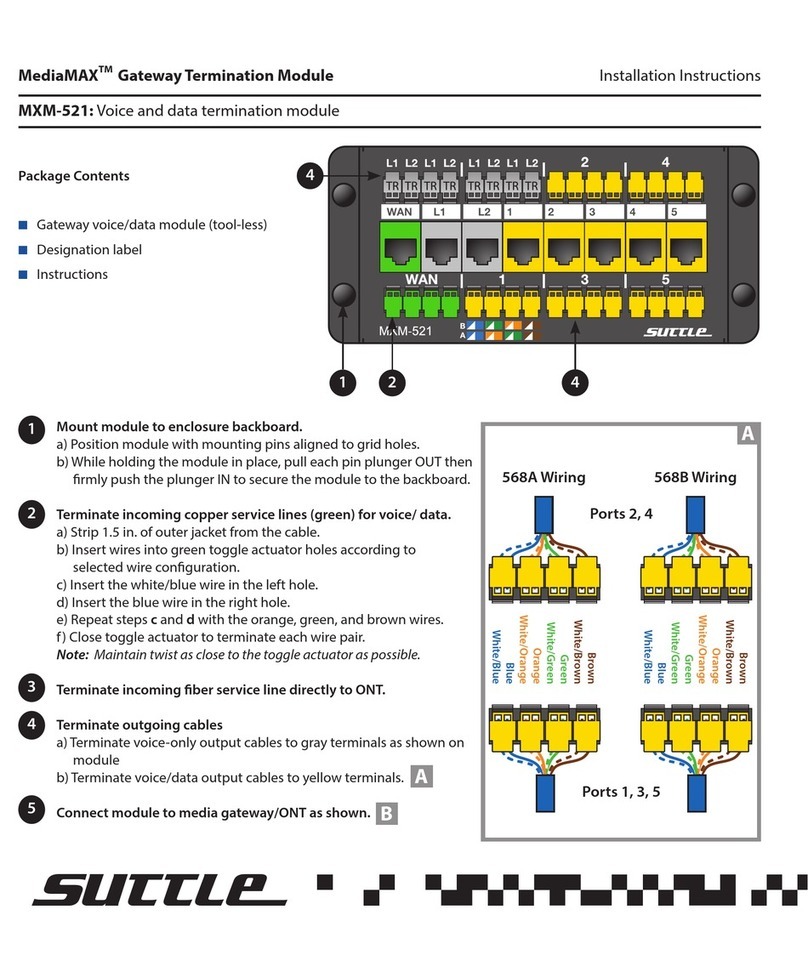
MSA fieldserver EZ Series User manual
Other MSA Gateway manuals
MSA
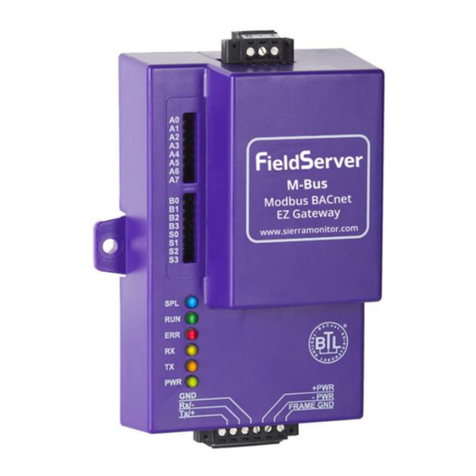
MSA fieldserver EZ Gateway M-Bus to Modbus &... User guide
MSA
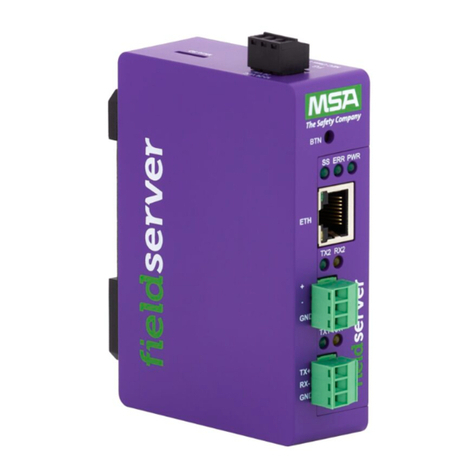
MSA QuickServer FS-QS-2XX0 User manual

MSA
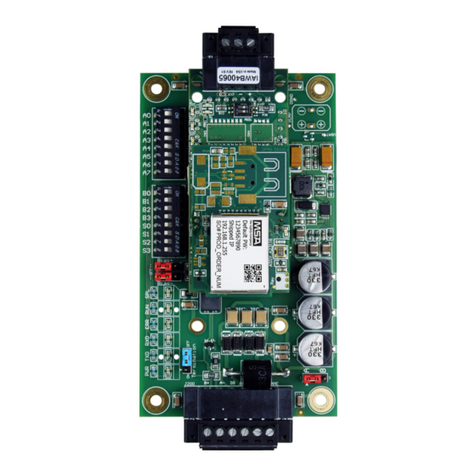
MSA FieldServer FS-B35 Series User guide
MSA
MSA fieldserver ProtoCarrier User manual
MSA
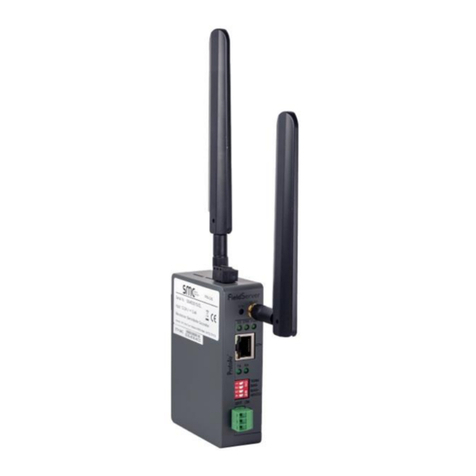
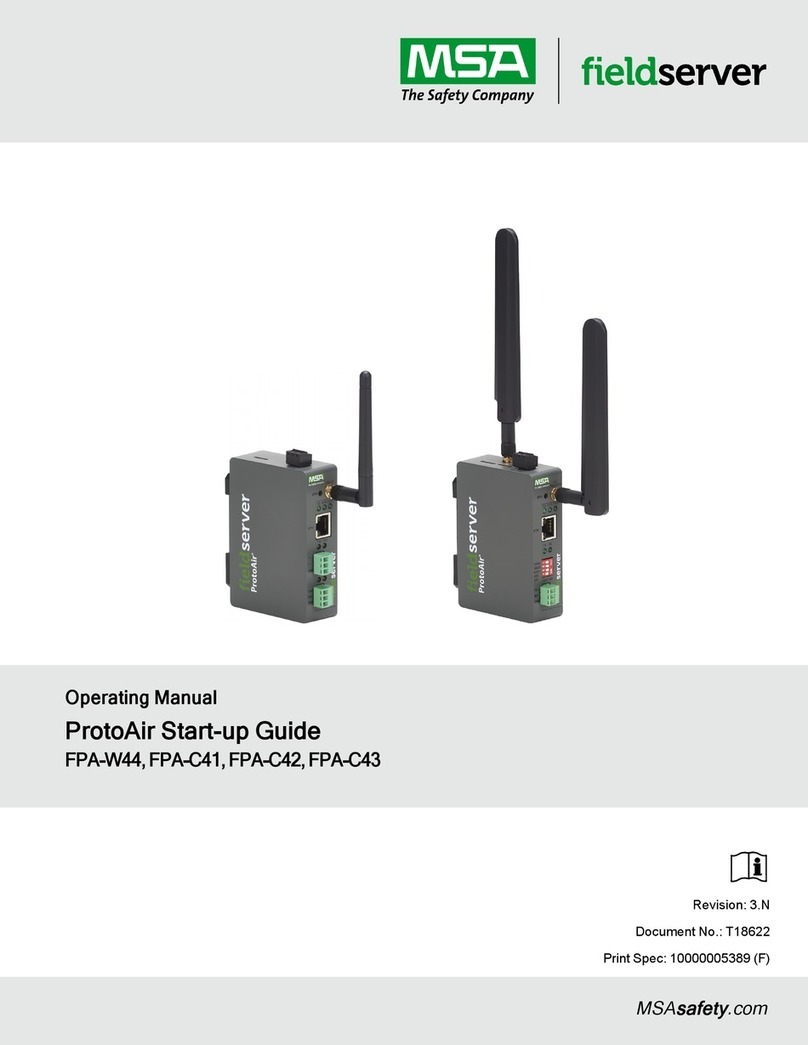
MSA ProtoAir FPA-C4X User guide
MSA
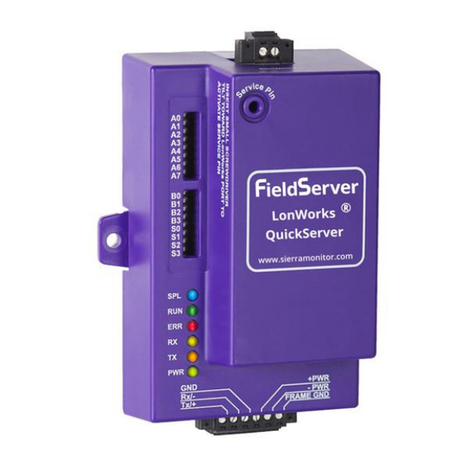
MSA FieldServer QuickServer FS-QS-1011 User guide
MSA
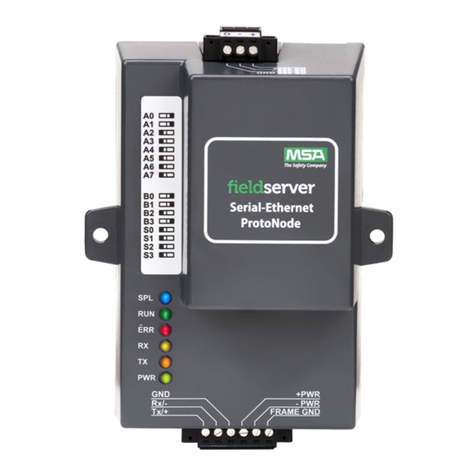
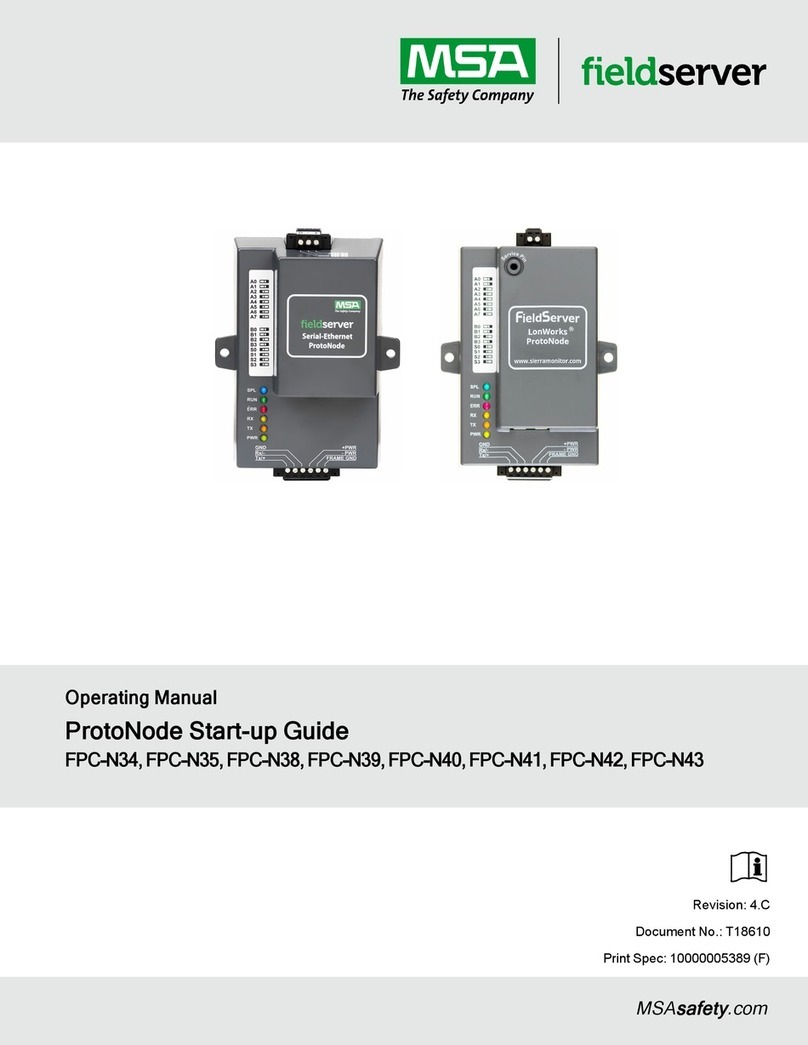
MSA fieldserver ProtoNode User manual
MSA
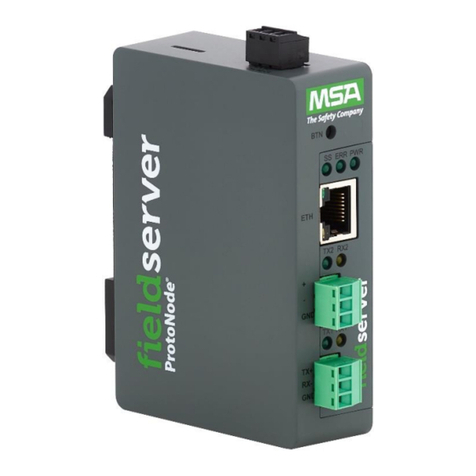
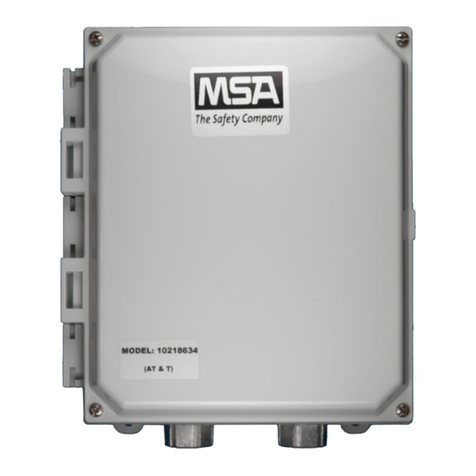
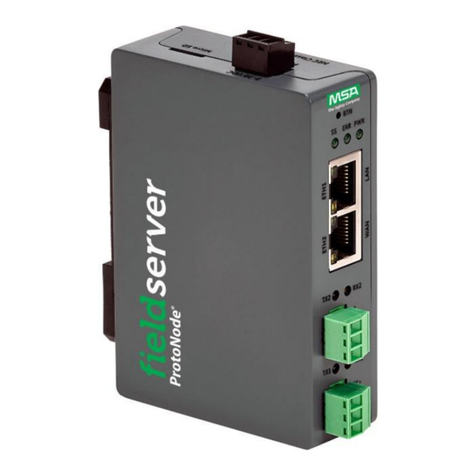
MSA fieldserver ProtoNode FPC-N54 User guide
MSA
MSA FieldServer FGFD ProtoAir User manual
MSA
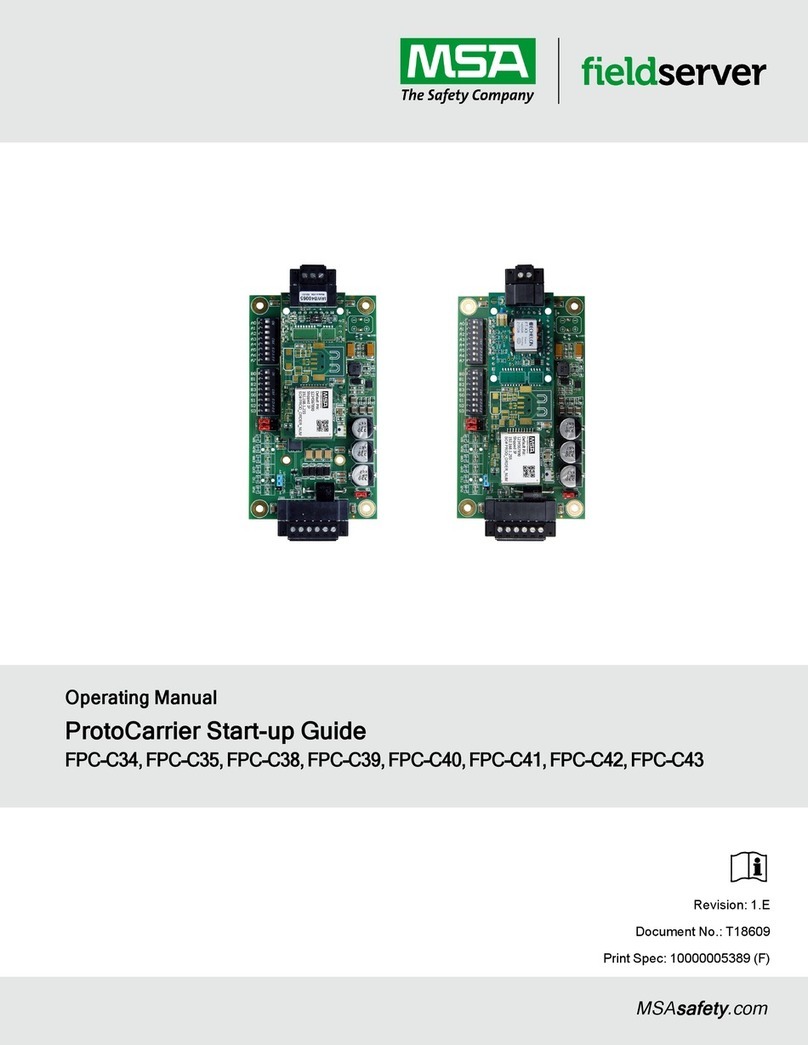
MSA FieldServer ProtoCarrier FPC-C34 User guide
Popular Gateway manuals by other brands

LST
LST M500RFE-AS Specification sheet
Kinnex
Kinnex Media Gateway quick start guide
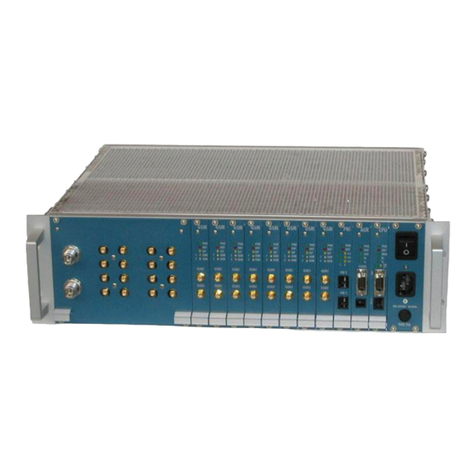
2N Telekomunikace
2N Telekomunikace 2N StarGate user manual
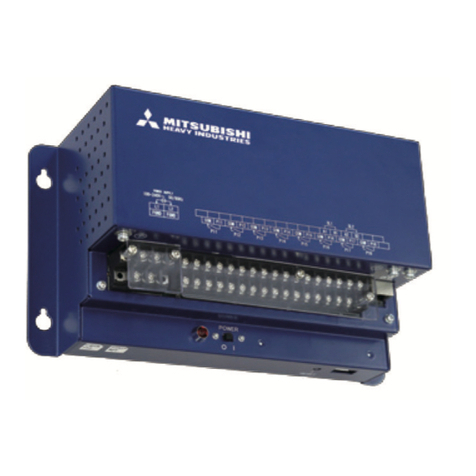
Mitsubishi Heavy Industries
Mitsubishi Heavy Industries Superlink SC-WBGW256 Original instructions
ZyXEL Communications
ZyXEL Communications ZYWALL2 ET 2WE user guide
Telsey
Telsey CPVA 500 - SIP Technical manual