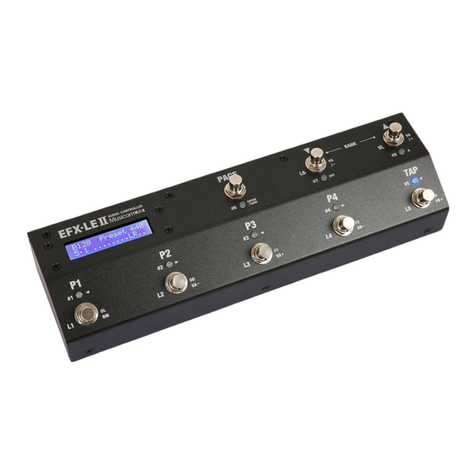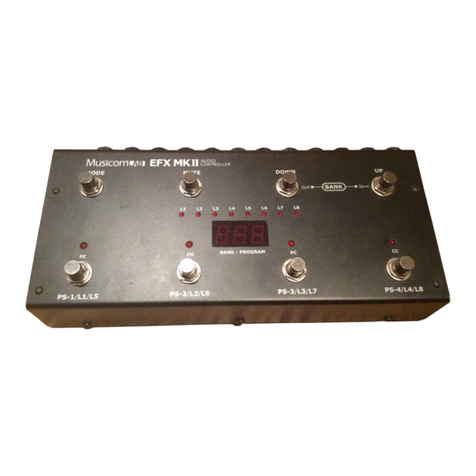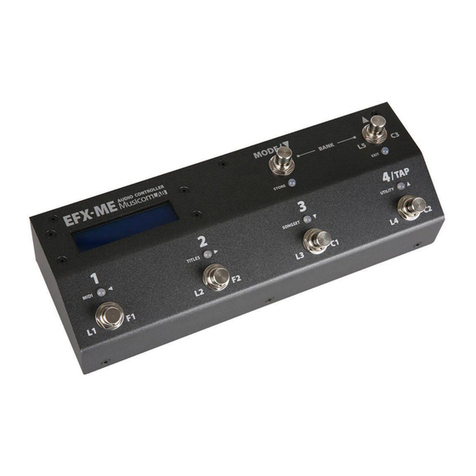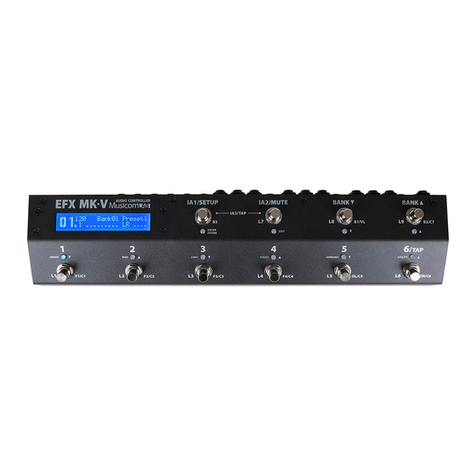
Musicom Lab EFX-LE II User manual

EFX-LE
II
Audio Controller
OWNER'S MANUAL
Version 1.0x

Table of Contents
1. INTRODUCTION ---------------------------------------------------------------------- 3
1.1 Main Features ---------------------------------------------------------------------- 3
1.2 Specifications ---------------------------------------------------------------------- 4
1.3 Block Diagram ---------------------------------------------------------------------- 4
1.4 Front Panel ------------------------------------------------------------------------ 5
1.5 Rear Panel ------------------------------------------------------------------------ 6
2. BASIC OPERATION ------------------------------------------------------------------- 7
2.1 Initial Power Up -------------------------------------------------------------------- 7
2.2 Page 1 --------------------------------------------------------------------------- 7
2.3 Page 2 --------------------------------------------------------------------------- 8
2.4 Page 3 --------------------------------------------------------------------------- 8
2.5 Page 4 --------------------------------------------------------------------------- 8
3. SONG/SET MODE -------------------------------------------------------------------- 9
3.1 SONG mode ----------------------------------------------------------------------- 9
3.2 SET mode ------------------------------------------------------------------------- 9
4. SETUP MODE ------------------------------------------------------------------------- 10
4.1 PRESET Menu --------------------------------------------------------------------- 10
4.1.1 MIDI / Volume --------------------------------------------------------------- 10
4.1.2 Routing -------------------------------------------------------------------- 13
4.2 SONGS/SET Menu --------------------------------------------------------------- 16
4.2.1 Edit Songs ---------------------------------------------------------------- 16
4.2.2 Edit Sets ------------------------------------------------------------------ 16
4.3 SWITCHES Menu ------------------------------------------------------------------ 17
4.3.1 Assign as Preset Switch ------------------------------------------------------- 18
4.3.2 Assign as IA Switch ---------------------------------------------------------- 19
4.3.3 Assign as Tap-Tempo Switch -------------------------------------------------- 21
4.3.4 Assign as Page+/Mute or Page-/Mute Switch ----------------------------------- 22
4.3.5 Assign as Page+/Save or Page-/Save Switch ----------------------------------- 22
4.3.6 Assign as Bank Up ot Bank Down Switch ------------------------------------- 22
4.3.7 Assign as Volume.A+/- or Volume.B+/- Switch --------------------------------- 23
4.3.8 Assign as BPM+ or BPM- Switch --------------------------------------------- 23
4.4 TITLES Menu -------------------------------------------------------------------- 24
4.4.1 Preset Title ----------------------------------------------------------------- 24
4.4.2 Song Title ------------------------------------------------------------------- 24
4.4.3 Sset Title ------------------------------------------------------------------- 25
4.4.4 Page Title ------------------------------------------------------------------- 25
4.4.5 Switch Titles ------------------------------------------------------------------ 26
4.5 GLOBAL Menu -------------------------------------------------------------------- 27
4.5.1 MIDI ------------------------------------------------------------------------ 27
4.5.2 Audio ----------------------------------------------------------------------- 28
4.5.3 Others ---------------------------------------------------------------------- 30
4.6 UTILITY Menu -------------------------------------------------------------------- 31
4.6.1 Preset Copy ----------------------------------------------------------------- 31
4.6.2 Song / Set / Switch Copy ----------------------------------------------------- 31
4.6.3 Data Dump/Load ------------------------------------------------------------- 32
4.6.4 Factory Reset --------------------------------------------------------------- 32
5. CABLES ----------------------------------------------------------------------------- 33
5.1 XPDL ----------------------------------------------------------------------------- 33
5.2 Function Switches ----------------------------------------------------------------- 33
6. MIDI IN SPECIFICATIO
N
------------------------------------------------------------ 34
6.1 Preset Changes -------------------------------------------------------------------- 34
6.2 Individual IA Switch Controls ---------------------------------------------------------- 34
7. CONNNECTION EXAMPLE
S
-------------------------------------------------------- 35

EFX-LE II Audio Controller Owner's Manual
3
1. INTRODUCTION
Thank you for purchasing the Musicom Lab EFX-LE II Audio Controller.
The EFX-LE II Audio Controller is the ultimate floor-based switching system.
It is a compact, easy to use, has 7 fully programmable loops, 2 function switches and a MIDI foot controller.
The EFX-LE II Audio Controller has 640 memory locations, configured as 160 banks of 4 presets, plus a global preset.
It can transmit 12 MIDI messages (Program and Control Change and Note) when a preset is changed. Also, it can
transmit 4 MIDI messages when the switches assigned to the page are pressed.
One continuous controller port(XPDL) is included and can be programmed with a designated MIDI channel and controller
number.
The EFX-LE II Audio Controller's loops can be changed the order, connected in parallel. It has two mixers/volume-
contorllers, allowing you to store volume values for each preset.
The EFX-LE II Audio Controller has two outputs, OUT-L and OUT-R, can be used as stereo outputs, or as an A/B/Y
switch for a mono guitar signal.
The EFX-LE II Audio Controller has two low-noise, high quality buffers to prevent the loss of guitar signal. Each buffer
can be bypassed/engaged per each preset.
1.1 Main Features
• 7 audio loops. 4 mono loops, 2 stereo loops and 1 volume loop.
Volume Loop can be engaged/bypassed by IA switch or as parts of a preset.
• 2 stereo loops are stereo capable using TRS jacks.
• Changeable loop order per each preset.
• 2 buffers. Input buffer and Movable buffer.
Movable buffer can be placed anywhere in your signal path.
Each buffer can be enabled/disabled by IA switch or as parts of a preset.
• 2 internal mixers/volume-controllers.
Mixers also are used for Carry Over between presets, even with your analog delay or reverb.
2 volume values can be stored for each preset.
• 2 function switches via one TRS jack. You can control the switching functions of your amp.
• 640 presets (160 banks x 4 presets) and 1 global preset.
• Switches can be assigned to the user's preference.
• Create up to 480 songs.
• Organize the 480 Songs into 60 sets of 48 songs.
• Clickless function for reducing popping noise.
• ISO OUT that prevent to occur ground hum noise and phase issue.
• Transmits 12 MIDI (PC, CC and Note) messages, when a preset is changed.
Transmits 4 MIDI (PC, CC and Note) messages when the switches assigned to pages are pressed.
• Transmits MIDI Timing Clock and synchronizes with Function Switch1/2.
Tap tempo for both MIDI-compatible pedals and any pedals that have external tap input jacks.
BPM can be stored in each bank preset and song preset.
• Easily copy presets, songs, sets and switches.
• 2 Lines x 16 Characters LCD display that can display preset/song titles and other status.

EFX-LE II Audio Controller Owner's Manual
4
1.2 Specifications
• Buffer Input Impedance ................................
• Buffer Output Impedance ................................
• Mixer/Volume-Controller Input Impedance.......
• Mixer/Volume-Controller Output Impedance....
• Nominal Audio Signal Level ..........................
• Maximum Audio Signal Level .......................
• Current Draw ....................................................
• Dimensions ........................................................
• Weight ................................................................
1 MΩ
100 Ω
44 kΩ
100 Ω
-10 dBu
+18 dBu
200 mA (DC9V Center Negative)
320 mm(W) x 96 mm(D) x 68 mm(H)
12.6 inches(W) x 3.8 inches(D) x 2.7 inches(H)
1,090 g / 2.4 lbs
1.3 Block Diagram

EFX-LE II Audio Controller Owner's Manual
5
1.4 Front Panel
P1 through P4 switches
On the Page 1, these switches are used to recall the corresponding preset. When on other pages, pressing these switch
turn on/off the corresponding effect loops, function switches, ouputs, buffers, etc.
TAP switch
TAP can be synchronized with MIDI Time Clock(MTC) or Function Switches(F1/F2). The Function Switches support for
devices that only have an analog tap tempo input. Also you can select whether or not to send the MTC.
Tapping the TAP switch will change the MTC or F1/F2 rate to the tempo of your taps.
At this time, the Global.BPM will be changed to the tempo of your taps.
The Global.BPM is changed by tapping the TAP switch is applied to the current bank or song. In other words, the
Preset.BPM stored in the current bank or song is ignored.
When the EFX-LE II powers up, the Global.BPM is 120.
PAGE switch
Pressing this switch puts the EFX-LE II into the other page, where you can turn individual loops on and off, and store
their settings to presets.
On the page 1, pressing & holding this switch for 1 second will execute/cancel the MUTE function.
On other pages, pressing & holdingthis switch for 1 second will store the edit and return to the page 1.
Factory setting provides up to 4 pages, and up to 6 pages can be used depending on the user's preference.
BANK▲& BANK▼switches
The 640 presets in the EFX-LE II are arranged in banks of 4, and these buttons allow you to select which bank of 4
you’d like to access. Pressing this switch in Preset mode increments/decrements the bank number.
Pressing the BANK▼switch while pressing the BANK▲switch increases the bank number by 10.
Conversely, Pressing the BANK▲switch while pressing the BANK▼switch decreases the bank number by 10.
LCD Display
• Line 1 - a to d indicate a bank number.
• Line 1 - e to p indicate the preset title of the current preset.
• Line 2 - a indicates a preset number within the current bank.
• Line 2 - c indicates a page number within the current preset.
• Line 2 - e to j indicate which of the 6 audio loops are currently active.
• Line 2 - k and l indicate which of the two volume controllers are active.
• Line 2 - m and n indicate which of the two audio outputs are active.
• Line 2 - o and p indicate which of the 2 function switches are currently
active.

EFX-LE II Audio Controller Owner's Manual
6
1.5 Rear Panel
IN Jack
This is the main input jack where your guitar plugs in.
SND 1-4, RTN 1-4 Jacks
These jacks provide mono-send mono-return effect loops. SND 1
–
4send signals to effect pedals. RTN 1
–
4receive
signals from effect pedals. Connect the SND 1
–
4jacks to the INPUT jack of each effect pedal, and connect the
OUTPUT jack of each effect pedal to the RTN 1
–
4jacks.
SND 5, RTN 5S Jacks
These jacks provide a mono-send stereo-return effect loop. RTN 5S jack is stereo capable using TRS connectors. If the
last stage of the chain is the stereo-send effect loop or the output, the signal is output in stereo. If the last effect loop
in the chain is the mono-send effect loop, only the signal received at the tip conductor of the RTN 5S jack is output.
SND 6S, RTN 6S Jacks
These jacks provide a stereo-send stereo-return effect loop. These jacks are stereo capable using TRS connectors. If the
last stage of the chain is the stereo-send effect loop or the output, the signal is output in stereo. If the last effect loop
in the chain is the mono-send effect loop, only the signal received at the tip conductor of the RTN 6S jack is output.
SND VL, RTN VL Jacks
These jacks are for connecting a volume pedal. You can also use these jacks as send/return for a preamp.
OUT L, OUT R Jacks
These are the output jacks. OUT-L and OUT-R can be turned on/off independently. If the last stage of the chain is the
mono output, the OUT-L signal is split up in to the OUT-R.
TUNER Jack
This jack is for connecting an external tuner.
F1/F2 Jack
Latched or momentary function switch jack for amplifier channel switching or on/off controlling of reverb.
TRS plug’s Tip : F1 TRS plug’s Ring : F2 TRS plug’s Sleeve : Common ground for F1/F2
XPDL Jack
An expression pedal or 2 external foot-switches(normally Open Type) can be connected to this jack using a 1/4” TRS
cable. The TRS cable must be connected before supplying power to the EFX-LE II. Refer to the 5.1 XPDL on the page
33 of the manual for cabling.
ISO OUT Jack and ISO PHASE Switch
There is an isolation transformer before the ISO OUT jack. The isolation transformer may help reduce hum that can
occur when using two amps or 4CM. If the ISO OUT are used, ISO OUT can also be inverted the phase by pressing
the ISO OUT PHASE switch. Refer to the ISO-OUT SOURCE on the page 29 of the manual.
MIDI IN, MIDI OUT/THRU Connector
MIDI IN connector receives MIDI signals from an external MIDI device. MIDI OUT/THRU connector is used to feed
MIDI signals to external MIDI devices. When the operation mode of MIDI OUT/THRU has been set to 'THRU', MIDI
signals received at MIDI IN pass through the EFX-LE II without any changes.
DC12V Power Connector
This is the main power input for the EFX-LE II. The EFX-LE II requires a DC12V power supply.
The current draw is approximately 200mA at DC9V (Center Negative).

EFX-LE II Audio Controller Owner's Manual
7
2. BASIC OPERATION
2.1 Initial Power Up
• Line 1 - d to j indicate the serial number of your unit.
• Line 1 - m to p indicate the firmware version of your unit.
• Line 2 - m to p indicate the power test results.
OK : Input Voltage is 8.2V~9.8V.
Low : Input Voltage is under 8.2V.
High : Input Voltage is over 9.8V.
The EFX-LE II requires a DC9V power supply.
When you power up the EFX-LE II, the LCD display will show the serial number, firmware and power test results.
And then the Page 1 of Bank 01(or Song 01), Preset 1 is selected.
2.2 Page 1
• Line 1 - b to d indicate a bank number.
• Line 1 - e to p indicate the preset title of the current preset.
• Line 2 - a indicates a preset number within the current bank.
• Line 2 - c indicates a page number within the current preset.
• Line 2 - e to p indicate which of the IA switches are currently active.
The EFX-LE II has 640 presets and 1 global preset that you can choose from, and they’re arranged in banks of four.
When the EFX-LE II powers up, it selects Page 1, Preset 1 and Bank 1.
Press/hold BANK
▼
or BANK
▲
switch to shift other banks, pressing one of the four switches (P1
–
P4) selects a preset
in the new bank.
① Press/hold the BANK
▼
or BANK
▲
switch to scroll through the 160 available banks.
② The bank number on the LCD display will blink and the LEDs above P1 - P4 switches will turn off.
③ The preset is selected via pressing any switches from P1 through P4.
④ The bank number on the LCD display will stop blinking and the LED above the switch will be turned on in blue.
For example: to select the second preset of bank 3, press the BANK
▼
or BANK
▲
switch until the bank number 003is
shown on the LCD display. And then press the P2 switch.
The GLOBAL PRESET is a preset with all the capabilities of PRESET 1 through 4, but is the same for all banks.
Pressing the switch of a preset that is already on selects the global preset and will cause the LED above the switch to
be turned off. To enable/disable the Global Preset, refer to the PST 2nd PRESS on the page 30 of the manual.
SW #1 SW #2 SW #3 SW #4 SW #5 SW #6 SW #7 SW #8
Preset 1 Preset 2 Preset 3 Preset 4 Tap
Tempo(*)Page Up
/Mute(**)Bank
Down Bank
Up
* The Global.BPM changed by tapping the TAP switch is applied to the current bank or song. In other words, the
Preset.BPM stored in the current bank or song is ignored.
** Pressing/holding the #6 switch for 1 second will mute the guitar signal.
Pressing/holding the #6 switch for 1 second or press any switches from P1 through P4 switch will cancel the
MUTE function.

EFX-LE II Audio Controller Owner's Manual
8
2.3 Page 2
This page allows you to turn each of the audio loops on or off individually. On the Page 1, pressing the PAGE switch
brings you to the Page 2. To left bottom of the each switch, there is a label reading L1 through VL.
The following is the assignment of each switch on the Page 2.
SW #1 SW #2 SW #3 SW #4 SW #5 SW #6 SW #7 SW #8
Loop 1 Loop 2 Loop 3 Loop 4 Loop 5 Page Up
/Save(*)Loop 6 Volume
Loop
* Pressing/holding the #6 switch for 1 second will store the edit and return to the Page 1.
For the other side, pressing the #6 switch will move to the Page 3.
If there is a change in the combination of IA switches, the preset number of the LCD display will blink.
2.4 Page 3
This page allows you to control 2 function switches, outputs, volume controllers and input buffer individually. On the
Page 2, pressing the PAGE switch brings you to the Page 3. To first right bottom of the each switch, there is a label
what the switch does on the Page 3.
The following is the assignment of each switch on the Page 3.
SW #1 SW #2 SW #3 SW #4 SW #5 SW #6 SW #7 SW #8
Ouput
Left Output
Right Function
Switch 1 Function
Switch 2 Input
Buffer Page Up
/Save(*)Volume A
(**)Volume B
(**)
* Pressing/holding the #6 switch for 1 second will store the edit and return to the Page 1.
For the other side, pressing the #6 switch will move to the Page 4.
** Volume A/B cannot be switched on/off when used as a parallel connection or carry over function.
If there is a change in the combination of IA switches, the preset number of the LCD display will blink.
2.5 Page 4
This page allows you to control the movable buffer and increase/decrease Preset.BPM and Volume Values
individually. On the Page 3, pressing the PAGE switch brings you to the Page 4. To second right bottom of the each
switch, there is a label what the switch does on the Page 4.
The following is the assignment of each switch on the Page 4.
SW #1 SW #2 SW #3 SW #4 SW #5 SW #6 SW #7 SW #8
Movable
Buffer Decrease
Volume A Increase
Volume A Decrease
Volume B Increase
Volume B Page Up
/Save(*)Decrease
Preset BPM Increase
Preset BPM
* Pressing/holding the #6 switch for 1 second will store the edit and return to the Page 1.
For the other side, pressing the #6 switch will move to the Page 1.
If there is a change in the combination of IA switches, the preset number of the LCD display will blink.

EFX-LE II Audio Controller Owner's Manual
9
3. SONG / SET MODE
The Song operating mode allows access to the EFX-LE II's 480 songs. A Song is a group of 4 presets that are selected
for use in a particular song. Each preset in a song can be chosen from any of the 640 presets. The Set operating mode
allows up to 48 songs of the EFX-LE II's 480 songs to be arranged in any order to create a set. The EFX-LE II can
support 60 different sets.
When you are in the SONG and SET mode, the BANK
▼
or BANK
▲
Switches move from song to song instead of
moving from bank to bank.
Refer to the OPERATE MODE on the page 30 of the manual.
3.1 SONG Mode
• Line 1 - b to d indicate a song number.
• Line 1 - e to p indicate the song title of the current song.
• Line 2 - a indicates a preset number within the current song.
• Line 2 - c indicates a page number within the current preset.
• Line 2 - e to p indicate which of the IA switches are currently active.
① Press/hold the BANK
▼
or BANK
▲
switch to scroll through the 480 available songs.
② The song number on the LCD display will blink and show the song title.
The LEDs above P1 - P4 switches will turn off.
③ The preset is selected via pressing any switches from P1 through P4.
④ The song number on the LCD display will stop blinking and show the preset title for 2 seconds and then show the
song title. The LED above the switch will be turned on in blue.
3.2 SET Mode
• Line 1 - b and c indicate a song number.
• Line 1 - e to p indicate the song title of the current song.
• Line 2 - a indicates a preset number within the current song.
• Line 2 - c indicates a page number within the current preset.
• Line 2 - e to p indicate which of the IA switches are currently active.
① Press/hold the BANK
▼
or BANK
▲
switch to scroll through the 48 available songs.
② The song number on the LCD display will blink and show the song title.
The LEDs above P1 - P4 switches will turn off.
③ The preset is selected via pressing any switches from P1 through P4.
④ The song number on the LCD display will stop blinking and show the preset title for 2 seconds and then show the
song title. The LED above the switch will be turned on in blue.

EFX-LE II Audio Controller Owner's Manual
10
4. SETUP MODE
To enter the SETUP mode, press the #6(PAGE) and #8(BNAK UP) switches simultaneously on the Page 1. The LCD
display will show the following picture.
SW #5 & SW #8 Moving a Setup menu.
SW #6 Entering the selected menu.
SW #7 Exiting the Setup mode.
4.1 PRESETS MENU
The Presets menu consists of two sub-menus (MIDI/Volume and Routing).
SW #5 & SW #8 Moving a Presets menu.
SW #6 Entering the selected menu.
SW #7 Rerutning to the Setup menu.
4.1.1 MIDI / VOLUME
The MIDI/Volume menu allows assigning 12 MIDI messages (PC, CC and Note), Preset.BPM, two Volume values and
determining how the expression port(XPDL) will function when used function in the preset.
Editing MIDI.01 ~ MIDI.12
• Line 1 - e to g indicate the preset number that is going to be created/
modified. (001~640 or GLB)
• Line 1 - o and p indicate the MIDI message that is going to be created/
modified. (01~12)
• Line 2 - b to e indicate the type of MIDI message. (None, PC, CC, NT)
None : No MIDI PC : MIDI Program Change
CC : MIDI Control Change NT : MIDI Note On
• Line 2 - h and i indicate the MIDI Program Change channel. (01~16)
• Line 2 - m to o indicate the MIDI Program Change number. (001~128)
• Line 2 - p indicates that a next page exists
• Line 2 - a indicates that a previous page exists
• Line 2 - f to h indicate the MIDI Bank Change number, MSB
• Line 2 - m to p indicate the MIDI Bank Change number, LSB
(000-127 or OFF)
* The above two LCD screens show when the PC (Program Change) is selected.

EFX-LE II Audio Controller Owner's Manual
11
• Line 2 - b to e indicate the type of MIDI message. (None, PC, CC, NT)
None : No MIDI PC : MIDI Program Change
CC : MIDI Control Change NT : MIDI Note On
• Line 2 - h and i indicate a MIDI Control Change channel. (01~16)
• Line 2 - m to o indicate a MIDI Contoller number. (000~127)
• Line 2 - f to h indicate the MIDI Controller value. (000-127)
* The above two LCD screens show when the CC (Control Change) is selected.
• Line 2 - b to e indicate the type of MIDI message.(None, PC, CC, NT)
None : No MIDI PC : MIDI Program Change
CC : MIDI Control Change NT : MIDI Note On
• Line 2 - h and i indicate the MIDI Note On channel. (01~16)
• Line 2 - m to o indicate the MIDI Note(Key) number. (000~127)
• Line 2 - f to h indicate the MIDI velocity. (000-127)
* The above two LCD screens show when the NT (Note On) is selected.
SW #1 & SW #2 Moving the selected blinking area.
SW #5 & SW #8
Blinking at the Line 1 – a to g : Increasing/decreasing a preset number.
Blinking at the Line 1 – j to p : Scrolling MIDI.01~MIDI.12, XPDL, BPM and Volume.A/B.
Blinking at the Line 2 – b to e : Scrolling PC, CC, NT and None.
Blinking at the other area : Increasing/decreasing a value.
SW #6 Storing any changes made while in this menu.
SW #7 Rerutning to the Presets menu.
Editing XPDL
• Line 1 - e to g indicate the preset number that is going to be created/
modified. (001~640 or GLB)
• Line 1 - m ~ p indicate that XPDL is selected.
• Line 2 - c to e indicate whether the XPDL is configured as Preset(PST) or
Global (GLB).
* The above LCD screen shows when the GLB (Global) is selected.
Refer to the XPDL on the page 28 of the manual.

EFX-LE II Audio Controller Owner's Manual
12
• Line 2 - b to d indicate whether the XPDL is configured as Preset(PST) or
Global (GLB).
• Line 2 - h and i indicate the MIDI Control Change channel. (01~16)
• Line 2 - m to o indicate the MIDI Controller number. (000~127)
• Line 2 - p indicates that a next page exists
• Line 2 - a indicates that a previous page exists
• Line 2 - f to h indicate indicate the initial XPDL value that the expression
pedal port will transmit
when the preset is selected.
• Line 2 - m to o indicate indicate the highest XPDL value that the expression
pedal port can transmit when its pedal is moved.
• Line 2 - p indicates that a next page exists
• Line 2 - a indicates that a previous page exists
• Line 2 - f to h indicate indicate the lowest XPDL value that the expression
pedal port can transmit when its pedal is moved.
* The above three LCD screens show when the PST (Preset) is selected.
SW #1 & SW #2 Moving the selected blinking area.
SW #5 & SW #8
Blinking at the Line 1 – a to g : Increasing/decreasing a preset number.
Blinking at the Line 1 – j to p : Scrolling MIDI.01~MIDI.12, XPDL, BPM and Volume.A/B.
Blinking at the Line 2 – b to e : Switching GLB and PST.
Blinking at the other area : Increasing/decreasing a value.
SW #6 Storing any changes made while in this menu.
SW #7 Rerutning to the Presets menu.
Editing BPM
• Line 1 - e to g indicate the preset number that is going to be created/
modified. (001~640 or GLB)
• Line 1 - l to p indicate that Preset.BPM is selected.
• Line 2 - n to p indicate indicate the BPM of the current preset.
(40~209 or GLB)
SW #1 & SW #2 Moving the selected blinking area.
SW #5 & SW #8 Blinking at the Line 1 – a to g : Increasing/decreasing a preset number.
Blinking at the Line 1 – l to p : Scrolling MIDI.01~MIDI.12, XPDL, BPM and Volume.A/B.
Blinking at the Line 2 – n to p : Scrolling a Preset.BPM value.
SW #6 Storing any changes made while in this menu.
SW #7 Returning to the Presets menu.

EFX-LE II Audio Controller Owner's Manual
13
-Loop Number
-A loop for which
Carry Over is specified
Volume Loop
Movable Buffer (BM)
Mixers/
Volume Controllers
Mono connection
Stereo connection
Editing Volume.A & Volume.B
• Line 1 - e to g indicate the preset number that is going to be created/
modified. (001~640 or GLB)
• Line 1 - i to p indicate that Volume.A or Volume.B is selected.
• Line 2 - j to p indicate the volume value of the current preset.
(-48.5dB ~ +15.0dB)
SW #1 & SW #2 Moving the selected blinking area.
SW #5 & SW #8 Blinking at the Line 1 – a to g : Increasing/decreasing a preset number.
Blinking at the Line 1 – i to p : Scrolling MIDI.01~MIDI.12, XPDL, BPM and Volume.A/B.
Blinking at the Line 2 – j to p : Scrolling a Volume value.
SW #6 Storing any changes made while in this menu.
SW #7 Rerutning to the Presets menu.
4.1.2 ROUTING
The Routing menu allows changing loop structure you can make the following settings.
• Change the connection order of effect loops
• Create a parallel connection
• Create a split connection
• Specify Carry Over
The EFX-LE II has two internal mixers. By using these internal mixers, you can connect loops in parallel, use the Carry
Over function and set the volume each preset.
* Two mixer(A, B or S) are used for parallel connections, Carry Over functions and volume control.
* For the mono/stereo returns of effect loops 5 and 6, Refer to the LOOP5/6 RETURN and LOOP6 SEND on the
page 29 of the manual.
* In order to use the Carrie Over function correctly, it is necessary to set the Carrie Over on both the current preset
and the next selected preset.
• Line 1 – e to g indicate the preset number that you want to edit.
* A and Bare the Mono Mixers/Volume-Contollers.
Sis the Stereo Mixer/Volume-Contoller.
Aand Bcan be combined into S, and Scan be divided into Aand B.

EFX-LE II Audio Controller Owner's Manual
14
SW #1 & SW #2 Moving the cursor.
SW #3 & SW #4
When the cursor is at the loop number or volume A/B/S :
Moving the selected loop to the left/right.
When the cursor is at the signal line :
SW #3 : Creating/deleting a parallel connection.
SW #4 : Creating/deleting a signal split.
SW #5 & SW #8
When the cursor is at the I:
Increasing/decreasing a preset number
When the cursor is at the loop numbers or volume A/B/S :
SW #5 : Moving the selected loop to the up/down.
SW #8 : When the cursor is at the loop number : Creating/deleting a Carry Over.
When the cursor is at the volume A/B/S : Changing A-B to S or S to A-B.
SW #6 Storing any changes made while in this menu.
SW #7 Returning to the Presets menu.
Changing the Effect Loop Connection Order
Example : Change the order of effect loops 3 and 4.
① Use the #1 or #2 switch to move the cursor to loop 3. ② Press #4 switch to move the loop 3.
③ Press the #6 switch to store this edit.
Making a parallel Connection
Example : Connect effect loops 5 and 6 in parallel.
① Press the #1 or #2 switch to move the cursor to the A. ② Press #3 switch to move to next to the loop 6.
③ Press the #1 switch to move the cursor before loop 6. ④ Press #3 switch to specify the parallel connection.
⑤ Press the #1 switch to move the cursor to the loop 5. ⑥ Press #4 switch to move the loop 5 into the
parallel connection.
⑦ Press the #5 switch to move the loop 5 to the upper line.

EFX-LE II Audio Controller Owner's Manual
15
Specify Carry Over
Example : Specify Carry Over for effect loop 6.
① Press the #1 or #2 switch to move the cursor to the A. ② Press #3 switch to move to next to the loop 6.
③ Press the #1 switch to move the cursor to the loop6. ④ Press #8 switch to to specify the Carry Over.
Making a Split Connection
Example : Signal split before the loop 5.
① Press the #1 or #2 switch to move the cursor to the B. ② Press #5 switch to move the Bto the lower line.
③ Press the #1 switch to move the cursor before the A. ④ Press #4 switch to delete the split connection.
⑤ Press the #1 switch to move the cursor before the loop 5. ⑥ Press #4 switch to create the split connection.
⑦ Press the #2 switch to move the cursor to the loop 6. ⑧ Press #5 switch to move the loop6 to the upper
line.
⑨ Press the #2 switch to move the cursor to the B. ⑩ Press #5 switch to move the Bto the upper line.
Combining into S & deviding into A/B
① Make A-B or B-A and place the cursor in the preceding
character. ② Press #8 switch to combine in to the S.
* The division process is the reverse of the above-performed process.

EFX-LE II Audio Controller Owner's Manual
16
4.2 SONGS/SETS MENU
The Songs/Sets menu allows for the EFX-LE II's regular presets to be organized in a custom bank to create a song (or
custom bank of presets). Multiple songs can then be arranged in a bank in order to create a set.
SW #5 & SW #8 Moving the selected blinking menu.
SW #6 Entering the selected menu.
SW #7 Rerutning to the Setup menu.
4.2.1 EDIT SONGS
The sub-menu allows you to create a song (custom bank of presets) by assigning 4 presets. Each song contains 4
presets. The EFX-LE II can support 480 songs.
• Line 1 - d to f indicate a song number. (001~480)
• Line 1 - i indicates a preset within the song that is going to be created/
edited.
• Line 1 - n to p indicate the preset number that the original preset is located
in. (001~640)
• Line 2 - b to d indicates the BPM of the song preset (40-209, or GLB).
• Line 2 – e to p indicate the song or preset title.
SW #1 & SW #2 Moving the selected blinking area.
SW #5 & SW #8
Blinking at the Line 1 – a to f : Increasing/decreasing a song number.
Blinking at the Line 1 – h and i : Increasing/decreasing a preset number in the song.
Blinking at the Line 1 – k to p : Increasing/decreasing a preset number.
Blinking at the Line 2 – a to d : Increasing/decreasing the BPM value of the song preset.
SW #6 Storing any changes made while in this menu.
SW #7 Rerutning to the Songs/Sets menu.
4.2.1 EDIT SETS
The sub-menu allows songs to be arranged in a bank order to create set. The EFX-LE II can support 60 sets, they can
be accessed via SET01 - SET60 Operating Mode.
• Line 1 - d and e indicate a set number. (01~60)
• Line 1 – h and i indicate a song number within the set. (01~48)
• Line 1 - n to p indicate the original song number to be used in the set.
(001~480)
• Line 2 – e to p indicate the set or song title.
SW #1 & SW #2 Moving the selected blinking area.
SW #5 & SW #8 Blinking at the Line 1 – a to e : Increasing/decreasing a set number.
Blinking at the Line 1 – g to i : Increasing/decreasing a song number within the set.
Blinking at the Line 1 – k to p : Increasing/decreasing a original song number.
SW #6 Storing any changes made while in this menu.
SW #7 Rerutning to the Songs.Sets menu.

EFX-LE II Audio Controller Owner's Manual
17
4.3 SWITCHES MENU
The Switches menu allows you to set the functionality of the switch assigned to each page. You can set a completely
different function on the switch for up to 6 pages. By factory default, there are four pages, and for each switch
function, refer to the table below.
SW #1 SW #2 SW #3 SW #4 SW #5 SW #6 SW #7 SW #8 EX #1 EX #2
Page 1 Preset 1 Preset 2 Preset 3 Preset 4 Tap
Tempo Page Up
/Save Bank
Down Bank
Up None None
Page 2 Loop 1 Loop 2 Loop 3 Loop 4 Loop 5 Page Up
/Store Loop 6 Volume
Loop None None
Page 3 Ouput
Left Ouput
Right Function
Switch 1 Function
Switch 2 Input
Buffer Page Up
/Store Volume.A Volume.B None None
Page 4 Movable
Buffer Volume.A
Decrease Volume.A
Increase Volume.B
Decrease Volume.B
Increase Page Up
/Store BPM
Decrease BPM
Increase None None
* EX #1 and EX #2 means when two external footswitches are connected to the XPDL jack.
Refer to the 5.1 XPDL on the page 33 of the manual for cabling.
Each switch can be assigned one of the ones listed in the table below.
None No function is assigned to the switch.
Preset The preset selection function is assigned to the switch.
IA The Intent Access switch function which turns certain functions on or off is assigned to the switch.
TapTempo The function of changing the Global.BPM value is assigned by tapping this switch.
PG+/Mute The Page Up function is assigned to the switch.
Pressing/Holding the switch for 1 second turns the Mute function on or off.
PG-/Mute The Page Down Down function is assigned to the switch.
Pressing/Holding the switch for 1 second turns the Mute function on or off.
PG+/Save The Page Up function is assigned to the switch.
Pressing/Holding the switch for 1 second saves the combination of IA switches.
PG-/Save The Page Down function is assigned to the switch.
Pressing/Holding the switch for 1 second saves the combination of IA switches.
Bank+ The Bank Up function is assigned to the switch. (*)
Bank- The Bank Down function is assigned to the switch. (*)
Vol.A+ The function of increasing the Volume.A value by 0.5dB is assigned to the switch. (*)
Vol.A- The function of decreasing the Volume.A value by 0.5dB is assigned to the switch. (*)
Vol.B+ The function of increasing the Volume.B value by 0.5dB is assigned to the switch. (*)
Vol.B- The function of decreasing the Volume.B value by 0.5dB is assigned to the switch. (*)
BPM+ The function of increasing the Preset.BPM or Song.BPM value is assigned to the switch. (*)
BPM- The function of decreasing the Preset.BPM or Song.BPM value is assigned to the switch. (*)
(*) Pressing the +switch while holding down the -switch decreases the value by 10.
Conversely, pressing the -switch while holding down the +switch increases the value by 10.
You can edit switch assignments using the switch functions below.
SW #1 & SW #2 Moving the selected blinking area.
SW #5 & SW #8 Increasing/decreasing the selected item.
SW #6 Storing any changes made while in this menu.
SW #7 Rerutning to the Setup menu.

EFX-LE II Audio Controller Owner's Manual
18
4.3.1 Assign as PRESET Switch
This page allows you to set the preset number, LED color, and four MIDI messages.
• Line 1 - a to g indicate the switch that is going to be created/modified.
• Line 1 - i to p indicate the details that can be set when the switch is
assigned to the preset switch.
(Preset#, LedColor, MIDI.1~MIDI.4)
• Line 2 - k to p indicate the switch that is assigned as the preset switch.
Preset #
A bank or song consists of 3 to 5 presets.
This page allows you to set the preset number to which the switch is used in the bank or song.
• Line 2 - j to p indicate indicate the preset number to which the switch is
used in the bank or song. (Preset#1 ~ Preset#5)
Refer to the Preset/BnkSng on the page 30 of the manual.
LED Color
This page allows you to set the LED color that turns on when the switch is pressed.
• Line 2 - k to p indicate the color of the LED that turn on.
(None, Blue, Red or Purple)
MIDI.1 ~ MIDI.4
EFX-LE II can send four MIDI messages (PC, CC and Note) when the switch is pressed.
• Line 2 - b to e indicate the type of MIDI message. (None, PC, CC, NT)
None : No MIDI PC : MIDI Program Change
CC : MIDI Control Change NT : MIDI Note On
* The above LCD screen shows when the None is selected. None means no MIDI message is sent.
• Line 2 - c and d indicate the MIDI Program Change is selected.
• Line 2 - m and n indicate the MIDI Program Change channel. (01~16)
• Line 2 - p indicates that a next page exists
• Line 2 - a indicates that a previous page exists
• Line 2 - f to h indicate a MIDI Program Change number. (001~128)
* The above two LCD screens shows when the PC (Program Change) is selected.

EFX-LE II Audio Controller Owner's Manual
19
• Line 2 - c and d indicate the MIDI Control Change is selected.
• Line 2 - h and i indicate the MIDI Control Change channel. (01~16)
• Line 2 - m to o indicate the MIDI Controller number. (000~127)
• Line 2 - p indicates that a next page exists
• Line 2 - a indicates that a previous page exists
• Line 2 - f to h indicate the MIDI Controller value. (000-127)
* The above two LCD screens shows when the CC (Control Change) is selected.
• Line 2 - c and d indicate the MIDI Note On is selected.
• Line 2 - h and i indicate the MIDI Note On channel (01~16).
• Line 2 - m to o indicate the MIDI Note(Key) number (000~127).
• Line 2 - p indicates that a next page exists
• Line 2 - a indicates that a previous page exists
• Line 2 - f to h indicate the MIDI Note(Key) velocity (000-127).
* The above two LCD screens shows when the NT (Note On) is selected.
4.3.2 Assign as IA Switch
This page allows you to set the IA attribute, LED color, four audio actions and four MIDI messages.
• Line 1 - a to g indicate the switch that is going to be created/modified.
• Line 1 - i to p indicate the details that can be set when the switch is
assigned to the IA switch.
(IA.Attrb, LedColor, Audio.1~Audio4, MIDI.1~MIDI.4)
• Line 2 - k to p indicate indicate that the switch is assigned as the IA switch.
IA Attribute
You can set the following things in IA Attribute settings.
• Whether to latch or moment the switch response
• Whether or not IA On/OFF is linked to a preset
• Set two or more IA switches as a group (up to three groups per page)
• Enable the IA switch to be switched on or off via the external MIDI controller
• Line 2 - a to g indicate the Switch Function is selected.
• Line 2 - i to p indicate the selected switch function.
(Latched or Momentary)

EFX-LE II Audio Controller Owner's Manual
20
• Line 2 - a to f indicate the Change is selected.
• Line 2 - i to p indicate the initial setting of the IA switch when the preset
is changed.
LINK/PST : The initial value is linked with the IA value stored in the preset.
CLR/PST : The initial value is OFF.
NC/PST : The previous value is retained even if the preset is changed.
• Line 2 - a to e indicate the Group is selected.
• Line 2 - k to p indicate the group to which the IA switch belongs.
(None, Group1~Group3)
If there are three IA switches in the same group, for example, selecting one IA
switch will turn the other switches off.
• Line 2 - a to f indicate the CC.Rev is selected.
• Line 2 - m to p indicate the specific MIDI controller number that the IA
switch can be turned on or off. (None, #xxx)
• CC Number = 10 x Page Number + Switch Number + 39
LED Color
This page allows you to set the LED color when the IA switch is on..
• Line 2 - k to p indicate indicate the color of the LED that turn on.
(None, Blue, Red or Purple)
AUDIO.1 ~ AUDIO.4
EFX-LE II can perform up to four audio actions when the IA switch is on or off.
• Line 2 - b to h indicate the type of audio that is performing the action.
• Line 2 - j to p indicate the polarity of the audio action.
(Normal or Reverse)
• Available Audio Types
None, Loop.1, Loop.2, Loop.3, Loop.4, Loop.5, Loop.6, Vol.Lp,
Out.L, Out.R, In.Buf, Mov.Buf, Vol.A, Vol.B, Func.1, Func.2
MIDI.1 ~ MIDI.4
EFX-LE II can send four MIDI messages (PC, CC and Note) when the IA switch is on or off.
• Line 2 - b to e indicate the type of MIDI message (None, PC, CC, NT).
None : No MIDI PC : MIDI Program Change
CC : MIDI Control Change NT : MIDI Note On
* The above LCD screen shows when the None is selected. None means no MIDI message is sent.
Other manuals for EFX-LE II
1
Table of contents
Other Musicom Lab Recording Equipment manuals

Musicom Lab
Musicom Lab EFX-LE User manual

Musicom Lab
Musicom Lab EFX-LE II User manual

Musicom Lab
Musicom Lab EFX MkIII+ User manual

Musicom Lab
Musicom Lab POWER STATION II User manual

Musicom Lab
Musicom Lab EFX MKII User manual

Musicom Lab
Musicom Lab EFX MkIII+ User manual

Musicom Lab
Musicom Lab EFX MkIII User manual

Musicom Lab
Musicom Lab EFX-LE User manual

Musicom Lab
Musicom Lab EFX-ME User manual

Musicom Lab
Musicom Lab MTX-5 User manual