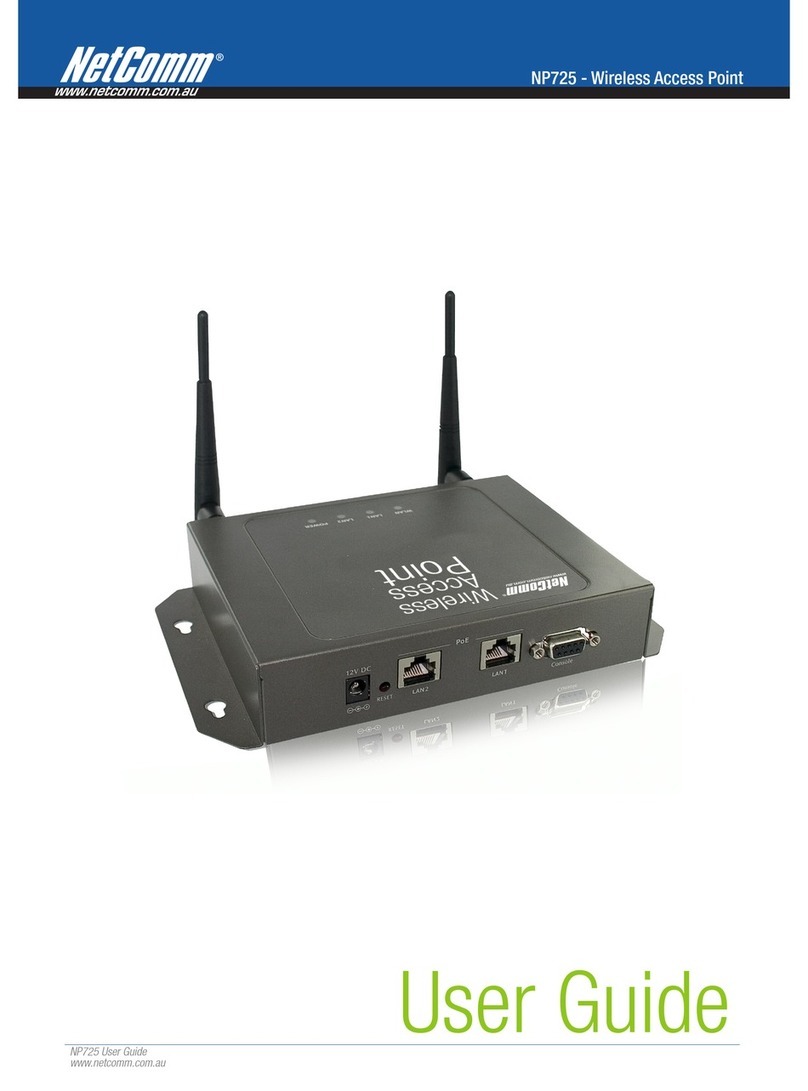
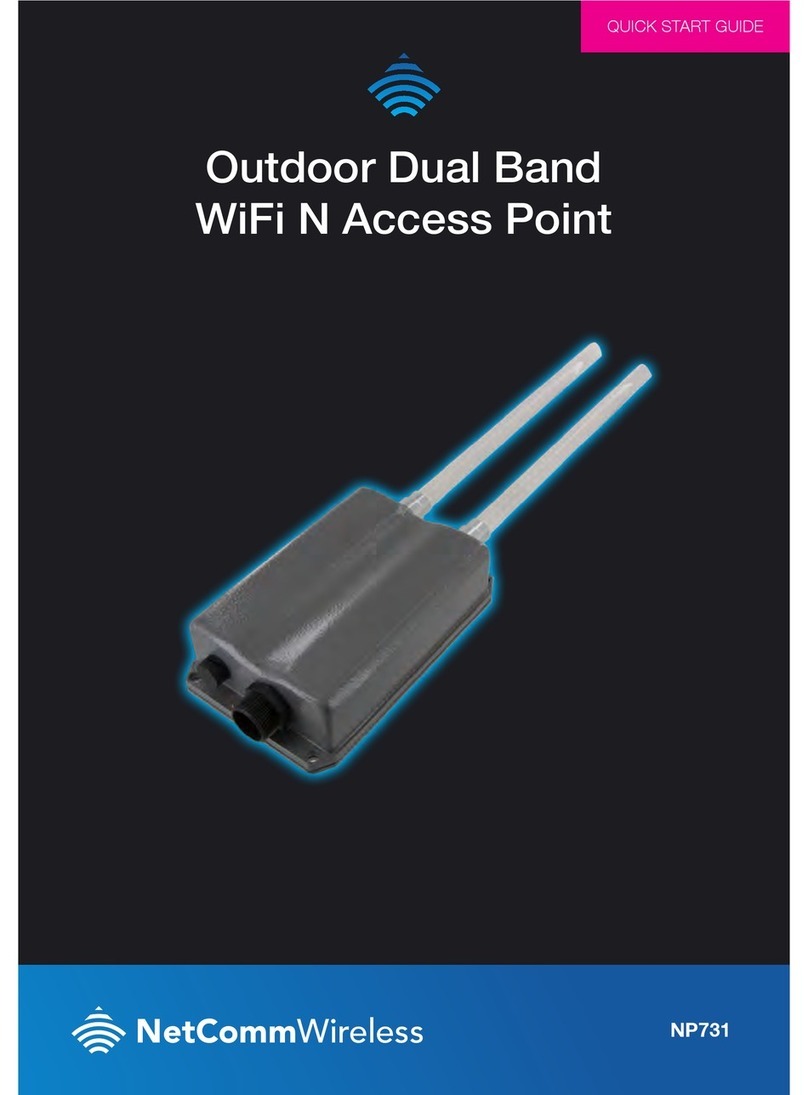
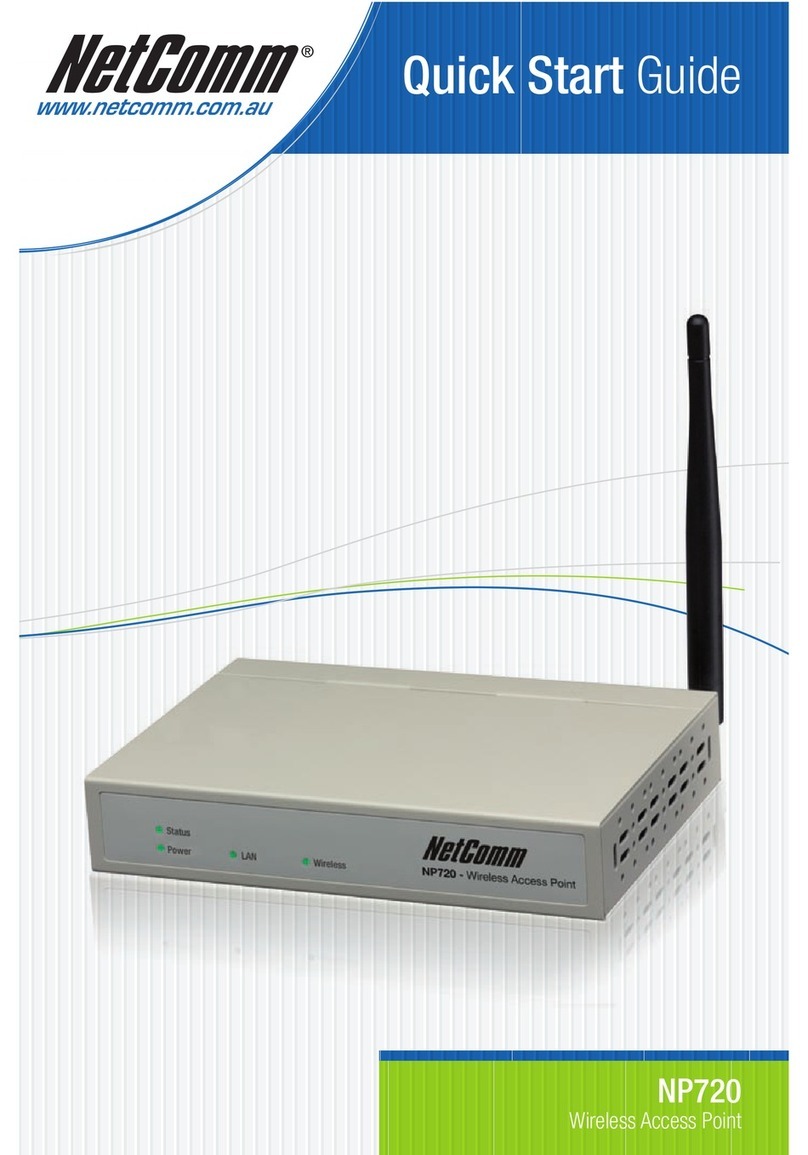
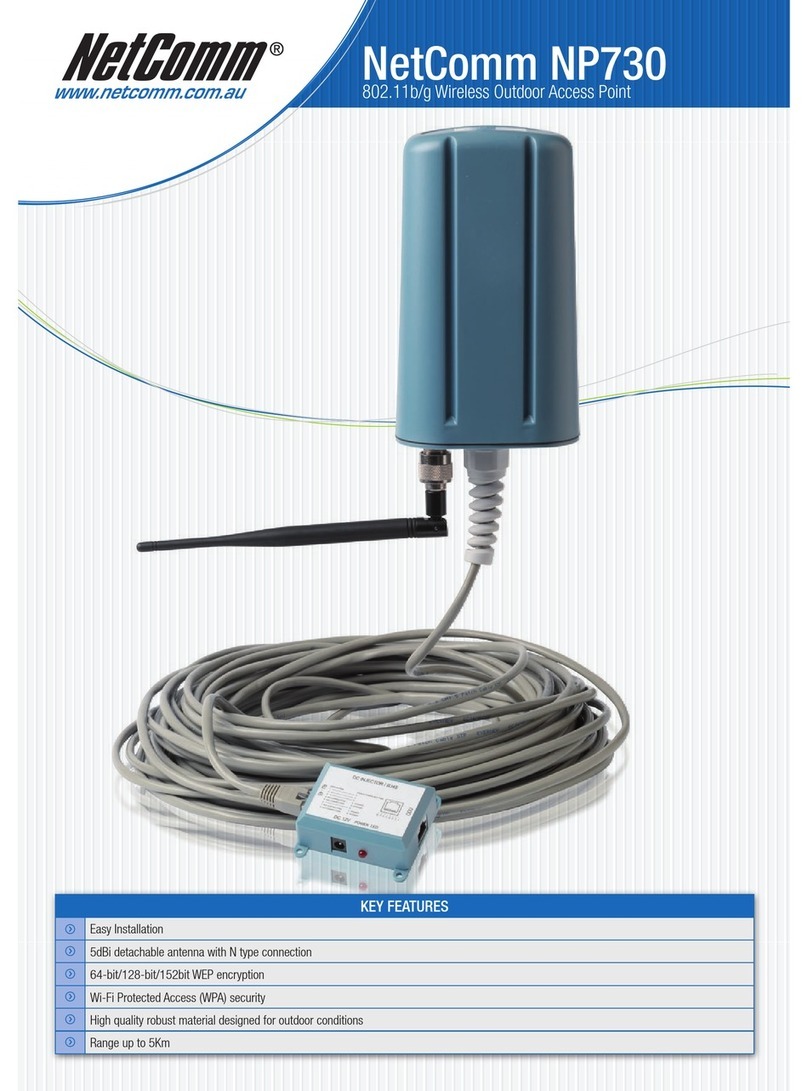
NetComm NP730 User manual

User Guide
NP730
Outdoor Wireless Access Point

This manual is copyright. Apart from any fair dealing for the purposes of private study, research, criticism or review, as permitted under the Copyright Act, no part may be reproduced, stored in a retrieval system
or transmitted in any form, by any means, be it electronic, mechanical, recording or otherwise, without the prior written permission of NetComm Limited. NetComm Limited accepts no liability or responsibility, for
consequences arising from the use of this product.
NetComm Limited reserves the right to change the specifications and operating details of this product without notice.
NetComm is a registered trademark of NetComm Limited.
All other trademarks are acknowledged the property of their respective owners.
Customer Information
ACA (Australian Communications Authority) requires you to be aware of the following information and warnings:
(1) This unit shall be connected to the Telecommunication Network through a line cord which meets the requirements of the ACA TS008 Standard.
(2) This equipment has been tested and found to comply with the Standards for C-Tick and or A-Tick as set by the ACA . These standards are designed to provide reasonable protection against harmful interference in
a residential installation. This equipment generates, uses, and can radiate radio noise and, if not installed and used in accordance with the instructions detailed within this manual, may cause interference to radio
communications. However, there is no guarantee that interference will not occur with the installation of this product in your home or office. If this equipment does cause some degree of interference to radio or
television reception, which can be determined by turning the equipment off and on, we encourage the user to try to correct the interference by one or more of the following measures:
• Change the direction or relocate the receiving antenna.
• Increase the separation between this equipment and the receiver.
• Connect the equipment to an alternate power outlet on a different power circuit from that to which the receiver/TV is connected.
• Consult an experienced radio/TV technician for help.
(3) The power supply that is provided with this unit is only intended for use with this product. Do not use this power supply with any other product or do not use any other power supply that is not approved for use
with this product by NetComm. Failure to do so may cause damage to this product, fire or result in personal injury.
Product Warranty
The warranty is granted on the following conditions:
1. This warranty extends to the original purchaser (you) and is not transferable;
2. This warranty shall not apply to software programs, batteries, power supplies, cables or other accessories supplied in or with the product;
3. The customer complies with all of the terms of any relevant agreement with NetComm and any other reasonable requirements of NetComm including producing such evidence of purchase as NetComm may
require;
4. The cost of transporting product to and from NetComm’s nominated premises is your responsibility; and,
5. NetComm does not have any liability or responsibility under this warranty where any cost, loss, injury or damage of any kind, whether direct, indirect, consequential, incidental or otherwise arises out of events
beyond NetComm’s reasonable control. This includes but is not limited to: acts of God, war, riot, embargoes, acts of civil or military authorities, fire, floods, electricity outages, lightning, power surges, or shortages
of materials or labour.
6. The customer is responsible for the security of their computer and network at all times. Security features may be disabled within the factory default settings. NetComm recommends that you enable these features
to enhance your security.
The warranty is automatically voided if:
1. You, or someone else, use the product, or attempts to use it, other than as specified by NetComm;
2. The fault or defect in your product is the result of a voltage surge subjected to the product either by the way of power supply or communication line, whether caused by thunderstorm activity or any other cause(s);
3. The fault is the result of accidental damage or damage in transit, including but not limited to liquid spillage;
4. Your product has been used for any purposes other than that for which it is sold, or in any way other than in strict accordance with the user manual supplied;
5. Your product has been repaired or modified or attempted to be repaired or modified, other than by a qualified person at a service centre authorised by NetComm; and,
6. The serial number has been defaced or altered in any way or if the serial number plate has been removed.
Limitations of Warranty
The Trade Practices Act 1974 and corresponding State and Territory Fair Trading Acts or legalisation of another Government (“the relevant acts”) in certain circumstances imply mandatory conditions and warranties
which cannot be excluded. This warranty is in addition to and not in replacement for such conditions and warranties.
To the extent permitted by the Relevant Acts, in relation to your product and any other materials provided with the product (“the Goods”) the liability of NetComm under the Relevant Acts is limited at the option of
NetComm to:
•Replacement of the Goods; or
•Repair of the Goods; or
•Payment of the cost of replacing the Goods; or
•Payment of the cost of having the Goods repaired.
All NetComm ACN 002 490 486 products have a standard 12 months warranty from date of purchase. However some products have an extended warranty option (refer to packaging). To be eligible for the
extended warranty you must supply the requested warranty information to NetComm within 30 days of the original purchase by registering on-line via the NetComm web site at
www.netcomm.com.au

3
802.11g Wireless Outdoor
Access Point/Ethernet Bridge
Revision 2.3
User Guide

FCC Notice
NOTE: This equipment has been tested and found to comply with the limits
for a Class B digital device, pursuant to part 15 of the FCC Rules. These limits
are designed to provide reasonable protection against harmful interference in
a residential installation.
This equipment generates, uses and can radiate radio frequency energy and,
if not installed
and used in accordance with the instructions, may cause harmful interference
to radio communications. However, there is no guarantee that interference will
not occur in a particular installation. If this equipment does cause harmful
interference to radio or television reception, which can be determined by
turning the equipment off and on, the user is encouraged to try to correct the
interference by one or more of the following measures:
—Reorient or relocate the receiving antenna.
—Increase the separation between the equipment and receiver.
—Connect the equipment into an outlet on a circuit different from that to which
the receiver is connected.
—Consult the dealer or an experienced radio/ TV technician for help.
Changes or modifications not expressly approved by the party responsible for
compliance could void the user’s authority to operate the equipment.
The antenna(s) used for this transmitter must not be co-located or operating in
conjunction with any other antenna or transmitter.
The manufacture is not responsible for any radio or TV interference caused by
unauthorized modifications to this equipment. Such modifications could void
the user’s authority to operate the equipment.
4

5
The Wireless Technology
Standard
The Wireless Access Point utilizes the 802.11b and the 802.11g standards.
The IEEE 802.11g standard is an extension of the 802.11b standard. It
increases the data rate up to 54 Mbps (108Mbps in Super G mode) within the
2.4GHz band, utilizing OFDM technology. This means that in most
environments, within the specified range of this device, you will be able to
transfer large files quickly or even watch a movie in MPEG format you’re your
network without noticeable delays. This technology works by transmitting
high-speed digital data over a radio wave utilizing OFDM (Orthogonal
Frequency Division Multiplexing) technology. OFDM works by splitting the
radio signal into multiple smaller sub-signals that are then transmitted
simultaneously at different frequencies to the receiver. OFDM reduces the
amount of cross talk (interference) in signal transmissions. The AP will
automatically sense the best possible connection speed to ensure the greatest
speed and range possible. 802.11g offers the most advanced network security
features available today, including: WPA, TKIP, AES and Pre-Shared Key
mode.
UUPlanning Your Wireless Network
Network Topology
A wireless network is a group of computers, each equipped with one wireless
adapter. Computers in a wireless network must be configured to share the
same radio channel. Several PCs equipped with wireless cards or adapters
can communicate with one another to form an ad-hoc network. The wireless
adapters also provide users access to a wired network when using an access
point or wireless router. An integrated wireless and wired network is called an
infrastructure network. Each wireless PC in an infrastructure network can talk
to any computer in a wired network infrastructure via the access point or
wireless router. An infrastructure configuration extends the accessibility of a
wireless PC to a wired network, and may double the effective wireless
transmission range for two wireless adapter PCs. Since an access point is
able to forward data within a network, the effective transmission range in an
infrastructure network may be doubled.

6
Roaming
Infrastructure mode also supports roaming capabilities for mobile users.
Roaming means that you can move your wireless PC within your network and
the access points will pick up the wireless PC's signal, providing that they both
share the same channel and SSID. Before enabling you consider roaming,
choose a feasible radio channel and optimum access point position. Proper
access point positioning combined with a clear radio signal will greatly
enhance performance.
Network Layout
The AP Access Point has been designed for use with 802.11g and 802.11b
products. With 802.11g products communicating with the 802.11b standard,
products using these standards can communicate with each other. The
Access point is compatible with 802.11g and 802.11b adapters, such at the
PC Cards for your laptop computers, PCI Card for your desktop PC, and USB
Adapters for when you want to enjoy USB connectivity. These wireless
products can also communicate with a 802.11g or 802.11b wireless Print
Server. When you wish to connect your wired network with your wireless
network, the Access Point’s network port can be used to connect to any of
switches or routers.
Installation Considerations
The AP lets you access your network, using a wireless connection, from
virtually anywhere within its operating range. Keep in mind, however, that the
number, thickness and location of walls, ceilings, or other objects that the
wireless signals must pass through, may limit the range. Typical ranges vary
depending on the types of materials and background RF (radio frequency)
noise in your home or business. The key to maximizing wireless range is to
follow these basic guidelines:
zKeep your product away (at least 3-6 feet or 1-2 meters) from electrical
devices or appliances that generate RF noise.
zKeep the number of walls and ceilings between the AP and other network
devices to a minimum - each wall or ceiling can reduce your AP’s range
from 3-90 feet (1-30 meters.) Position your devices so that the number of
walls or ceilings is minimized.
zBe aware of the direct line between network devices. A wall that is 1.5 feet
thick(.5 meters), at a 45-degree angle appears to be almost 3 feet (1

7
meter) thick. At a 2-degree angle it looks over 42 feet (14 meters) thick!
Position devices so that the signal will travel straight through a wall or
ceiling (instead of at an angle) for better reception.
zBuilding materials can impede the wireless signal - a solid metal door or
aluminum studs may have a negative effect on range. Try to position
wireless devices and computers with wireless adapters so that the signal
passes through drywall or open doorways and not other materials.
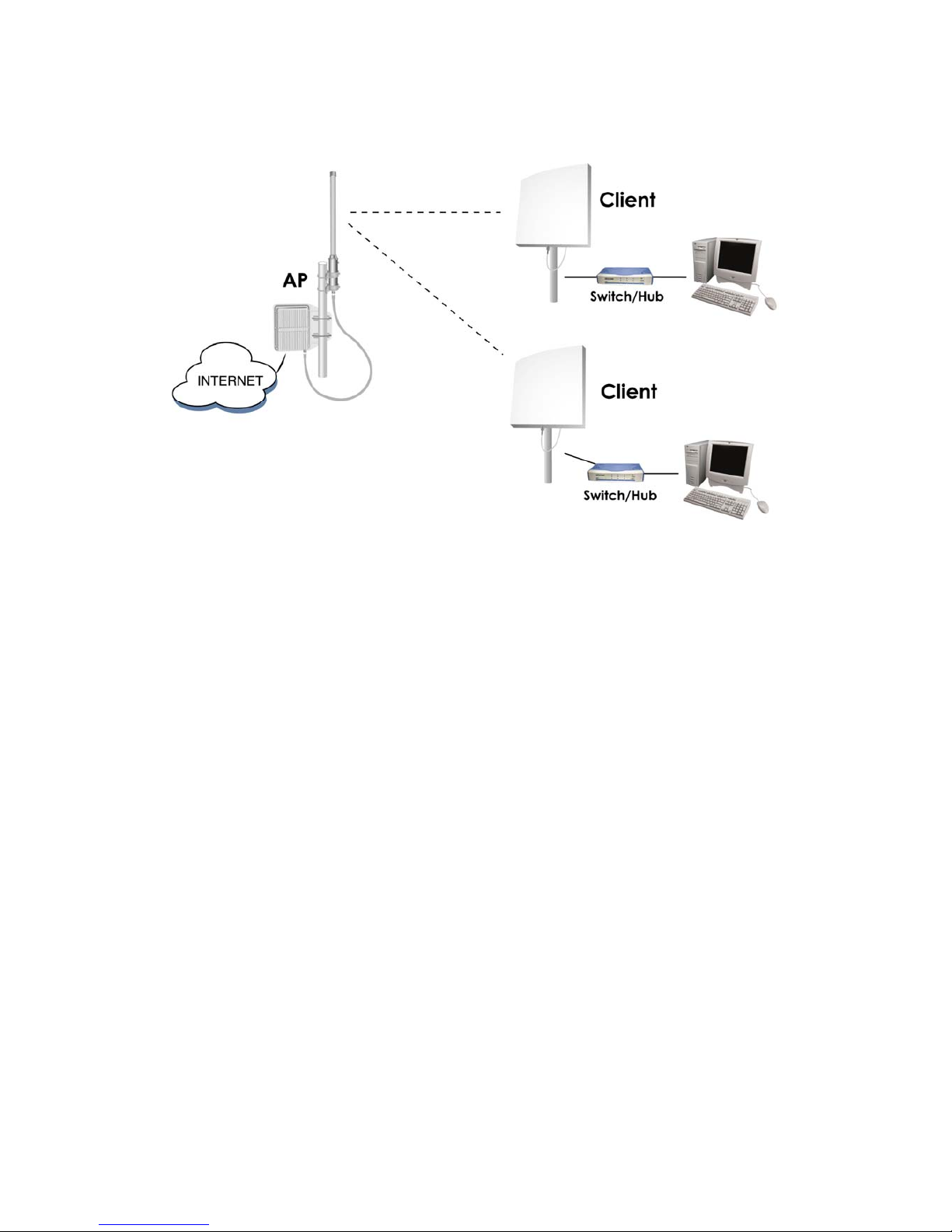
Network Topology – AP Mode and Client Mode
8
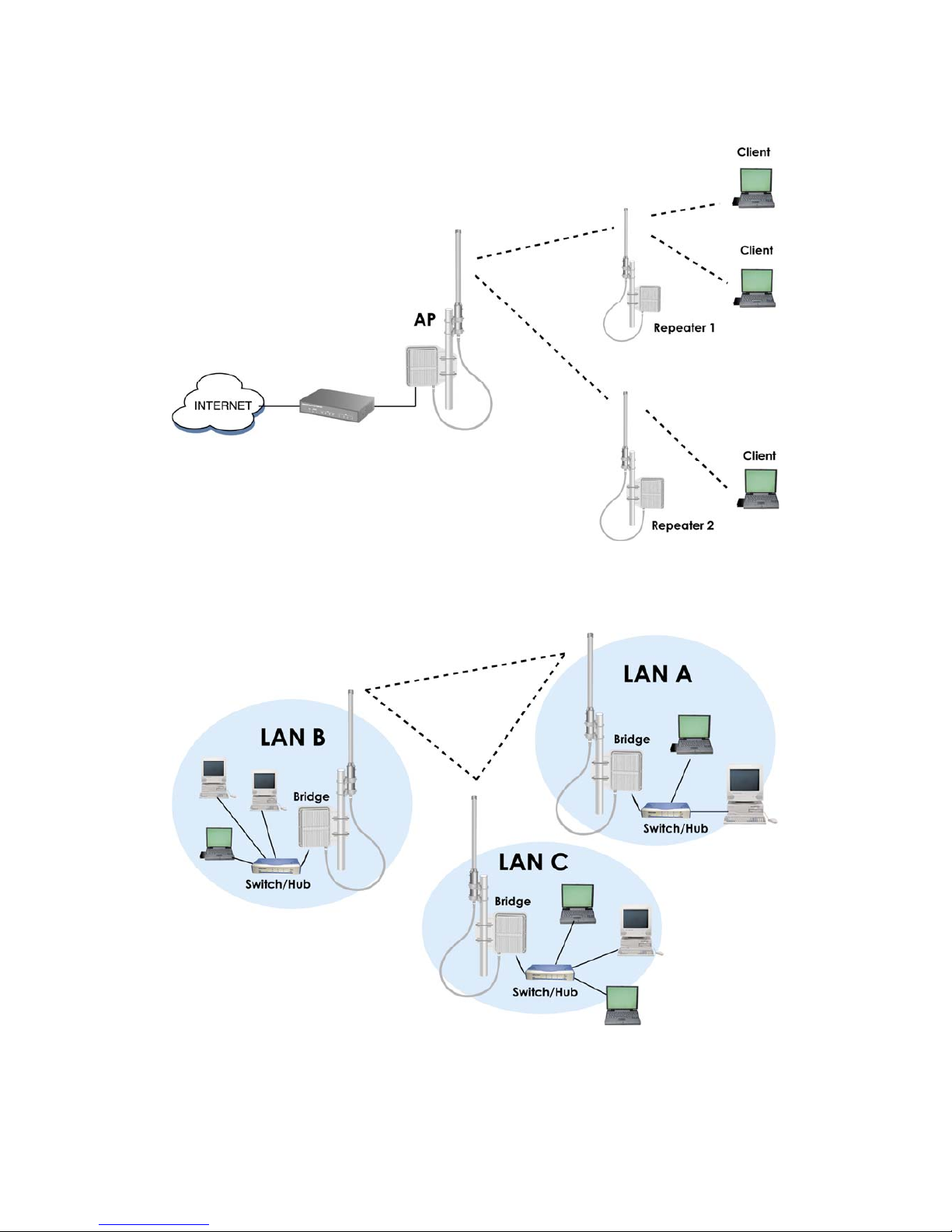
Network Topology – Repeater Mode
Network Topology – Wireless Bridge (WDS) Point to
Multi-Point Mode
9
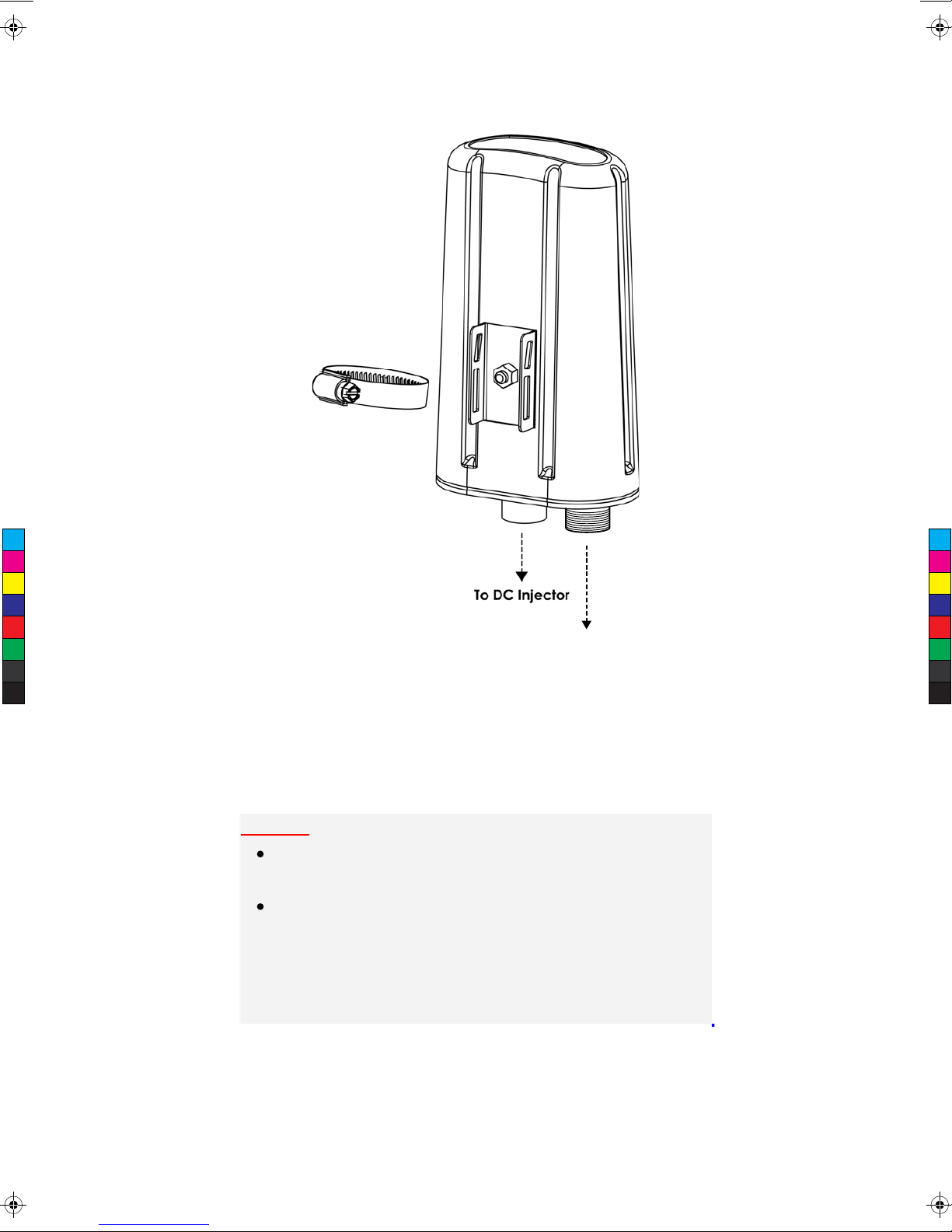
ASU Installation Diagram
Attention:
The cable distance between the Router and PC/hub/Switch
should not exceed 100 meters.
Make sure the wiring is correct. In 10Mbps operation, Category
3/4/5 cable can be used for connection. To reliably operate your
network at 100Mbps, you must use Category 5 cable, or better
Data Grade.
10
Attach Antenna
C
M
Y
CM
MY
CY
CMY
K
New Installation Page.pdf 24/05/2007 11:53:41 AM
Other manuals for NP730
1
Table of contents
Other NetComm Wireless Access Point manuals
NetComm
NetComm AV SERIES User manual
NetComm
NetComm NS-02 User manual
NetComm
NetComm NP6800 User manual
NetComm
NetComm CloudMesh NS-01 User manual
NetComm
NetComm CloudMesh NS-01 Quick start guide
NetComm
NetComm NP730 User manual
NetComm
NetComm NP5400 User manual
NetComm
NetComm INFRASTRUCTURE SERIES User manual
NetComm
NetComm NP5400 User manual
NetComm
NetComm NP720 User manual