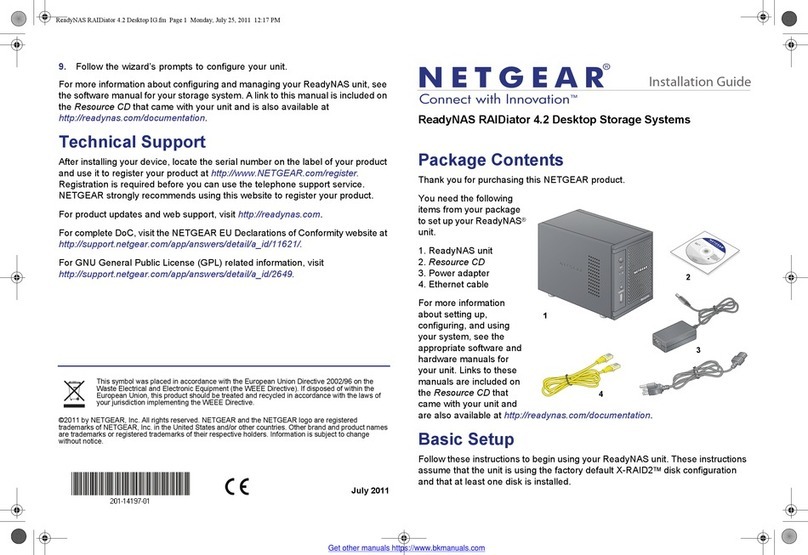
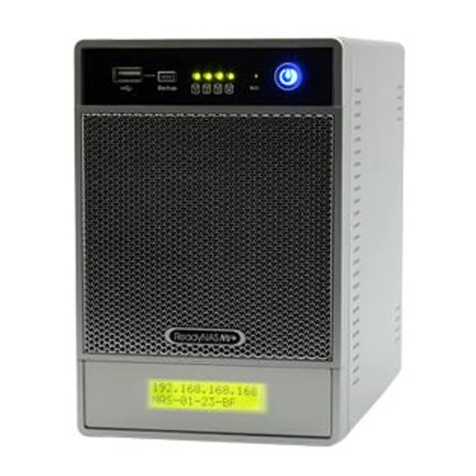
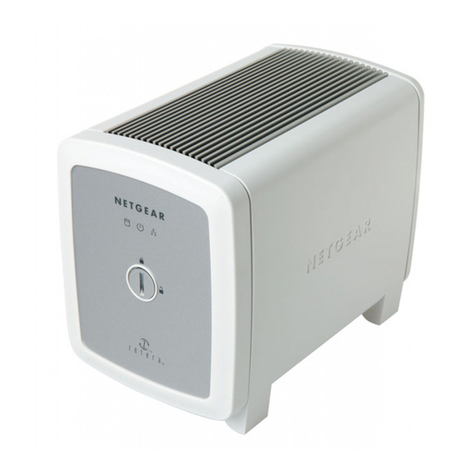
NETGEAR ReadyNAS RR4360X User manual
Other NETGEAR Storage manuals

NETGEAR
NETGEAR ReadyDATA 516 User manual
NETGEAR
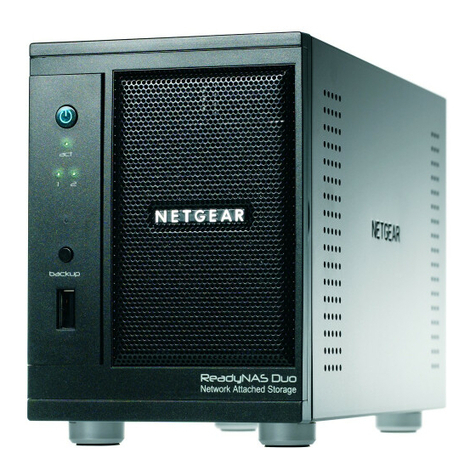
NETGEAR ReadyNAS Duo User manual
NETGEAR
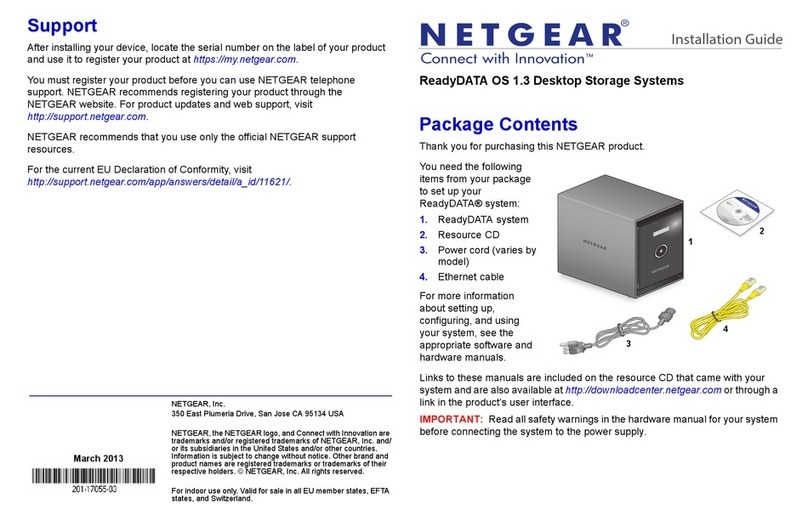
NETGEAR ReadyDATA OS 1.3 Desktop Storage Systems User manual
NETGEAR
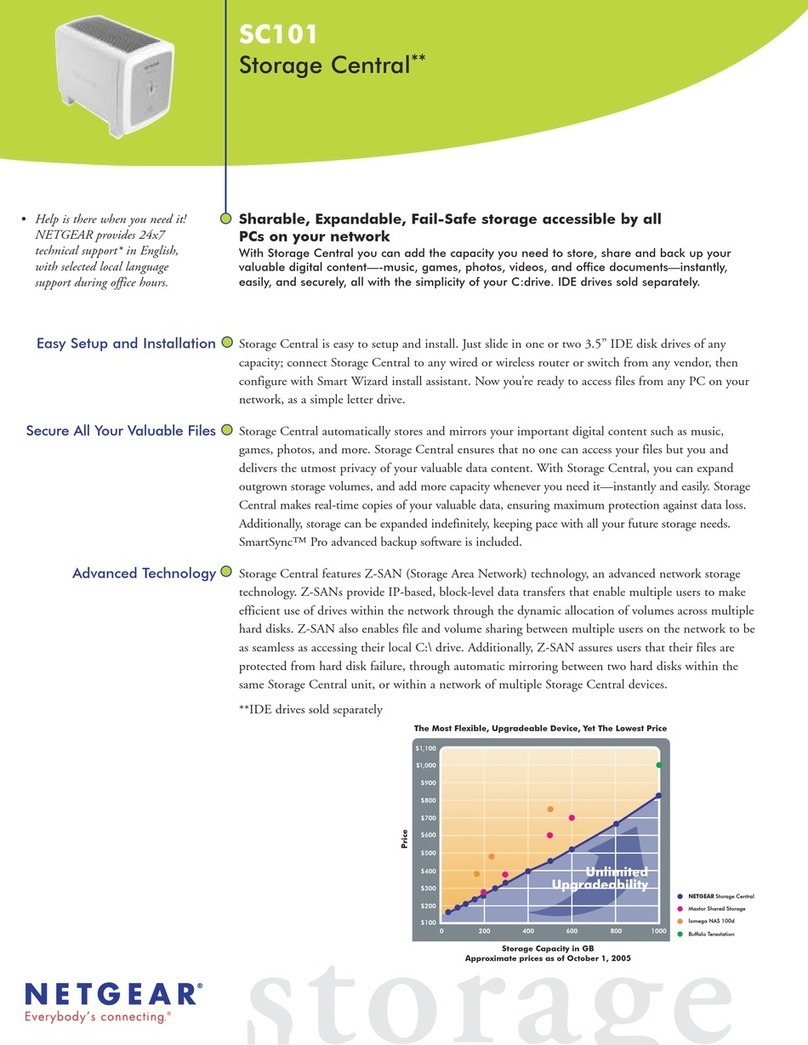
NETGEAR SC101 - Storage Central NAS Server User manual

NETGEAR
NETGEAR RN12P1210-100NAS - ReadyNAS 3200 RN12P1210 NAS... User manual
NETGEAR
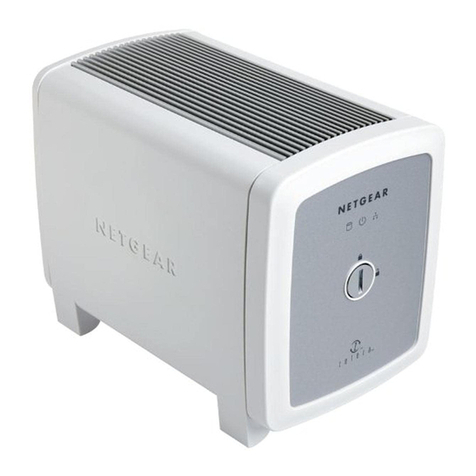
NETGEAR SC101 - Storage Central NAS Server User manual

NETGEAR
NETGEAR ReadyRECOVER Installation and operating instructions
NETGEAR
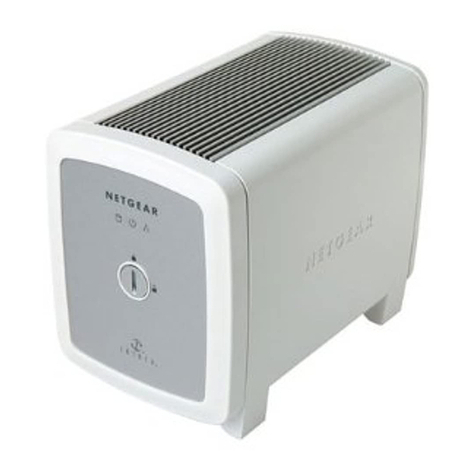
NETGEAR SC101 - Storage Central NAS Server User manual
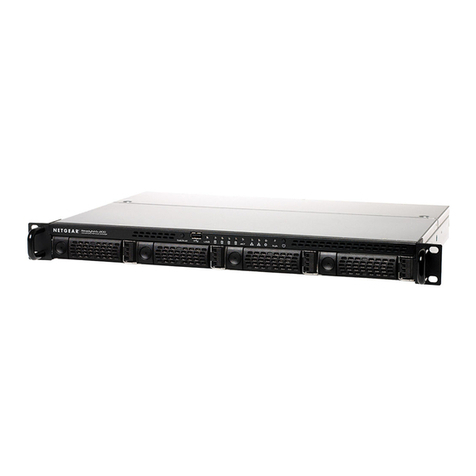
NETGEAR
NETGEAR RN12P0610-100NAS - ReadyNAS 3200 RN12P0610 NAS... User manual

NETGEAR
NETGEAR ReadyNAS Duo User manual
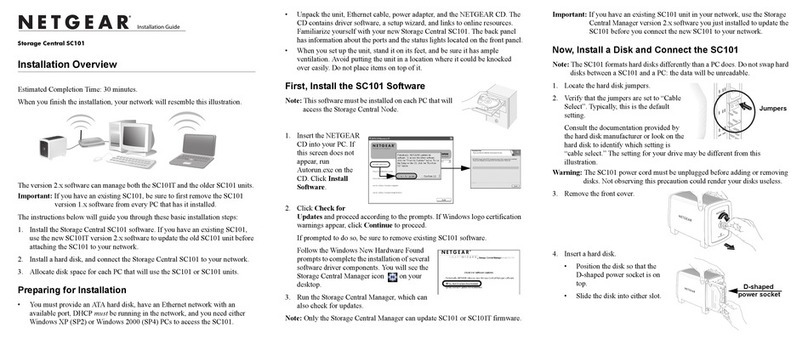
NETGEAR
NETGEAR SC101T - Storage Central Turbo Network Drive Installation guide
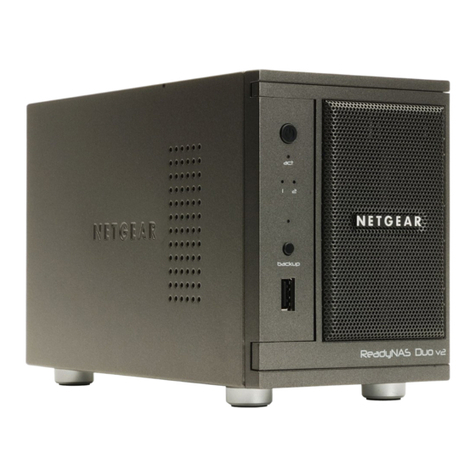
NETGEAR
NETGEAR RND44751G - ReadyNAS NV+ NAS Server User manual
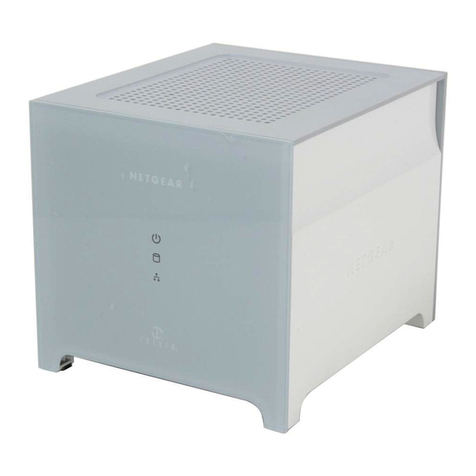
NETGEAR
NETGEAR SC101 - Storage Central NAS Server Installation guide

NETGEAR
NETGEAR ReadyNAS RMEM04 User manual

NETGEAR
NETGEAR EDA 500 User manual

NETGEAR
NETGEAR ReadyNAS Duo User manual

NETGEAR
NETGEAR ReadyNAS 2120 User manual

NETGEAR
NETGEAR ReadyNAS Series User manual
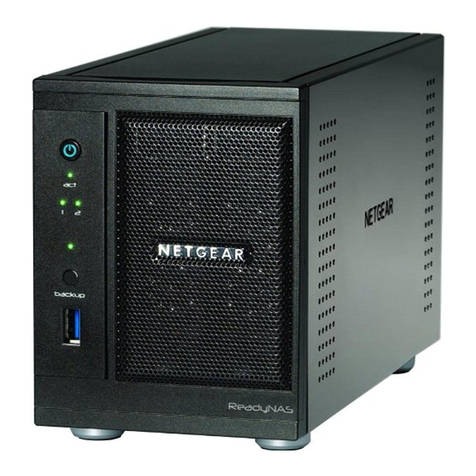
NETGEAR
NETGEAR RNDP200U-100NAS User manual

NETGEAR
NETGEAR RN12P1210-100NAS - ReadyNAS 3200 RN12P1210 NAS... User manual