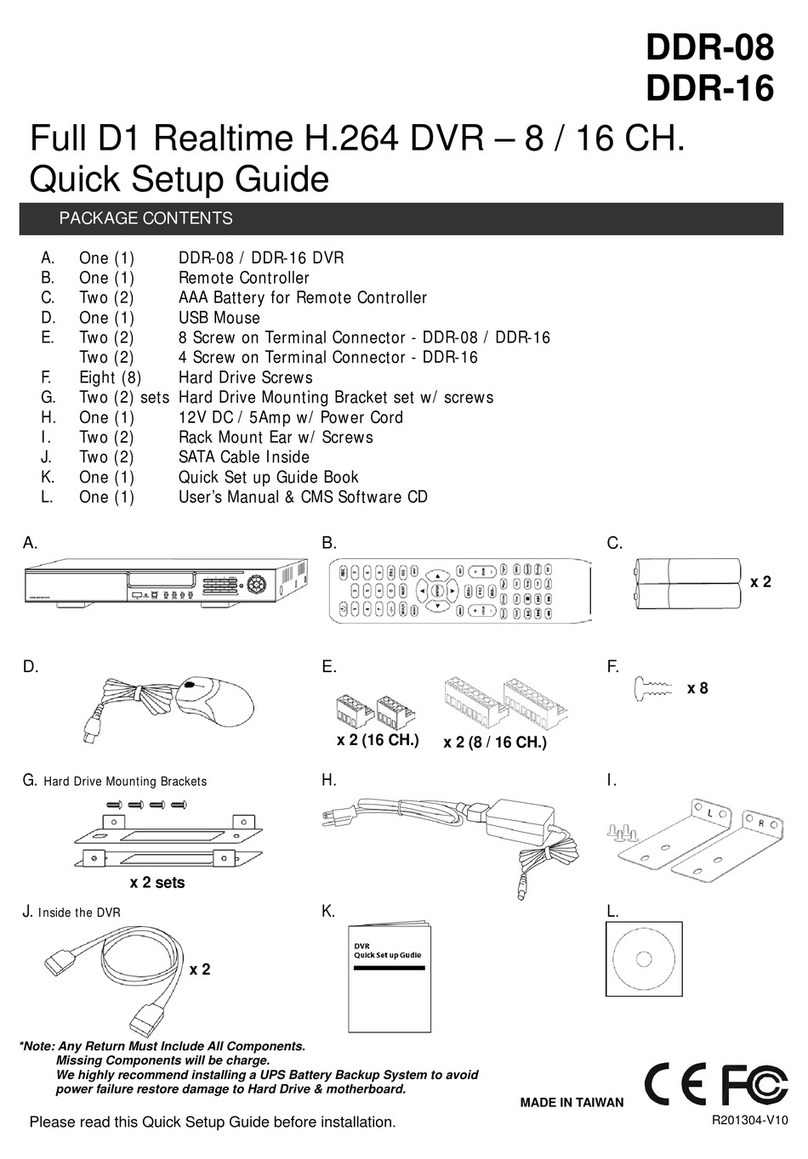
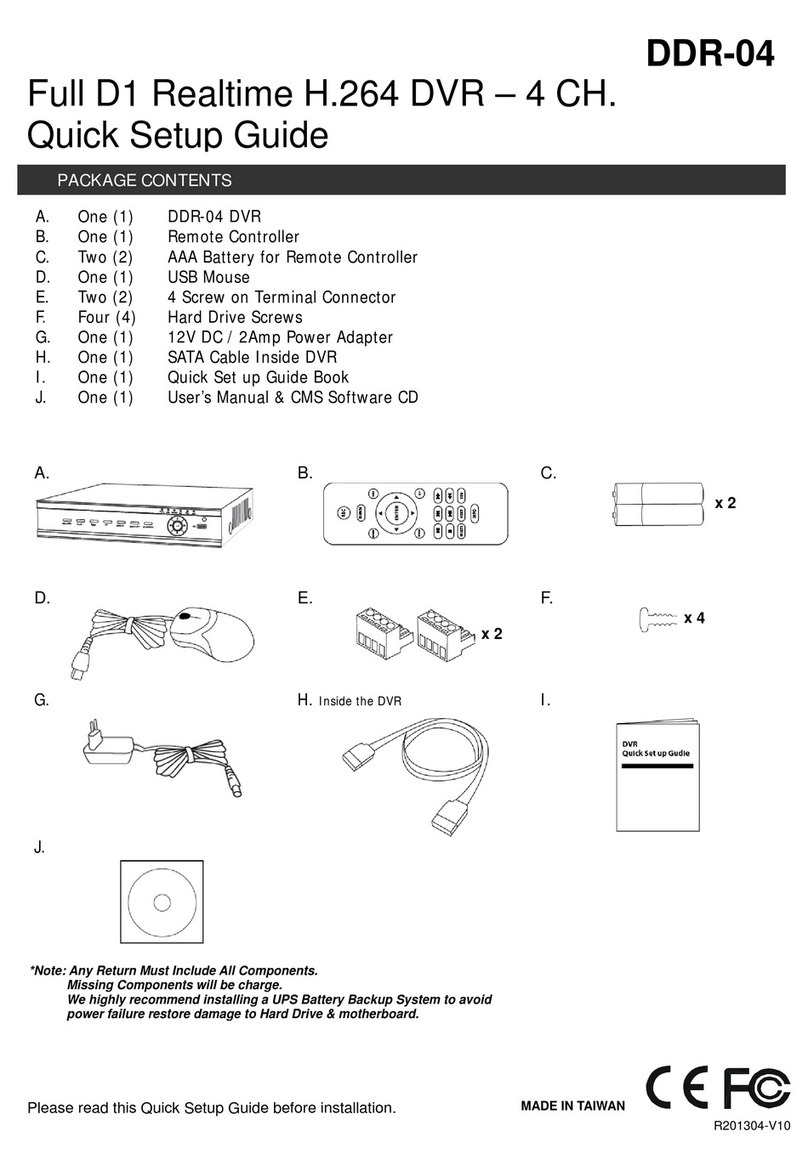
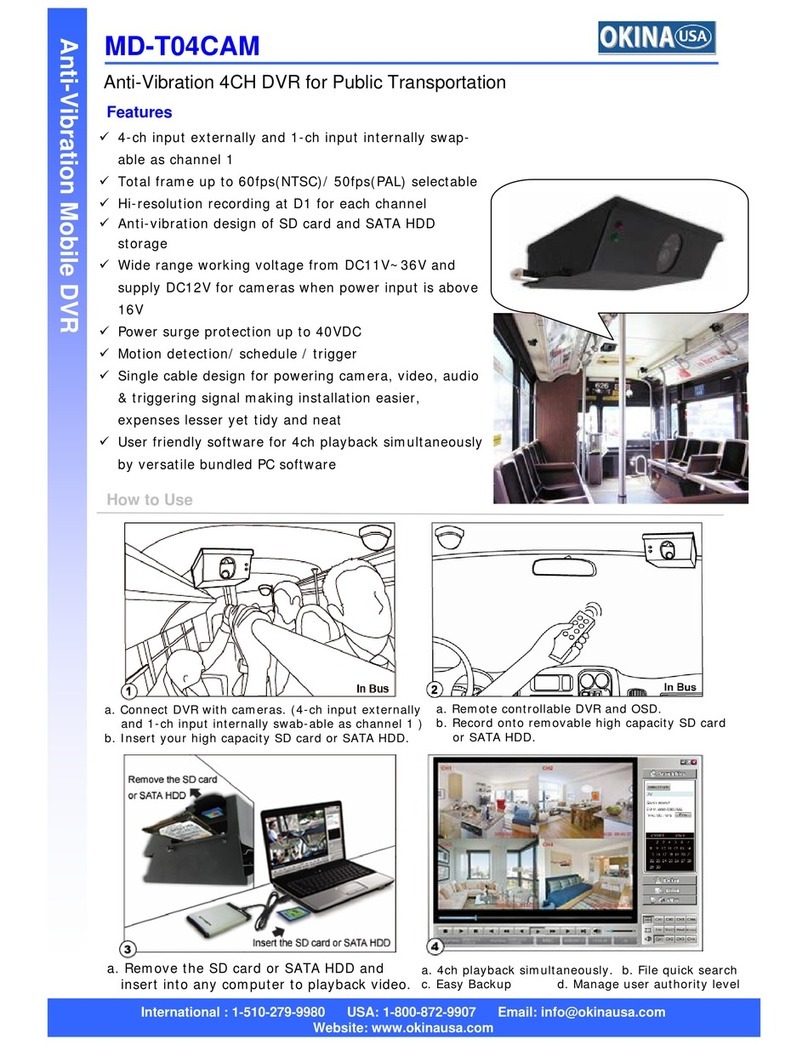
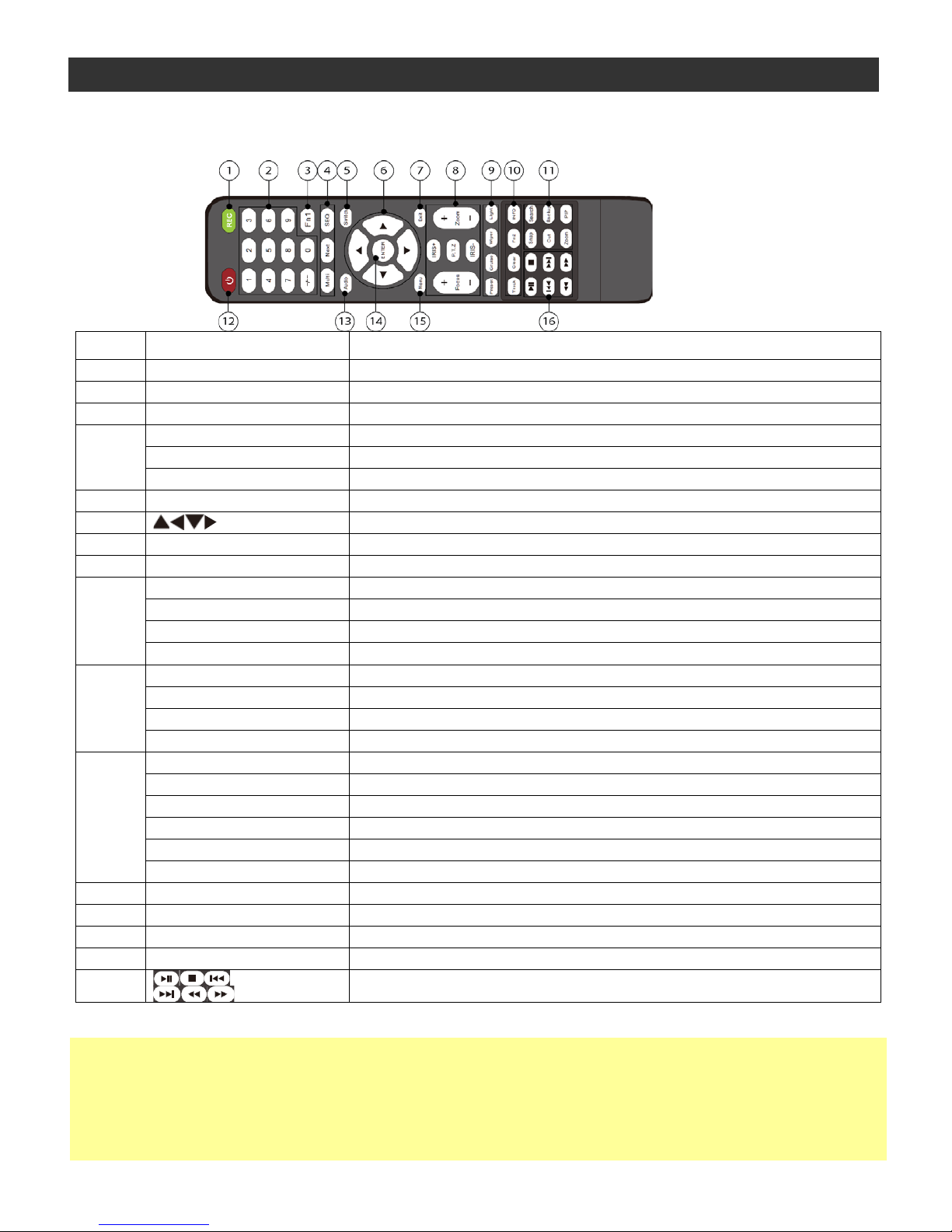
2 0-9, -/-- Digital Button Input number or choose camera
3 Fn1 Button Unavailable temporarily
4 Multi Button To choose multi-screen display mode
Next Button To switch the live image
SEQ To enter into auto dwell mode
5 Switch To switch the output between BNC and VGA
6
To move cursor in setup or pan/title PTZ
7 Exit Button To exit the current interface
8 Focus/IRIS/Zoom/PTZ To control PTZ camera. Move camera/zoom/IRIS/Focus
9
Preset Button To enter into preset setting in PTZ mode
Cruise Button To enter into cruise setting in PTZ mode
Wiper Button To enable wiper function in PTZ mode
Light Button To enable light function in PTZ mode
10
Track Button To enter into track setting in PTZ mode
Clear Button To return to the previous interface
Fn2 Button Unavailable temporarily
Info Button Get information about DVR like firmware version, HDD information
11
Snap Button To take snapshots manually
Search Button To enter into search mode
Cut Button To set the start/end time for backup in playback mode
Backup Button To enter into backup mode
Zoom Button To zoom in the images
PIP Button To enter into picture in picture setting mode
12 Power Button Switch off—to stop DVR. Use it before turning off the power
13 Audio To enable audio output in live mode
14 Enter Button To confirm the choice or setup
15 Menu Button To enter into menu
16
◆Switch Remote Control ID
1. Take remote control and point to DVR then continuously press “8”,”8”,”ID(0-65535)”,”Enter”.
2. Make change on DVR ID Setting,
Go to “SYSTEM MENU” > “DEVICE ID” to make change
*The ID must be the same on DVR.
*For example: If ID=1 ,
Please take remote control and point to DVR then press 8,8,1,Enter.
Then go to “SYSTEM MENU” > “DEVICE ID” change the ID=1