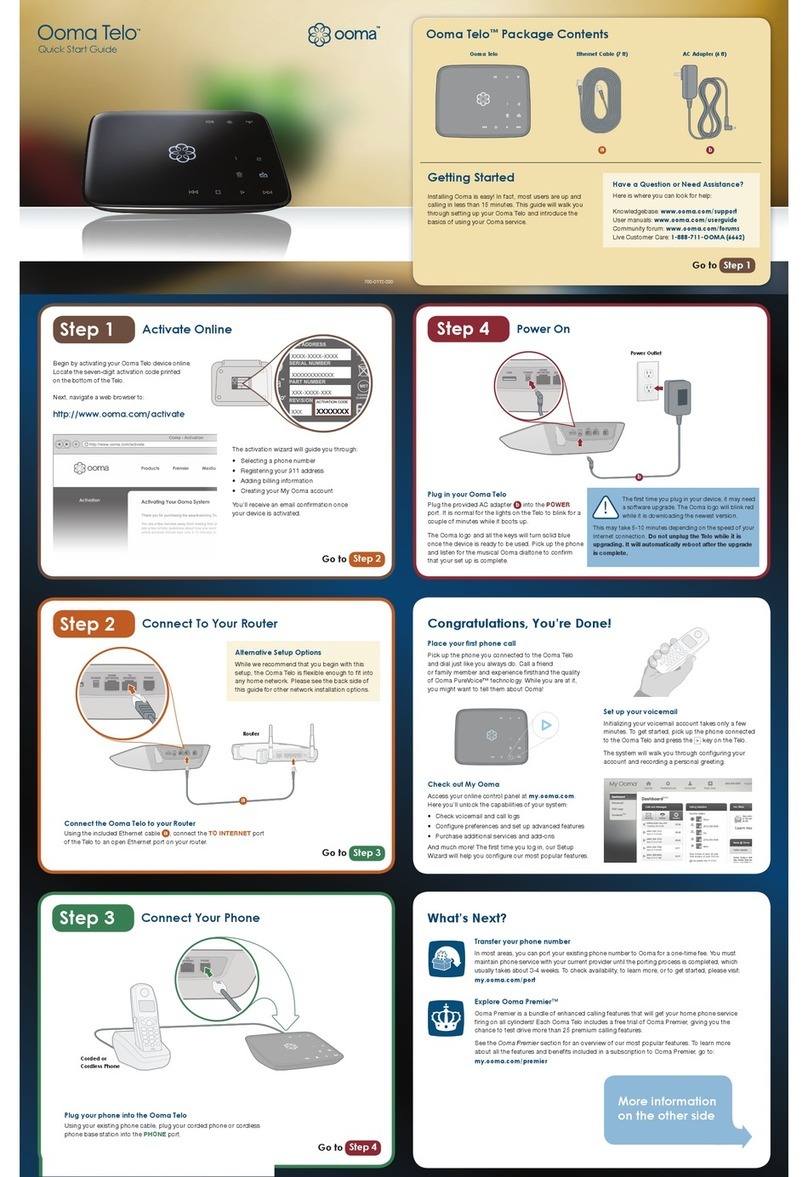
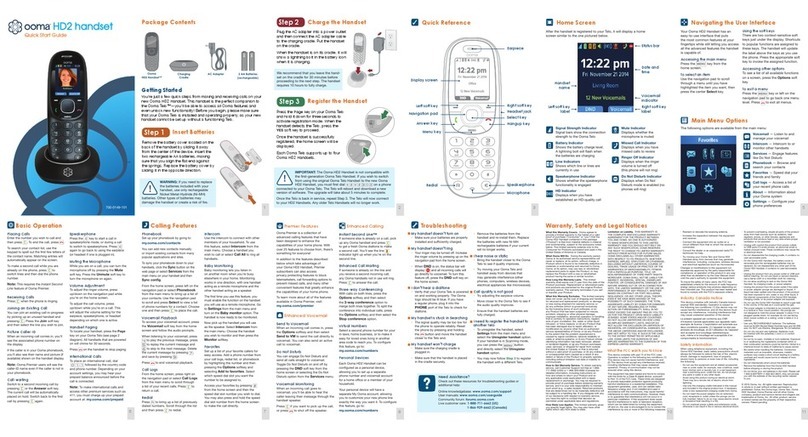
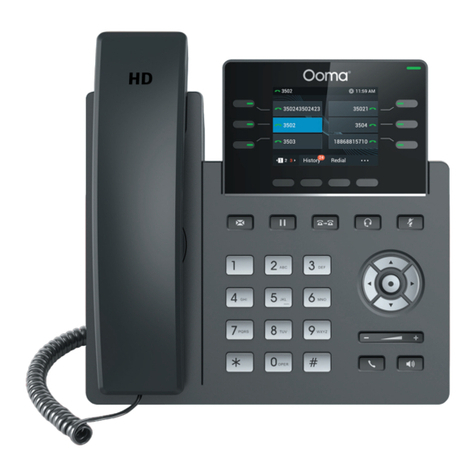
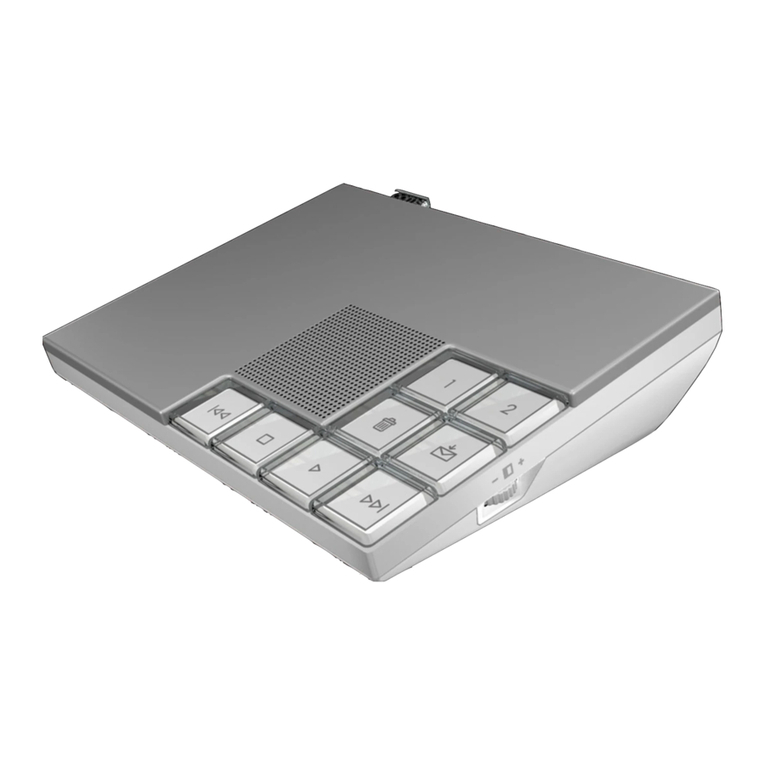
ooma HUB User manual

QuickStart Guide
Everything you need to get started is inside this box, and everything you need to know about
installation is in your hands. Don’t be fooled by the size of this Quick Start Guide; it may be
20 pages long, but only a few of these pages will apply to you, based upon:
What type of network setup you have
How many phone jacks you use in your home
Whether you will be using ooma with or without a landline
By answering a few questions along the way, you’ll be able to jump to the exact pages you
need. We’ve included these icons to help you identify when:
Instructions are specic to using the ooma system with a landline
More details are available in the User Guide
20 minutes to unlimited calling within the US
Installing your ooma system is remarkably simple. Once you connect a
main ooma Hub™ device to your telephone — and smaller ooma Scout™
devices to any other phones in your home — and plug into your internet
connection, you’re good to go. It’s so easy that it takes just about 20 minutes
to complete. You’ll then be able to immediately begin making unlimited
local and long-distance calls, with no monthly fees.
Until later,
Team ooma
OWNING YOUR DIALTONE
The signature ooma dialtone is
music to your ears. It means you
have unlimited calling within the
US – with no monthly fees.
INTERRUPTION-FREE CALLS*
Never hang up again just because
someone else needs the phone.
You now have an Instant Second
Line the minute you pick up anoth-
er phone (requires installation of
an ooma Scout device).
ENHANCED DIGITAL VOICEMAIL*
Now you can screen calls, send
callers directly to voicemail,
organize your messages, and
access them online.
GET READY TO SAY HELLO TO:
Should you encounter any
problems or have questions during
the installation process – we’re
here to help. There are two ways
to contact us:
Visit www.ooma.com to
access our support section
Call 1-888-711-6662 to talk to a
customer support representative
WE’RE HERE IF YOU NEED US
© 2008 ooma, Inc. All rights reserved. Reproduction in whole or in part without written permission is prohibited. ooma, the ooma logo, ooma Hub, ooma
Scout, Instant Second Line, Broadband Answering Machine, the sound of the ooma dialtone, and all other ooma company, product and service names and
slogans are trademarks of ooma, Inc. All other product, service or brand names are the property of their respective owners.
*Enhanced services only apply to accounts with these subscribed features.


1
Before you begin, check the following:
If you have a standalone answering machine, DISCONNECT it.
If any phone has an answering machine function built-in, DISABLE it now.
Unpack the ooma Hub™ device
The ooma Hub box should contain the following items:
Port and Color Guide
Here is a closer look at the back of your ooma Hub device. Throughout the set up process, each port on the back of your ooma Hub will be
indicated with the following colors.
installing the ooma hub
ooma Hub
Long Phone CableShort Phone Cable
ooma Splitter
Ethernet Cable
AC Adaptor

2
2Choose the example below that best matches your home network set-up and
continue to the appropriate page:
If you need help in identifying your home network equipment, see APPENDIX A of the User Guide.
A
B
C
Modem connected directly to your computer (desktop
or laptop).
SKIP TO PAGE 3
Modem connected to a router. The router may be
connected to one or more computers, and may be
wired or wireless (as in Wi-Fi).
SKIP TO PAGE 4
Integrated router (with built-in modem). The router may
be connected to one or more computers, and may be
wired or wireless (as in Wi-Fi).
OR
You have an advanced network conguration and wish
to install the ooma Hub behind a router.
SKIP TO PAGE 5
Router
May not be present
with Wi-Fi
Modem
Internet
Connection
Integrated Router
May not be present
with Wi-Fi
Internet
Connection
Modem
Internet
Connection
1Activate the ooma Hub online
Before proceeding with the ooma Hub installation, you must activate the Hub online. To complete the online activation, open a
web browser on your home computer and navigate to: http://www.ooma.com/activate
installing the ooma hub
After the online activation is complete, be sure to TURN OFF any personal computers, modems, switches and routers
that are connected to your home network before proceeding to the next installation step.

3
A
installing the ooma hub
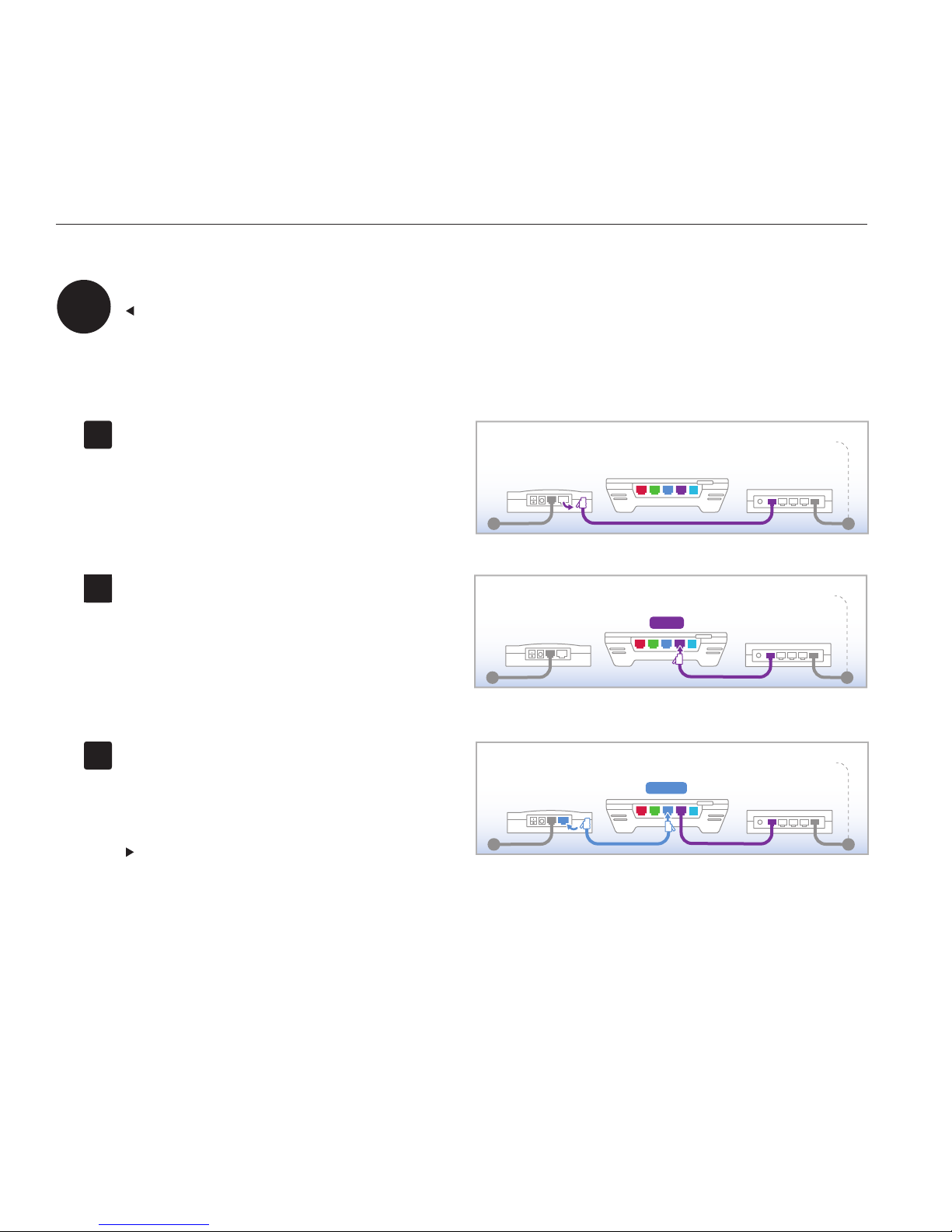
Disconnect the existing cable
Unplug the existing ethernet cable from your modem.
This is the cable that connects the modem to your
computer.
Reconnect to the ooma Hub
Plug the existing ethernet cable into the port labeled
HOME on the ooma Hub.
Connect to the modem
Use the ethernet cable provided and connect the port
labeled MODEM on the ooma Hub to the ethernet port
of the modem.
SKIP TO PAGE 6
Modem connected directly to your computer
CONTINUED FROM PAGE 2
Modem
HOME
Modem
MODEM
Modem
A1
A2
A3
4
Disconnect the existing cable
Unplug the existing ethernet cable from your modem.
This is the cable that connects the ethernet port of the
modem to the port usually labeled “WAN” or “Internet”
on the router.
Reconnect to the ooma Hub
Plug the existing ethernet cable into the port labeled
HOME on the ooma Hub.
Connect to the modem
Use the ethernet cable provided and connect the port
labeled MODEM on the ooma Hub to the ethernet port
of the modem.
SKIP TO PAGE 6
Modem connected to a router
CONTINUED FROM PAGE 2
Modem Router
May not be present
with Wi-Fi
Modem Router
May not be present
with Wi-Fi
HOME
MODEM
Modem Router
May not be present
with Wi-Fi
installing the ooma hub
B1
B2
B3
B

5
installing the ooma hub
Disconnect the existing cable
Unplug the existing ethernet cable from your router.
This is the cable that connects the router to a
computer.
Reconnect to the ooma Hub
Plug the existing ethernet cable into the port labeled
HOME on the ooma Hub.
Connect to the router
Use the ethernet cable provided and connect the
port labeled MODEM on the ooma Hub to an open
ethernet port on the router.
Integrated router (with built-in modem)
CONTINUED FROM PAGE 2
If your computers connect wirelessly to your router or you have an advanced networking conguration and do not want to
connect devices behind the ooma Hub, skip to step C3.
Integrated Router
Integrated Router
HOME
Integrated Router
MODEM
C1
C2
C3
C
6installing the ooma hub
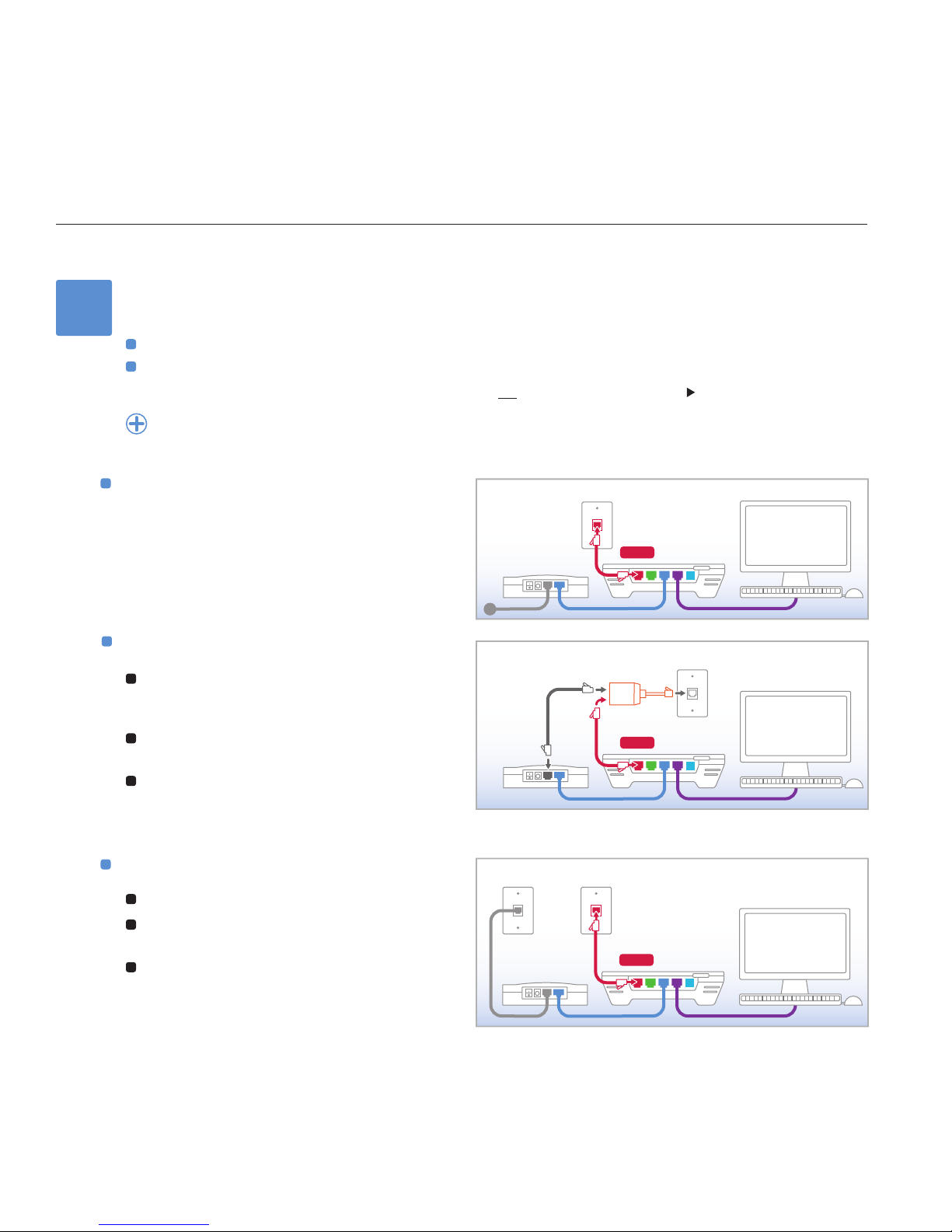
3Choose the example below that best matches your situation:
If you’re not sure whether you have DSL or Cable, ask yourself this: Who do I pay for High-Speed Internet Service?
If you pay your phone company, you have DSL.
If you pay your cable television provider, you have CABLE.
Skip this step if you are using ooma without a landline AND will not use an ooma Scout device. SKIP TO PAGE 7
See the GETTING STARTED and CONNECTING THE OOMA HUB TO YOUR PHONE SYSTEM section of the User Guide if
you are not sure which version you have (landline or non-landline) or if you need help selecting among the choices below.
Cable or ber-optic internet
Use the long phone cable provided and connect the
port labeled WALL on the ooma Hub to the phone jack
in the wall.
DSL & phone on the same line
1Plug the ooma splitter provided directly into the
phone jack in the wall. UNPLUG and REMOVE any
existing DSL lters or splitters.
2Connect your DSL modem to one port of the ooma
splitter using the original DSL modem phone cable.
3Use the long phone cable provided and connect the
port labeled WALL on the ooma Hub to the other
port of the ooma splitter.
DSL & phone on separate lines
1Leave your DSL modem connected as is.
2UNPLUG and REMOVE any existing DSL lters or
splitters on your phone line (not your DSL line).
3Use the long phone cable provided and connect the
port labeled WALL on the ooma Hub to the phone
jack in the wall (not your DSL jack).
Phone Jack
WALL
Modem
ooma Splitter
Phone / DSL Jack
WALL
Modem
WALL
Modem
Phone JackDSL Jack

7
4Connect your phone and power
Use a phone cable to plug your phone into the port
labeled PHONE on the ooma Hub (a short phone
cable is provided).
Plug one end of the AC adaptor into the port labeled
POWER on the ooma Hub and the other end into a
power outlet.
The clear ooma Tab, at the top left corner of the ooma
Hub device, should light up RED and begin to blink as
it boots up.
Next, power on your network devices (modem, switch,
router). Wait a few minutes for everything to boot up.
5
ooma.com
PHONE
installing the ooma hub
Initialize your Broadband
Answering Machine™ feature
Pick up the phone attached to the ooma Hub and
press the PLAY button. Follow the voice prompts to
setup your Broadband Answering Machine.
6
Conrm installation
Turn on your computer and connect to the Internet.
Open up a web browser to make sure you are online.
IMPORTANT: This allows the ooma Hub to complete its
self-conguration.
Within a few minutes, the clear ooma Tab should turn
BLUE.Pick up the phone connected to the ooma Hub.
You will hear the signature ooma dialtone that conrms
it is working.
Other manuals for HUB
3
Table of contents
Other ooma IP Phone manuals