manuals.online logo
Brands
  1. Home
  2. •
  3. Brands
  4. •
  5. Planar
  6. •
  7. Monitor
  8. •
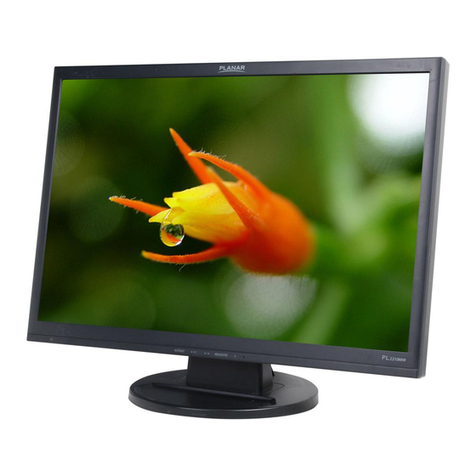
  9. Planar PX2211MW User manual

Planar PX2211MW User manual

Other manuals for PX2211MW

2

Other Planar Monitor manuals

Planar PX2210MV User manual

Planar

Planar PX2210MV User manual

Planar PLL2010MW User manual

Planar

Planar PLL2010MW User manual

Planar PT1500MX User manual

Planar

Planar PT1500MX User manual

Planar PT1545R User manual

Planar

Planar PT1545R User manual

Planar Clarity Matrix MX55HDU User manual

Planar

Planar Clarity Matrix MX55HDU User manual

Planar PCT2265 User manual

Planar

Planar PCT2265 User manual

Planar PDP 42 User manual

Planar

Planar PDP 42 User manual

Planar PLL2770W User manual

Planar

Planar PLL2770W User manual

Planar EL320.256-FD7 User manual

Planar

Planar EL320.256-FD7 User manual

Planar Planar GX2MP User manual

Planar

Planar Planar GX2MP User manual

Planar 40" User manual

Planar

Planar 40" User manual

Planar Dome C2 User manual

Planar

Planar Dome C2 User manual

Planar LA1500RTS User manual

Planar

Planar LA1500RTS User manual

Planar LED2210MW User manual

Planar

Planar LED2210MW User manual

Planar Dome E4c User manual

Planar

Planar Dome E4c User manual

Planar SD2220W User manual

Planar

Planar SD2220W User manual

Planar EL240.128.45 ICEBrite User manual

Planar

Planar EL240.128.45 ICEBrite User manual

Planar PQ1710M User manual

Planar

Planar PQ1710M User manual

Planar SD2421W User manual

Planar

Planar SD2421W User manual

Planar PX171M User manual

Planar

Planar PX171M User manual

Planar PX2611W User manual

Planar

Planar PX2611W User manual

Planar PZN2710Q User manual

Planar

Planar PZN2710Q User manual

Planar PT2285PW User manual

Planar

Planar PT2285PW User manual

Planar PT1510MX User manual

Planar

Planar PT1510MX User manual

Popular Monitor manuals by other brands

Samsung ME32C user manual

Samsung

Samsung ME32C user manual

ViewSonic VA926-LED user guide

ViewSonic

ViewSonic VA926-LED user guide

Furuno Mu 120c Operator's manual

Furuno

Furuno Mu 120c Operator's manual

Asus VB171D - 17" LCD Monitor Service manual

Asus

Asus VB171D - 17" LCD Monitor Service manual

AOC 9GLR Technical specifications

AOC

AOC 9GLR Technical specifications

DMG RAFFAELLO manual

DMG

DMG RAFFAELLO manual

AOC LM720 - 17" Technical specifications

AOC

AOC LM720 - 17" Technical specifications

Sony Trinitron GDM-F500 Service manual

Sony

Sony Trinitron GDM-F500 Service manual

Memorex MT1701 user guide

Memorex

Memorex MT1701 user guide

ViewSonic VE510s-4 Service manual

ViewSonic

ViewSonic VE510s-4 Service manual

Farenheit T-1503CM instruction manual

Farenheit

Farenheit T-1503CM instruction manual

Ditel DINOS DN129/AT Quick installation guide

Ditel

Ditel DINOS DN129/AT Quick installation guide

Sony SDM-S51 Specifications

Sony

Sony SDM-S51 Specifications

Kenwood DMX1025BT quick start guide

Kenwood

Kenwood DMX1025BT quick start guide

Dell S2409WFP user guide

Dell

Dell S2409WFP user guide

EverFocus EN-7517E instruction manual

EverFocus

EverFocus EN-7517E instruction manual

Dell P3222QE user guide

Dell

Dell P3222QE user guide

Panasonic TH152UX1 - 152" PLASMA TV Service manual

Panasonic

Panasonic TH152UX1 - 152" PLASMA TV Service manual

manuals.online logo
manuals.online logoBrands
  • About & Mission
  • Contact us
  • Privacy Policy
  • Terms and Conditions

Copyright 2025 Manuals.Online. All Rights Reserved.

1
The information contained in this document is subject to change without notice.
This document contains proprietary information that is protected by copyright. All
rights are reserved. No part of this document may be reproduced, translated to
another language or stored in a retrieval system, or transmitted by any means,
electronic, mechanical, photocopying, recording, or otherwise, without prior written
permission. Windows is a registered trademark of Microsoft Inc.
Other brand or product names are trademarks of their respective holders.
2
3
For your safety------------------------------------------------------ 5
Safety precautions -------------------------------------------6
Special notes on lcd monitors -----------------------------7
Before you operate the monitor --------------------------------7
Features --------------------------------------------------------7
Packing list ------------------------------------------------------7
Installation instructions -------------------------------------8
Controls and connectors ------------------------------------9
Adjusting the viewing angle------------------------------- 10
Operating instructions ------------------------------------------- 11
General instructions ----------------------------------------- 11
Front panel control -------------------------------------- 12
How to adjust a setting ----------------------------------- 13
Adjusting the picture ---------------------------------- 14-17
Plug and play ----------------------------------------------- 18
Technical support (FAQ) -------------------------------------- 19
Error message & possible solution ------------------- 20
Appendix -------------------------------------------------------------21
Specifications -------------------------------------------- 21
Factory preset timing table ------------------------------
Connector pin assignment ------------------------------ 23-24
Product registration and technical support
---------------25
TABLE OF CONTENTS
4
22

Before operating the monitor, please read this manual thoroughly. This manual
should be retained for future reference.
FCC Class BRadio Frequency Interference Statement
WARNING: (FOR FCC CERTIFIED MODELS)
NOTE:This equipment has been tested and found to comply with the limits for a
Class B digital device, pursuant to Part 15 of the FCC Rules. These limits are
designed to provide reasonable protection against harmful interference in a
residential installation. This equipment generates, uses and can radiate radio
frequency energy, and if not installed and used in accordance with the instructions,
may cause harmful interference to radio communications. However, there is no
guarantee that interference will not occur in a particular installation. If this
equipment does cause harmful interference to radio or television reception, which
can be determined by turning the equipment off and on, the user is encouraged to
try to correct the interference by one or more of the following measures:
1. Reorient or relocate the receiving antenna.
2. Increase the separation between the equipment and receiver.
3. Connect the equipment into an outlet on a circuit different from that to which
the receiver is connected.
4. Consult the dealer or an experienced radio/TV technician for help.
NOTICE:
1. The changes or modifications not expressly approved by the party
responsible for compliance could void the user's authority to operate the
equipment.
2. Shielded interface cables and AC power cord, if any, must be used in order to
comply with the emission limits.
3. The manufacturer is not responsible for any radio or TV interference caused
by unauthorized modification to this equipment. It is the responsibilities of
the user to correct such interference.
WARNING:
To prevent fire or shock hazard, do not expose the monitor to rain or moisture.
Dangerously high voltages are present inside the monitor. Do not open the cabinet.
Refer servicing to qualified personnel only.
FORYOURSAFETY
5
PRECAUTIONS
zDo not use the monitor near water, e.g. near a bathtub, washbowl, kitchen sink,
laundry tub, swimming pool or in a wet basement.
zDo not place the monitor on an unstable cart, stand, or table. If the monitor falls,
it can injure a person and cause serious damage to the appliance. Use only a
cart or stand recommended by the manufacturer or sold with the monitor. If
you mount the monitor on a wall or shelf, use a mounting kit approved by the
manufacturer and follow the kit instructions.
zSlots and openings in the back and bottom of the cabinet are provided for
ventilation. To ensure reliable operation of the monitor and to protect it from
overheating, be sure these openings are not blocked or covered. Do not place
the monitor on a bed, sofa, rug, or similar surface. Do not place the monitor
near or over a radiator or heat register. Do not place the monitor in a bookcase
or cabinet unless proper ventilation is provided.
zThe monitor should be operated only from the type of power source indicated
on the label. If you are not sure of the type of power supplied to your home,
consult your dealer or local power company.
zThe monitor is equipped with a three-pronged grounded plug, a plug with a
third (grounding) pin. This plug will fit only into a grounded power outlet as a
safety feature. If your outlet does not accommodate the three-wire plug, have
an electrician install the correct outlet, or use an adapter to ground the
appliance safely. Do not defeat the safety purpose of the grounded plug.
zUnplug the unit during a lightening storm or when it will not be used for long
period of time. This will protect the monitor from damage due to power surges.
zDo not overload power strips and extension cords. Overloading can result in
fire or electric shock.
zNever push any object into the slot on the monitor cabinet. It could short
circuit parts causing a fire or electric shock. Never spill liquids on the monitor.
zDo not attempt to service the monitor by yourself; opening or removing covers
can expose you to dangerous voltages and other hazards. Please refer all
servicing to qualified service personnel.
zTo ensure satisfactory operation, use the monitor only with UL listed computers
which have appropriate configured receptacles marked between 100 - 240V AC,
Min. 5A.
zThe wall socket shall be installed near the equipment and shall be easily
accessible.
Important Recycle Instruction:
Lamp(s) inside this product contain mercury and must be recycled or disposed
of according to local, state or federal laws. For more information, contact the
electronic industries alliance at WWW.EIAE.ORG. For lamp specific disposal
information check WWW.LAMPRECYCLE.ORG.
6


SPECIAL NOTES ON LCD MONITORS
The following symptoms are normal with LCD monitor and do not indicate a
problem.
NOTES
xDue to the nature of the fluorescent light, the screen may flicker during initial
use. Turn off the Power Switch and then turn it on again to make sure the flicker
disappears.
xYou may find slightly uneven brightness on the screen depending on the
desktop pattern you use.
xThe LCD screen has effective pixels of 99.99% or more. It may include blemishes
of 0.01% or less such as a missing pixel or a pixel lit all of the time.
xDue to the nature of the LCD screen, an afterimage of the previous screen may
remain after switching the image when the same image has been displayed for
a long time. The monitor will slowly recover from this.
xWhen the screen becomes black or flashing, or cannot illuminate any more,
contact your dealer or service center to replace parts. Don’t repair the screen by
yourself!
BEFOREYOU OPERATE THEMONITOR
FEATURES
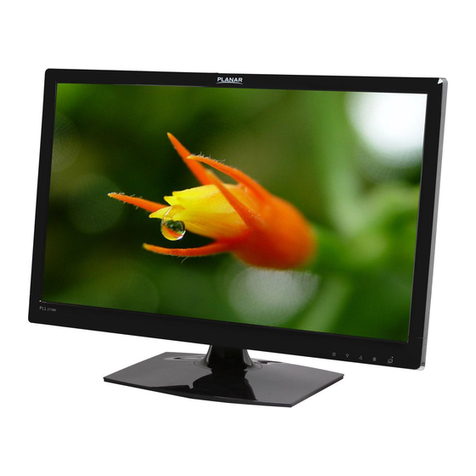
x21.5"(546mm) TFT Color LCD monitor
x16:9 Widescreen
xCrisp, Clear Display for Windows
xRecommened Resolutions: 1920X 1080@60Hz
xErgonomic Design
xSpace Saving, Compact Case Design
CHECKING THECONTENTS OF THEPACKAGE
The product package should include the following items:
1. LCD monitor
2. Base
3. User's Guide
4. Power Cord
5. D-sub Cable
6.DVI Cable
7. Audio Cable
7
INSTALLATION INSTRUCTIONS
BASE
shock or damage.
Unplug the monitor before removal or installation to avoid electric
Do not give a strong impact to the monitor.It may cause damage.
or damage if it falls or is dropped.
Put the monitor on a stable surface.The monitor may cause injury
with the monitor if it is necessary to return the unit.
please follow the instructions below to remove the stand.Be sure to include the stand
The monitor is supplied complete with a stand.If you prefer to wall mount the monitor,
CAUTION
Ƶ

Ƶ
Ƶ

<Installation>



8
Put a piece of soft cloth on the table beforehand to prevent the monitor from being scratched.
the monitor flat on a table with front face down.
Install the Stand-Base to the Monitor.

Put a piece of soft cloth on the table beforehand to prevent the monitor from being scratched.
the monitor flat on a table with front face down.
Pull up the knob of the screws, and remove the screw and the Stand-Base.
<Stopper pin>
Please stand the monitor and then remove the
stopper pin on the back of the stand slowly while
pushing top face of the stand before you install the
monitor. Careful attention is required as the monitor
is sprung loaded and may expand quickly when
removing it.
Stopper pin
<Remove>
Stand-Base
Screw for Stand-Base fixing
The knob of the screw
push down

ķ
ĸ
Ĺ
ķ
ĸ