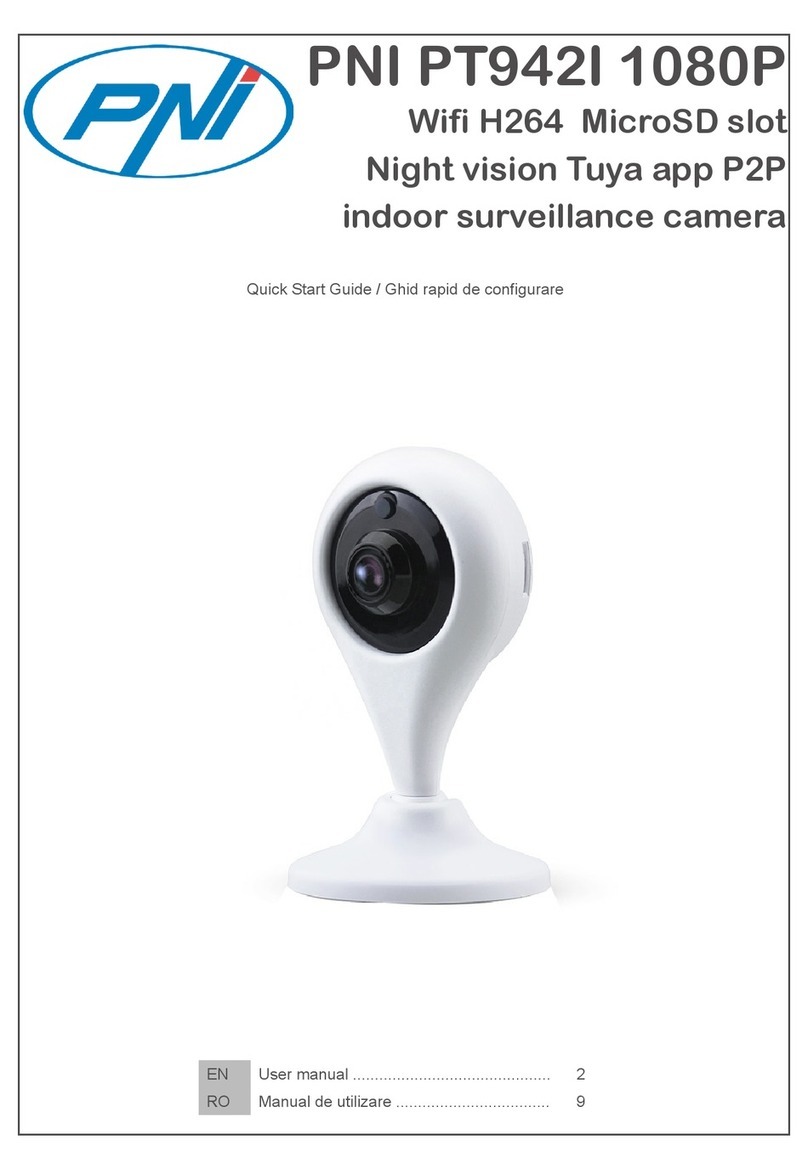
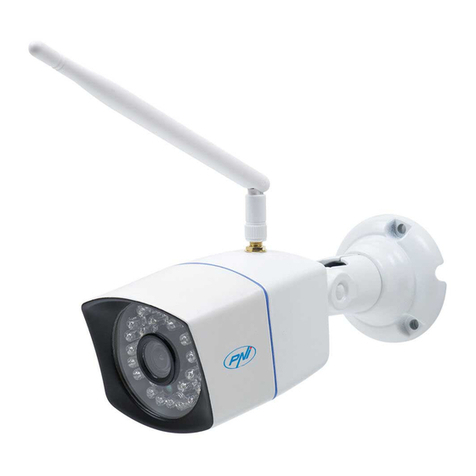
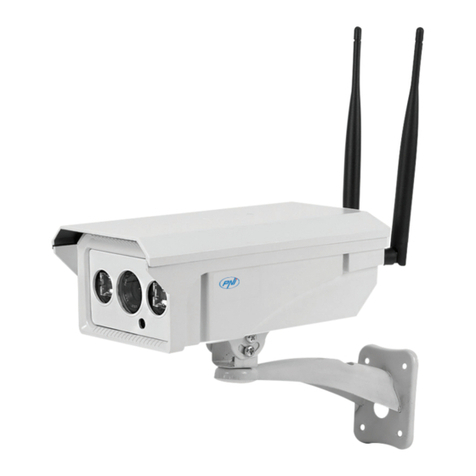
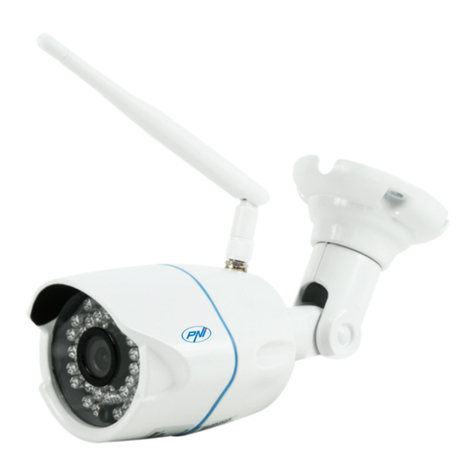
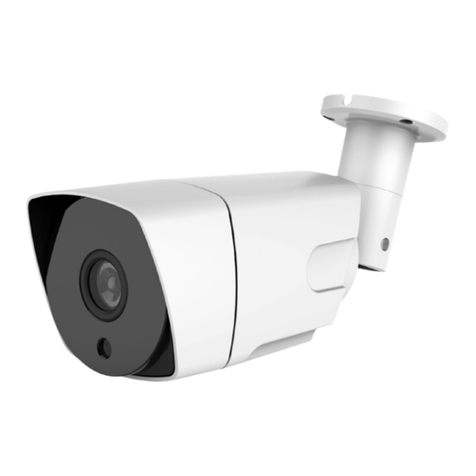
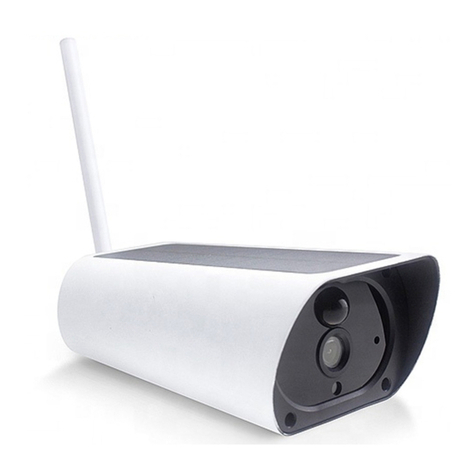
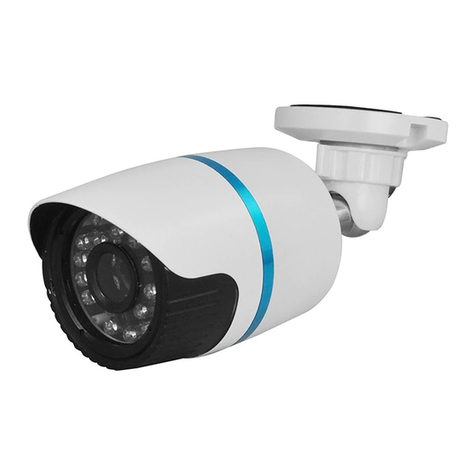
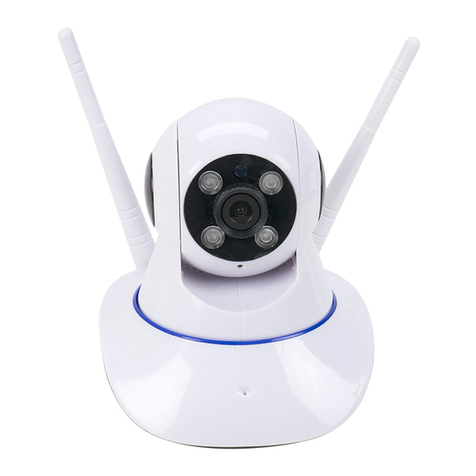
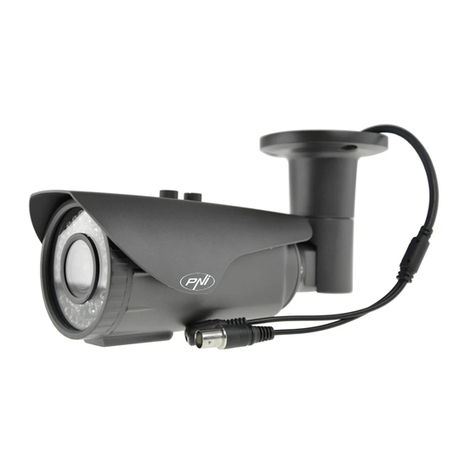
PNI IP649 User manual

PNI IP649 1080P
Wifi H264+ MicroSD slot
Night vision Tuya app P2P
Surveillance camera
Surveillance camera / Камера за видеонаблюдение / Überwachungskamera
/ Cámara de vigilancia / Caméra de surveillance / térgyelő kamera /
Telecamera da sorveglianza / Beveiligingscamera / Kamera monitorująca
Camera de supraveghere
EN User manual ............................................. 2
BG Ръководство за употреба ....................... 9
DE Benutzerhandbuch ................................... 16
ES Manual de usuario .................................... 23
FR Manuel de l’Utilisateur .............................. 30
HU Használati utasítás ................................... 37
IT Manuale dell’utente .................................. 44
NL Handleiding .............................................. 51
PL Instrukcja obsługi ..................................... 58
RO Manual de utilizare ................................... 65

EN
2
USER MANUAL PNI IP649 1080P SURVEILLANCE CAMERA
1. PRODUCT INTRODUCTION AND MAIN FEATURES:
PNI IP649 product is a 2MP IP camera intended for video/audio surveillance and remote monitoring of
outdoor locations. It connects to the Internet by cable or Wireless in order to remotely transmit in realtime
video to dedicated app on your smartphone anytime and anywhere. It can also save recordings locally on
microSD card inside ( sold separately). The camera also supports Motion detection alarm, recording and
mobile push notications and much more other functions.
● Full HD recording ● Wireless / wired conection
● Motion detection ● MicroSD TF card slot max 128 GB
● Schedule and Motion detection recording ● Infrared Night Vision
● Motion detection alarm push notication ● 2 wireless antennas
● Tuya Smart iOS & Android App ● Video streaming
● Two way audio communication ● Remote camera access
● Remote audio monitoring ● Cloud storage ( optional for monthly fee)
2. CAMERA INSTALLATION
Important conditions:
- Connect camera to a 230V power supply using power adapter from package;
- First configuration of camera should be made with camera close to the Internet source / Router device;
- If you need local recording, install a maximum 128 GB TF microSD card ( sold separately) in camera, by
removing back panel ( one screw ).
Search for “Tuya Smart” app for iOS/Android Smartphones in App Store/Google Play store, or
scan the below QR code to download and install dedicated app:
3. REGISTER / LOG IN WITH EXISTING ACCOUNT
3.1 Register
If you don not have a Tuya App account yet, you can register an account or log in via personal e-mail
or personal phone number using a verication code procedure. Please read and follow next steps for the
description of registration process:
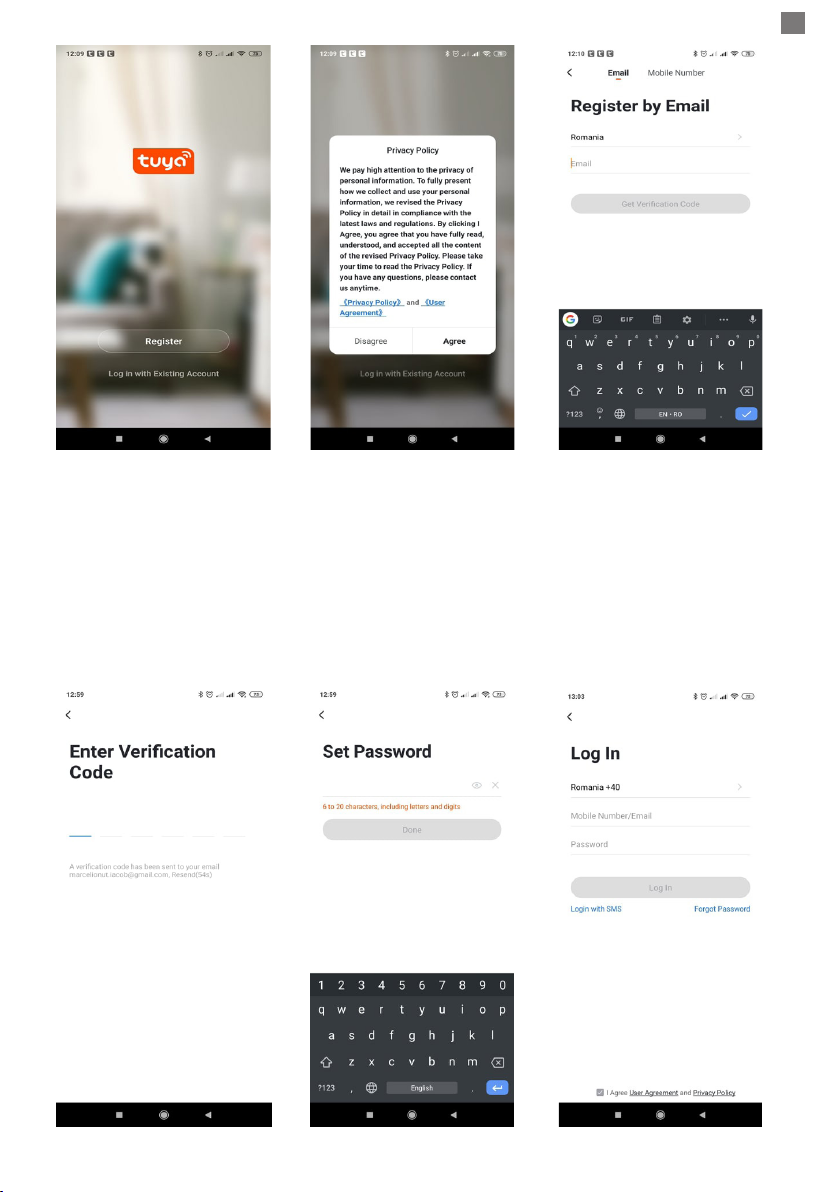
EN
3
3.2 Register
If you have already registered an account, you can skip the creating a new account,click “Log in with
existing account”, enter the log in page.
(1) The system automatically select the current Country/Region, or you can manually select the Country/
Region.
(2) Enter your registered e-mail address or mobile number enter your password to log in the system.
If your phone has installed WeChat App or QQ App, click WeChat/QQ icon in the log in with social media
acount area. After accessing the authorization page, and lled in received code from your e-mail/phone log in
the system.

EN
4
4. ADD DEVICE
4.1 QR code net-pairing (Recommended)
WARNING: The product only support 2.4GHz Wi-Fi network. It does not support 5GHz Wi-Fi network.
Before conguring Wi-Fi, please check and set / split the 2 Wireless networks from router parameter
settings with your network administrator. You The Wi-Fi password should not contain special characters of
~!@#$%^&*(). When conguring Wi-Fi, make sure your router, mobile and device are as close as possible
for a quick conguration of the device.
Connect smartphone to this Wi-Fi 2.4 Ghz network router with internet access. Activate location from
phone if not activated allready.
● App supports QR code net-pairing and Wi-Fi connection. You can choose to add device by other options.
● Power On the camera, and you can hear the broadcast “Wait for WiFi cong”, (if you heard nothing at all,
please click and hold “reset” button for 20 seconds to restore factory settings).
● When the mobile phone connecting to Wi-Fi, click “Add Device” or “+“ icon (gure 1) on the Home screen
of the App, select “Security & Sensor”(gure 2)→ “Smart Camera”, click “next step” (gure 3).
Check the name of your WiFi 2.4 Ghz Network, enter WiFi password and click “Conrm” (gure 4).
Figure 1 Figure 2
Figure 3 Figure 4

EN
5
● Hold the mobile phone screen in the front of the camera (gure 5), the distance between the two should be
15 to 20 cm. (gure 6) Try not to shake the mobile phone during the scanning.
Figure 5 Figure 6
● When you hear “Connect Router”, click “Connect Internet”, and wait for connecting (gure 7).
● Device added successfully (gure 8), you can choose the device name and room scene.
Figure 7 Figure 8
4.2 QR WIFI Fast Connection Distribution Network can be connected according to the
above steps, skipping Fig. 5 and Fig. 6.
5. FUNCTION DESCRIPTION
Real-time preview interface
1. Setting & Management 2. Wi-Fi signal strength
3. Sound switch 4. SD/HD
5. Full screen 6. Screenshot
7. Voice chat 8. Record live view
9. Playback of video

EN
6
10. Not available for this model.
11. Motion detection alarm (abnormal report notication through intelligent detection of anomaly in home. You
can go out to work and play condently. To set the alarm level according to the camera’s led of view can
make the alarm more accurate)
6. CLICK “ 1 “ IN THE UPPER RIGHT CORNER OF THE CONTROL PAGE FOR THE MANAGEMENT
AND SETTING OF THE DEVICE.
● Device Name - can modify the device name and device location;
● Device Information - to view: Device ID, Wi-Fi signal strength, IP address, Mac address, Device time zone.
● Tap-to-Run and Automation - View automations and scenaries created for this device
● Third Party Supported - Compatible smart services
● Basic Settings - Basic settings of camera
● IR Night Vision - Settings for IR function
● Detection Alarm Settings - can set the motion detection switch, motion detection alarm sensitivity
● Storage settings - Shows microSD card informations, and settings for Local Recording mode.
● VAS - Value-added service : you can purchase separately video cloud storage service for this camera for
monthly fee (optional according to customer needs)
● Offline Notification - Activates an alarm is camera goes Offline
● Share Device - can share this device to other people, enter the people’s e-mail or mobile phone number;
(Note: the entered e-mail / mobile phone number should be registered with a Tuya App account).
● FAQ & Feedback - Questions and solutions for any problems with product behaviour.
● Firmware Information - Support OTA Remote Upgrade (Do not disconnect during upgrading).

EN
7
7. CLICK “ME” ON THE HOME SCREEEN OF TUYA APP FOR MORE SERVICES
1. Home Management
2. Message Center
3. FAQ & Feedback
4. More Services
- Free Services: IFTTT , Google Assistant, Alexa, etc;
- Value-added Services : you can check the purchasing record of purchased value-added services: Cloud
Storage for Cameras, AI Filtered Notications etc;
5. Settings and informations for your Tuya app account: Sound, Notications, Network, Cache
8. FREQUENTLY ASKED QUESTIONS
Q:Fail to add device during net-pairing?
A:Please make sure the mobile phone and device are connected to 2.4GHz router. Make sure you have a
2.4 Ghz WiFi Network with your network administrator and if the Wi-Fi password entered is correct.
Q:Still fail to add device after re-scanning?
A:If fail to add device, it is recommended to restart the device or power off the device, and try again.
Q: The device cannot preview?
A:Check for weak Wi-Fi signal. You can place the camera closer to the router. If it still doesn’t work, reset the
device, and add it again.
Q:Why the device is still on the list after resetting the device?
A:The device resetting only resets the camera’s network conguration and cannot change the conguration
on the App. You must log in the App to delete the camera from the list.
Q:How to connect the camera to another router?
A:First log in the App to delete and reset the device, and congure the device again through the App.
Q:Why the device cannot identify SD card?
A:It is recommended to insert and remove the SD card after power off the device. Check if the SD card is
under normal service conditions and the format is FAT32. The App shall suggest “”could not nd SD card””
under unstable network of the mobile phone or the device.
Q:The device is online and has an alarm event, but the mobile phone cannot receive the information?
A:First conrm that App allows notication in the settings of your mobile phone.

EN
8
Under normal circumstances, when an anomaly is detected, a message will appear in the notication bar of
your mobile phone. Your should set a notication sound or vibration in your mobile phone.
In addition, when viewing real-time video in the App you cannot receive alarm from the camera being viewed.
Because the device default function the camera being viewed indicating that the user is focusing on the
monitoring video, and there is no need for an alarm.
Using the advanced intelligent alarm push algorithm to ensure that the alarm message will not be frequently,
but the camera will record all the alarm messages and videos.
9. PRODUCT SPECIFICATIONS
System
Main Processor XM530
image sensor 1/2.9” CMOS F37
Operation System Embedded LINUX OS system
Application TUYA Smart / Smart Life
Video
High Denition 1080P
Video Compression Smart H.264+
Motion Detection Support
Low illumination 0.1LUX/F1.2
Picture Capture Support
Video Flip Support
Lens
Illumination
Camera lens 3.6MM xed lens
Lamp board 4 pcs Array IR Led
Audio Coding standard G.711
Two-way Speech Support
Record
management
Video le size 2.5GB-4.5GB/Day
Record Mode Manual record, motion detection record, scheduled record, alarm
record
Video storage TF Card / Cloud
playback, back up Support
Alarm trigger Alarm recording, screen shot capture
Network
Network Interface 1*RJ45 , 10/100M10-100 Base-T, self-adaptable Ethernet port
WIFI 802.11b/g/n
Network Protocol Support TCP/IP, HTTP
Transmission mode P2P, Smart Cloud Server
WIFI connection Sweep QR code, EZ Mode
Extend TF Card Maximum support 128GB TF card
Reset key Support
Power supply Power 230 V AC - DC 12V 1A
Power consumption 6W
Work environment
Weather proof protection degree IP66
Installation mode Orizontal / Vertical at wall installation
Working Temperature -26˚C ~+60˚C
Working humidity 10% - 90% non-condensing
General Material ABS for outdoor use
Product weight 414 g

BG
9
РЪКОВОДСТВО НА ПОТРЕБИТЕЛЯ PNI IP649 1080P КАМЕРА ЗА НАБЛЮДЕНИЕ
1. ВЪВЕДЕНИЕ В ПРОДУКТА И ОСНОВНИ ХАРАКТЕРИСТИКИ:
Продуктът PNI IP649 е 2MP IP камера, предназначена за видео / аудио наблюдение и
дистанционно наблюдение на външни места. Той се свързва с интернет чрез кабел или безжична
връзка, за да предава дистанционно в реално време видео към специално приложение на вашия
смартфон по всяко време и навсякъде. Той може също така да записва записи локално на microSD
карта вътре (продава се отделно). Камерата също така поддържа аларма за откриване на движение,
запис и мобилни известия за натискане и много други функции.
● Full HD запис ● Безжична / кабелна връзка
● Откриване на движение ● Слот за MicroSD TF карта макс. 128 GB
● График и запис за откриване на движение ● Инфрачервено нощно виждане
● Известие за аларма за откриване на
движение
● 2 безжични антени
● Приложение Tuya Smart iOS и Android ● Видео стрийминг
● Двупосочна аудио комуникация ● Отдалечен достъп до камерата
● Дистанционно аудио наблюдение ● Облачно съхранение (по избор срещу
месечна такса)
2. ИНСТАЛАЦИЯ НА КАМЕРАТА
Важни условия:
- Свържете камерата към захранване 230V, като използвате захранващ адаптер от пакета;
- Първата конфигурация на камерата трябва да бъде направена с камера близо до интернет
източника / устройството за рутер;
- Ако имате нужда от локален запис, инсталирайте максимално 128 GB TF microSD карта (продава се
отделно) в камерата, като премахнете задния панел (един винт).
Потърсете приложението „Tuya Smart“ за iOS / Android смартфони в App Store / Google Play
магазин или сканирайте долния QR код, за да изтеглите и инсталирате специално приложение:
3. РЕГИСТРИРАЙТЕ СЕ / ВЛЕЗТЕ СЪС СЪЩЕСТВУВАЩ АКАУНТ
3.1 Регистрирайте се
Ако все още нямате акаунт в приложението Tuya, можете да регистрирате акаунт или да влезете
чрез личен имейл или личен телефонен номер, като използвате процедура за проверка на кода. Моля,
прочетете и следвайте следващите стъпки за описание на процеса на регистрация:

BG
10
3.2 Влезте със съществуващ акаунт
Ако вече сте регистрирали акаунт, можете да пропуснете създаването на нов акаунт, щракнете
върху „Вход със съществуващ акаунт“, въведете страницата за влизане.
(1) Системата автоматично избира текущата държава / регион или можете ръчно да изберете държава
/ регион.
(2) Въведете вашия регистриран имейл адрес или мобилен номер, въведете паролата си, за да
влезете в системата.
Ако телефонът ви е инсталирал приложение WeChat или приложение QQ, щракнете върху иконата
WeChat / QQ в профила за влизане с акаунта в социалните медии. След достъп до страницата за
упълномощаване и попълнен получен код от вашия имейл / телефонен дневник в системата.
Other manuals for IP649
1
Table of contents
Other PNI Security Camera manuals