Setting the Hard Drive Array Mode
Installing two brand new hard drives
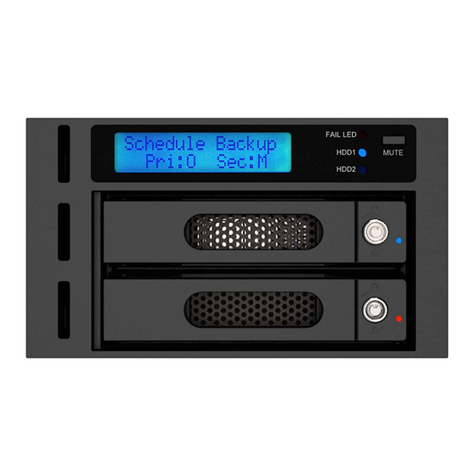
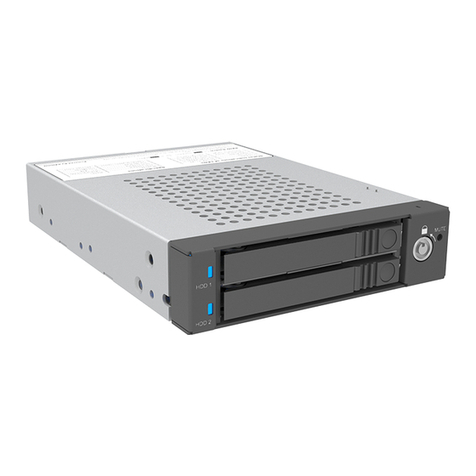
1. Place two new hard drives into SR2611 at the same time.
2. Use the disk manager in the operating system to partition and format the hard drive after
turning the machine on. At this point, SR2611 will be treated as a single hard drive. If hard
drives with different storage capacity are installed, SR2611 will automatically detect the
storage capacity of each hard drive, and will treat the hard drive with larger storage
capacity as the same capacity of the hard drive with smaller storage capacity.
3. Install RAID Guide (Windows User)
Installing a brand new hard drive and a hard
drive with existing data
Internal RAID module is suggested to be used for OS backup data. We highly recommend
using the same brand of hard drives with the same or larger storage capacity when installing
hard drives to SR2611. The user can use the auto rebuilding function to automatically format
the new drive and subsequently to back up the data into the new hard drive.
1. Place the hard drive with existing data into slot 1 or 2 in the SR2611.
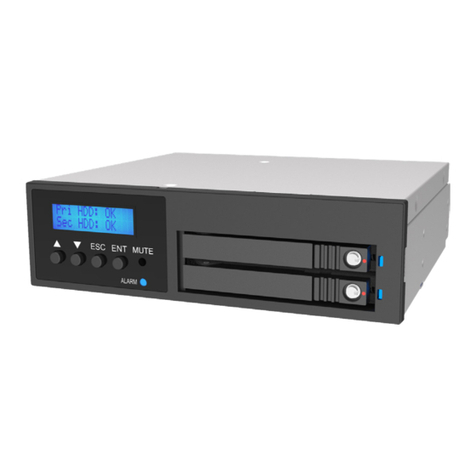
2. Since one of the slots is empty, the buzzer will alarm user about the empty slot when the
computer is turned on. To shut off the buzzer alarm, just push the bottom located in the
front display screen.
3. After turning on the operation system, please check whether the current SR2611 setting
is the same prior to hard drive installation. Then place the new hard drive in the removable
hard drive carrier into another slot. Note: the storage capacity of the newly installed hard
drive must be larger than or equal to the old hard drive.
4. The SR2611 will start the auto rebuilding function shortly after.
5. Please press the Buzzer bottom after auto rebuilding to reset the buzzer alarm and to
return the system operation normally.
6. If you use this install method and backup OS at the same time, please make sure that the
system is installed normally, in case of error or OS backup failure.