manuals.online logo
Brands
  1. Home
  2. •
  3. Brands
  4. •
  5. Samsung
  6. •
  7. Watch
  8. •
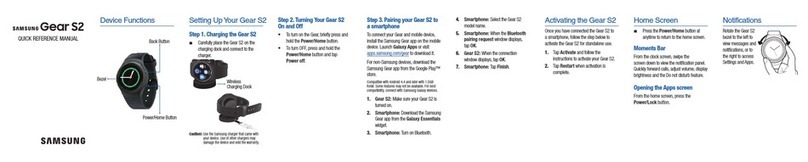
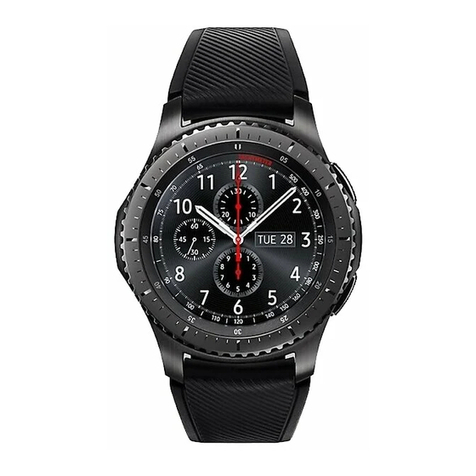
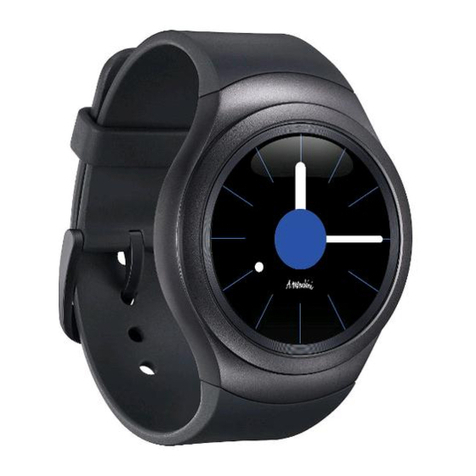
  9. Samsung SMR885 User manual

Samsung SMR885 User manual

Other Samsung Watch manuals
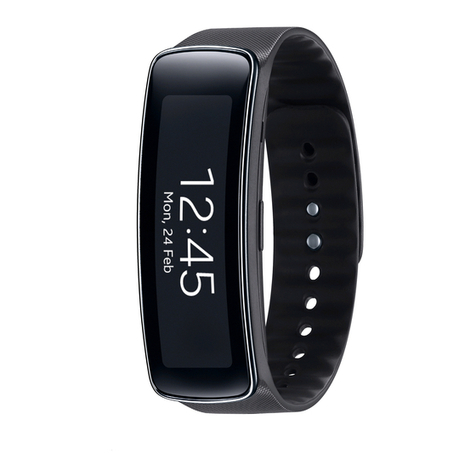
Samsung Gear 2 SM-R720 User manual

Samsung

Samsung Gear 2 SM-R720 User manual

Samsung SM-R350 User manual

Samsung

Samsung SM-R350 User manual

Samsung Gear S Service manual

Samsung

Samsung Gear S Service manual

Samsung Galaxy Watch Active SM-R500 User manual

Samsung

Samsung Galaxy Watch Active SM-R500 User manual

Samsung SM-R770 User manual

Samsung

Samsung SM-R770 User manual

Samsung Galaxy Watch 4 Classic User manual

Samsung

Samsung Galaxy Watch 4 Classic User manual

Samsung Gear S2 classic User manual

Samsung

Samsung Gear S2 classic User manual

Samsung SM-R930 User manual

Samsung

Samsung SM-R930 User manual

Samsung GEAR LIVE User manual

Samsung

Samsung GEAR LIVE User manual

Samsung SM-R760 User manual

Samsung

Samsung SM-R760 User manual

Samsung Galaxy Fit2 Rosso User manual

Samsung

Samsung Galaxy Fit2 Rosso User manual

Samsung Watch 3 User manual

Samsung

Samsung Watch 3 User manual

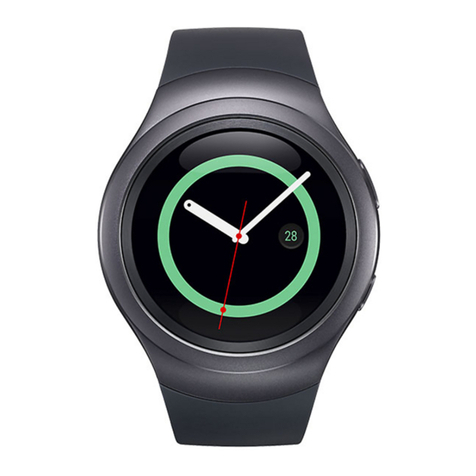
Samsung GEAR S2 User manual

Samsung

Samsung GEAR S2 User manual

Samsung SM-R840 User manual

Samsung

Samsung SM-R840 User manual

Samsung GALAXY GEAR SM-V700 User manual

Samsung

Samsung GALAXY GEAR SM-V700 User manual

Samsung SM-R380 User manual

Samsung

Samsung SM-R380 User manual

Samsung Galaxy Watch Active 40mm User manual

Samsung

Samsung Galaxy Watch Active 40mm User manual

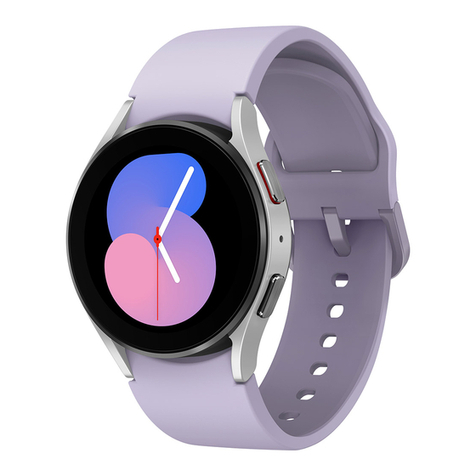
Samsung Galaxy Watch SM-R800 User manual

Samsung

Samsung Galaxy Watch SM-R800 User manual

Samsung Gear Sport User manual

Samsung

Samsung Gear Sport User manual

Samsung SM-R765F User manual

Samsung

Samsung SM-R765F User manual

Samsung Gear S2 classic Service manual

Samsung

Samsung Gear S2 classic Service manual

Samsung Gear S2 SM-R730A User manual

Samsung

Samsung Gear S2 SM-R730A User manual
Samsung GEAR SPORT SM-R600 User manual

Samsung

Samsung GEAR SPORT SM-R600 User manual

Samsung SM-R730T User manual

Samsung

Samsung SM-R730T User manual

Popular Watch manuals by other brands

Casio QW 5513 Operation guide

Casio

Casio QW 5513 Operation guide

Piaget 560P Instructions for use

Piaget

Piaget 560P Instructions for use

Armitron pro sport MD0346 instruction manual

Armitron

Armitron pro sport MD0346 instruction manual

West Marine BlackTip 13411293 Instruction Booklet and Care Guide

West Marine

West Marine BlackTip 13411293 Instruction Booklet and Care Guide

Jaeger-leCoultre HYBRIS MECHANICA CALIBRE 184 manual

Jaeger-leCoultre

Jaeger-leCoultre HYBRIS MECHANICA CALIBRE 184 manual

FOREVER iGO PRO JW-200 user manual

FOREVER

FOREVER iGO PRO JW-200 user manual

Relic OS10 quick start guide

Relic

Relic OS10 quick start guide

MyKronoz ZeClock manual

MyKronoz

MyKronoz ZeClock manual

Casio QW-782 General guide

Casio

Casio QW-782 General guide

Strikes and Spares SASM80 E-manual

Strikes and Spares

Strikes and Spares SASM80 E-manual

Christopher Ward C1000 Owner's handbook

Christopher Ward

Christopher Ward C1000 Owner's handbook

Lotus ILMFS01 instruction manual

Lotus

Lotus ILMFS01 instruction manual

Chronos Manufactures Chrono Diamond Thyrso 10400 instruction manual

Chronos Manufactures

Chronos Manufactures Chrono Diamond Thyrso 10400 instruction manual

Pandora WATCH2 quick guide

Pandora

Pandora WATCH2 quick guide

Suunto X6 user guide

Suunto

Suunto X6 user guide

Seiko N830 instruction manual

Seiko

Seiko N830 instruction manual

MotionX 365 user guide

MotionX

MotionX 365 user guide

Aplus GV18 user guide

Aplus

Aplus GV18 user guide

manuals.online logo
manuals.online logoBrands
  • About & Mission
  • Contact us
  • Privacy Policy
  • Terms and Conditions

Copyright 2025 Manuals.Online. All Rights Reserved.

DRAFT–FOR INTERNAL USE ONLY
Asset will be
updated when
available
Asset will be
updated when
available
User manual
This document is watermarked because certain important information in the document has not yet been verified.
This document has been sent to you as a draft and for informational purposes only.
The document should only be used for internal purposes and may not be distributed outside of the company.
Distributing the document outside of the company could result in legal exposure to the company if the preliminary,
unverified information in the draft turns out to be inaccurate.
DRAFT–FOR INTERNAL USE ONLY
Contents
Getting started
Device Layout: LTE model| Bluetooth model
Device Layout:Fresh | Wise
Set up your device: Charge the battery| Wireless PowerShare
Start using your device: Turn on your device| Activation| Galaxy Wearable app| Lock
or unlock your device| Home key settings| Navigation| Change the watch face| Quick
panel| Notifications| Water lock mode| Do not disturb| Goodnight mode | Theater
mode| Daily briefing | Enter text
Apps
Battery level |Detect conversations| Equalizer | Touch controls | Read notifications
aloud | Advanced|Labs | Find my earbuds | General | Earbuds software update | Tips
and user manual | About earbuds
Settings
Connections: Bluetooth| Mobile networks| Wi-Fi| NFC| Disconnection alerts| Airplane
mode | Connect to a new phone
Sound and vibration: Sound mode| Ringtone | Notification sound | Volume | Ringtone
vibration | Notification vibration| Vibration intensity| Long vibration| System sounds |
Vibration feedback
Display: Adjust screen brightness| Set the screen timeout| Show last app| Background
style| Font style | Show charging info
Device maintenance: Date and time| Power saving mode| Watch only mode|
Optimize battery | Related settings | Reset the Watch | Location
Lockscreen and security: Set a screen lock | Permission manager
Accessibility: Screen Reader| Visibility enhancements| Hearing enhancements|
Advanced settings | Text to speech
2WEA_Fresh_Wise_EN_UM_TN_XXX_052621_R0
DRAFT–FOR INTERNAL USE ONLY
Other: Screen wake-up|Touch sensitivity| Watch status | Watch info
Learn More
Videos | Tips | Samsung Care | Talk to an agent
Legal information
Samsung Knox | Legal information | Restricting children’s access to your mobile device
| Legal information
Contents
3
DRAFT–FOR INTERNAL USE ONLY
Getting started
Fresh
Wise
Set up your device
Start using your device
4
Asset will be
updated when
available
DRAFT–FOR INTERNAL USE ONLY
Fresh
Asset will be
updated when
available
5
Getting started
DRAFT–FOR INTERNAL USE ONLY
Wise
Asset will be
updated when
available
6
Getting started
DRAFT–FOR INTERNAL USE ONLY
Set up your device
Charge the battery| Wireless PowerShare
Learn more about your device hardware, assembling and charging, and how to get
started using your new device.
CAUTION Do not insert sharp objects into the atmospheric pressure sensor, the
pressure vent, speaker, or the microphone. Inner components of the watch may
be damaged along with the water-resistance feature.
Charge the battery
Your device is powered by a rechargeable battery.
Asset will be
updated when
available
Getting started
7
Devices and software are constantly evolving — the illustrations you see here are for reference only.
DRAFT–FOR INTERNAL USE ONLY
1. Connect the wireless charger to a USBcharging port.
2. Place the watch onto the wireless charger, aligning the center of your watch
with the center of the wireless charger.
3. After fully charging, disconnect the watch from the wireless charger.
CAUTIONThe charging head for plugging the USB cable into a wall outlet is not
included. Use only Samsung charging devices rated with an output voltage of 5v
and an output current of over 150mA (sold separately). Samsung accessories are
designed for your device to maximize battery life. Using other accessories may
void your warranty and may cause damage.
NOTEPrevent the USB charger port and the small end of the charger cable from
coming into contact with conductive materials, such as liquids, dust, metal
powders, and pencil leads.
While charging, the device and the charger may become hot. This does not affect the
device’s lifespan or performance and is in the device’s normal range of operation.
Remove the device from the charger and wait for the device to cool down. For more
information, visit https://www.samsung.com/us/support/answer/ANS00076952.
NOTEDo not disassemble, modify, or repair your device. Placing objects, such as
magnetic stripe cards, including credit cards, phone cards, passbooks, and
boarding passes, next to the device or charger may cause damage from the
charger or device’s magnetic field.
8
Getting started
DRAFT–FOR INTERNAL USE ONLY
Wireless PowerShare
Wirelessly charge your device using a supported Samsung smartphone. Some
features are not available while sharing power.
Asset will be
updated when
available
1. From Quick settings, tap Wireless PowerShare to enable this feature.
2. With the phone face down, place the compatible device on the back of the
phone to charge. A notification sound or vibration occurs when charging begins.
Getting started
9
Devices and software are constantly evolving — the illustrations you see here are for reference only.
DRAFT–FOR INTERNAL USE ONLY
NOTEWireless PowerShare works with most Qi-Certified devices. Requires
minimum 30% battery to share. Speed and power efficiency of charge varies by
device. May not work with some accessories, covers, or other manufacturer’s
devices. If you have trouble connecting or charging is slow, remove any cover
from each device.
For best results when using Wireless PowerShare, please note:

•Remove any accessories or cover before using the feature. Depending on the
type of accessory or cover, Wireless PowerShare may not work properly.

•The location of the wireless charging coil may vary by device, so you may need
to adjust the placement to make a connection. When charging starts, a
notification or vibration will occur, so the notification will help you know you've
made a connection. During charging, do not move or use either device.

•Call reception or data services may be affected, depending on your network
environment.

•Charging speed or efficiency can vary depending on device condition or
surrounding environment.

•Do not use headphones.
10
Getting started