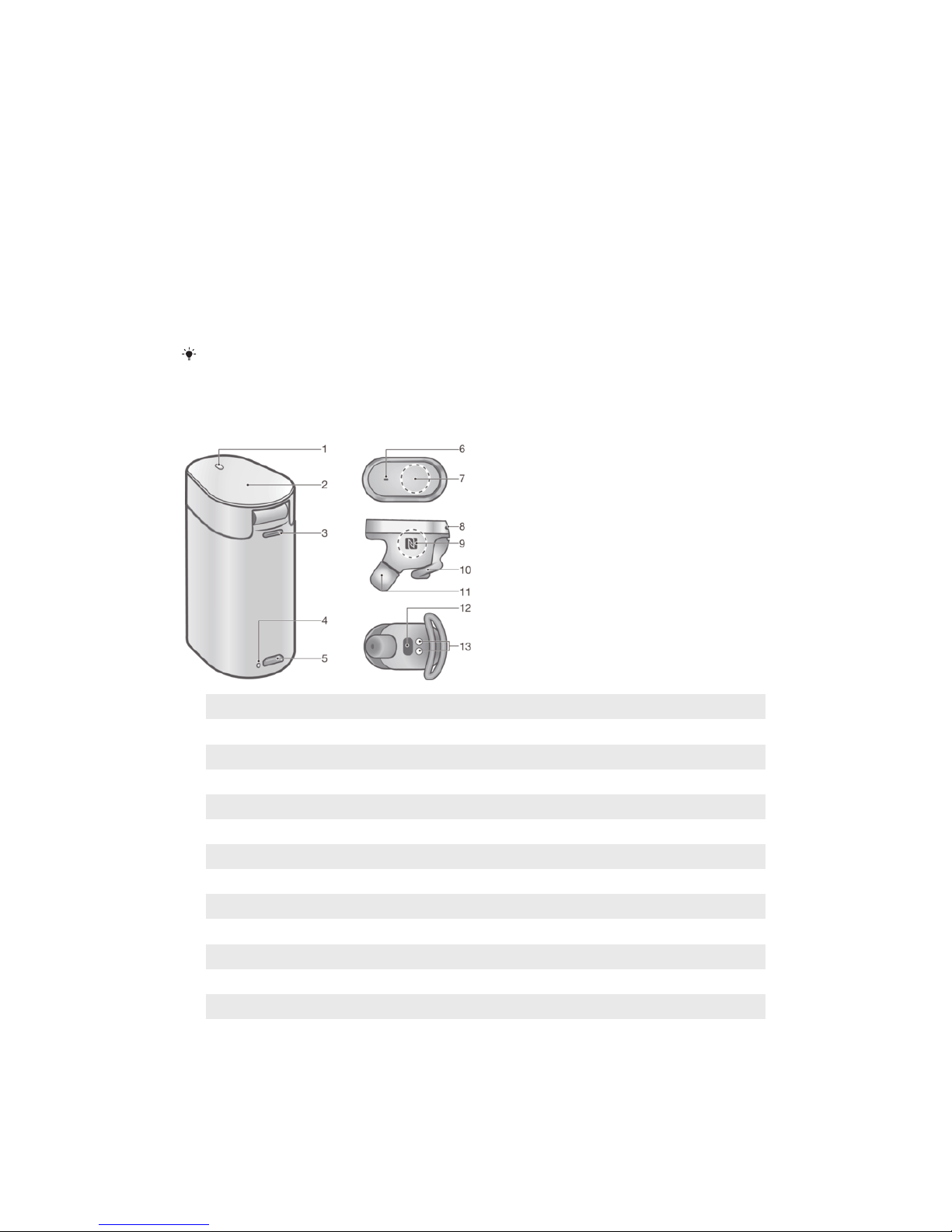
1Press the Assistant/Call key on your Xperia™ Ear briefly to activate voice
control.
2After the tone, ask “Did I miss any calls?” in one of the supported languages.
3The Assistant reads out who you have missed calls from.
4After the tone, say “Call back” and then say the contact name you want to call
back. For example, say “Call back Peter”.
You can only return missed calls that you received in the last 24 hours.
To answer a second call and put the ongoing call on hold
•Briefly press the Assistant/Call key.
To switch between multiple calls
•Press the Assistant/Call key twice.
Messaging
To create and send a text message
1Press the Assistant/Call key on your Xperia™ Ear briefly to activate voice
control.
2After the tone, say “Send a message to” in one of the supported languages
and then say the contact name you want to text. For example, say “Send a
message to Peter”.
3When prompted, dictate the message you want to send.
4The Assistant repeats your message and asks for confirmation.
5Say “Yes” or “No” or use head gestures to confirm or decline.
6If the Assistant fails to understand you, return to step 1.
To reply to a text message
1From your application screen, find and tap Xperia™ Ear > Settings > Assistant
settings > Reply to message.
2When you receive a new message, the Assistant reads it back to you and asks
whether you would like to reply.
3Say “Yes” in one of the supported languages or nod your head to reply.
4When prompted, dictate the message you want to send.
5The Assistant repeats your message and asks for confirmation.
6Say “Yes” or “No” or use head gestures to confirm or decline.
This function can also be used by supported instant messaging services. For more
information about the Assistant and supported instant messaging services, see http://s-
assistant.sony.net/.
Searching for information
You can ask the Assistant to give you a generic description about anything, using
information available online.
To search for information using voice control
1Press the Assistant/Call key on your Xperia™ Ear to activate voice control.
2After the tone, ask the Assistant to look up a word in one of the supported
languages, for example, “Search for Jupiter on Wikipedia” or “Wikipedia search
for sushi”.
3If the Assistant fails to understand your question or command, return to step 1.
10
This is an Internet version of this publication. © Print only for private use.