Basic settings
Basic settings
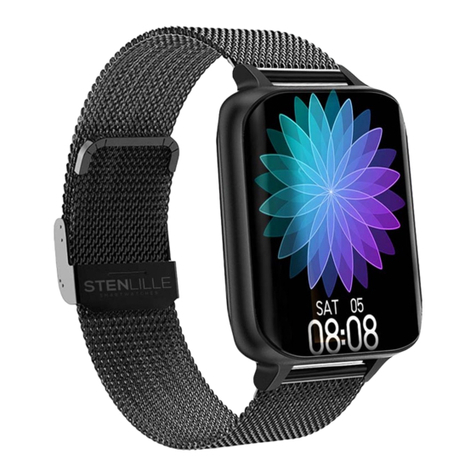
View and change settings from the Settings menu on your SmartWatch 2 directly.
To open the settings menu
•From the Home screen, find and tap .
To adjust the screen brightness
1From the Home screen, find and tap .
2Find and tap Display > Brightness.
3Drag the slider to adjust the brightness.
Set a lower brightness to save battery power.
To enable or disable the vibrate mode
1From the Home screen, find and tap .
2Find and tap Vibrate.
3Drag the slider to enable or disable vibrate mode.
Date and time
Your SmartWatch 2 automatically syncs date and time with your Android™ device,
but you can choose to set time and date manually instead.
To set date and time manually
1From the Home screen, find and tap .
2Find and tap Date & time > Set date & time.
3Unmark the Sync with device checkbox if it is marked.
4Tap Set date or Set time.
5Swipe up or down to adjust the date or time.
6Tap .
Setting a screen lock
You can set a PIN code to lock the screen on your SmartWatch 2.
It is very important that you remember your PIN. If you enter the PIN incorrectly
several times, you have to follow the instructions on your SmartWatch 2 to perform a
factory data reset, and this deletes all data on your SmartWatch 2.
To create a screen unlock PIN
1From the Home screen, find and tap .
2Find and tap Security > Pin, then tap .
3Enter a four-digit PIN, then tap .
4Confirm the four-digit PIN, then tap .
To disable the screen unlock PIN
1From the Home screen, find and tap .
2Find and tap Security > None.
3Enter your PIN, then tap .
Resetting and restarting
You can reset your SmartWatch 2 to its factory default settings. This deletes all
personal data on your SmartWatch 2. This action is sometimes necessary if your
SmartWatch 2 stops functioning properly.
10
This is an Internet version of this publication. © Print only for private use.