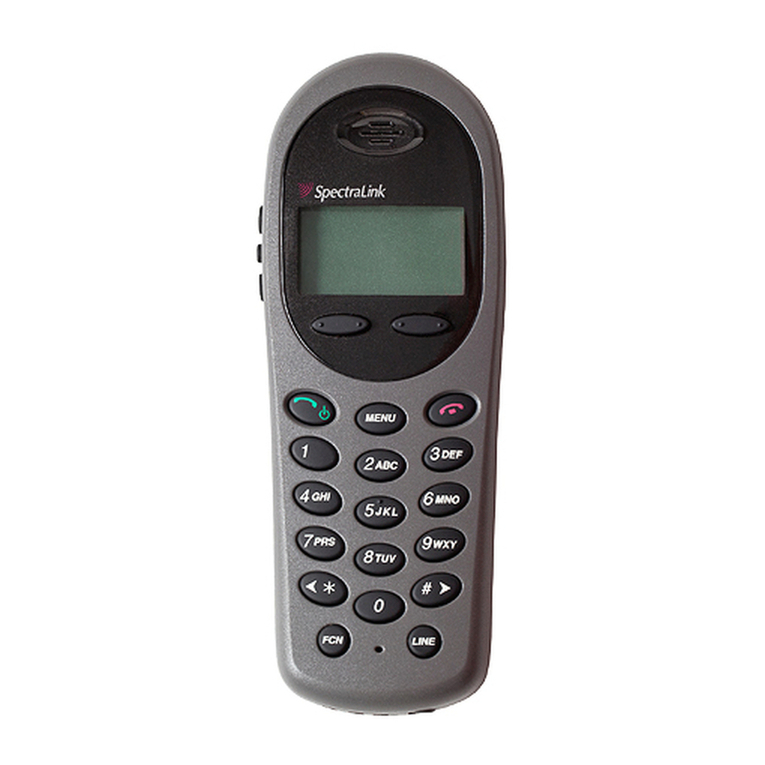
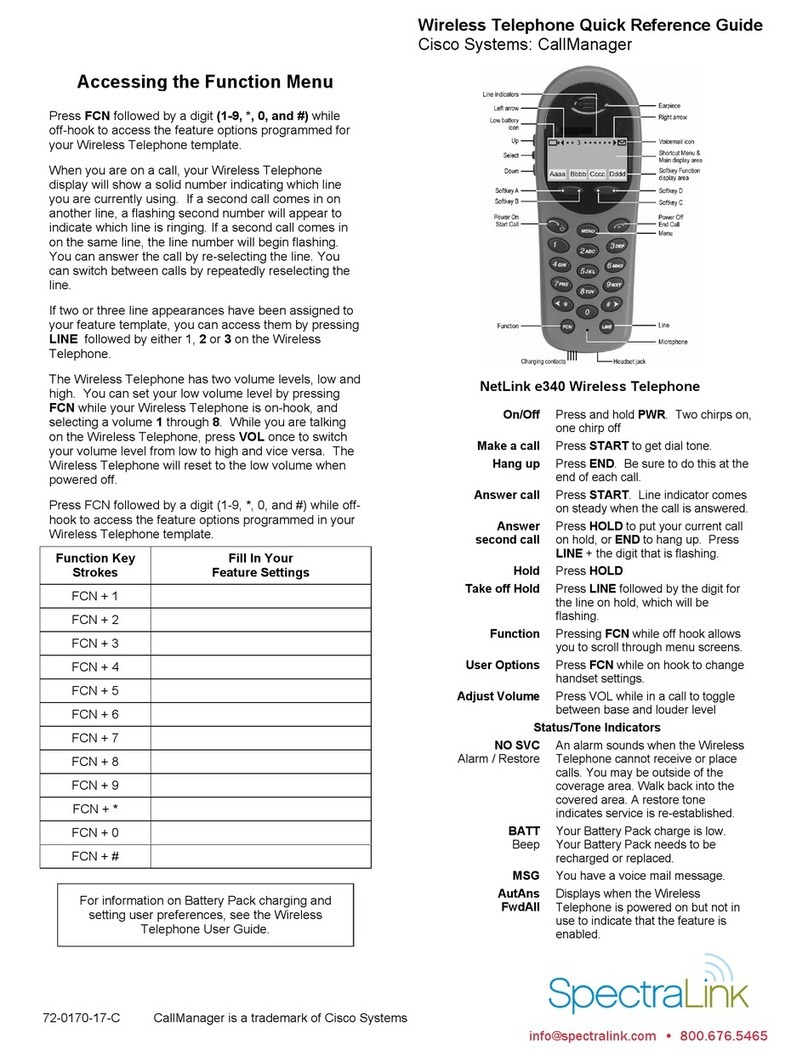
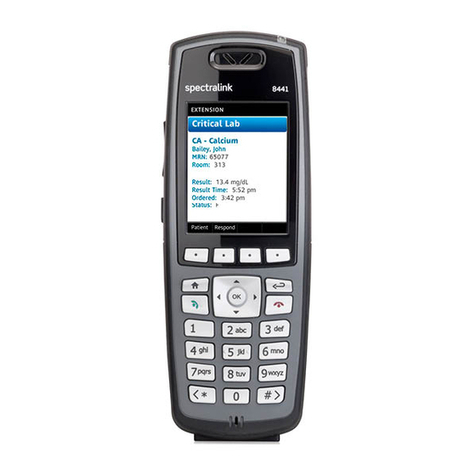
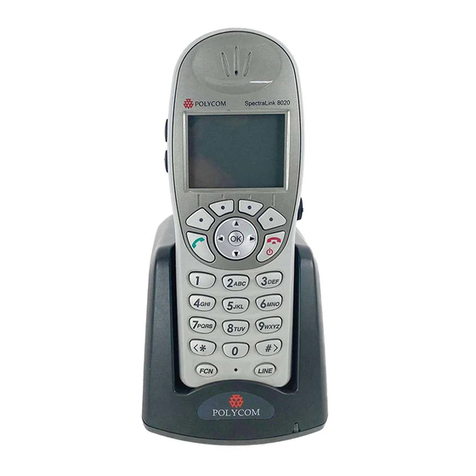
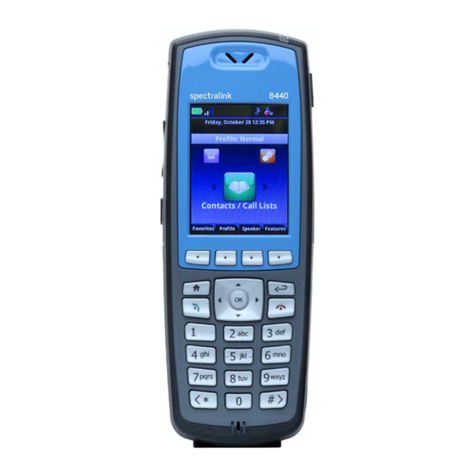
NetLink i640 Wireless Telephone
Quick Reference Guide
72-1180-00-B
System Feature Activation
The features that have been programmed in your system may be
viewed and activated through the Shortcut Menu and Softkey
Functions.
Shortcut Menu: Press MENU while off hook to display the Shortcut
Menu. This menu lists the feature description and any associated
shortcut key. As you scroll through the features by pressing the Up
and Downbuttons, the feature abbreviation is highlighted in the
softkey function display area. To activate a feature, you may press
its softkey, its shortcut key, or the Select button while the option is
highlighted. To activate the feature using its shortcut key, press the
shortcut key at any time while in the Shortcut Menu. The feature will
activate whether or not that feature is currently displayed or
highlighted. No shortcut indicates that the feature does not have a
shortcut and this is generally the case with primary level softkey
functions. To cancel out of the Shortcut Menu and return to the
Main display press MENU.
Softkey Functions: There are 16 possible features displayed in the
four levels of the softkey function display area. PressFCNwhile off
hook to scroll to the next level. Repeat as required. Press the
corresponding softkey to activate any feature. While scrolling
through the softkey functions, a shortcut key may be pressed to
activate its feature, whether or not that feature is currently displayed
in the softkey function display area.
Status/Tone Indicators
No service
message An alarm sounds and a descriptive message displays
when the Wireless Telephone cannot receive or
place calls. You may be outside of the covered area.
Walk back into the covered area. The in-service tone
indicates service is re-established.
The battery icon displays and a beep sounds to
indicate the Battery Packcharge is low. You have
two minutes to change the Battery Pack before
losing power
The voicemail icon indicates that you have a new
voicemail message.
MPORTANT NOTE:
•It is recommended that standard acceptance procedures be followed prior to
operating this equipment in proximity of life-support systems.
•To minimize risk of interference, pacemaker users should not carry the Wireless
Telephone next to the pacemaker.
•Earpiece may retain magnetic objects.
•Operation of the Wireless Telephone may produce an audible noise noticeable to
hearing aid users. It is recommended that a hearing aid compatible headset be
used by hearing aid users.
•This device complies with part 15 of the FCC Rules. Operation is subject to the
following two conditions: (1) This device may not cause harmful interference, and
(2) this device must accept any interference received, including interference that
may cause undesired operation.
For information on Battery Packs, usage tips, and care of Wireless Telephones, see the
Wireless Telephone User Guide or visit www.spectralink.com.
NetLink i640 Wireless Telephone
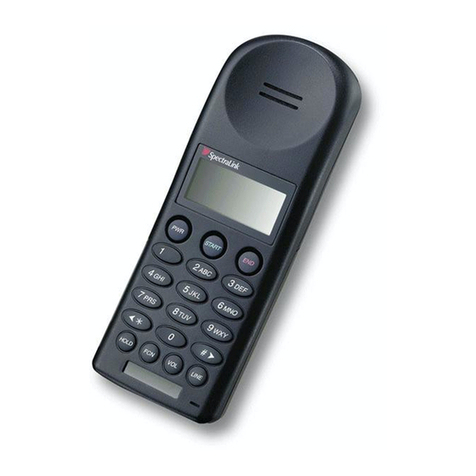
Turn on Press and hold Power On/Start Call. Two chirps will sound.
When the key is released, the in-service tone sounds.
Turn off Press and hold Power Off/End Call. One chirp will sound. If
in a call, hang up first, then turn off.
Make a call or
go off hook Press Power On/Start Call.
Select line Press LINE and the number key corresponding to the
required line.
Dial number Press number keys.
Hang up Press Power Off/End Call. Be sure to do this at the end of
each call.
Answer call Press Power On/Start Call.
Change volume While in a call, press the Up or Down button.
Silence while
ringing
Press the Power Off/End Call key to silence the ring.
Headset answer Press any key (other than Power On/Start Call, Power
Off/End Call, or a softkey) to answer a call when a headset
is plugged in.
User options Press FCN while on hook to change settings
(* shows current, follow display instructions to set):
Ring Type—select:
Normal (for an audible ring)
Vib/Norm (vibrates for five seconds, then rings)
Vibrate (vibrates until answered)
High Noise Mode—select:
Normal (for most office environments)
High (for moderate background noise)
Severe (for extremely noisy conditions)
Current IP address: may not be edited.
Extension number: may not be present for some protocols.
Push-to-talk
Channel selection—select:
1-8: selects the channel used for two-way radio
transmission and monitoring.
Enable/Disable
Additional options may be present.
Backlight Comes on when any key is pressed. Turns off after ten
seconds if no key is pressed.
Battery release Squeeze both battery release buttons simultaneously to
release Battery Pack.
© Copyright 2003 SpectraLink Corporation. All rights reserved.