7
1. Press feature control menu icon.
2. Press camera menu icon.
3. Press up arrow to navigate to . Press select to enter
the delete cam menu.
4. Use the up arrow to select the camera you would like to delete.
The camera will highlight orange.
5. Press select to confirm this is the camera you would like to
delete. Camera icon will become greyed out and out of range
will appear on screen.
1. Move the monitor to the same area as the camera and
make sure both are powered on.
2. Press feature control menu icon.
3. Press camera menu icon.
4. Press up arrow to navigate to . Press select icon to
enter the add cam menu.
5. The next available
channel will automatically
be selected .
6. Press select icon and
pairing animation
between the receiver icon
and the camera will begin.
7. Within 20-seconds press the code button on the back of the
camera. Once paired, live video will appear.
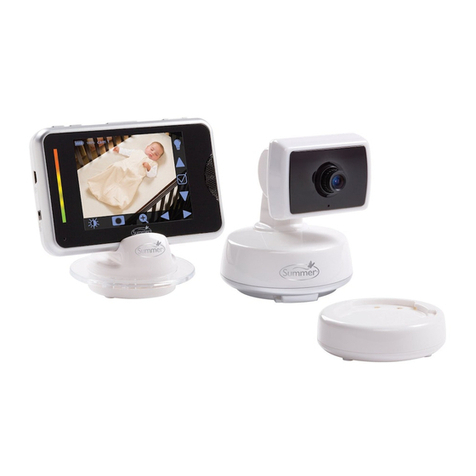
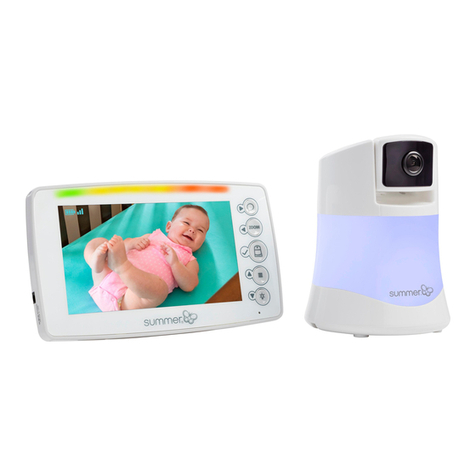
adding a camera to Baby Touch WiFi:
The handheld and camera are paired at the factory for privacy
reasons. If the monitor and camera are not pairing with each
other for any reason, follow steps to re-pair:
Deleting Camera
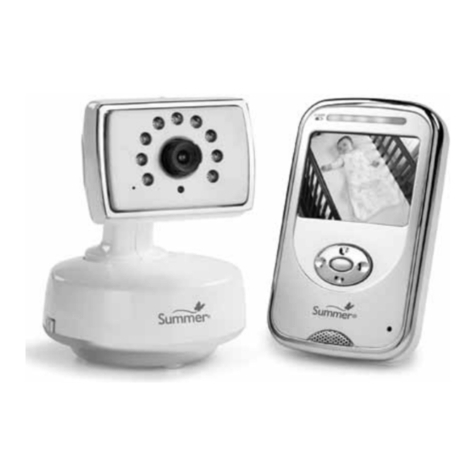
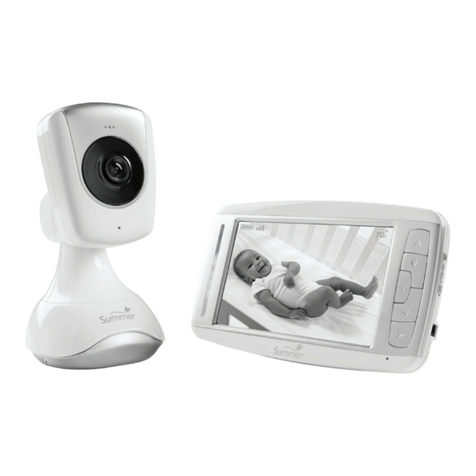
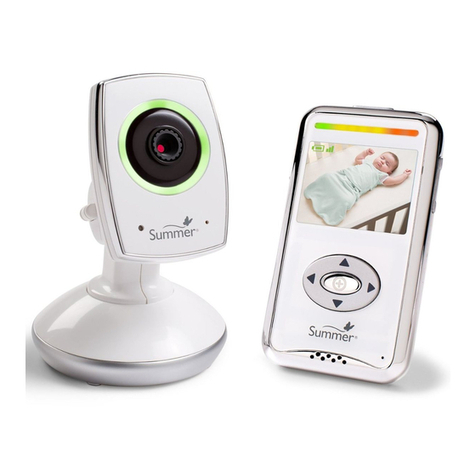
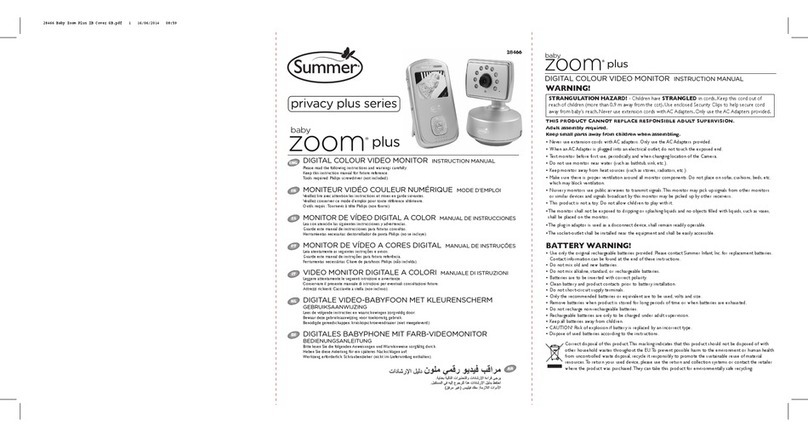
adding a camera to Baby Zoom WiFi:
The handheld and camera are paired at the factory for privacy
reasons. If the monitor and camera are not pairing with each
other for any reason, follow steps to re-pair:
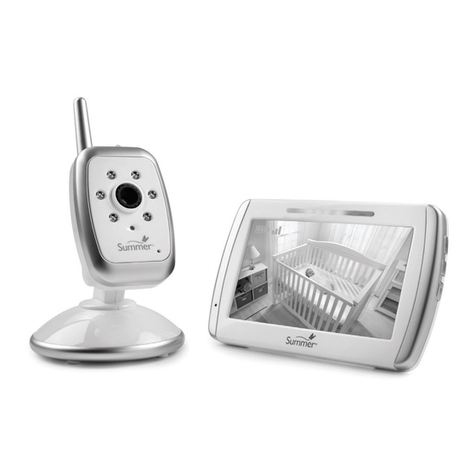
1. Move the monitor to the same area as the camera and
make sure both are turned on.
2. Press the POWER/MENU button to call up the OPTION menu.
3. Using the up and down arrows on the front of the monitor, scroll
to “ ” and press ZOOM/SELECT
4. The next available channel will be highlighted. Press
ZOOM/SELECT again to begin pairing.
5. Within 20-seconds, press the CODE button on the back of the
camera and live video will appear once the camera is paired.
If this is unsuccessful, repeat steps above making sure the
camera and monitor are close enough to each other for
pairing.
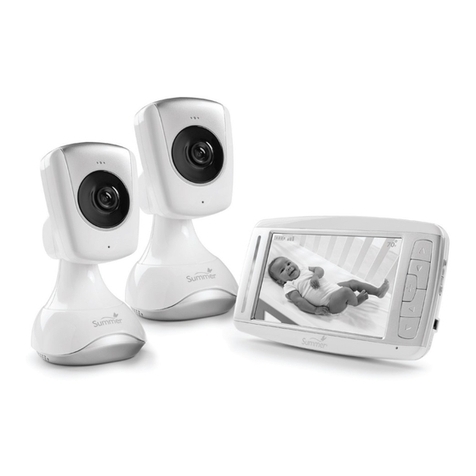
Note: The SCAN, DEL CAM, ADD CAM, and VIEW CAM menu
options are only used with additional cameras.