manuals.online logo
Brands
  1. Home
  2. •
  3. Brands
  4. •
  5. SunVote
  6. •
  7. Keypad
  8. •
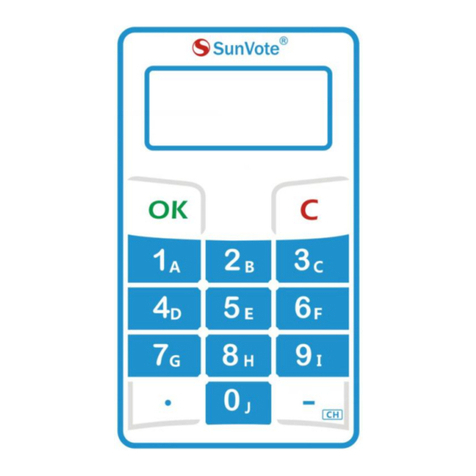
  9. SunVote M52Li-2.4G User manual

SunVote M52Li-2.4G User manual

Other SunVote Keypad manuals

SunVote S53 User manual

SunVote

SunVote S53 User manual

SunVote S56 User manual

SunVote

SunVote S56 User manual

SunVote S50PLUS User manual

SunVote

SunVote S50PLUS User manual

SunVote M52Plus-2.4G User manual

SunVote

SunVote M52Plus-2.4G User manual

Popular Keypad manuals by other brands

AAA 6150RFAAA Installation and setup guide

AAA

AAA 6150RFAAA Installation and setup guide

Fermax MDS Installation and programming manual

Fermax

Fermax MDS Installation and programming manual

ACT ACT PRO 1030 manual

ACT

ACT ACT PRO 1030 manual

Cardin SSB Series manual

Cardin

Cardin SSB Series manual

Harman Kardon KP 1 Specifications

Harman Kardon

Harman Kardon KP 1 Specifications

CYP CR-KP1 Operation manual

CYP

CYP CR-KP1 Operation manual

Aeware k-35 Series Quick reference card

Aeware

Aeware k-35 Series Quick reference card

Aritech CS-175 Series user guide

Aritech

Aritech CS-175 Series user guide

Lenze AC Tech MC SERIES installation instructions

Lenze AC Tech

Lenze AC Tech MC SERIES installation instructions

Burg Wächter secuENTRY 7711 operating instructions

Burg Wächter

Burg Wächter secuENTRY 7711 operating instructions

Aeware in.k450 Tech book

Aeware

Aeware in.k450 Tech book

Lenze EPM-H410 operating instructions

Lenze

Lenze EPM-H410 operating instructions

Toshiba RKP007Z user manual

Toshiba

Toshiba RKP007Z user manual

Elmes Electronic KB1 quick start guide

Elmes Electronic

Elmes Electronic KB1 quick start guide

Clare Controls ClareOne CLR-C1-PNC Installation sheet

Clare Controls

Clare Controls ClareOne CLR-C1-PNC Installation sheet

FM Electronics 4180 quick start guide

FM Electronics

FM Electronics 4180 quick start guide

AMX MIO-PRESTIGE-S Dimensional drawing

AMX

AMX MIO-PRESTIGE-S Dimensional drawing

why pro WHY-KP user manual

why pro

why pro WHY-KP user manual

manuals.online logo
manuals.online logoBrands
  • About & Mission
  • Contact us
  • Privacy Policy
  • Terms and Conditions

Copyright 2025 Manuals.Online. All Rights Reserved.

M52Li-2.4G
Keypad User Manual
2016/04/20
Easy Use Quick Innovative
Content
1- Appearance Description
2-Preparation Work
3-System Connection
4-System Settings: Keypad Match, Set ID, Management
5- Voting Functions: Sign in, Vote, Judge, Choice, Sequence, Numeric
6-FAQ & Notes
1- Appearance Description
Model M52Li
Power On Press any key to power on
Power Off Long press 󵽍C󵽎till "Bye Bye" appears on the screen, then
release your hand to turn it off
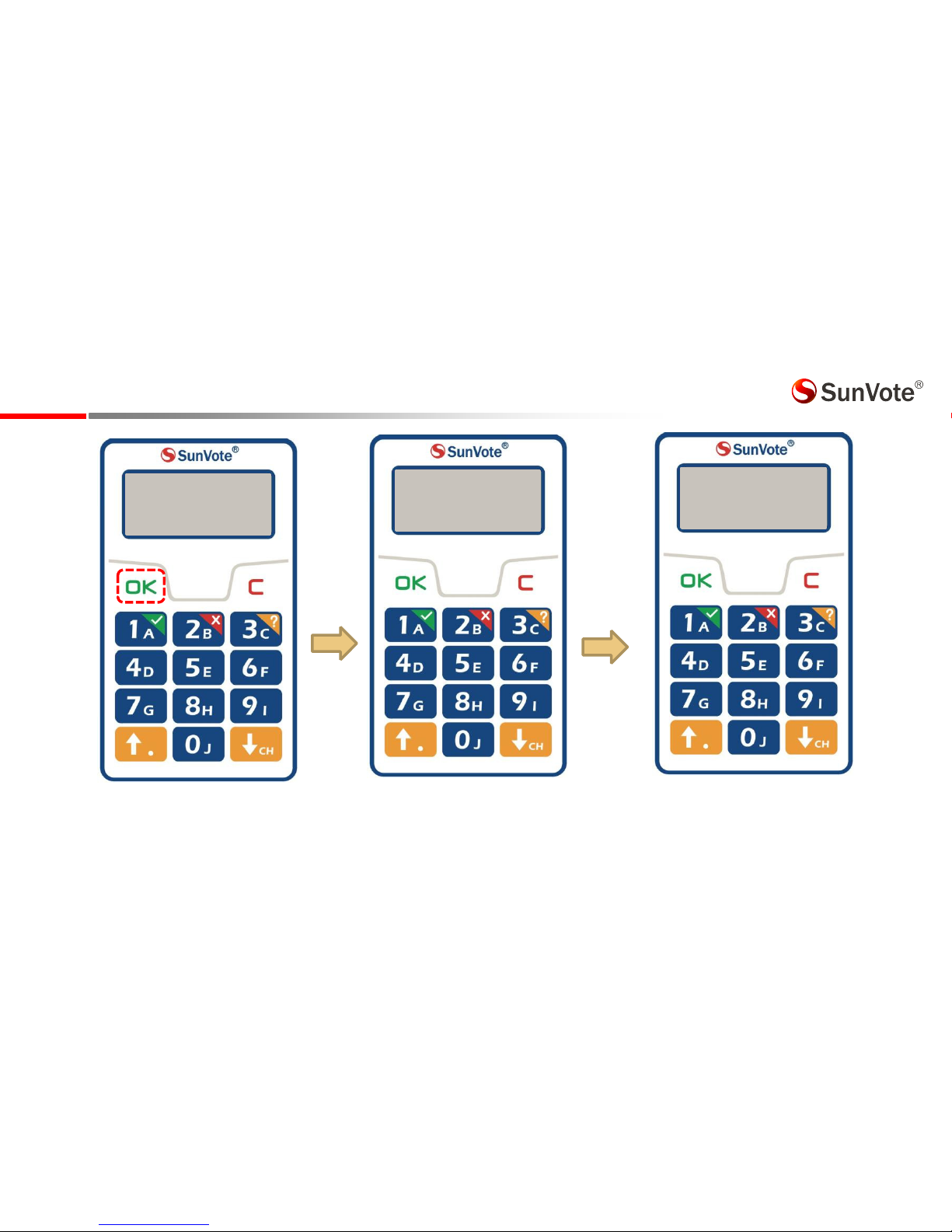
Sign In Press 󵽍OK󵽎to sig i, LCD ill sho SignIn OK  afte
successful registration
Vote Press󵽍√󵽎󵽍X󵽎󵽍?󵽎for yes/no/abstain, and LCD will
showReceivedif successfully submit.
Candidate Election Press 󵽍√󵽎to tick the candidate, double click 󵽍√󵽎or click 󵽍X
󵽎
for recall, and press 󵽍OK󵽎to submit
Single Choice Press alphanumeric keys to submit your answer directly
Multiple Choice
Sequence
Press alphanumeric keys to select your answer and press 󵽍OK
󵽎
to submit
Scoring
Numeric
Press alphanumeric keys to input the numbers including
decimal point and press 󵽍OK󵽎to submit
LCD Display
Cancel
Down/Channel
UP/Decimal Point
Submit
Abstain
No
Abstain
Channel Keypad ID
Alphanumeric
Keys
Online
CH:01 ID:0001
Yes
2-Preparation Work
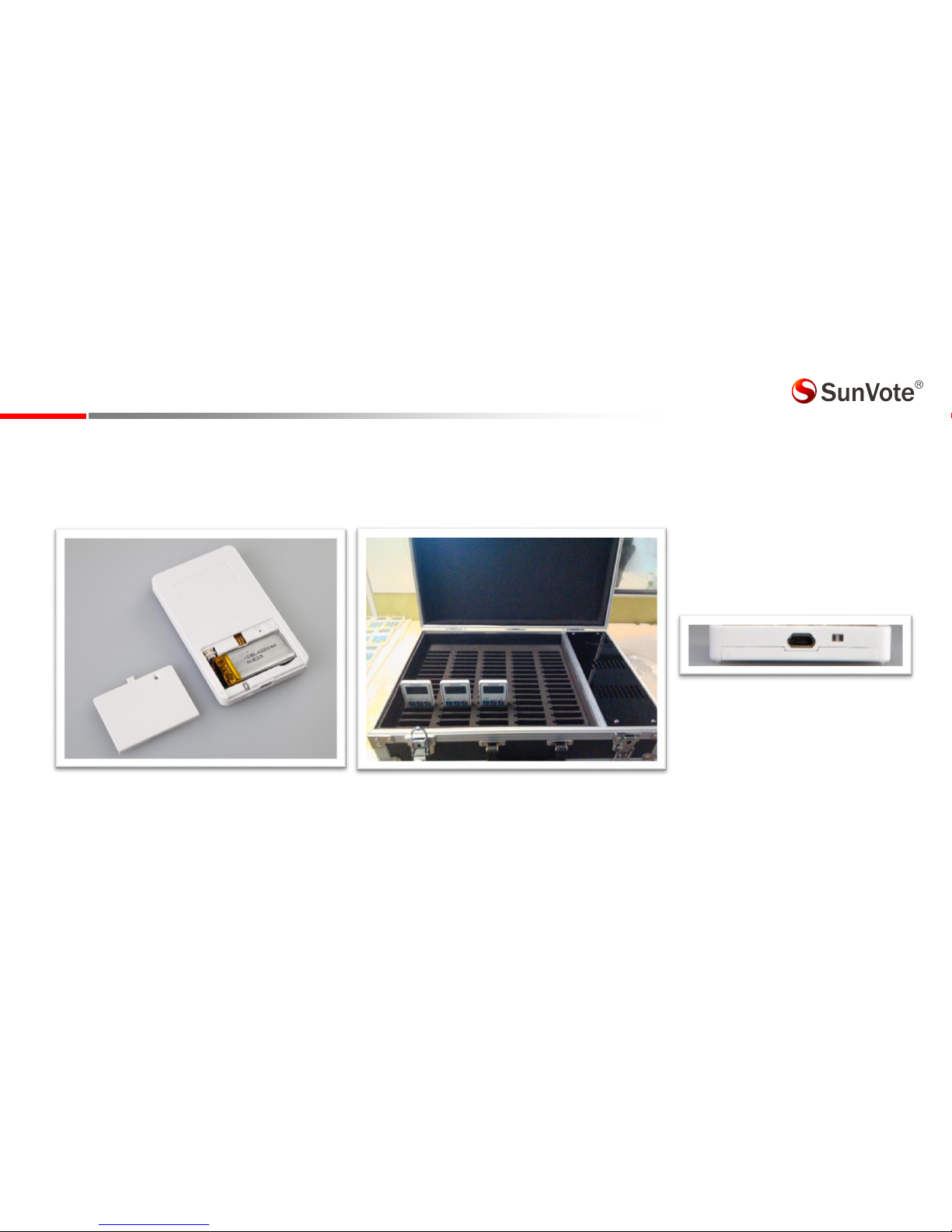
Please check the keypad batteries before use. If battery is low (e.g. it prompts in red to
indicate weak battery by keypad test in the software), please plug the keypads into the
charging box for around 2-3 hours till fully charged.
Indication light of the charging box turns red
when keypad is charging;
The light turns off after full charge
300mAh Rechargeable Lithium Battery Plug the Mini USB into the charging slot
XX Board Meeting
Session I
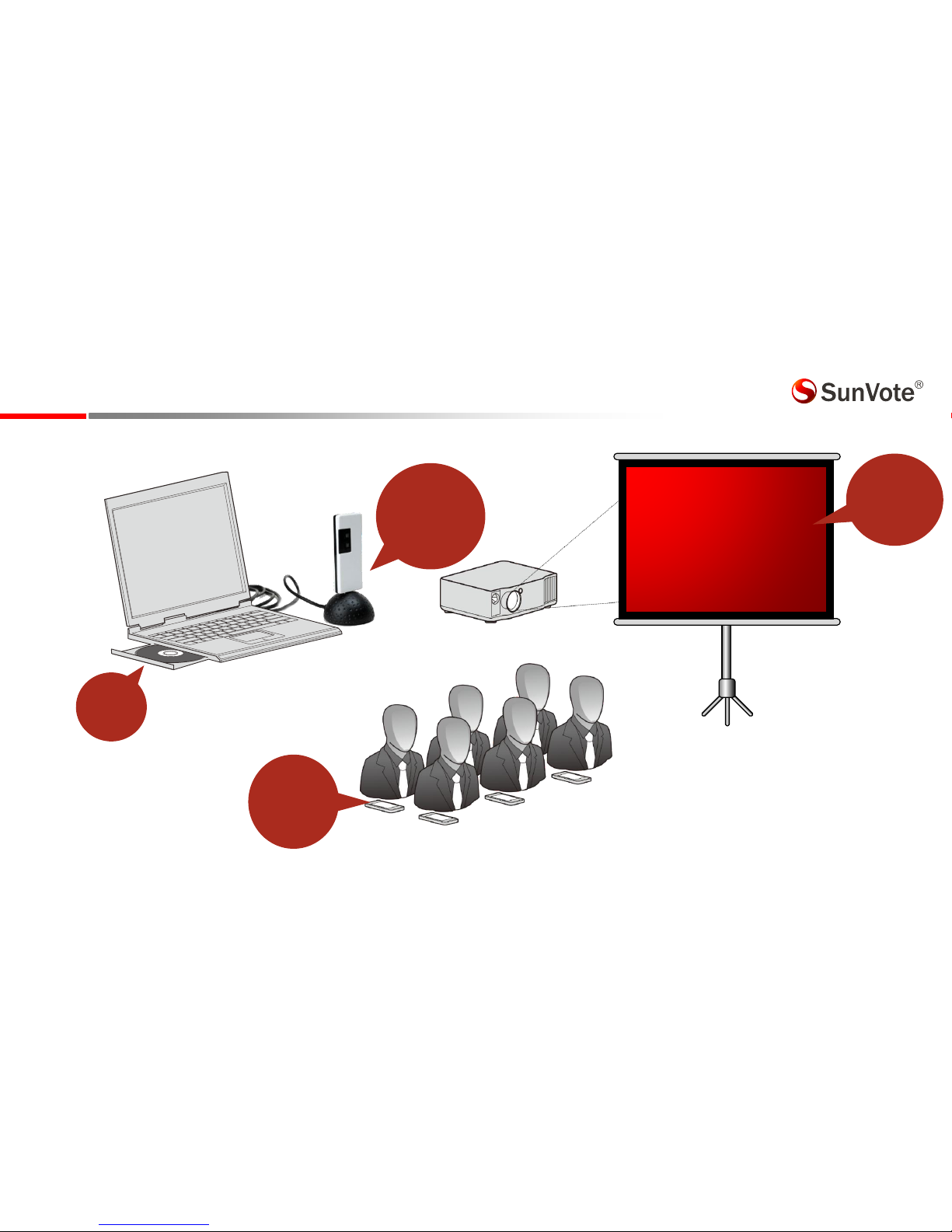
3-System Connection
1-Install
software
2-Connect base
station
4-Power on
keypads for
testing
3- Set up the
projector &
screen
No network connection is required in the
conference hall;
The projector and screen are prepared by
users.
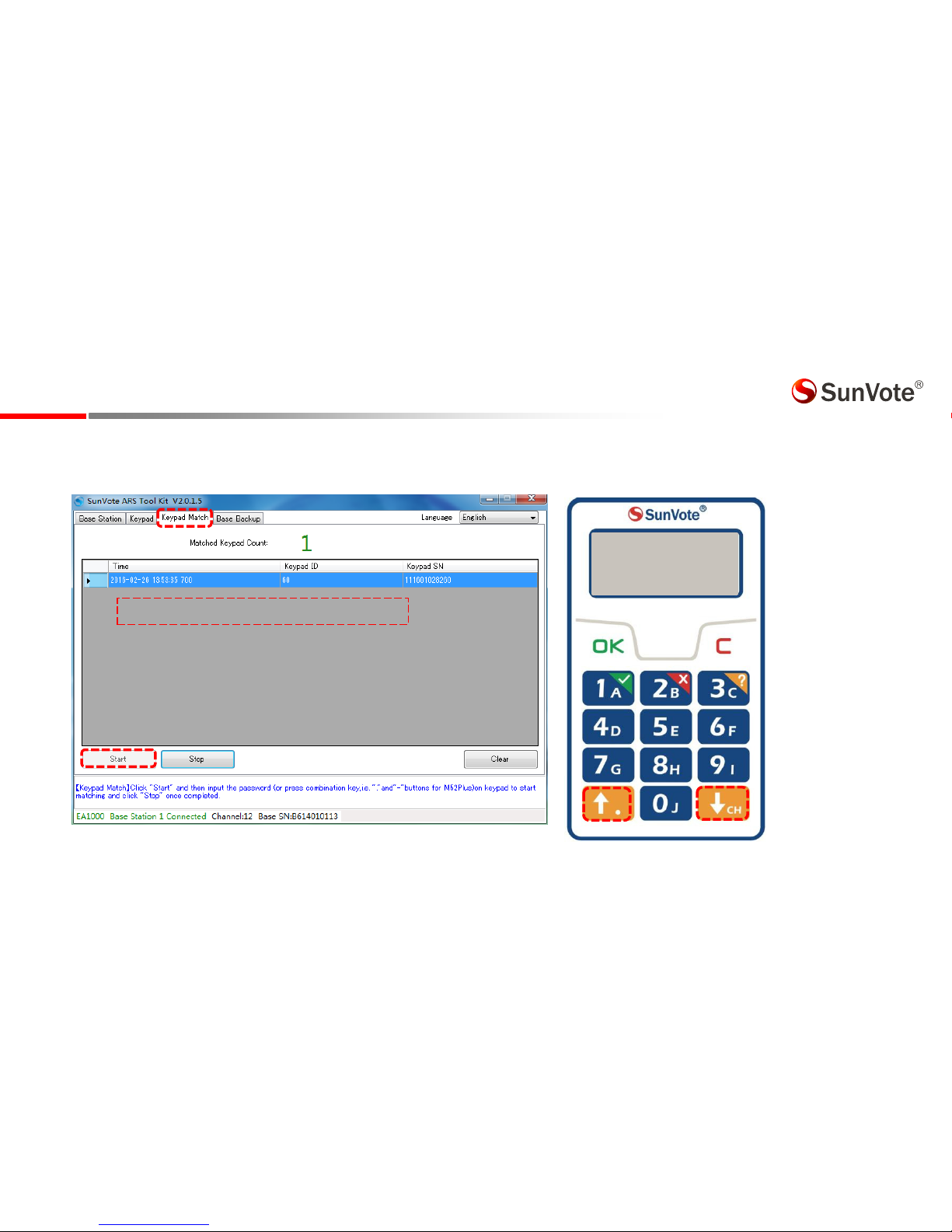
4.1.1-System Settings :Keypad Match-Match Mode
󵽍Why to Match󵽎Keypad match is to create communication between keypads and base station, and make sure your system is
isolated from other similar systems. Match mode is set by default from factory.
󵽍How to Match󵽎Please run SunVote ARS Tool Kit,go to Keypad Match ad lik Start afte the ase is oeted.
Press 󵽍↑ 󵽎and 󵽍↓ 󵽎at
the same time for 3 seconds
If failed, keypad will return
to the last matched channel.
For end-user, the keypads
and base station are
matched before delivery.
Matched
List the information of matched keypads
4.1.2-System Settings :Keypad Match-Free Mode
󵽍Free Mode󵽎Keypad is able to communicate with any base station freely by inputting the appropriate channel of the base.
󵽍How to Set󵽎Free mode is controlled by base station. However the base is set as match mode from factory, we may change it
to free mode in SunVote ARS Tool Kit as shown on the bottom left.
When the free mode base is connected,
follow the steps as below :
Long press 󵽍CH󵽎for 3 seconds, input
the oet hael he Chael
appears on the screen, and press OK to
connect .
It shos Olie o see afte
successful match.
If failed, keypad will return to the last
matched channel.
For end-user, the keypads and base
station are matched before delivery.
Channel:
-
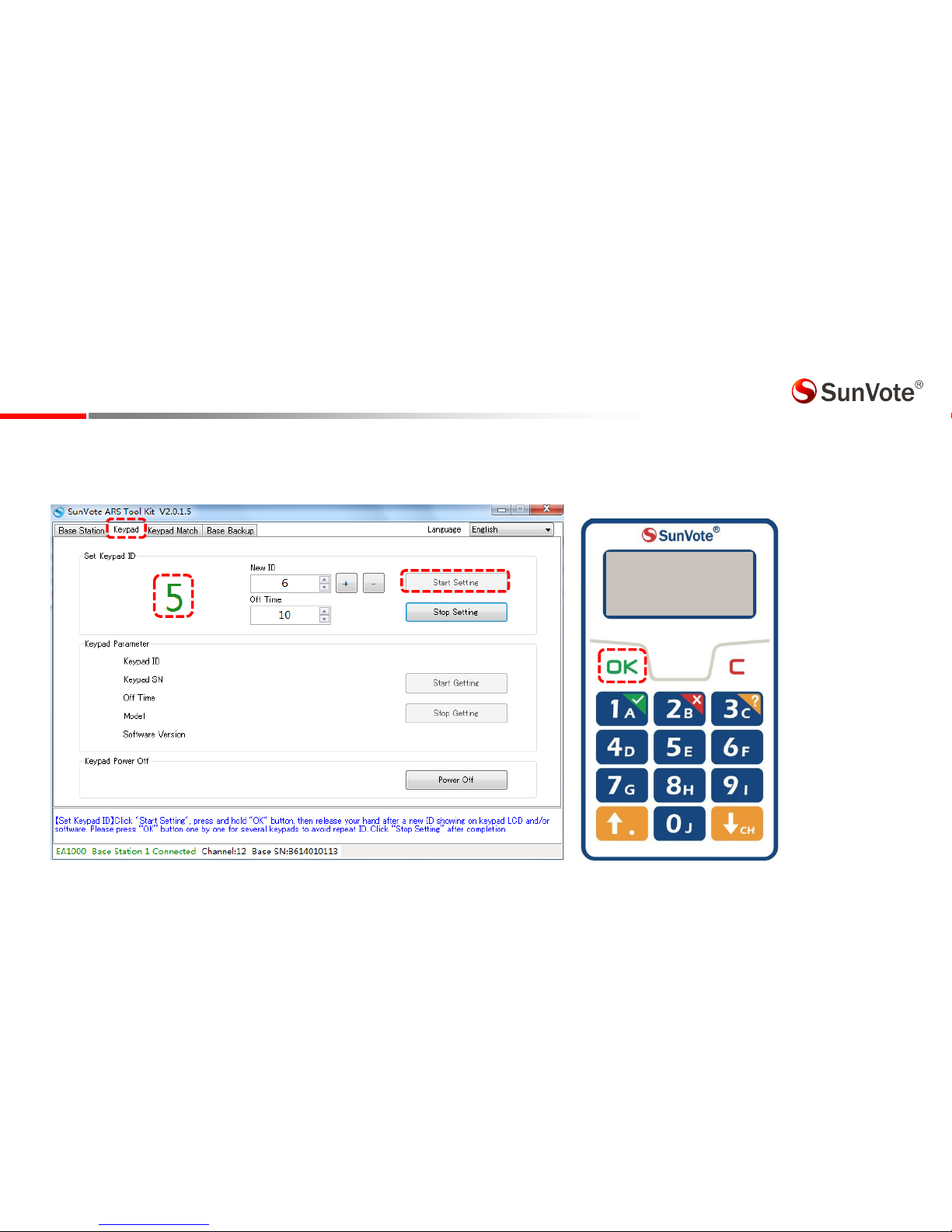
4.2- System Settings: Set Keypad ID
󵽍Why to Set ID󵽎Keypad ID is convenient for device management, test and troubleshooting. ID should be unique.
󵽍How to Set ID 󵽎Run SunVote ARS Tool Kit ,go to Keypad and click Start Setting. Now press and hold 󵽍OK󵽎button on keypad, and
release your hand after a new ID showing on keypad and toolkit. New ID in ARS Tool kit will add 1 automatically, so please press another
keypad to set its ID in ascending order.
For end-user, ID is set
before delivery.
Note: Math eas
match mode;
Free eas free ode
[Match] Off:10
ID: 0005
4.3-System Settings: Management
1. Language:Set English or Chinese by base station;
2. Modification Mode:Use software to allow or not allow to modify the answer. Press 󵽍C󵽎
to modify after submitting under modifiable mode. Press the appropriate functional buttons to
resubmit directly for single choice/judge and vote;
3. Confidential Mode:Use software to enable or disable the confidential mode . Once enabled,
LCD ill ol sho Reeied ithout the eat otig alue i.e.. Yes/No/Astai fo
confidence.
4. Submitting Mode:Use software to allow or not allow to submit less than the selectable
options. Eg.: if the seletale is set as 3 optios, ou a suit AC if it’s alloed; otheise,
only the answer with 3 options like BCD is acceptable.
5. Identification Mode: Each keypad has a unique and inalterable 12-digit serial number. Set it in
software or SunVote ARS Tool Kit to identify keypad by SN/ID. If set as SN mode, the keypad SN
will show in software when polling. Note: You ay have to press OK utto to refresh the
display on keypad while change from SN to ID mode.

5.1- Voting functions:Sign in
When start Sign in, press 󵽍OK󵽎to sig i aodig to the idiatio o kepad ad signIn OK ill e
displayed after successfully submitting.
Press OK SignIn SignIn SignIn OK