Digiplex DGP-641 Assembly instructions

DGP-641 LCD Keypad (V1.3)
Installer’s Guide
DGP-641

Digiplex LCD Keypad 1n
TABLE OF CONTENTS
INTRODUCTION ................................................3
Specifications ..............................................................3
INSTALLATION .................................................4
Connecting the Keypad ..............................................4
Connecting Keypad Zones .........................................4
Programmable Output (PGM) .....................................5
PROGRAMMING ...............................................6
Enter Module Programming Mode ..............................6
Programming Methods ................................................8
Feature Select Programming ..................................8
Decimal Programming ............................................8
Module Broadcast .......................................................8
SYSTEM OPTIONS ............................................9
Partition Assignment ...................................................9
Display Code Entry .....................................................9
Display Exit Delay Timer .............................................9
Display Entry Delay Timer ........................................10
Confidential Mode .....................................................10
Muting .......................................................................11
Beep on Exit Delay ...................................................12
Chime on Zone Closure ............................................12

2 Installer’s Guide
Beep on Trouble .......................................................12
Keypad Tamper Enable ............................................13
PGM PROGRAMMING ....................................14
PGM State ................................................................14
PGM Activation Event ...............................................14
PGM Deactivation Event ..........................................15
PGM Timed Mode ....................................................15
PGM Timer ...............................................................16
PGM Base Time .......................................................16
PGM Override ...........................................................16
Message Programming ..................................17

Digiplex LCD Keypad 3n
1.0 INTRODUCTION
Thank you for choosing Paradox®Security Systems. The Digiplex™
Security System is an advanced technology security system that will
provide reliable security protection and powerful features that are
easy to use. The elegant and user-friendly Digiplex™ LCD Keypad
will allow easy access to the security system's functions and
information at the touch of a button. Since all programming is
accomplished through the keypad, please read this manual carefully.
1.1 SPECIFICATIONS
Power input: 9-16 VDC, 80mA maximum
Speed operation: 16 MHz
PGM current limit: 50 mA
Number of inputs: 1
Number of zones: 1 standard zone, no tamper recognition
Power indication: Yellow LED on
Locate indication: Green and yellow LEDs flash simultaneously
Bus fault indication: Red and yellow LEDs flash alternately
Lock Level 2 indication: Green LED flashes twice per second for
approximately 16 seconds after power up.
The LCD will display “Safety Mismatch, Call
Service” if the safety code transmitted by
the control panel is different (safety
mismatch).
Tamper Switch: Yes (also used to deactivate locate)
LCD: Super Twisted Nematic display (STN),
wide viewing angle, 2 lines of 16
characters, backlight and contrast
adjustable

4 Installer’s Guide
2.0 INSTALLATION
2.1 CONNECTINGTHEKEYPAD
The Digiplex™ LCD keypads are connected to the control panel's
bus in a star and/or daisy chain configuration. This 4-wire
communication bus provides power and two-way communication
between the control panel and all modules connected to it. Connect
the four terminals labeled red, black, green and yellow of each
keypad to the corresponding terminals on the control panel as shown
in Figure 2.1. Refer to the Digiplex Control Panel's Reference &
Installation Manual for the maximum allowable installation distance
from the control panel.
2.2 CONNECTINGKEYPAD ZONES
Each keypad has one traditional hardwired input terminal, allowing you
to connect one detector or door contact directly to the keypad. For
example, a door contact located at the entry point of an establishment
can be wired directly to the input terminal of the entry point keypad
instead of wiring the door contact all the way to the control panel.
Connect the device to the keypad's input terminal as shown in Figure
2.1. In order to communicate its status to the control panel, devices
connected to the keypad's input terminal must be assigned to a zone
in the control panel and the zone's parameters must be defined. For
more information on zone assignment, please refer to the Digiplex
Control Panel's Reference & Installation Manual. Please note that
even with the ATZ (zone doubling) feature enabled, the keypad
supports only one detection device.

Digiplex LCD Keypad 5n
2.3 PROGRAMMABLEOUTPUT(PGM)
Each keypad has one on-board PGM. A PGM is a programmable
output that toggles to its opposite state (i.e. a normally open PGM will
close) when a specific event has occurred in the system (see section
5.2 of this manual). Upon activation, the PGM can provide 50mA to
any device connected to it. If the current drawn is to exceed the current
limit, a relay should be connected to the PGM as shown in Figure 2.1.
Figure 2.1: Connecting Keypads and Keypad Zones

6 Installer’s Guide
3.0 PROGRAMMING
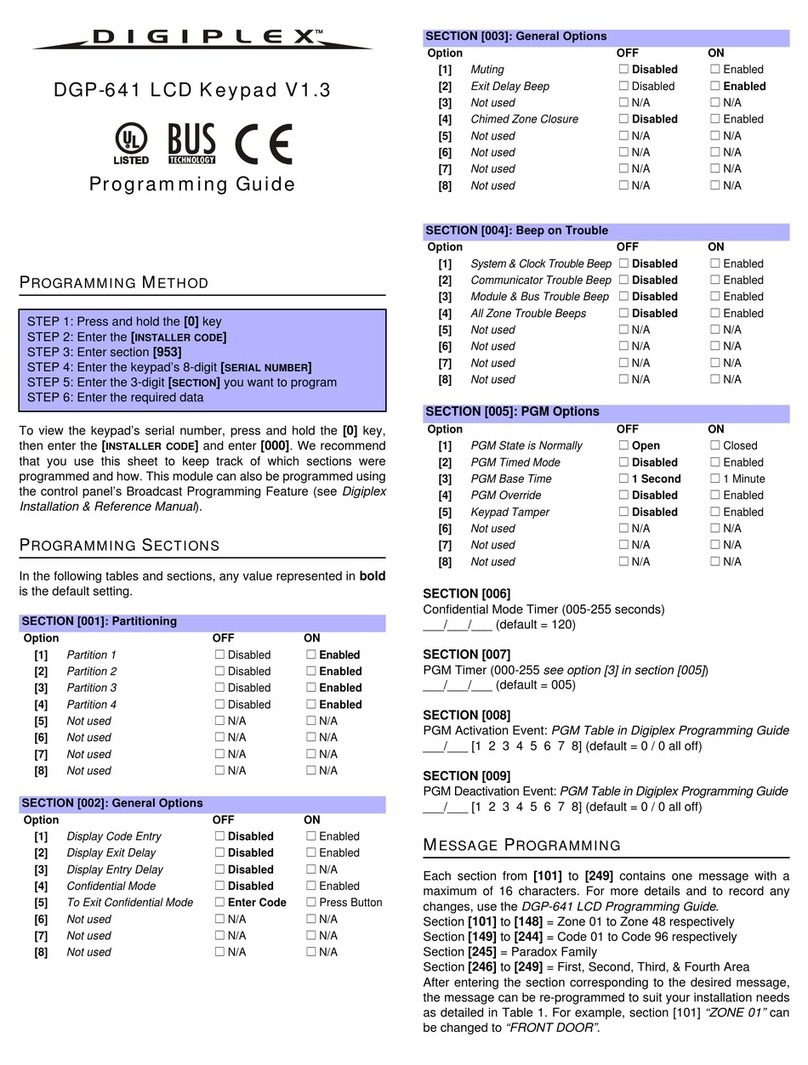
Programming the DGP-641 LCD keypad is simple. Enter the "Module
Programming Mode", enter the desired section followed by the required
data as shown in Figure 3-1. When programming the keypad, use the
DGP-641 LCD Keypad Programming Guide to keep track of which
sections were programmed and how. We strongly recommend you read
this entire manual before you begin programming.
The LCD keypad can also be programmed using the WinLoad Security
System Management Software. For more information, refer to the
WinLoad instructions or visit our web site at www.paradox.ca.
3.1 ENTERMODULEPROGRAMMINGMODE
The keypad, like all other modules in the Digiplex system, is
programmed through the control panel. To do so, you must first enter
the "Module Programming Mode" (see Figure 3-1).
The control panel will then redirect all programming to the selected
keypad. Every time the [CLEAR]key is pressed it will revert to the
preceeding step, unless entering in data in which case it will erase
the current data entry. Please note that the serial number is located
on the keypad's PC board or enter section [000] in Step 3 from
Figure 3-1 to view the keypad’s serial number.

Digiplex LCD Keypad 7n
Figure 3.1: Module Programming Mode

8 Installer’s Guide
3.2 PROGRAMMINGMETHODS
3.2.1 Feature Select Programming
Program sections [001] to [005] by enabling or disabling options.
Within the sections, numbers from [1] to [8] represent a specific
keypad option. Press the key corresponding to the desired option
and the digit will appear in the display. This means the option is
enabled. For example, in Step 6 of Figure 3-1, options [1] and [4] are
enabled. Press the key again to remove the digit from the display
thereby disabling the option. Press [ENTER]when options are set.
3.2.2 Decimal Programming
Sections [006] and [007] are programmed using "Decimal
Programming". In this method, any digit from 000 to 255 can be
entered.
3.3 MODULEBROADCAST
The Digiplex Control Panel’s Module Broadcast feature can be used
to copy the contents of one keypad to one or many other keypads.
Step 1: From Normal Mode press and hold the [0] key.
Step 2: Enter [INSTALLERCODE].
Step 3: Enter section [954].
Step 4: Enter the [SERIAL#] of the source keypad.The source is the
programmed keypad whose data you want to copy to other keypads.
Step 5: Enter the [SERIAL#] of the destination keypads. The
destination is the keypad(s) you want to program with the source’s
data. If you want to program more than one keypad with the source’s
data, enter the serial numbers of the keypads one at a time.
Step 6: Once you have entered the serial numbers of the keypads
you want to program, press the [ACC] key.

Digiplex LCD Keypad 9n
4.0 SYSTEM OPTIONS
4.1 PARTITIONASSIGNMENT
Section 001: Options [1] to [4]
Each keypad in the Digiplex system can be assigned to one or more
partitions. In section [001], options [1] to [4] represent partitions 1
through 4 respectively. To assign the keypad to a partition, simply
enable the option that corresponds to the desired partition. For
example, Step 6 in Figure 3-1 on page 6, would show options 1 and 4
enabled. Therefore, the keypad would be assigned to partitions 1
and 4 only. (By default, partition 1 to partition 4 are enabled.)
4.2 DISPLAYCODEENTRY
Section 002: Option [1]
The digits of the User Access Codes can be displayed on the LCD
screen when they are entered.
Option [1] OFF = Digits are replaced by a *. (default)
Option [1] ON = Access Code digits will be displayed.
4.3 DISPLAYEXITDELAYTIMER
Section 002: Option [2]
Based on the user's needs, an Exit Delay Timer will be programmed to
provide the user time to exit the partition before the system is armed.
The Exit Delay Timer's countdown can be displayed on the LCD screen.
Option [2] OFF = Will not display Exit Delay timer (default)
Option [2] ON = LCD screen will display Exit Delay timer
Other manuals for DGP-641
2
Table of contents
Other Digiplex Keypad manuals
Digiplex
Digiplex DGP2-641AC User guide
Digiplex
Digiplex DGP2-648BL User manual
Digiplex
Digiplex DGP2-641 User guide
Digiplex
Digiplex EVO641 User manual
Digiplex
Digiplex DGP-641ACC Operating instructions
Digiplex
Digiplex DGP2-641 User guide
Digiplex
Digiplex DGP-641 Operating instructions

Digiplex
Digiplex DGP-641ACC Operating instructions
Digiplex
Digiplex DGP-641 User manual