SwyxPhone L660 Q U I C K S T A R T SwyxPhone L660 Q U I C K S T A R T
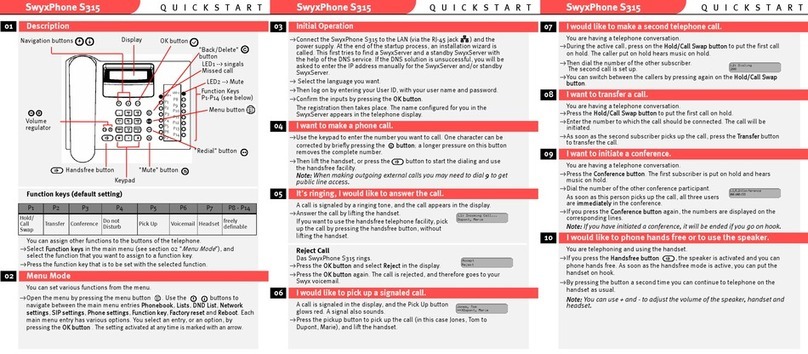
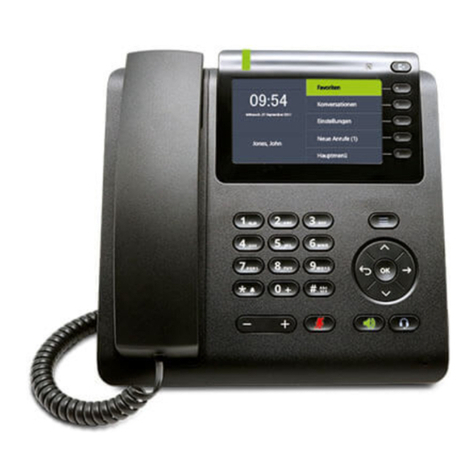
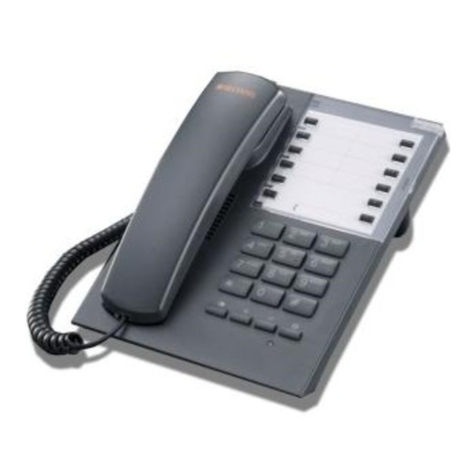
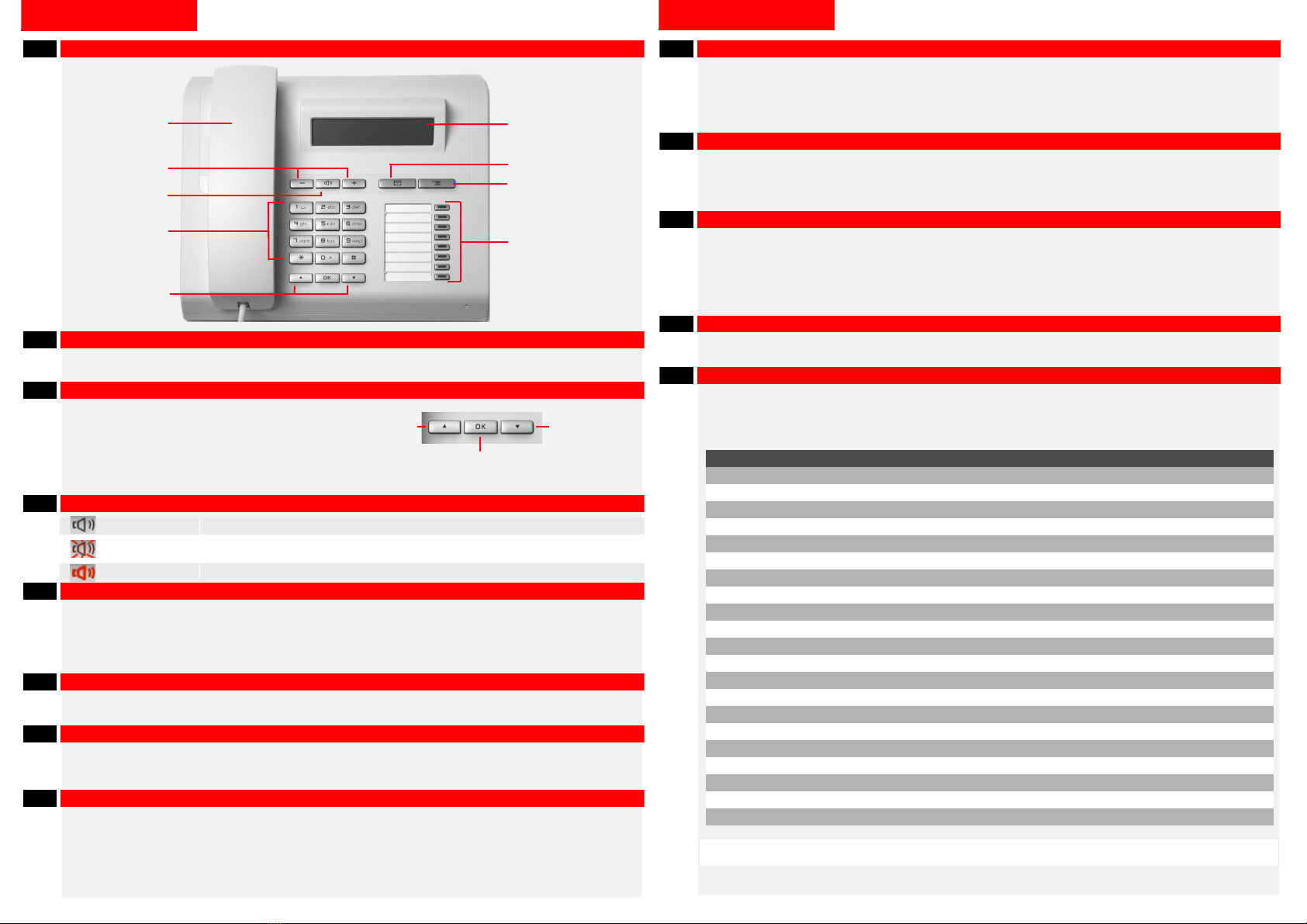
1 Control elements
2 Login
Enter your PIN and confirm it with OK.
Now you can receive and place calls with your number.
3 Menu mode
Use the menu buttons to start the following options (from left to right):
Telephony Interface, Phonebook, Caller Lists, Voicemail, Settings, Help
An option can include various tabs, which in turn contain different lists. If there is a
shortcut menu for an entry, an arrow appears after the entry.
4 LEDs
5 Start call
Enter the number or select the number in the menu item Phonebook.
Lift the handset in order to initiate the dialing procedure.
For using the hands free telephone, press the speaker button.
When making external calls you may need to dial the external call prefix to a get public
line access.
6 Pick up call
Answer the call by lifting the handset.
For using the hands free telephone, press the speaker button.
7 Pick up calls of other users and/or group calls
When a call is signalized to another user, select the menu item Activate, press OK and lift
the handset.
To pick up a signalized group call, lift the handset directly.
8 Initiate a second call (Call Swap)
During the call, select a free line button.
Dial the number of the second subscriber.
The first subscriber is put on “Hold” and hears music on hold.
Call up an option (e.g. Caller Lists) Press the corresponding menu button.
Navigate through tabs Press the corresponding menu button again.
Navigate through list entries Sweep over the navigation wheel or press the arrow buttons.
Select entry On the selected entry, press OK.
Select shortcut menu Press the arrow button "Forward" on the navigation wheel.
off The line is free - it is idle
blinking An incoming call is signalized or the line is disabled.
Rapidly blinking: Forwarded call / subscriber is on hold.
glowing The line is busy
Handset
Display
Microphone on/off
"Headset" Button
Navigation
wheel
Dialpad
Regulate volume
Menu buttons
Connectivity
disconnect
Lines
Speed dial buttons
LED
Speaker
Call Forwarding
Switch between the lines by pressing the corresponding Line button.
9 Connect Subscribers
You have two subscribers on two lines.
Select the menu item Call Transfer, and confirm your selection with OK.
Select the second line and confirm this with OK.
If you initiated the call on the active line, you can just hang up your handset without
pressing the Transfer button.
10 Initiate a conference
You have two subscribers on two lines.
Select the menu item Conference, and confirm with OK.
To add further subscribers, call them on another line (blinking), and confirm the menu
item Conference with OK.
11 Callback on busy
If you hear the busy tone, when calling an internal subscriber, select the menu item
Callback Request and confirm your selection with OK.
When the subscriber finishes the call, this is indicated with an acoustic signal. The
message Accept Callback appears in the display.
Lift the handset to be connected to the subscriber.
If you didn't answer a Callback on busy, the list Missed Callbacks will be displayed.
12 Listening to voice mails
New voicemails are displayed and additionally sent to you by email.
Press the Voicemail menu item and confirm your selection with OK to listen to the voice
mails.
13 Configure function keys
Select the menu item Configuration and then Function keys.
Press the button you want to define.
Press the arrow button, select Modify and confirm the selection with OK.
Select the new function and confirm the selection with OK.
Function Explanation
Line button Represents a further line
Speed dial Abbreviated dialing button
Call Transfer Connects the active line and a line on hold
Do not Disturb Incoming calls are only signaled visually
Secondary call Accept or reject a second call during a call
Caller List Displays the last 20 incoming calls
Hold Active line is on hold
Phonebook Open the Phonebooks (Personal and Global)
Redial list Displays the 20 telephone calls you have made most recently
Speaker Switches the speaker on or off or activates a line
Pick up call Picks up a signaled call
Call Forwarding Switches Call Forwarding Unconditional on or off.
Call Swap Switches between several lines
Mute Switches the microphone on or off during a call
Disconnect Terminates the active connection
Incognito Suppresses your telephone number for the next call
Voicemail Displays new Voicemails or starts the Remote Inquiry
Conference Starts a conference
Callback request Requests a Callback
User logoff Logs the user off
The complete user documentation can be found under
http://www.swyx.com/de/service-support/dokumentationen.html
All of the product and brand names mentioned here
are
registered trademarks of the respective
manufacturer.
01/2016 – Subject to technical changes.