manuals.online logo
Brands
  1. Home
  2. •
  3. Brands
  4. •
  5. Tekon
  6. •
  7. Microphone System
  8. •
  9. Tekon PLUS TWP4AI User manual

Tekon PLUS TWP4AI User manual

Other manuals for PLUS TWP4AI

1

This manual suits for next models

3

Other Tekon Microphone System manuals
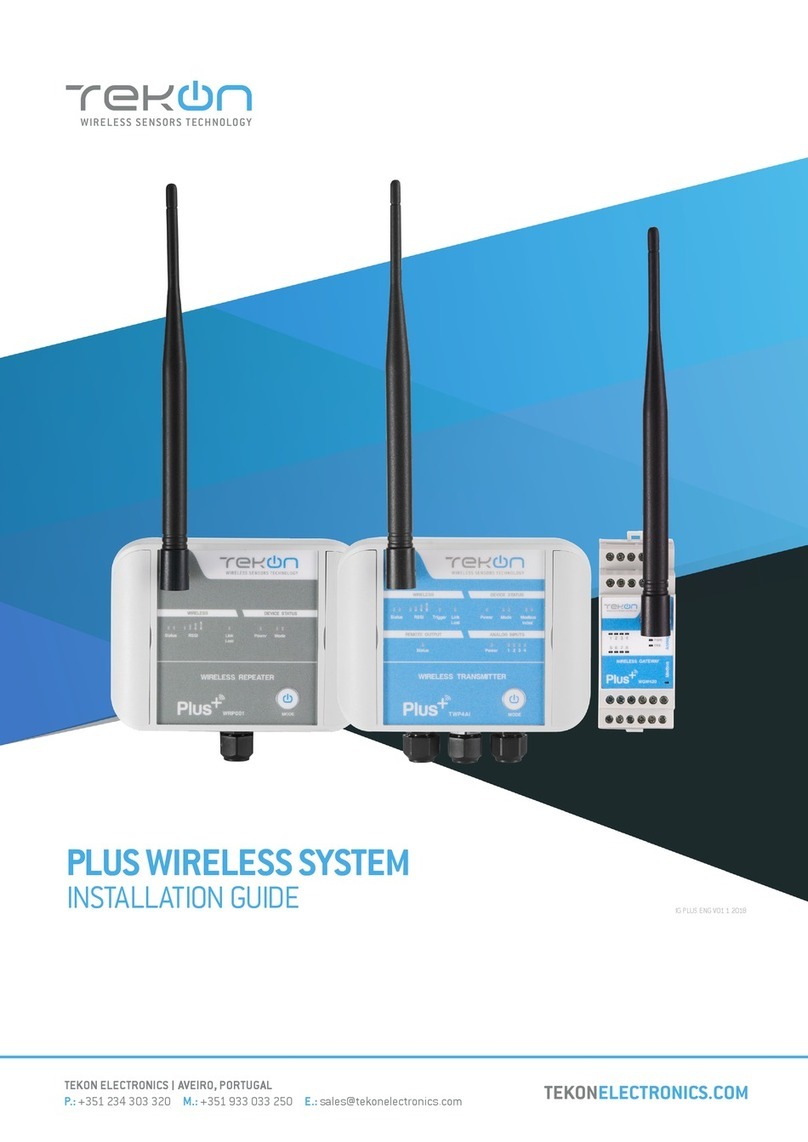
Tekon PLUS TWP4AI User manual

Tekon

Tekon PLUS TWP4AI User manual

Tekon PLUS TWPH-1UT User manual

Tekon

Tekon PLUS TWPH-1UT User manual

Tekon Plus Series User manual

Tekon

Tekon Plus Series User manual

Tekon DUOS User manual

Tekon

Tekon DUOS User manual

Popular Microphone System manuals by other brands
INIM SAGITTARIUS VW2W instructions

INIM

INIM SAGITTARIUS VW2W instructions

AKG IVM 4500 User instructions

AKG

AKG IVM 4500 User instructions

Earthworks Audio PM40 manual

Earthworks Audio

Earthworks Audio PM40 manual

Nady Systems ENCORE 2 owner's manual

Nady Systems

Nady Systems ENCORE 2 owner's manual

Oklahoma Sound WM-200H instruction manual

Oklahoma Sound

Oklahoma Sound WM-200H instruction manual

Chiayo SDR-8200 Operation manual

Chiayo

Chiayo SDR-8200 Operation manual

Paso R824 quick start guide

Paso

Paso R824 quick start guide

Naxa NAM-982 instruction manual

Naxa

Naxa NAM-982 instruction manual

Xvive U3 user manual

Xvive

Xvive U3 user manual

Heyuan Intelligence IOT-G2S-01 user manual

Heyuan Intelligence

Heyuan Intelligence IOT-G2S-01 user manual

Devine WMD-IE user manual

Devine

Devine WMD-IE user manual

LG LF-D7150 owner's manual

LG

LG LF-D7150 owner's manual

LD U305 HBH 2 user manual

LD

LD U305 HBH 2 user manual

Chainway URA8 user manual

Chainway

Chainway URA8 user manual

ORATOR D860TD instruction manual

ORATOR

ORATOR D860TD instruction manual

Sennheiser Evolution Wireless Digital EW-DX EM 2 quick guide

Sennheiser

Sennheiser Evolution Wireless Digital EW-DX EM 2 quick guide

Shure UA844 user guide

Shure

Shure UA844 user guide

Alpha Technologies RBMS Installation & operation manual
Alpha Technologies

Alpha Technologies RBMS Installation & operation manual

manuals.online logo
manuals.online logoBrands
  • About & Mission
  • Contact us
  • Privacy Policy
  • Terms and Conditions

Copyright 2025 Manuals.Online. All Rights Reserved.

TEKON ELECTRONICS AVEIRO, PORTUGAL
P.: +351 234 303 320 M.: +351 933 033 250 E.: [email protected]
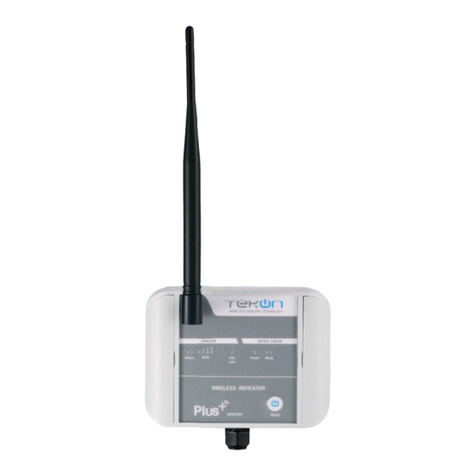
PLUS TWP-4AI
INSTALLATION GUIDE
TEKON ELECTRONICS AVEIRO, PORTUGAL
P.: +351 234 303 320 M.: +351 933 033 250 E.: [email protected]
IG_PLUS_TWP-4AI_E01A
PLUS TWP-4AIPLUS TWP-4AI
INSTALLATION GUIDEINSTALLATION GUIDE
PLUS TWP-4AIPLUS TWP-4AI
2
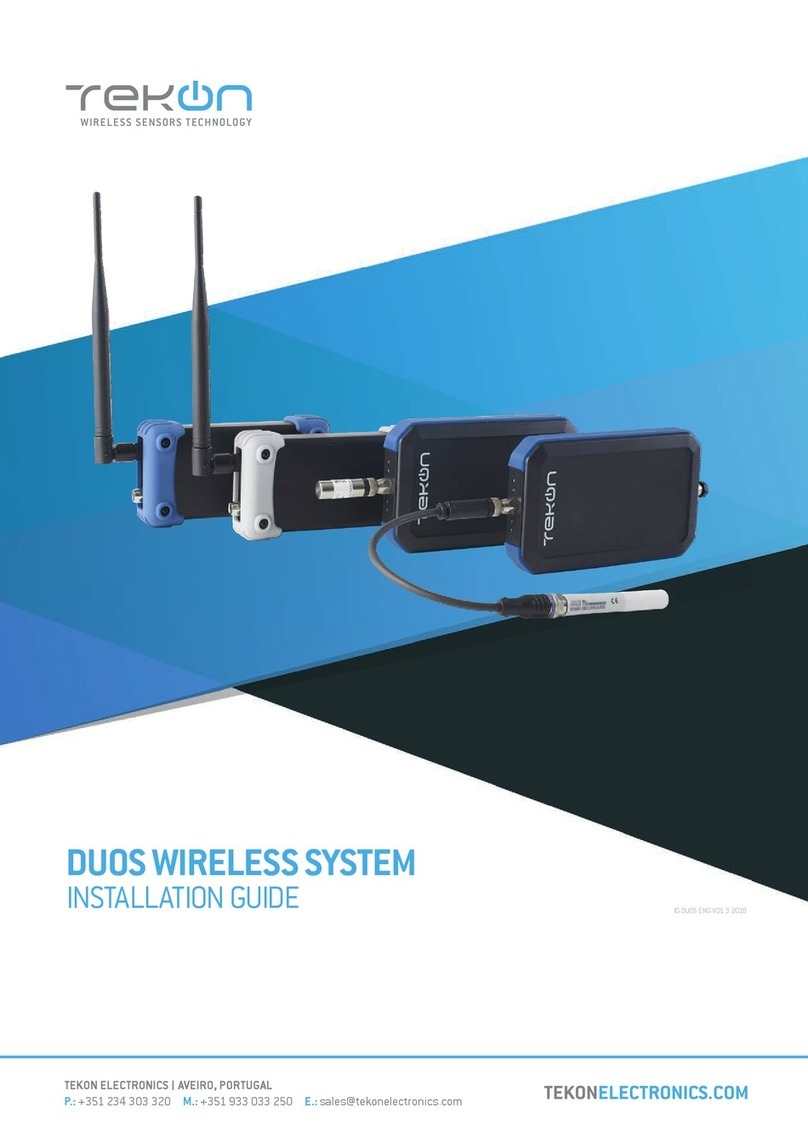
DUOS WIRELESS SYSTEM INSTALLATION GUIDE
01
step WGW420 PLUS WIRELESS GATEWAY CONFIGURATION
Pages 4 to 12
02
step TWP4AI PLUS WIRELESS TRANSMITTER CONFIGURATION
Pages 13 to 19
PLUS TWP-4AI WIRELESS SYSTEM
INSTALLATION GUIDE
Table of contents
03
step TWP4AI TRANSMITTER ANALOG INPUT CONFIGURATION
Pages 20 to 23
04
step TWP4AI TRANSMITTER DIGITAL INPUT CONFIGURATION
Pages 24 to 26
05
step TWP4AI TRANSMITTER DIGITAL OUTPUTS CONFIGURATION
Pages 27 to 32
3
DUOS WIRELESS SYSTEM INSTALLATION GUIDE
PLUS TWP-4AI WIRELESS SYSTEM
INSTALLATION GUIDE
Table of contents
07
step WRP001 PLUS WIRELESS REPEATER CONFIGURATION
Pages 36 to 41
08
step SITE SURVEY MODE
Pages 42 and 43
06
step WGW420 GATEWAY ANALOG OUTPUTS CONFIGURATION
Pages 33 to 35
5.1 LINK LOST OUTPUT
Page 28
5.2 REMOTE CONTROL OUTPUT
Page 30
5.3 EXTERNAL POWER CONTROL OUTPUT
Page 31
01
step
WGW420 PLUS WIRELESS GATEWAY CONFIGURATION
01
step
WGW420 PLUS WIRELESS GATEWAY CONFIGURATION
01
step
WGW420 PLUS WIRELESS GATEWAY CONFIGURATION
5
INSTALLATION GUIDE PLUS TWP-4AI
01 Connect the antenna to the Gateway.
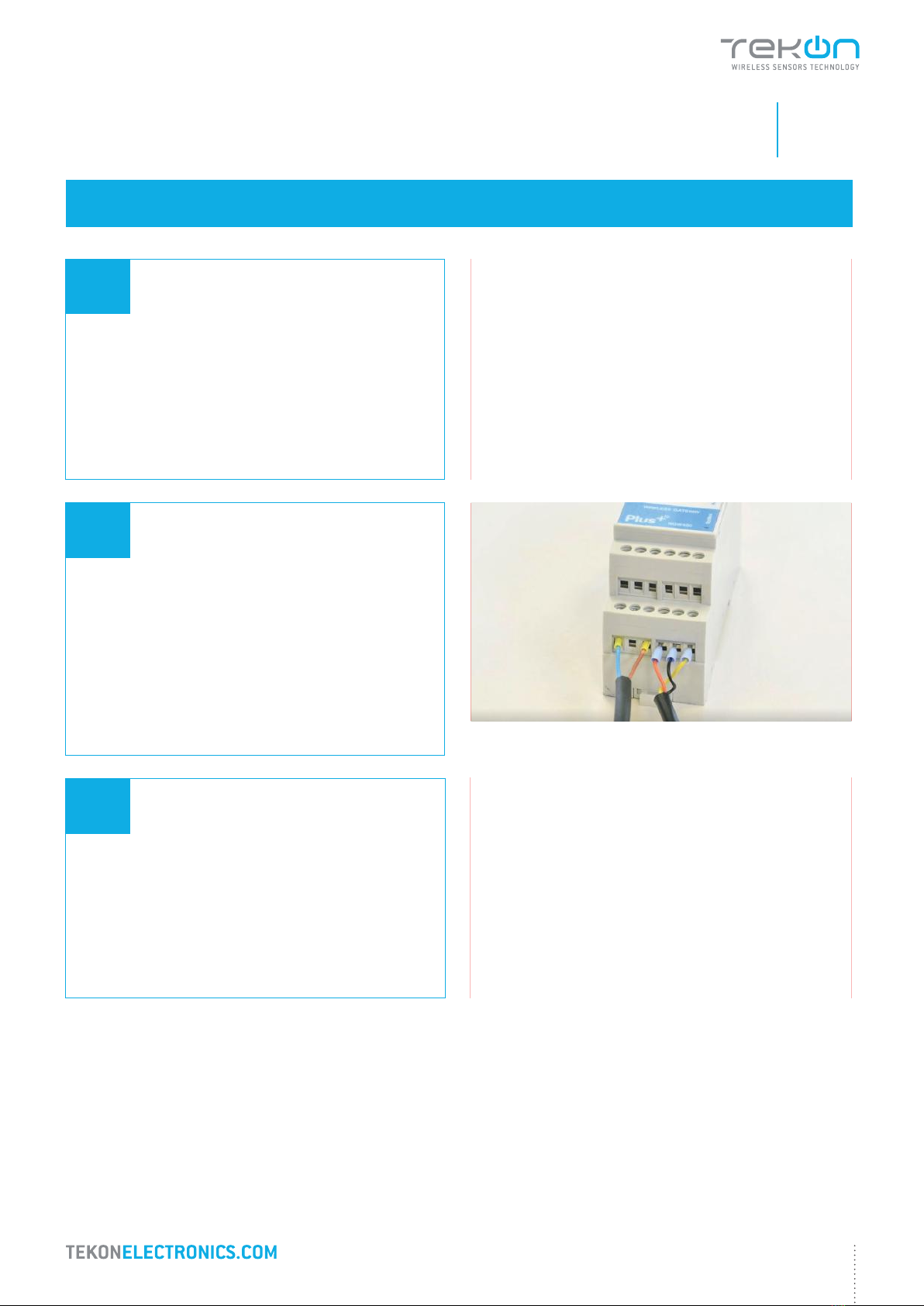
02 Wiring
Connect the power supply and then the
RS485-USB cable to the Gateway.
TEKON CONFIGURATOR SOFTWARE is only compatible with the Microsoft® Windows® Operating System.
03 Power ON the device.
Wire Indication:
Blue - GND; Brown - +24 VDC; Orange - Data+ (A); Black - GND; Yellow - Data - (B)
6
PLUS TWP-4AI INSTALLATION GUIDE
01
step
WGW420 PLUS WIRELESS GATEWAY CONFIGURATION
04 Check device connection state by LED indication.
05 Open Tekon Configurator Software1and select PLUS >> Gateway >> Configuration
2
1
3
1 Tekon Configurator software is free of charge and available at www.tekonelectronics.com
10 Seconds to enter
configuration mode
WIRELESS GATEWAY
Normal mode
Green LEDs
permanently on
Red LEDs
permanently on
01
step
WGW420 PLUS WIRELESS GATEWAY CONFIGURATION
7
INSTALLATION GUIDE PLUS TWP-4AI
07 Select corresponding Port name2.
2You can check device’s serial port name in “Device Manager” on Microsoft ® Windows® operating system.
06 Select serial port corresponding to WGW420 PLUS Wireless Gateway
Click on the Rescan Ports button.
8
PLUS TWP-4AI INSTALLATION GUIDE
01
step
WGW420 PLUS WIRELESS GATEWAY CONFIGURATION
08 Perform a power cycle on the Gateway.
09 Click on Connect ( ) button to enter configuration mode.
( )
NOTE:
After power up, you have 10 seconds to enter configuration mode by clicking on Connect button ( )
(while green LEDs are permanently on).
In this mode, you can manage device parameters: Modbus Address, Modbus Baudrate, Modbus Parity, Wireless
Network ID and Wireless Channel.
( )
01
step
WGW420 PLUS WIRELESS GATEWAY CONFIGURATION
9
INSTALLATION GUIDE PLUS TWP-4AI
NOTE:
When the 10-second time frame to enter configuration mode is exceeded, the LEDs will turn permanently red and
the gateway will enter normal operation mode.
To get back in configuration mode, you need to perform a power cycle - step 8.
Green LEDs performing
scan animation
WIRELESS GATEWAY
Configuration mode
The status string at the bottom of the software window provides feedback on ongoing operations.
10
You can also verify configuration mode activation by checking LEDs on the gateway.
10
PLUS TWP-4AI INSTALLATION GUIDE
01
step
WGW420 PLUS WIRELESS GATEWAY CONFIGURATION
12 Click on Disconnect ( ) button.
( )
11 Take note of device configuration data available, namely: Modbus Address, Modbus Baudrate, Modbus Parity,
Wireless Network ID and Wireless Channel.
NOTE:
The wireless network connection between devices is ensured by setting the same Wireless Network ID and
Wireless Channel parameters.