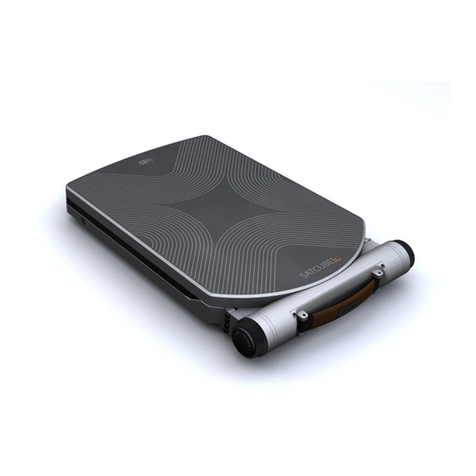
Thrane&Thrane EXPLORER 500 User manual

GETTING STARTED
EXPLORER 500
TT-99-121419-A · 07.05 OgilvyOne
32224-BGAN-exp500-manual-120x180 24/10/05 13:39 Side 2

32224-BGAN-exp500-manual-120x180 24/10/05 13:40 Side 3

GETTING STARTED
Congratulations on the purchase of your EXPLORER™500.
Before you start, please check that the following items are present:
• EXPLORER™500 terminal
• Battery
• AC/DC adapter and power cable for European mains system
• LAN cable
• USB cable
• CD-ROM with interactive manual, solutions, drivers.
• CD-ROM with Inmarsat Launch Pad (PC application)
Insert the SIM card
(provided by your Airtime Provider)
a. Insert the SIM card into the SIM slot
and press gently until it snaps.
b. Slide the lock to secure the SIM card.
Insert the battery
Insert the battery and press gently
until it snaps.
NOTE: You can use the battery as power source,
or connect to 100-240 V Mains using the AC/DC
adapter.
2
1
32224-BGAN-exp500-manual-120x180 24/10/05 13:41 Side 4

Connect the cables
Connect the cable(s) to the relevant
connector(s) on the EXPLORER™500.
The connector panel is located on
the side of the EXPLORER™500.
Two connectors are placed at the back of the EXPLORER™ 500:
External antenna connector, marked ANT, and Bluetooth phone charging
connector, marked DC OUT.
Switch on the EXPLORER™500
Push the power button next to the display and hold it until the green power
indicator lights up.
Enter the pincode
a. When you are asked for a PIN code, press OK.
b. Press or a number of times
until the first digit is correct.
c. Press OK to go to the next digit.
The previous digit is indicated by a *.
d. After pressing OK to enter the last digit, press OK to apply the PIN code.
e. If you want to turn off the pointing sound, press or .
Point the antenna
Important! To obtain optimal bandwidth and operating time, adjust
the position of the antenna with great precision. Do not adjust the antenna
position until all cables are connected and the PIN entered.
a. Using the built-in compass of the EXPLORER™500 as reference, rotate
and tilt the antenna so that it points in the approximate direction of the
BGAN satellite.
6
5
4
3
USB Phone/Fax LAN Power
32224-BGAN-exp500-manual-120x180 24/10/05 13:41 Side 5

Use the displayed signal strength and the pointing sound to find the highest
possible signal strength, while slowly rotating and tilting the EXPLORER™500.
b. Press OK when you have
obtained the highest possible
signal strength.
The EXPLORER™500 now starts to establish a connection to the BGAN network.
The display shows the progress as follows:
• SEARCHING: The EXPLORER™500 searches for the network operator.
Note that the search procedure can be very short, so you may not see this text.
• REGISTERING: When the network operator is found, the display shows
REGISTERING to show that the EXPLORER™500 is registering itself on the network.
• READY: The EXPLORER™500 is registered on the network.
You are now ready to make phone or fax calls, browse the Internet, check your e-mails,
send files, run a video conference and much more.
32224-BGAN-exp500-manual-120x180 24/10/05 13:41 Side 6

Up to about 100 m of cable
Up to 5 m of cable
Up to max. 100 m depending
on the transmitter in the data
unit and on the transmission
conditions.
Interface Power Consumption Amount of Setup Range
LAN
USB
Bluetooth
High
Low
Medium
None (or very little)
Some setup necessary
Can be complicated,
depending on operating
system.
MAKING A CALL FROM THE EXPLORER™500
To make a call from a phone connected to the EXPLORER™500, dial:
00 <country code> <phone number> followed by #or off-hook key.
Example: To call Thrane & Thrane in Denmark: (+45 39 558800), dial: 00 45 39 558800
followed by # or off-hook key.
MAKING A CALL TO THE EXPLORER™500
To make a call to a phone connected to the EXPLORER™500, dial:
+870 <mobile number>
• + is 00 for Europe and many other countries.
• To see your mobile numbers, use the display menu system and select
PROPERTIES > MOBILE NUMBERS.
NOTE: There are two voice numbers, one for 3.1kHz Audio voice and one for
Standard voice.
CHOOSING AN INTERFACE FOR DATA CONNECTION.
The EXPLORER™500 has three types of interface for data connection: LAN interface,
USB interface and Bluetooth interface. The following table shows some characteristics
of each interface, to help you choose the right interface for your application.
NOTE: Connection to the Bluetooth interface is not described here. For information
on how to connect to the Bluetooth interface, refer to the User Manual provided on the
Thrane & Thrane CD enclosed with the EXPLORER™500.
32224-BGAN-exp500-manual-120x180 24/10/05 13:41 Side 7

MAKING A LAN CONNECTION
To make a LAN connection, simply connect the LAN cable between your data unit
and the LAN connector, and start up the EXPLORER™500 as described in the begin-
ning of this document.
As soon as the display of the EXPLORER™500 shows READY, the connection is
established automatically.
You are now ready to browse the Internet, check e-mails, send files etc.
NOTE: For information on configuration, refer to the User Manual.
MAKING A USB CONNECTION
To make a USB connection, do as follows:
NOTE: If it is the first time you connect to the terminal using USB, you have to install
a driver first. Insert the Thrane & Thrane CD ROM provided with your EXPLORER™500
and install the EXPLORER™500 USB driver.
1. Connect the USB cable between your data unit and the EXPLORER™500.
Note that the connector on the EXPLORER™500 is a USB Mini-B connector.
2. Start up the EXPLORER™500 as described in the beginning of this document.
3. Create a dial-up connection.
In Windows XP (Classic Start Menu), a dial-up connection is created as follows:
a. Select Settings > Network Connections from the Start menu
and open the New Connection Wizard.
b. Go through the Wizard. When you are asked for a phone number, type:
* 98 # for an Internet connection, or * 99 # for a connection to the Web
interface.
c. When you have finished, close the New Connection Wizard.
4. To connect to the Internet or to the webinterface, open the dial-up connection.
You are now ready to browse the Internet, check e-mails, send files etc.
32224-BGAN-exp500-manual-120x180 24/10/05 13:41 Side 8
Other manuals for EXPLORER 500
6
Table of contents
Other Thrane&Thrane Marine GPS System manuals

Thrane&Thrane
Thrane&Thrane SAILOR 500 FleetBroadband User instructions

Thrane&Thrane
Thrane&Thrane Sailor SC4000 IRIDIUM User manual

Thrane&Thrane
Thrane&Thrane Explorer 727 User manual
Thrane&Thrane
Thrane&Thrane TT-3064A User manual

Thrane&Thrane
Thrane&Thrane EXPLORER 100 User manual

Thrane&Thrane
Thrane&Thrane EXPLORER 700 User manual

Thrane&Thrane
Thrane&Thrane Explorer 727 User manual
Thrane&Thrane
Thrane&Thrane SAILOR 700 VSAT User manual

Thrane&Thrane
Thrane&Thrane EXPLORER 110 User manual

Thrane&Thrane
Thrane&Thrane SAILOR 33 Fleet+ User manual