logo
Brands
  1. Home
  2. •
  3. Brands
  4. •
  5. Ubiquiti
  6. •
  7. Switch
  8. •
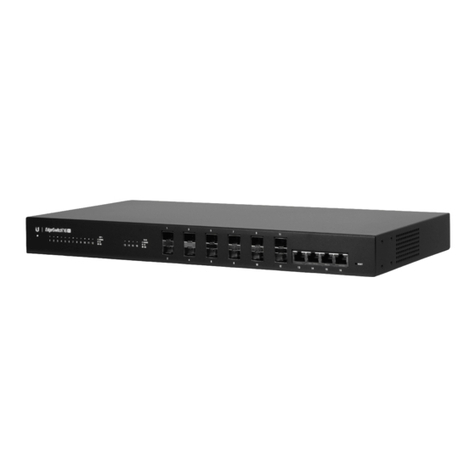
  9. Ubiquiti EdgeSwitch ES-16-XG User manual

Ubiquiti EdgeSwitch ES-16-XG User manual

Other manuals for EdgeSwitch ES-16-XG

2

Other Ubiquiti Switch manuals

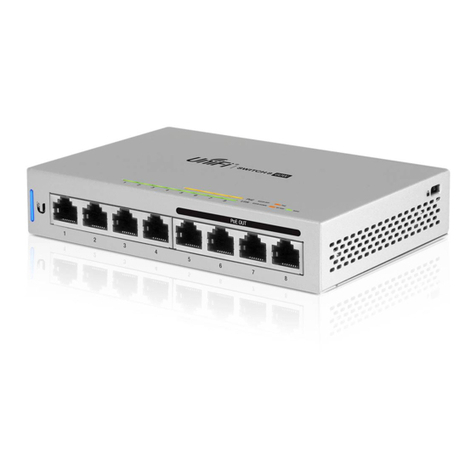
Ubiquiti TS-5-POE ToughSwitchPoE User manual

Ubiquiti

Ubiquiti TS-5-POE ToughSwitchPoE User manual

Ubiquiti ES-48-500W User manual

Ubiquiti

Ubiquiti ES-48-500W User manual

Ubiquiti ES-48-500W User manual

Ubiquiti

Ubiquiti ES-48-500W User manual

Ubiquiti USW-Pro-24 User manual

Ubiquiti

Ubiquiti USW-Pro-24 User manual

Ubiquiti UniFi USW-Pro-24-POE User manual

Ubiquiti

Ubiquiti UniFi USW-Pro-24-POE User manual

Ubiquiti UniFi USW-Pro-48-POE User manual

Ubiquiti

Ubiquiti UniFi USW-Pro-48-POE User manual

Ubiquiti EdgeSwitch ES-16-XG User manual

Ubiquiti

Ubiquiti EdgeSwitch ES-16-XG User manual

Ubiquiti UniFi USW-16-POE User manual

Ubiquiti

Ubiquiti UniFi USW-16-POE User manual

Ubiquiti EdgeSwitch 48 User manual

Ubiquiti

Ubiquiti EdgeSwitch 48 User manual
Ubiquiti US-XG-6POE User manual

Ubiquiti

Ubiquiti US-XG-6POE User manual

Ubiquiti US-48 User manual

Ubiquiti

Ubiquiti US-48 User manual

Ubiquiti FiberPoE User manual

Ubiquiti

Ubiquiti FiberPoE User manual

Ubiquiti UniFi User manual

Ubiquiti

Ubiquiti UniFi User manual

Ubiquiti EdgeSwitch 16 XG User manual

Ubiquiti

Ubiquiti EdgeSwitch 16 XG User manual
Ubiquiti UniFi USW-Industral Guide

Ubiquiti

Ubiquiti UniFi USW-Industral Guide

Ubiquiti 0817882025218 User manual

Ubiquiti

Ubiquiti 0817882025218 User manual

Ubiquiti UniFi US-8-60W User manual

Ubiquiti

Ubiquiti UniFi US-8-60W User manual

Ubiquiti TS-16-CARRIER User manual

Ubiquiti

Ubiquiti TS-16-CARRIER User manual

Ubiquiti EdgeSwitch User manual

Ubiquiti

Ubiquiti EdgeSwitch User manual

Ubiquiti UniFi USW-Pro-24-POE User manual

Ubiquiti

Ubiquiti UniFi USW-Pro-24-POE User manual

Ubiquiti UniFi Switch 24 User manual

Ubiquiti

Ubiquiti UniFi Switch 24 User manual

Ubiquiti UniFi Switch 48 US-48-500W User manual

Ubiquiti

Ubiquiti UniFi Switch 48 US-48-500W User manual

Ubiquiti UniFi USW-16-POE User manual

Ubiquiti

Ubiquiti UniFi USW-16-POE User manual

Ubiquiti ES-24-250W Installation manual

Ubiquiti

Ubiquiti ES-24-250W Installation manual

Popular Switch manuals by other brands

TRENDnet TK-401R null

TRENDnet

TRENDnet TK-401R null

TRENDnet TK-200K null

TRENDnet

TRENDnet TK-200K null

TRENDnet TE100-S8 null

TRENDnet

TRENDnet TE100-S8 null

URC Total Control MFS-8 installation manual

URC

URC Total Control MFS-8 installation manual

Azbil HPQ-D11 user manual

Azbil

Azbil HPQ-D11 user manual

Sony DFS-900M operating instructions

Sony

Sony DFS-900M operating instructions

SICK i17S operating instructions

SICK

SICK i17S operating instructions

F&F SZR-277 quick start guide

F&F

F&F SZR-277 quick start guide

Shure UAMS/BK user guide

Shure

Shure UAMS/BK user guide

Dräger X-zone Switch Off Instructions for use

Dräger

Dräger X-zone Switch Off Instructions for use

Asco Joucomatic 349 Series manual

Asco

Asco Joucomatic 349 Series manual

BT Mini Hub user guide

BT

BT Mini Hub user guide

D-Link DES-1226G manual

D-Link

D-Link DES-1226G manual

Johnson Controls FS80-C installation instructions

Johnson Controls

Johnson Controls FS80-C installation instructions

MicroNet SP1200A user manual

MicroNet

MicroNet SP1200A user manual

Ruijie RG-PF2920 Series Hardware  installation and reference guide

Ruijie

Ruijie RG-PF2920 Series Hardware installation and reference guide

Altinex DA1914SX user guide

Altinex

Altinex DA1914SX user guide

RJM MASTERMIND PBC/6X user manual

RJM

RJM MASTERMIND PBC/6X user manual

https://manuals.online logo
https://manuals.online logoBrands
  • About & Mission
  • Contact us
  • Privacy Policy
  • Terms and Conditions

Copyright 2026 Manuals.Online. All Rights Reserved.

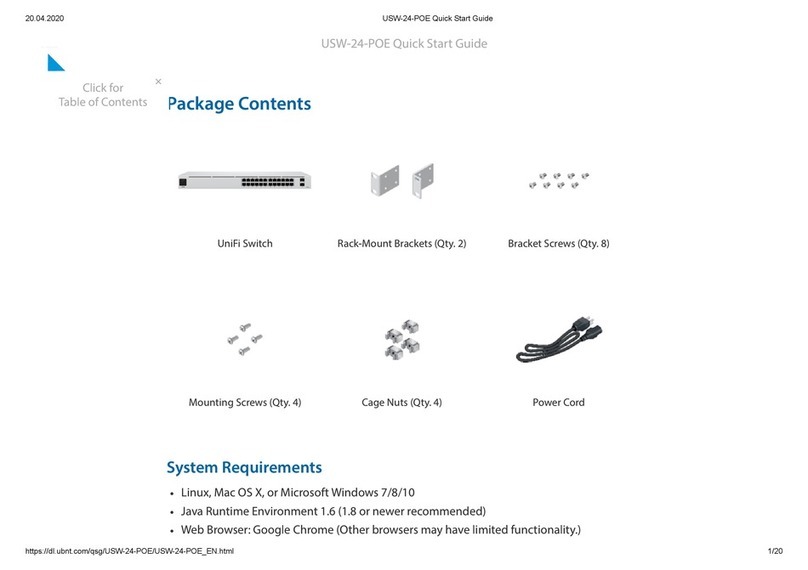
EdgeSwitch Rack-Mount Brackets (Qty. 2) Bracket Screws (Qty. 8)
Mounting Screws (Qty. 4) Cage Nuts (Qty. 4) Power Cord
Package Contents
Installation Requirements
Phillips screwdriver (for rack- or wall-mounting)
Standard-sized, 19" wide rack with a minimum of 1U height available (for rack-mounting)
Use compatible ber SFP+ modules with the appropriate ber optic cabling. For
information about compatible ber SFP+ modules, visit:
ubnt.link/SFP_DAC_Compatibility
For indoor applications, use Category 6A (or above) UTP cabling approved for indoor use.
For outdoor applications, shielded Category 6A (or above) cabling should be used for all
wired Ethernet connections and should be grounded through the AC ground of the power
supply.
We recommend that you protect your networks from harmful outdoor environments and
destructive ESD events with industrial-grade, shielded Ethernet cable from Ubiquiti. For
more details, visit:
ui.com/toughcable
Note:
Although the cabling can be located outdoors, the EdgeSwitch itself should be
housed inside a protective enclosure.
Hardware Overview
ES-16-XG Quick Start Guide
System LED
SFP+ Speed/Link/Act LED (Ports 1 - 12)
RJ45 Speed/Link/Act LED (Ports 13 - 16)
Note:
The System LED functionality has been updated with rmware v1.8.0. We
recommend that you update the EdgeSwitch to the latest rmware.
Flashing White Bootup in progress.
White Ready for use, not connected to Ubiquiti® Network
Management System (UNMS™).
Blue Ready for use, connected to UNMS.
Steady Blue with Occasional
Flashing Ready for use, unable to connect to UNMS, check
connection to UNMS server.
Quickly Flashing Blue Used to locate a device in UNMS.
Alternating
Blue/White Firmware upgrade in progress.
Off No Link
Green Link Established at 1 Gbps
Flashing Indicates Activity
White Link Established at 10 Gbps
Flashing Indicates Activity
Off No Link
ES-16-XG Quick Start Guide
SFP+ (Ports 1 - 12)
RJ45 (Ports 13 - 16)
Reset Button
Console
DC Input
Green Link Established at 1 Gbps
Flashing Indicates Activity
White Link Established at 10 Gbps
Flashing Indicates Activity
Hot-swappable SFP+ ports support 1 Gbps and 10 Gbps connections.
RJ45 ports support 1 Gbps and 10 Gbps Ethernet connections.
There are two methods to reset the EdgeSwitch to factory defaults:
Runtime Reset (Recommended)
The EdgeSwitch should be running after bootup is complete, and the System LED is white.
Press and hold the Reset button. The EdgeSwitch will reboot, and the System LED
becomes blue after three seconds. Continue to hold the Reset button for about 15
seconds until the System LED ashes blue for two seconds. This indicates that the
EdgeSwitch has reset to its factory defaults.
Power-on Reset
1. Disconnect the power from the EdgeSwitch
2. While connecting the power to the EdgeSwitch, hold the Reset button for about 15
seconds until the System LED ashes blue for two seconds. This indicates that the
EdgeSwitch has reset to its factory defaults.
RJ45 serial console port for Command Line Interface (CLI) management. Use an RJ45-to-
DB9, serial console cable, also known as a rollover cable, to connect the Console port to
your computer. Then congure the following settings as needed:
Baud rate 115200
Data bits 8
Parity NONE
Stop bits 1
Flow control NONE
The 25VDC input can connect a redundant or stand-alone DC power source (not included)
with minimum power: 56W, 25 to 16V, and 2.5 mm DC power inline connector.
Note:
You can use the redundant DC power source as a hot spare; if the internal
AC/DC power supply no longer provides power, then the EdgeSwitch will switch
to the DC power source without interrupting its operation.
ES-16-XG Quick Start Guide
Power
Connect the included Power Cord to the Power port.
Hardware Installation
Mounting in a Rack (Optional)
1.
2.

OR
ES-16-XG Quick Start Guide
Connecting Power
ES-16-XG Quick Start Guide
Connecting SFP+
1.
2.
ES-16-XG Quick Start Guide
3.
Connecting RJ45
ES-16-XG Quick Start Guide
Accessing the Conguration Interface
The EdgeSwitch is set to DHCP by default, so it will try to automatically obtain an IP address. If
that fails, then it will use the default fallback IP address, 192.168.1.2. Proceed to the
appropriate section, DHCP or
“Fallback IP Address”
:
DHCP
Use one of the following methods:
Set up the DHCP server to provide a specic IP address to the EdgeSwitch based on its
MAC address (on the label).
Let the EdgeSwitch obtain an IP address and then check the DHCP server to see which IP
address was assigned.
To log in, follow these steps:
1. Launch your web browser. Type the appropriate IP address in the address eld. Press enter
(PC) or return (Mac).
2. Enter ubnt in the Username and Password elds. Click Sign In.
ES-16-XG Quick Start Guide
The EdgeSwitch Conguration Interface will appear. Customize additional settings as needed.
For more information, refer to the EdgeSwitch documentation, which is available at
ui.com/download/edgemax
Fallback IP Address
1. Ensure that your computer (or other host system) is connected to the EdgeSwitch.
2. Congure the Ethernet adapter on your host system with a static IP address on the
192.168.1.x subnet.
3. Launch your web browser. Type the appropriate IP address in the address eld (192.168.1.2
is the default fallback IP address). Press enter (PC) or return (Mac).
4. Enter ubnt in the Username and Password elds. Click Sign In.
5. The EdgeSwitch Conguration Interface will appear. Click the System Settings tab.
ES-16-XG Quick Start Guide
6. Change the IP Address to a unique IP address. Click Apply.
Note:
If you change the IP settings, then the session will be cut off, and you will need
to reconnect to the EdgeSwitch using the new IP address.
Customize additional settings as needed. For more information, refer to the EdgeSwitch
documentation, which is available at
ui.com/download/edgemax
UNMS Management
You can manage your device using UNMS, which lets you congure, monitor, upgrade, and
back up your devices using a single application. Get started at
www.unms.com
Specications
ES-16-XG
Dimensions 443 x 221 x 43 mm (17.44 x 8.70 x 1.69")
Weight 2.62 kg (5.78 lb)
With Mount Brackets 2.71 kg (5.97 lb)
ES-16-XG Quick Start Guide