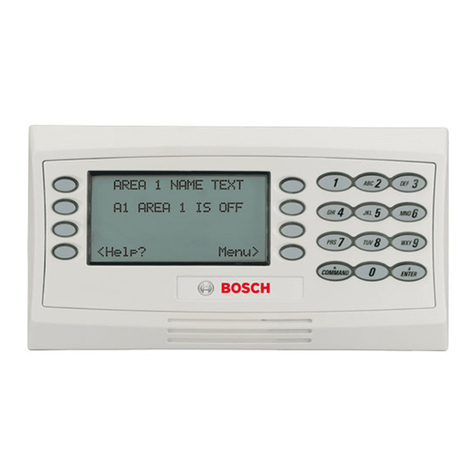
Universal Remote Control Complete Control KP-4000 User manual

KP-4000 Installation Manual
Network Keypad

KP-4000 Installation Manual ©2010 Universal Remote Control, Inc.
The information in this manual is copyright protected. No part of this man-
ual may be copied or reproduced in any form without prior written consent
from Universal Remote Control, Inc.
UNIVERSAL REMOTE CONTROL, INC. SHALL NOT BE LIABLE FOR OPER-
ATIONAL, TECHNICAL OR EDITORIAL ERRORS/OMISSIONS MADE IN
THIS MANUAL.
The information in this manual may be subject to change without prior
notice.
Complete Control is a registered trademark of Universal Remote Control,
Inc.
All other brand or product names are trademarks or registered trademarks
of their respective companies or organizations.
500 Mamaroneck Avenue, Harrison, NY 10528
Phone: (914) 835-4484 Fax: (914) 835-4532

TABLE OFCONTENTS
Introduction 1
Features and Benefits 2
Parts Guide 2
Network Requirements and Power Options 3
Installation Notes 5
MAC Address Labels/Reset Button 5
Connections 5
IR OUT/RFTX-1 6
12V Power 7
In-Wall Installation 8
CCP MAC Address Discovery 9
Displaying the Settings Screen 10
Adjusting Sleep Settings 10
Button Light Settings 10
Setting Date and Time 10
Sound 11
Adjusting Brightness 11
System 11
Network 11
Factory Default 12
Exit 12
Frequently Asked Questions 13
Specifications 13
USA Limited Warranty Statement 14
Federal Communication Commission Interference Statement
15
Warning 15
FCC Caution 15

Page 1
KP-4000 NETWORK KEYPAD
Introduction
The KP-4000 is a Network Keypad with the ability to control audio
video components, energy management devices, multizone matrixes,
PCs, iPods, and whole house URC Lighting. MAC addressing enables
the use of multiple KP-4000’s and multiple MRX-1’s to control as
many components as needed throughout the house.
3. Self-adhesive “Flashers” affix to
the Infrared sensors on the front
panels of your client’s compo-
nents. The Flashers relay com-
mands to components. The flash-
ers plug in to the MRX-1 rear
flasher line outputs via their 10
foot cables. The MRX-1can also
connect to components with rear
panel IR Inputs via its adjustable
IR Line Outputs.
IR Controlled Device
MRX-1 Network Base Station
Router
PoE Injector
1. The KP-4000 communicates over the LAN (Local Area Network)
to IP controlled components and the URC MRX-1 Network Base
Station.
2. The MRX-1 receives com-
mands and controls the com-
ponents via IR or Serial.

Page 2
KP-4000 NETWORK KEYPAD
Features and Benefits
2-Way IP and RS-232 Home Theater AVRS
Via the unique URC 2-Way database, installers can drag and drop
2-Way pre-programmed modules into any KP-4000 for multi-zone
receivers with either IP or via the MRX-1, RS-232 control.
2-Way IP Control of Media on PCs and iPods
The high speed of the LAN enables the KP-4000 to display lists of
artists, albums or songs and to display the cover art of the selected
album on the Now Playing screen of the remote control from the
PSX-2 Personal Server or from a PC.
User Configurable Internet RSS for News, Sports, Stocks and
Weather
The well known URC modules for News, Sports, Weather and
Stocks are all available updated to the KP-4000 screen and of
course, are completely user set.
User set Scenes for URC Lighting via RFTX-1
Your client can fully control the lighting in their home without
expensive black boxes and exotic wiring. A lighting system can be
as simple as a single URC RF lamp dimmer on a lamp that they’d
love to control without getting out of a chair.The KP-4000’s optional
RFTX-1 transmitter directly controls URC RF Dimmers and
Switches. Your client can brighten, dim, and recall scenes, and they
can store new scenes whenever they like, without a PC or a pro-
grammer. They simply manually adjust each dimmer to the new set-
ting, then press and hold a scene button on their KP-4000 (just like
storing radio stations in a car radio!).
Local Control via RFTX-1 & MRF Base Station
Via an optional RFTX-1 transmitter, low cost wireless control of a
local stack of components can be done via a standard MSC-400,
MRF-350 or MRF-260.
Parts Guide
The KP-4000 Network Keypad includes:
1 - KP-4000 Network Base Station
1 - Owner’s Manual
4 - Screws for mounting to a wall box

Network Requirements and Power Options
The KP-4000 must be connected to the same Local Area Network as
the MRX-1 to function correctly. Additionally, in order for your
client to enjoy internet features such as RSS feeds, the Local Area
Network must be connected to the Internet.
You have three options to power the KP-4000. The KP-4000 is a PoE
(power over ethernet) device and can be powered as shown by
either a PoE switch or a PoE injector (PoE injectors may be separate-
ly ordered from URC). This has the advantage that a single CAT 5
cable to the KP-4000 supplies all connections needed!
However, should you be installing a KP-4000 in a system where it is
convenient to run an additional two conductor wire to the KP-4000
for power, you may power a KP-4000 from any 12V wall adapter
with a 1 amp rating (12v wall adapters may be separately ordered
from URC).
Option 1: PoE Switch
Page 3
KP-4000 NETWORK KEYPAD
PoE Switch
(not included)
KP-4000
Router
1. Connect the CAT 5 cable (RJ45) to the LAN connection on the
rear of the KP-4000.
2. Plug the other end of the CAT 5 cable to the PoE switch (not
included), which will power the KP-4000 and ensure that the
PoE switch is properly configured and connected to the Router.

KP-4000 NETWORK KEYPAD
Page 4
Option 2: PoE Injector
KP-4000
KP-4000
Router
PoE Injector
(not included)
Power Supply
(not included)
1. Splice a 12V 1Amp Power Adapter (not included) and connect to
the rear Power input.
2. For network connections to IP devices, MRX-1 and the internet,
connect a CAT 5 cable (RJ-45) to the LAN connection on the rear
of the KP-4000 and plug the other end into the Router.
Option 3: No PoE: 12 Volt Power Supply
1. Connect the CAT 5 cable (RJ45) to the LAN connection on the
rear of the KP-4000.
2. Plug the other end of the CAT 5 cable to the PoE Injector which
will power the KP-4000.
3. Connect the PoE injector (not included) to the Router.
Router

Page 5
KP-4000 NETWORK KEYPAD
12V Power
(not required in a PoE
installation)
LAN PoE RJ-45
(Connects KP-4000 to Network)
IR OUT/RFTX-1
(only required if
URC RF Lighting,
RF Base or a wired
emitter is needed)
Installation Notes
MAC Address Labels/Reset Button
The KP-4000 has a magnetic cover, simply pull it away from the
keypad’s main body to remove.
Reset Button: Press this button to reset the keypad.
MAC address Labels: Tear off the 2nd label and stick it to your Job
Documentation indicating which room the KP-4000 is installed.
You’ll need the MAC address when you program the KP-4000.
Connections
In most installations, you will power the KP-4000
via a single CAT 5 cable connected to the network.
The KP-4000 is PoE, so you can power it from either
a PoE power injector or any PoE switch.
LAN PoE RJ-45: Plug an Ethernet RJ45 cable into a PoE switch or
PoE injector (available via the URC Toolbox) to power the KP-4000
or directly connect to a LAN Router if a Power Adapter has been
connected.
Reset Button
MAC Address Label

IR OUT/RFTX-1
This 3 Conductor removable connector can be used for either an
RFTX-1 RF transmitter or for a URC IR emitter.
RFTX-1 Connections
In installations with URC RF lighting or a standard RF base station,
you will need to add an RFTX-1 RF Transmitter to the KP-4000.
Range can wildly vary, depending on the structure of the wall the
KP-4000 is installed in. You can make the RF range much more pre-
dictable by installing the RFTX-1 with the MRX-1 in most homes
and this is the recommended method! However in some installa-
tions, you may achieve satisfactory results from an RFTX-1 inside
the wall cavity. To connect use the following terminations to the KP-
4000:
Page 6
KP-4000 NETWORK KEYPAD
Data – Connect the white wire which is connected to the Tip of the 3.5mm plug
GND – Connect the black wire which is connected to the bottom sleeve(base) of the
3.5mm plug
5V – Connect the red wire which is connected to the ring of the 3.5mm plug
IR Emitter Connection
Should you need to drive an IR emitter directly from the KP-4000,
you connect the emitter to Data and GND. A URC emitter is wired
with a cable that has a silver and a copper conductor. If you have
another brand of emitter, reverse polarity if the first attempt doesn’t
work. URC emitters can be successfully powered over long cable
lengths if the wire gauge is at least 16 gauge.
Data – Silver Conductor
GND – Copper Conductor

Page 7
12V Power
This 2 conductor removable connector can be used to power the
KP-4000 with a wall adapter in an installation where PoE is not
available. You must run an additional two conductor cable to the
KP-4000 to utilize this feature. Connect a spliced power adapter
12Volt, 1AMP with the polarity (Positive & Negative) connected cor-
rectly.
12V 1A – Connect to the + conductor of a 12V, 1 Amp DC wall adapter.
GND – Connect to the – conductor of a 12V, 1 Amp DC wall adapter.
KP-4000 NETWORK KEYPAD
-
+
Table of contents
Other Universal Remote Control Keypad manuals
Universal Remote Control
Universal Remote Control TKP-2000 User manual
Universal Remote Control
Universal Remote Control Total Control TKP-100 User manual

Universal Remote Control
Universal Remote Control KP-900i User manual
Universal Remote Control
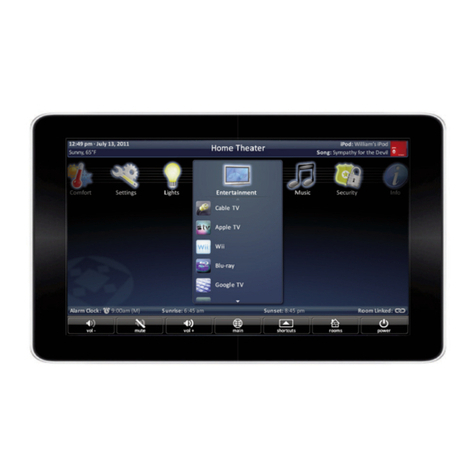
Universal Remote Control Total Control TKP-7000 User manual
Universal Remote Control
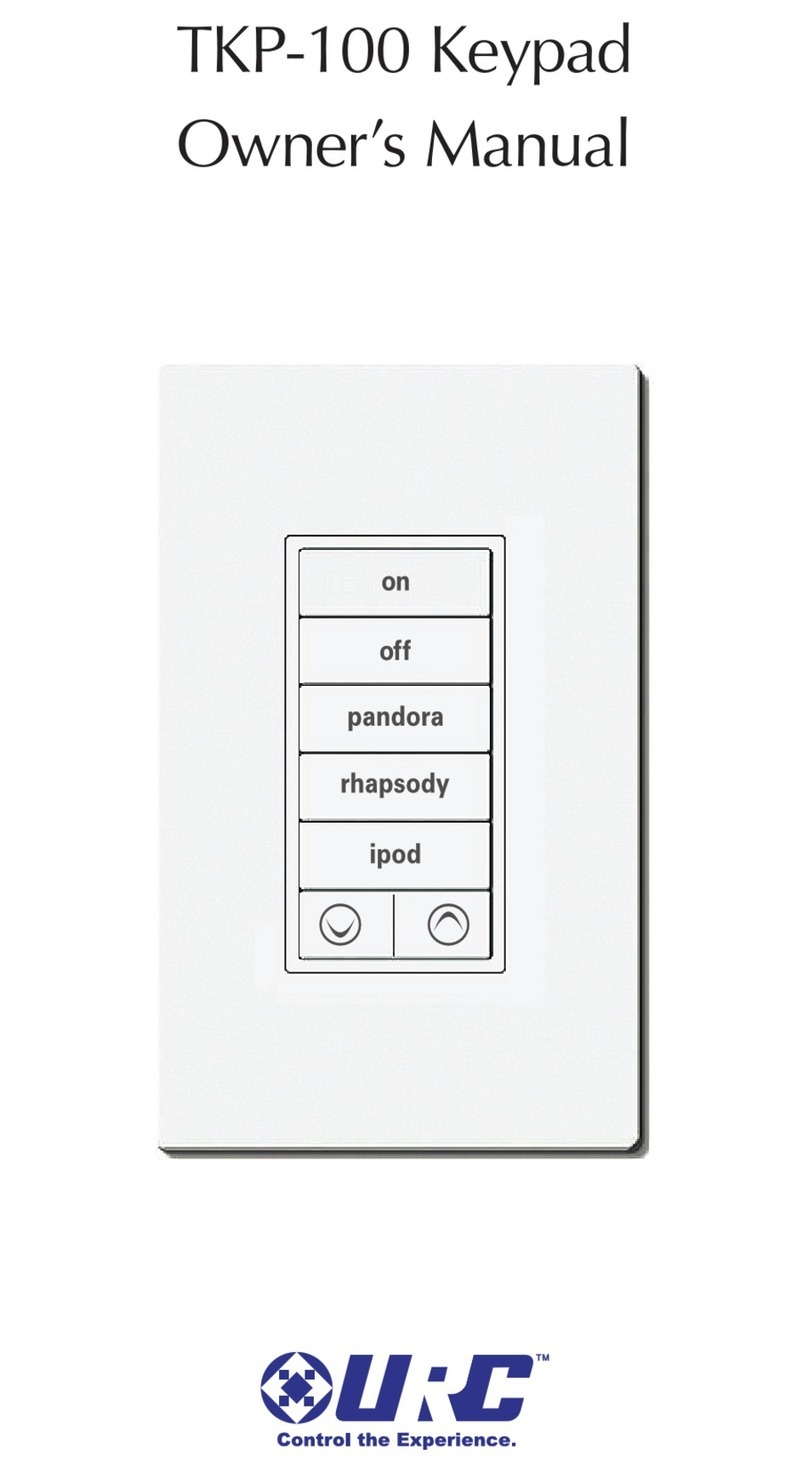
Universal Remote Control Total Control TKP-100 User manual