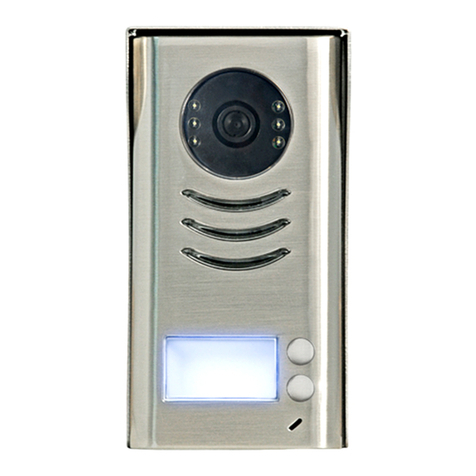
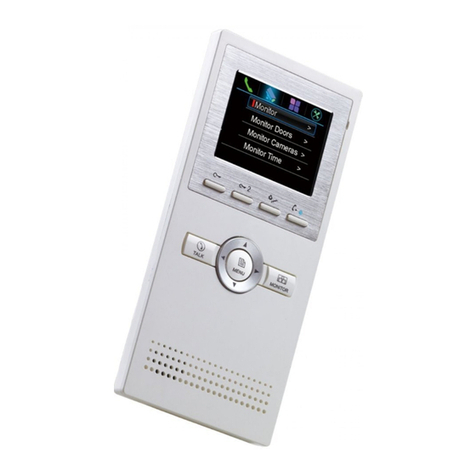
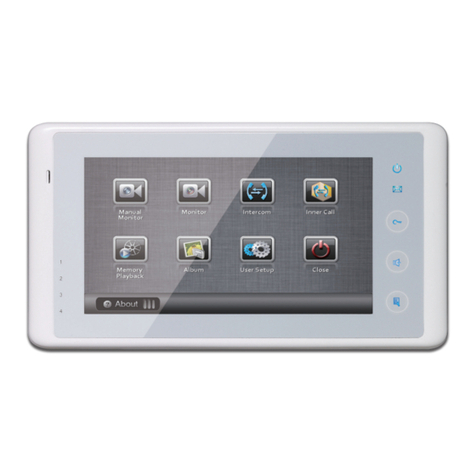
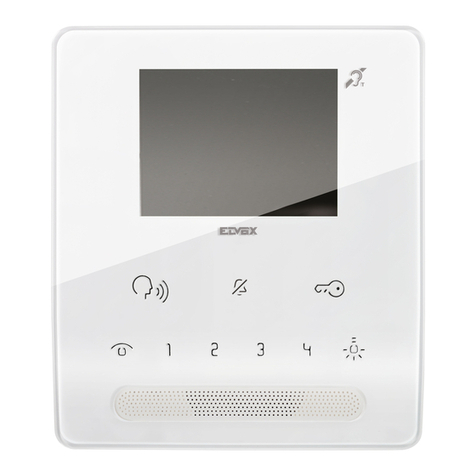
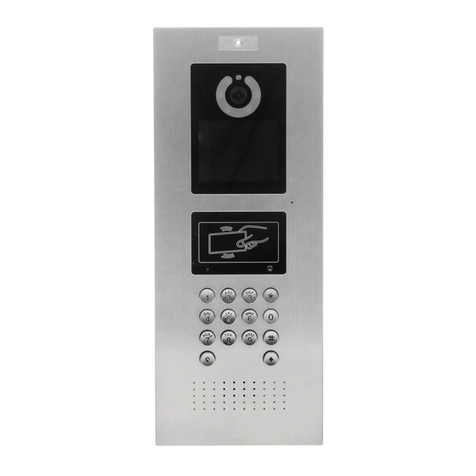
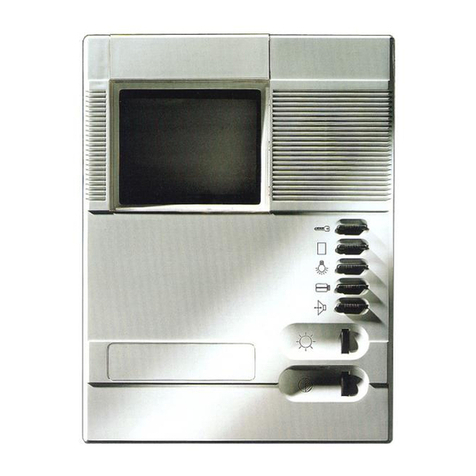
V-Tec DT37MG User manual

2 WIRE INTERCOM SYSTEM
USER MANUAL
DT-ENG-37MG/TD7-V1
ENGLISH
Please read this manual carefully before using the product, and keep it well.

1. Parts and Functions
Digital TFT LCD Screen
Connection Port
Speaker
Mounting Hook
Unlock Button
Microphone
Talk/MON Button
Menu Button
L1
L2
SD card
1 2 3
ON DIP
4 5 6
Key functions
Terminal Description
-1-
LCD screen Display the visitors' image
Unlock button Press to release the door
Menu button Press to open the menu shortcuts
Talk/Mon button Press to communicate hands free with visitor
Press to view the outdoor condition in standby mode
Microphone Receive voice from the user
Mounting hook Use to hang up the monitor
Connection port Bus terminal
Speaker Send out vioce from the visitor
L1
L2
1 2 3
ON DIP
4 5 6
L1
L2
1 2 3
ON DIP
4 5 6
SW+
SW-
Ring
GND
NC
L1,L2: Bus terminal.
SW+,SW-: Door bell call button connection port.
Ring,GND: Extra buzzer connection port.
NC: Reserved.
DIP switches: Total 6 bits can be congured.
Bit1~Bit5: Used to User Code setting.
Bit6: Set to ON if the monitor is at the end of the line;
Otherwise, set to OFF.

2. Monitor Mounting
145~160 cm
3. Main Menu
Touch the touch button anywhere in
standby mode, the main menu page will
be shown as follows:
-2-
4. Basic Door Release Operation
1. Press CALL button on outdoor station, the
Monitor rings, at the same time, the screen
displays the visitors' image.
2. Press TALK/MON Button on monitor
or touch icon on screen, you can
communicate hands free with the visitor for
90 seconds.After nishing communication,press TALK/MON button again or
touch icon to end the communication. If nobody answers the phone, the screen
will be turned off automatically after 30 seconds.
00:30 Front Door
It will display the
call source string
1. Use the screws to x the Mounting Bracket on the mounting box.(tting accesories
includes a Bracket (Two pieces of 4X25 screws are needed to fasten the Mounting
Bracket), Special 2 wire connectors to connect with Monitor)
2. Wire the system correctly(refer to connection chapter) then hang the Monitor on
the Mounting Bracket rmly.

1. During talking state, Press UNLOCK Button or touch icon to open the
door for the visitor.(if two locks are connected to door camera,touch unlock
2nd icon to release the second lock )
2. When the monitor is in standby mode, press TALK/MON Button, The screen
can display the view of outside. Or touch Monitor icon on main menu to get
into the door camera switching mode, if multi door stations are installed, you can
press the door 1/2/3/4 to monitor the door station or CCTV camera you want.press
icon to exit and enter main menu page.
Note: if the system connect 2 wire camera via camera controller, press the camera
1/2/3/4 to monitor the camera you want.press icon to exit and enter main menu
page.
5. Intercom Function
1. Inner Broadcast: If multi slave monitors are installed in the same apartment, select
Inner Broadcast, all the other monitors will mandatory receive broadcast content at
the same time, whichever slave monitor doesn't need to answer the broadcast, and
whichever slave monitor also doesn't need to open the scrccn.
2. Inner Call: If multi slave monitors are installed in the same apartment, select Inner
-3-
3.
4.
Touch Intercom icon on main menu to get into the intercom mode , you have 4 item
to select:Inner Broadcast, Inner Call, Name List Call and Call Guard Unit.

Call, all the other Monitors will ring at the same time, whichever Monitor answers
the call, conversation is started.and the other monitors will stop ringing at the same
time.
3. Name List Call: User in one apartment can call other apartments in the system.
Touch Name List Call icon (the namelist will be created automatically by the
system) on intercom mode menu page, Select a name on the screen then touch
icon to call.Press / icon to enter last/next name list page. (Touch Dial
Number icon again to redial)
4.
5.
6.
7.
8.
9. Call Guard Unit: A Monitor can be assigned as Guard Unit Monitor; when the Guard
Unit Monitor answers the call, conversation with the guard person is started..
6. Video/Picture Memory
-4-
[ 01 ] Jim. Zhang
[ 02 ] Calo. Liu
[ 03 ] Jacko. Zhang
[ 04 ] Philips. Chen
[ 05 ] Hebe. Zhang
[ 06 ] Tony. Li
Name List
4.
Video/Picture Playback
Touch Playback icon on main menu, the recorded videos/pictures will be played on
screen, please note that touch icon to Start/Pause the videos recorded.
Video/Picture Recording
Both Auto-Recording and Manual-Recording are available.And Auto-Recording is
default. If receive a call , after 3s, the monitor will record one video/picture for each
calling automatically. Or you can touch icon to record the visitor's video/image
manually when the monitor is in monitoring or calling.
Note: The video/picture memory function is built into the monitor.

-5-
Image:008/020 2014/06/23 14:36:55
7. Call Record Function
Call Record:All the calls concerning the montior, including Door-station-to-monitor call,
monitor-to-monitor call, will be recored and can be reviewed afterwards.
Touch Call Record icon on main menu to get into the call record mode.When there
are unread call records, arrow color red. Press the unread call record, and then touch
icon to play it.
Call Record 01/05
06-23 15:22 Calo.Liu
06-18 20:54 Smith
06-12 11:06 Vincent.Yang
05-29 08:39 Allen.Chen
05-27 21:43 Hebe.Zhang
04-20 13:16 Ben.Wu
Call Record 01/05
06-23 15:22 Calo.Liu
06-18 20:54 Smith
06-12 11:06 Vincent.Yang
05-29 08:39 Allen.Chen
05-27 21:43 Hebe.Zhang
04-20 13:16 Ben.Wu
Note: 1.Automatic limited number of
records.
2.Do not need to delete any a
record.
Note: When the system without SD card: 1.118 pictures in inner memory
2.Manage each picture.
When the system with SD card:1.A brand new SD card needs to be formated
by the monitor, then can it be used for video recording.
2.Up to 32G Micro SD card.
3.Video & Audio record.
4.Manage each video clips.
5.Can be copied.

-6-
8. Do Not Disturb Function
Touch Do Not Disturb icon on main menu to get into the don't disturb mode ,
you have 4 item to select:Normal, For 1 Hour, For 8 Hours and Always. You can select
the appropriate item according to your needs.
Do Not Disturb
Normal
For 1 Hour
For 8 Hours
Always
Note: When you select "For 1 Hour" or "For 8 Hours", bottom of the screen will display
the remaining time.
Refuse Call In: 00:58:32
9. Divert Function
Touch Divert icon on main menu to get into the transfer mode. Touch the empty
place ,and then input the telephone number by pressing the digital keypad.And it has 3
types of divert modes:
1:Don't Transfer----calls from outdoor station will not be diverted.
2:If No Answer----outdoor station calls indoor monitor firstly,if nobody answer
the call within 30 seconds,the call will be diverted to the telephone number
you set. At this mode,the monitor will shut off immediately when TPC/GSM/
TPS divert sucessfully,while it won't affect the communication between TPC/
GSM/TPS and outdoor station.Otherwise, the monitor can do the operation of
monitoring,talking,and unlocking.
3:Simutaneously----calls from outdoor station will be diverted to your telephone
immediately.At this mode,the monitor won't shut off when TPC/GSM/TPS divert
sucessfully,but if the monitor answers the call at this time,TPC/GSM/TPS will quit
absolutely.
Transfer Options
Don't Transfer
If No Answer
Simutaneously
1)
2)
3)

-7-
Note:1.Touch icon to detect the transfer device info.
2.Touch icon to send message.
10. Staircase Light
Note: the staircase light function will be activated only when the system connect light
via SC6V module, otherwise, this function is unvalid in normal. For more information,
please refer to SC6V user instruction in detail.
On main menu page or in monitoring,touch Light icon to open the staircase light, the
staircase light will be turned off automatically.
11. Basic Setup Instructions
Sounds Settings
Touch icon on main menu page(or on door camera switching mode page), then select
"Sounds" item to enter the sounds settings page.You can set a variety of ring tones on
this page.(touch icon to exit the setting and return main menu page.
Transfer Options
Don't Transfer
If No Answer
Simutaneously
1)
2)
3)
Transfer Device Info
Device -
SIM -
Network -
Signal Level -
Note: Door Ring have 2 mode:United
and Seperate.If select "United",it means
Door1/2/3/4 as a whole to adjust the ring
tones.

-8-
Date & Time Settings
Touch icon on main menu page(or on door camera switching mode page), then select
"Date & Time"item to enter the date & time settings page.You can set the date &
time on this page.(touch icon to exit the setting and return main menu page.
Note: You can set your own time, you
can also synchronize the system time.
Rename & Monitor Time Settings
Touch icon on main menu page(or on door camera switching mode page), then select
"More..."item to enter the Rename & monitor time settings page.You can set door
station rename, camera rename, monitor time on this page.(touch icon to exit the
setting and return main menu page.

-9-
Note: If you want to rename, please touch the place of name, then it will turn keypad
page ,you can input your new name in this page.
DOOR3 RENAME abc
DS-3_
During monitoring or talking state, touch icon,the Adjust page will be displayed.
1. The Scene mode selection: Total 4 screen
modes can be selected in sequence:
Normal,
Brightly, Soft
and
User.
Whenever you modify
Brightness
or
colour, Scene
item will be set to
User
mode automatically.
2. Note that all the modications will be performed immediately after the operation.
Touch the window of image to exit the adjust page.
Screen and Volume Adjustment
The restore to default function allows the user to recover the settings to factory setting.
Note that the restore to default operation will not change the setting and datas.
Enter main menu page,and touch icon, then select "About" item (or touch logo
position) to enter the about settings page, touch icon, the default settings will be
loaded.
touch icon to enter the Memo Information page, touch and icon to copy the
pictures to SD card. Touch and icon to format SD card and restart.
12. Restore to Default
This manual suits for next models
1
Table of contents
Other V-Tec Intercom System manuals
V-Tec
V-Tec 27SDTD7-V1 User manual
V-Tec
V-Tec DT31M User manual
V-Tec
V-Tec DT-DJ4S User manual
V-Tec
V-Tec C5-AT25/D4 User manual
V-Tec
V-Tec DMR18S User manual
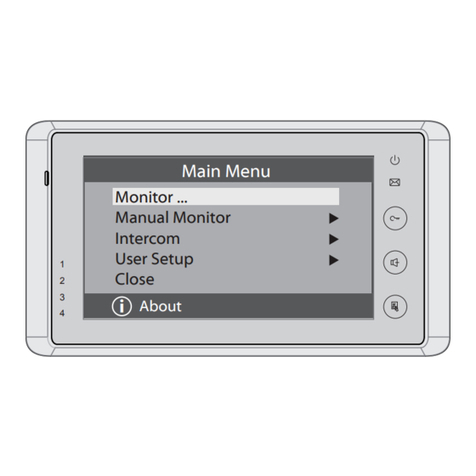
V-Tec
V-Tec 27TD7-V1 User manual
V-Tec
V-Tec 2Easy DMR18s User manual
V-Tec
V-Tec VT596/KP User manual
V-Tec
V-Tec DT24 Series User manual
V-Tec
V-Tec AT27TD7 User manual
V-Tec
V-Tec 37TD7-V1 User manual
V-Tec
V-Tec 2-WIRE User manual
V-Tec
V-Tec DT596/KP User manual
V-Tec
V-Tec DJ4A User manual
V-Tec
V-Tec dt-dj5a User manual
V-Tec
V-Tec AT16/C5 User manual
V-Tec
V-Tec DT-DJ4A User manual
V-Tec
V-Tec DT591 User manual
V-Tec
V-Tec DT-DJ5A User manual
V-Tec
V-Tec DMR11 Series User manual