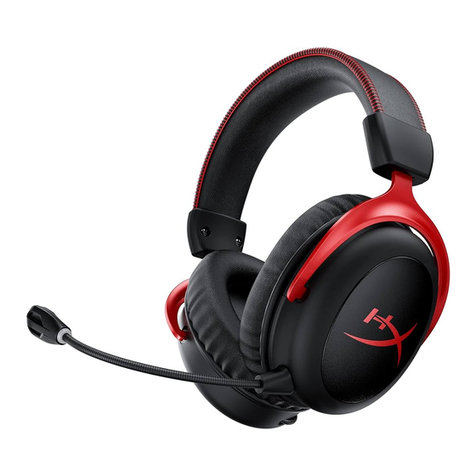
V-tech VH6212 User manual

Go to
businessphones.vtech.com
to register your product for
enhanced warranty support
and the latest VTech product
news.
VH6212
DECT Convertible
Cordless Headset
with Dongle
User’s manual
BC
Congratulations
on your purchase of this VTech product. Before using this product, please
read the Important safety information.
This Abridged user’s manual provides you with the basic
installation and use instructions. A limited set of features are
described in abbreviated form.
Visit businessphones.vtech.com/support/downloads to
download a full set of installation and operation instructions for:
• VTech Control
“Software application - Installation and Operation Guide”
For customer service or product information, visit our website at
businessphones.vtech.com or call 1 (800) 595-9511. In Canada,
please dial 1 (800) 267-7377.
T
Compatible with
Hearing Aid T-Coil
TIA-1083
Telephones identified with this logo have reduced noise and
interference when used with most T-coil equipped hearing aids and
cochlear implants. The TIA-1083 Compliant Logo is a trademark of
the Telecommunications Industry Association. Used under license.
For Dongle VU-060:
FCC ID: EW780-1391-00
IC: 1135B-80139100

Skype®and Skype for Business®are registered trademarks of Microsoft Corporation.
The VH6212 includes a cordless headset, charger, and a Dongle.
The Dongle functions as a headset base so that this product
allows you to have handsfree phone conversations.
The Dongle allows you to connect your headset using either one
of the following methods:
• PHONE mode - Connect to an IP phone
Use the Dongle to connect the headset and your VTech/SNOM
IP phone. The headset acts as a supplementary device that can
make and receive calls with the IP phone.
• PC mode - Connect to a computer
Use the Dongle to connect the headset and your PC. You can
make and receive VoIP calls through Skype®or Skype for
Business®, using
the
VTech Control software application.
Visit
businessphones.vtech.com/support/downloads
to download
VTech Control
. Unzip and install the file
after download.
You can also download the Installation
and Operation Guide there for installation and operation
instructions of the software application.
Introduction
What’s in the box
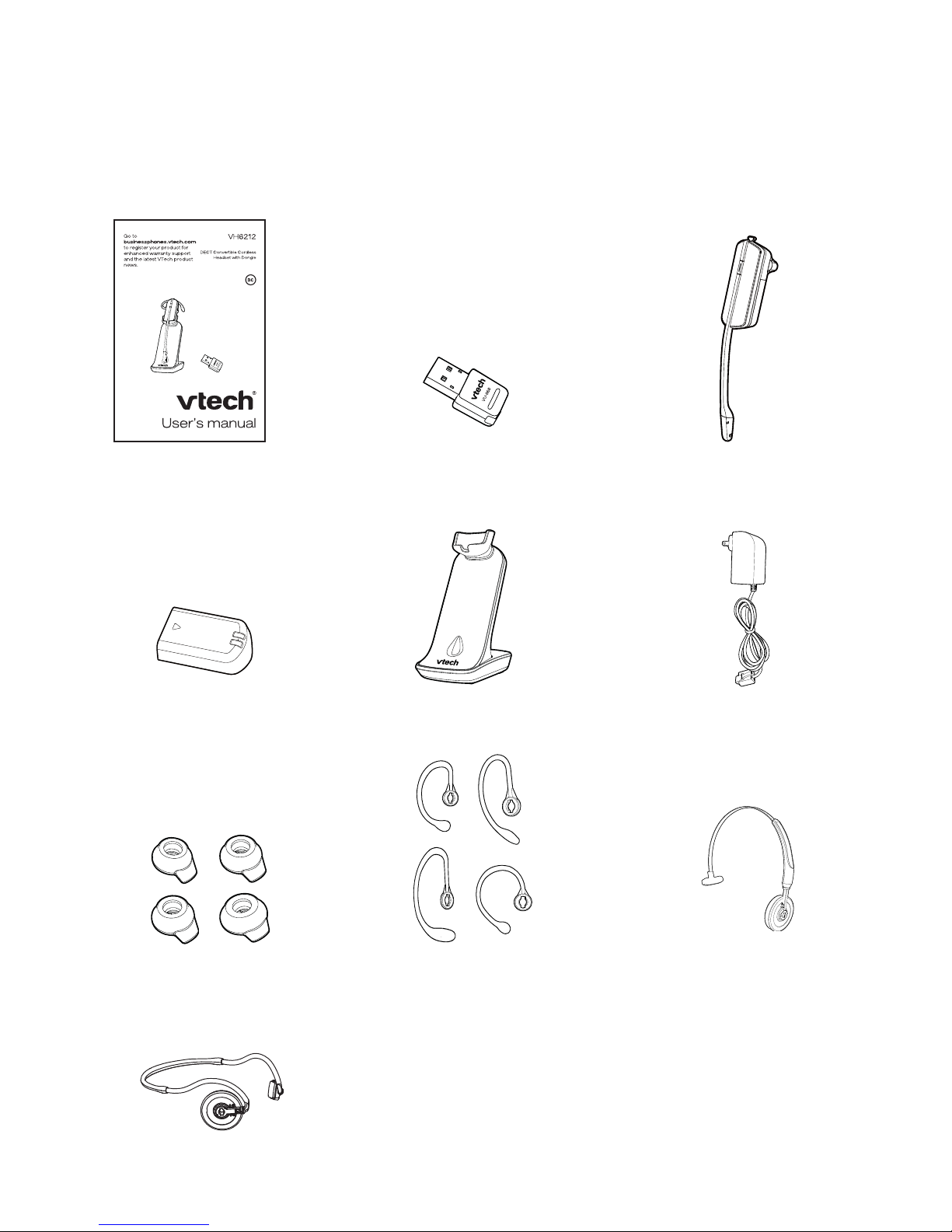
Your product package contains the following items. Save your
sales receipt and original packaging in the event warranty service
is necessary.
Headset charger Headset charger
power adapter
User's manual
Battery with battery
compartment cover
Cordless headset
with earbud attached
Behind-the-neck band
Over the head band
Four over-the-ear hooks
Four earbuds
Dongle

Table of contents
Getting started
Headset overview ....................1
Headset lights..........................2
Headset alert tones ..............3
Headset alert prompts ..........3
Headset charger overview.......4
Dongle overview ......................5
Dongle LED lights.................5
Install headset battery .............6
Power up the headset
charger .................................7
Charge the headset battery.....7
Connection methods................8
PHONE mode.......................8
PC mode...............................8
PHONE mode - Connect to
an IP phone ..........................9
Plug the Dongle to a VTech/
SNOM IP phone ...................9
PC mode - Connect to
a computer .........................10
Plug the Dongle to
a computer .........................10
Position the headset ..............13
Over-the-ear hook...............13
Over-the-head band............16
Over-the-neck-band............18
Operate
Headset power on/off ............20
Phone mode - Operate with
an IP Phone........................21
Before use ..........................21
Make and receive calls .......21
PC mode - Operate with
a computer...........................22
Before use ..........................22
Make and receive calls .......22
Caller ID announce.............22
Sound settings.......................23
Headset ringer ....................23
Anti-Startle (G616) .............23
Change audio bandwidth....24
Temporary ringer silencing ...25
Volume control....................25
Mute....................................25
Appendix
Registering Headset to
Dongle ................................26
Register your Headset to
the Dongle ..........................26
Deregistering Headset...........27
Deregister all Headsets
from your Dongle................27
Registering Headset to
other products ....................28
Registering Dongle to other
products..............................28
Troubleshooting .....................29
Maintenance..........................33
Important safety information ...34
Safety information...............34
Especially about
cordless headsets ..............35
Precautions for users
of implanted cardiac
pacemakers........................36
For C-UL compliance.............37
FCC Part 15...........................41
California Energy Commission
battery charging testing
instructions .........................43
Limited warranty ....................44
Technical specifications.........47

1
Getting started
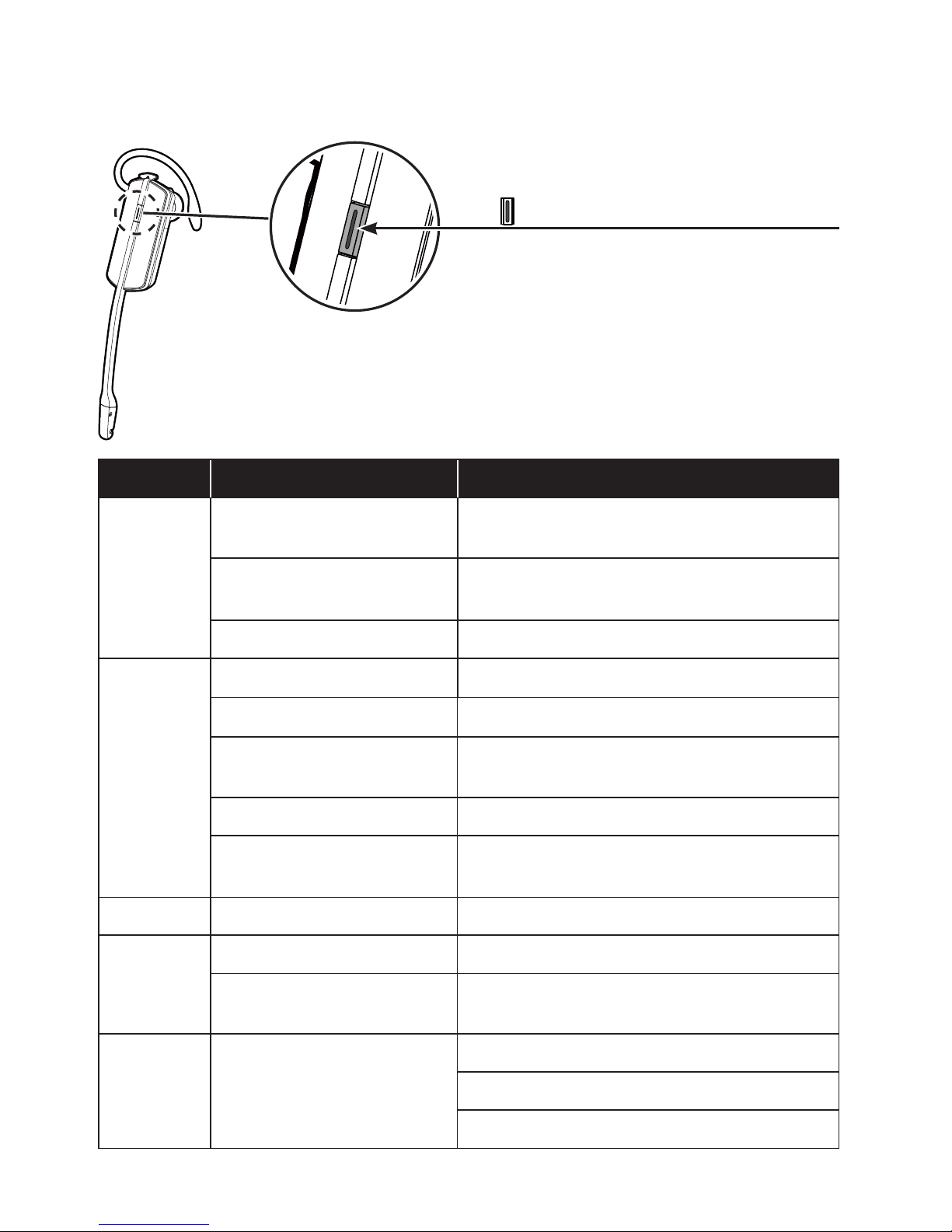
Headset overview
1 – VOL+/VOL-
• Slide the volume switch to the right or left to adjust the headset ringer
volume while in idle mode, or the listening volume while on a call.
2 – ON/OFF button and LED light
• Press to make, answer or end a call.
• See Headset lights for lights behavior.
3 – MUTE
• Mute the microphone during a call.
4 – Battery with cover attached
• The battery is permanently attached to the battery compartment
cover and they are inseparable from each other. Remove the entire
assembled unit to replace the battery.
5 – Microphone
1
2
3
4
5
2
Getting started
Headset lights
Color LED light status Meaning
Red Steady light on The battery is low and the headset is
charging in the headset charger.
Flash every 10 seconds The battery is low and the headset is
not in the headset charger.
Flash 3 times Powering off.
Blue Steady light on The battery is fully charged.
Flash every 10 seconds The headset is not in the charger.
Flash 2 times every
3 seconds The headset is in use.
Flash 3 times Powering on.
Flash 4 times every
4 seconds There is an incoming call.
Purple Steady light on The battery is well charged.
Red and
blue Alternate slowly The headset is not registered.
Alternate quickly The headset is trying to register to a
Dongle or headset base.
Off Light off The battery is depleted.
No battery is installed.
The headset is powered off.
ON/OFF button and LED light
Press to make, answer or end a
call.

3
Getting started
Headset alert
Headset alert tones
Alert tone behavior Meaning
One short beep every
30 seconds
• The microphone is muted.
Two beeps • Error alert tone.
• The speaking volume has reached its highest or
lowest setting.
• Any key is pressed while the headset is out of
range.
Two low beeps • Call waiting alert tone.
Two rapid beeps
every 20 seconds
• Low battery warning.
Three rapid beeps
every 20 seconds
• The headset is out of range.
Three rapid beeps • The headset is powering on or off.
Headset alert prompts
Alert prompt Meaning
“Mute on” • The microphone is muted.
“Mute off” • The microphone is re-activated.
“Not registered” • ON/OFF button is pressed while the headset is
not registered.
“Out of range” • The headset is on a call and out of range.
• Any key is pressed while the headset is out of
range.
“Low battery” • ON/OFF button is pressed while the headset
battery is low.
4
Getting started
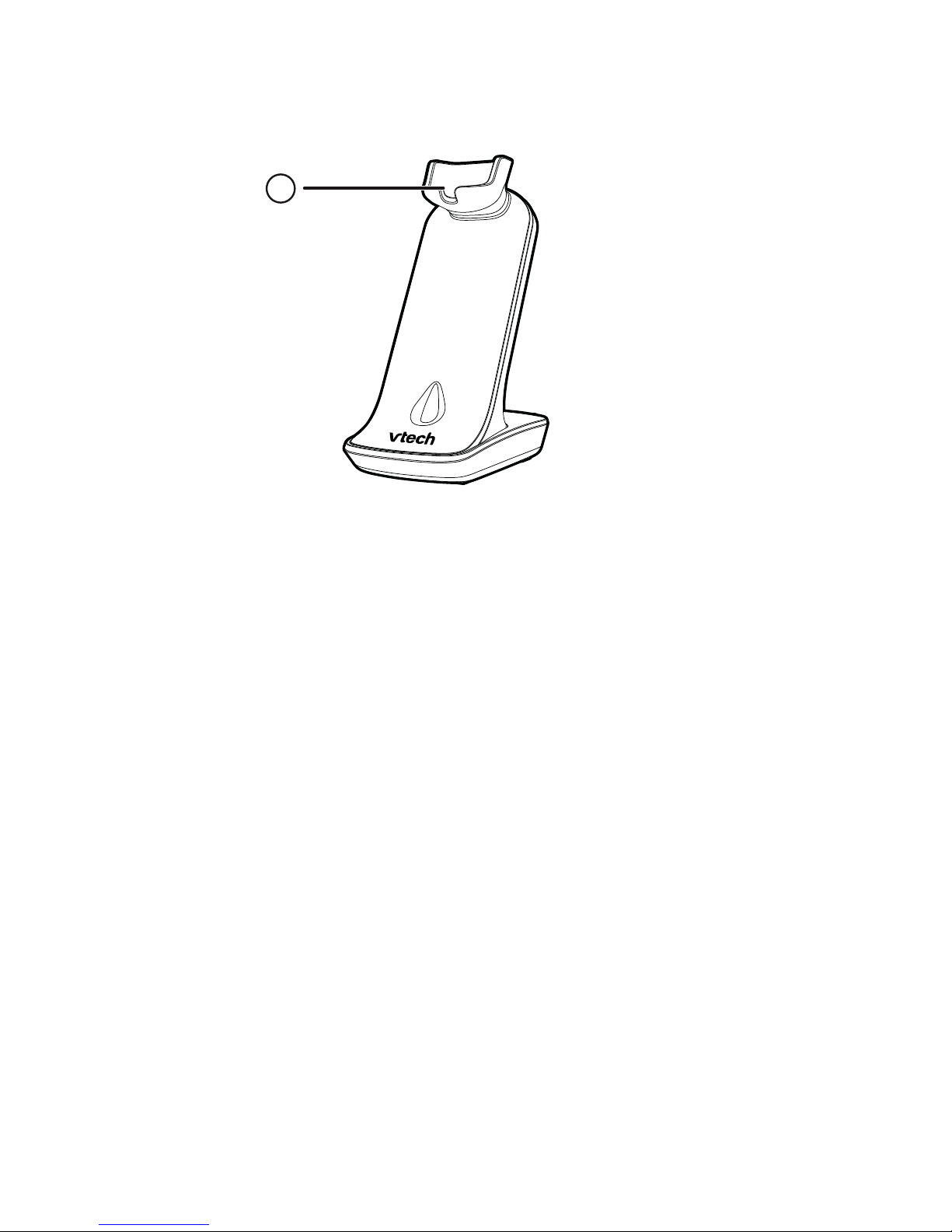
Headset charger overview
1
1–Magnetic charging mount
• Place the headset here for charging.
5
Getting started
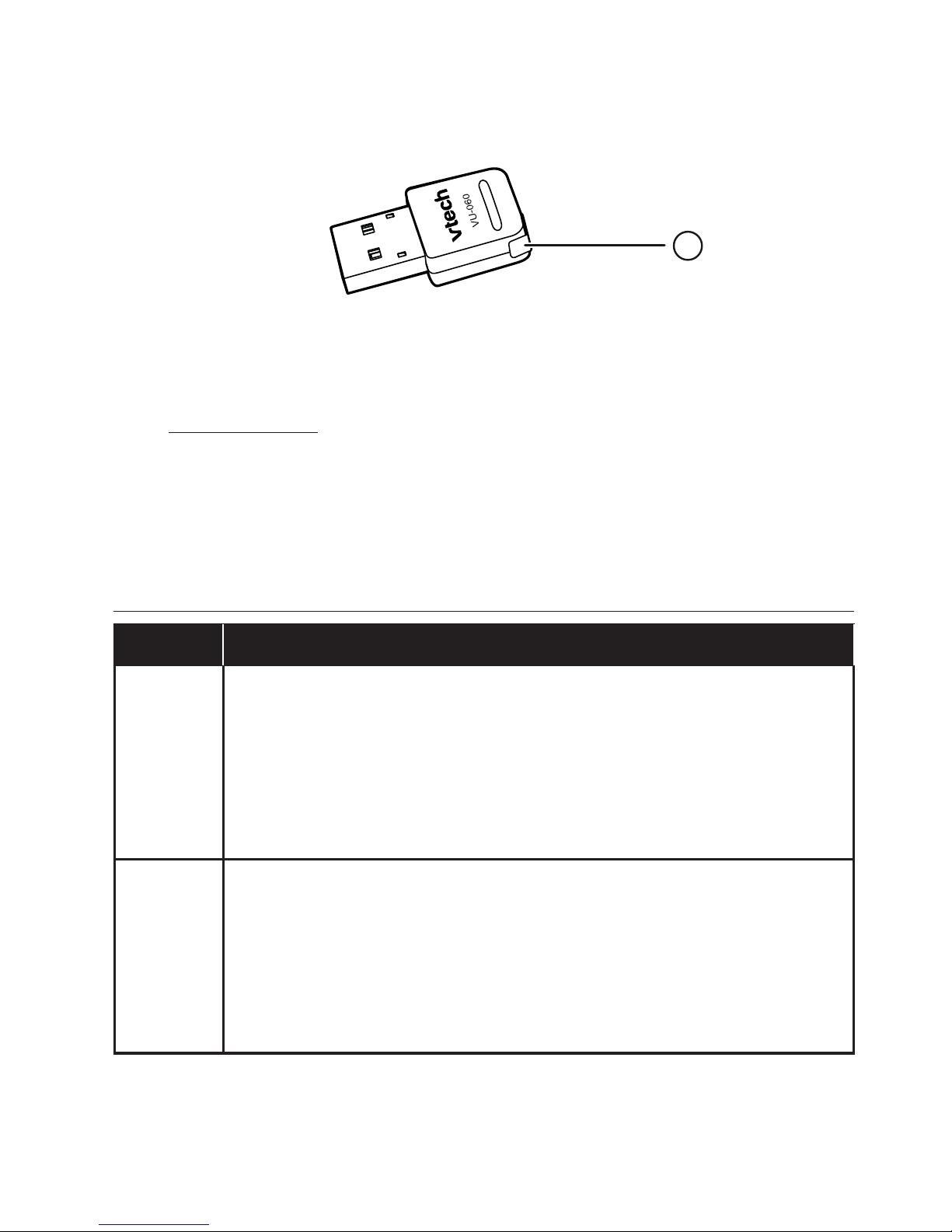
Dongle overview
Color LED light status
Green • Steady green when the Dongle is not in use.
• Steady green for three seconds when the Dongle is
deregistered from the headset.
• Flashes very quickly when there is an incoming call.
• Flashes quickly every three seconds when the headset is
in use.
Red • Steady red when the Dongle is not registered.
• Flashes very quickly when the Dongle is registering to a
headset.
• Flashes quickly when the Dongle is entering deregistration
mode.
• Flashes slowly when the headset is muted.
Dongle LED lights
1
1–Magnetic charging mount
• Press and hold for about 4 seconds to enter the registration mode.
• For LED light patterns, see Dongle LED lights below.
Other manuals for VH6212
1
Table of contents
Other V-tech Headset manuals
V-tech
V-tech IS6100 User manual
V-tech
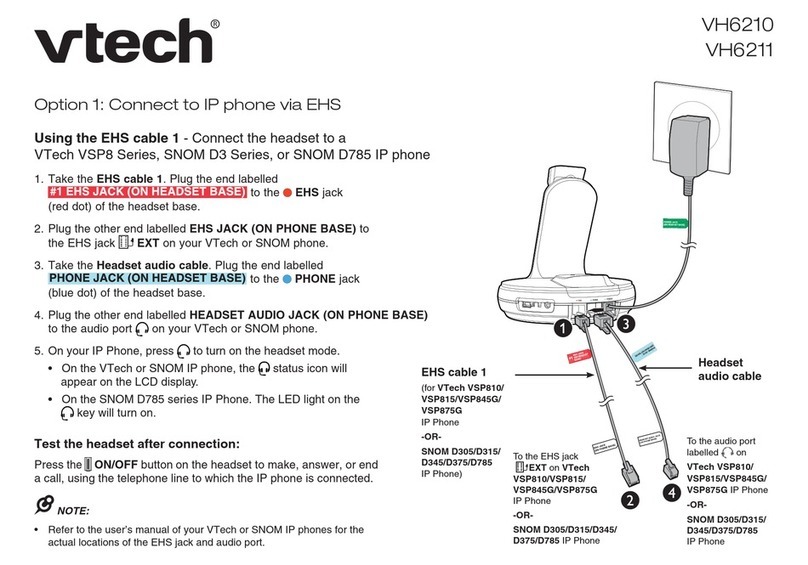
V-tech VH6210 User manual
V-tech
V-tech VH6210 User manual
V-tech
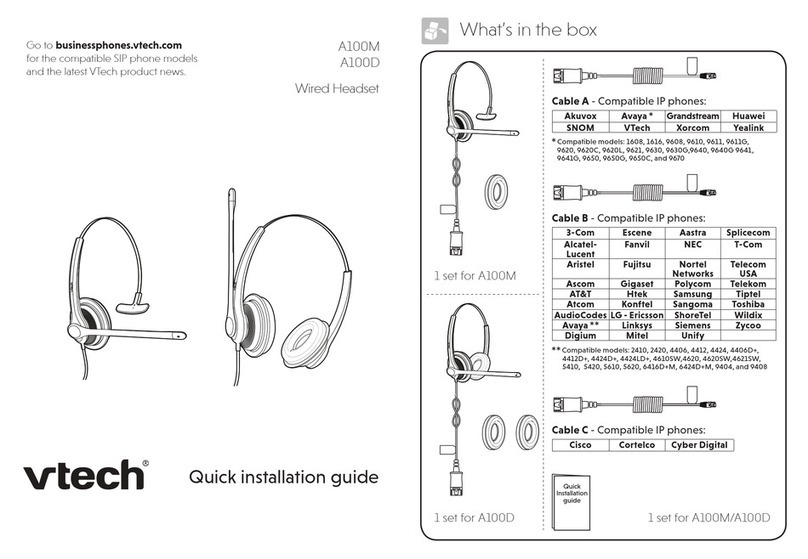
V-tech A100D User manual
V-tech
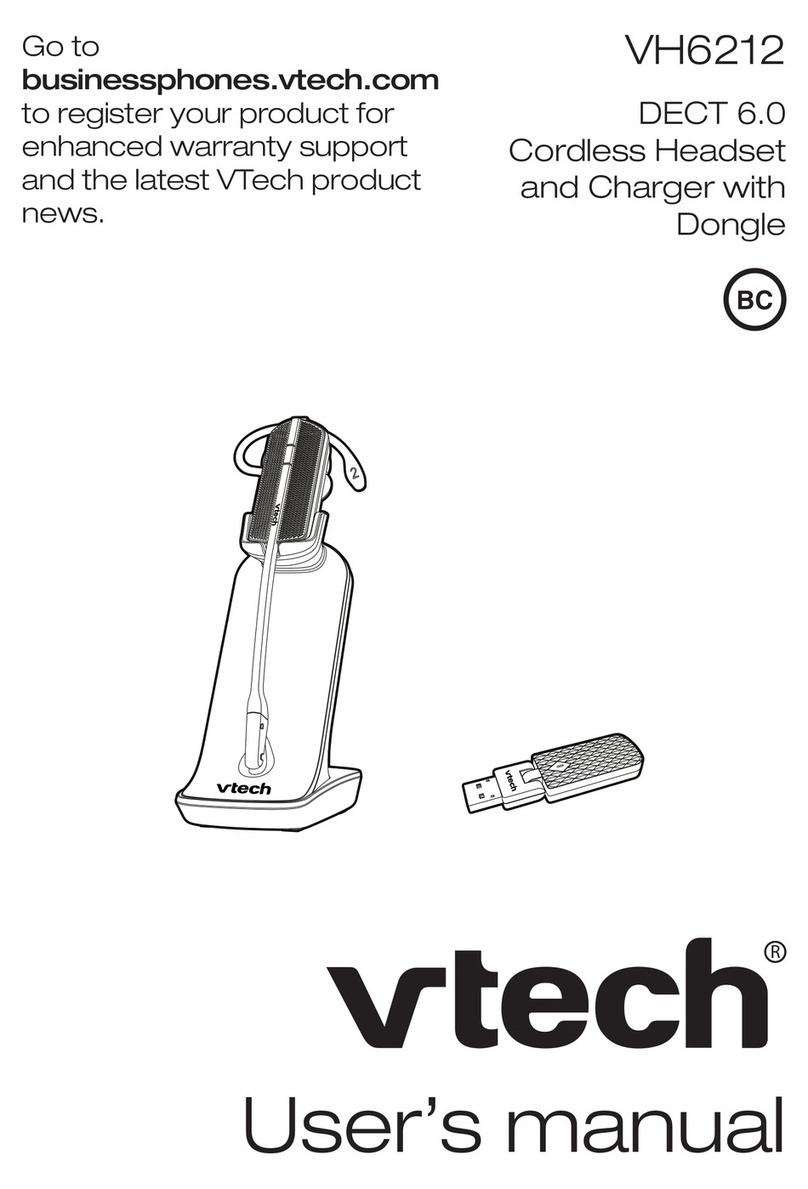
V-tech VH6212 User manual
V-tech
V-tech VSP505 User manual
V-tech
V-tech DS6100A User manual
V-tech
V-tech VSP600A User manual
V-tech
V-tech VH6221 User manual
V-tech
V-tech VH6220 User manual