6
WaveCAST
Quick Setup Instructions
1. Position the WaveCAST transmitter near the sound system or mixer from which it will receive audio. We do not recommend wall
or ceiling mounting, or putting the device on a cart.
2. Connect the power supply to the Power Supply connector located on the back of the WaveCAST. Press in the power button on
the front of the WaveCAST. The power button should light up. If not, go back and check the power connections.
3. Choose and configure the audio source. The audio source must be configured in the menu before plugging the source into
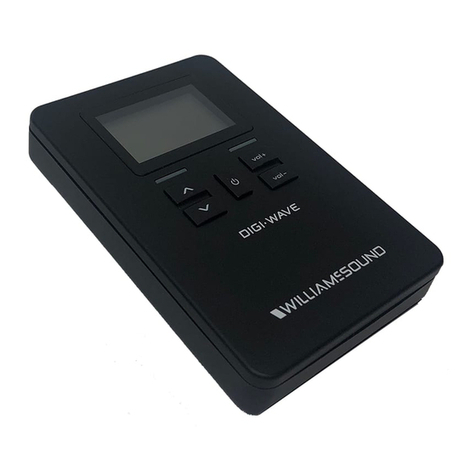
the jack (except Dante Audio - skip to step 7). Push the Menu button and push the > button once to display AUDIO SOURCE
on the screen. Push the > button to access the audio sources. Using the ^ or v menu buttons, choose between ANALOG LINE
IN, MIC, PHANTOM MIC +12V, or DANTE. When the desired audio source is displayed, it is active. Press the Menu button to exit
the menu.
4. Push the power button to turn the unit o.
5. Connect the audio source to the audio input jack on the rear of the WaveCAST.
6. Push the power button to turn the unit on.
7. If Dante audio is being used, the Dante source must be connected, must be playing audio, and the Dante Controller must be
used to route audio from the Dante source to the WaveCAST.
8. With the audio source playing, adjust the Audio Level on the WaveCAST so that the green 0 dB LED generally lights and the
red +9 dB LED lights occasionally. To do this while on the main info screen, press the ^ button to increase the audio level in 1.0
dB steps, or press the v button to decrease the audio level in 1.0 dB steps.
9. Select an Audio Preset. The WaveCAST has three pre-configured Audio Presets to choose from: Hearing Assist, Music, and
Voice. A Custom preset is also available. The performance of the WaveCAST is optimized for each of the pre-configured Audio
Presets. Using the menu and control buttons on the front of the WaveCAST, push the Menu button, the display will change to
show Audio Settings. Use the forward > button to display Audio Source in the selection box. Push the down v button twice to
show Audio Presets. Now press the > button to display the list of Presets. Use the ^ and v buttons to alternate between Hearing
Assist, Music, Voice and Custom selections. When the desired Audio Preset is displayed, it is active. If Custom is desired, push
the > button to enter the custom settings; or, press the Menu button to exit the menu.
10. Connect a CAT 5e Ethernet cable from your local area network, or Wi-Fi router to the connector on the transmitter labelled
Ethernet. This network will be used to broadcast the audio.
11. (WaveCAST D only) Connect a CAT 5e Ethernet cable from the Dante network to the connector labelled Dante on the
transmitter. Note: Dante IP Address and other settings are configured externally through Dante Controller; there are no settings
in the transmitter for Dante, other than choosing Dante as the input source).
12. Once the transmitter detects an active network is present (either Ethernet or Dante), the WaveCAST’s Ethernet control IP address will
be displayed in the Add-on module part of the home screen.
13. Open a web browser on a computer or mobile device that is also connected to the same local network as the WaveCAST. In
the address bar of the browser, type in the IP address that is shown on the front of the transmitter's main info screen, and push
the enter key on the keyboard. (Note: it is not necessary to type “http://” or “www.” preceding the IP address, just the characters
following “IP:”, including the periods)
14. The browser will open the transmitter's web page, displaying a Login button. Click the log-in button and enter the user name
“admin” and the default password “admin”.
15. The web browser will now show the transmitter's Home Page, which shows the current WaveCAST status info. The tabs at the
top navigate to dierent pages that allow adjustment of the transmitter's settings.
16. Use a personal device with the WaveCAST App installed to listen to the audio and test that device is working and sounds
correct.
– 18
– 15
– 12
– 9
– 6
– 3
0 dB
+ 3
+ 6
+ 9