LIVE FEED CAMERA APP OPERATION
USING THE DRONE CAMERA
Scan the corresponding QR code to download the application
intended for you device. You can also download via the “App
Store”, “Google Play”, or “360.”
Make sure the both the drone and transmitter are turned on, and the transmitter is synced with the drone.
Taking a Photo: Press the PHOTO button once on the transmitter. The
camera indicator light located inside the camera will flash RED once when a
photo is taken.
Recording Video: Press the VIDEO button once on the transmitter. The
camera indicator light located inside the camera will start flashing RED when
recording video. Press the VIDEO button again to stop recording video.
9
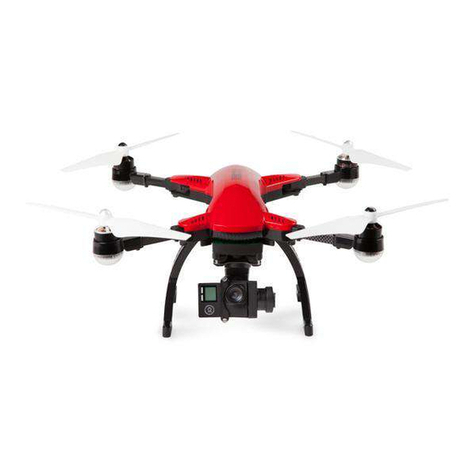
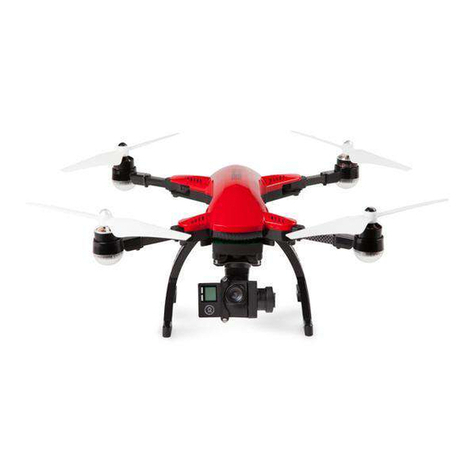
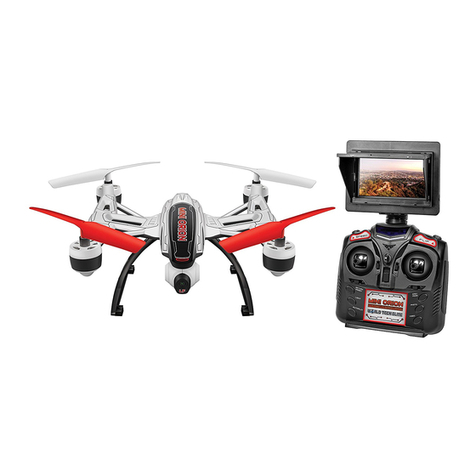
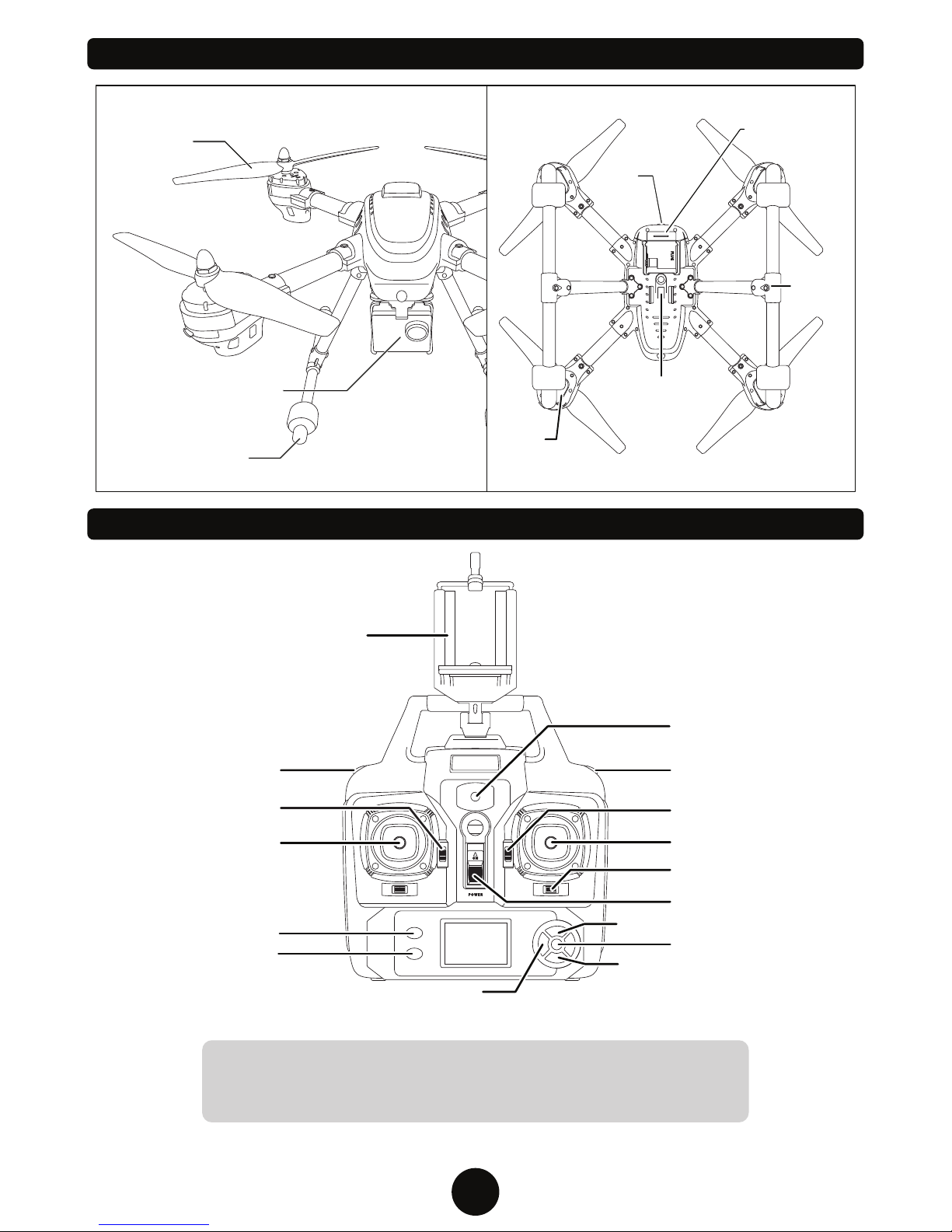
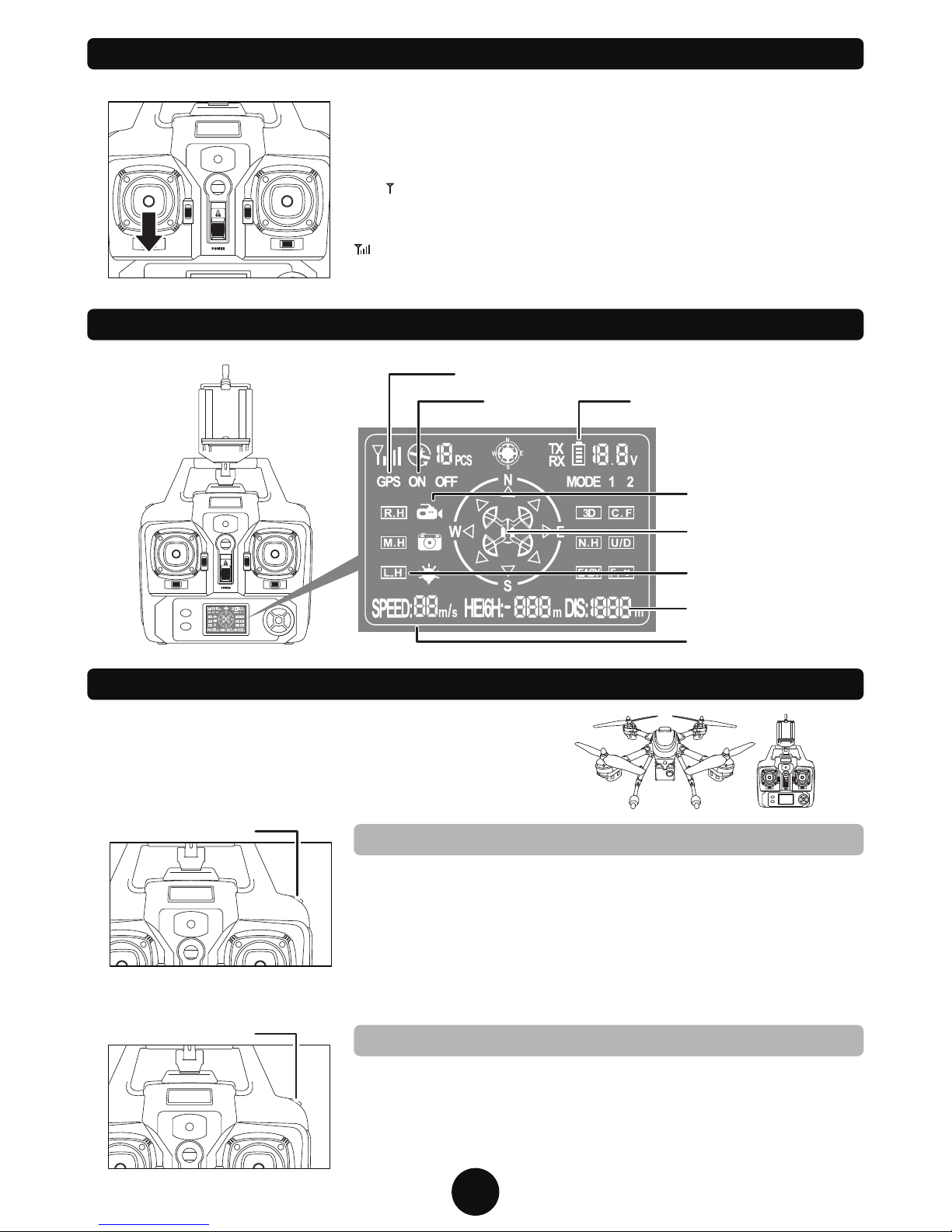
The drone comes equipped with a 1 axis camera gimbal, and the camera angle can
be adjusted using the CAMERA FINE-TUNING switch located next to the
ASCEND/DESCEND joystick.
CAMERA FINE-TUNING: Slide to adjust the lens angle forward and
backwards.
NOTE: YOU CAN NOT TAKE A PHOTO WHILE RECORDING VIDEO.
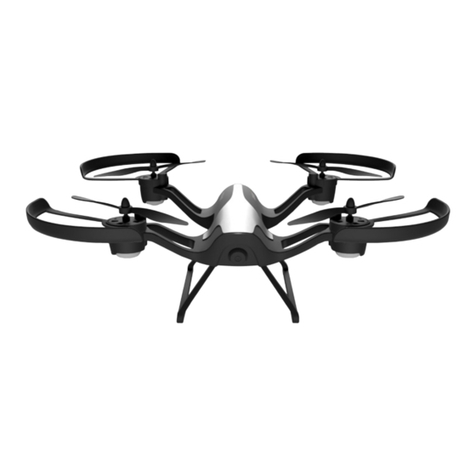
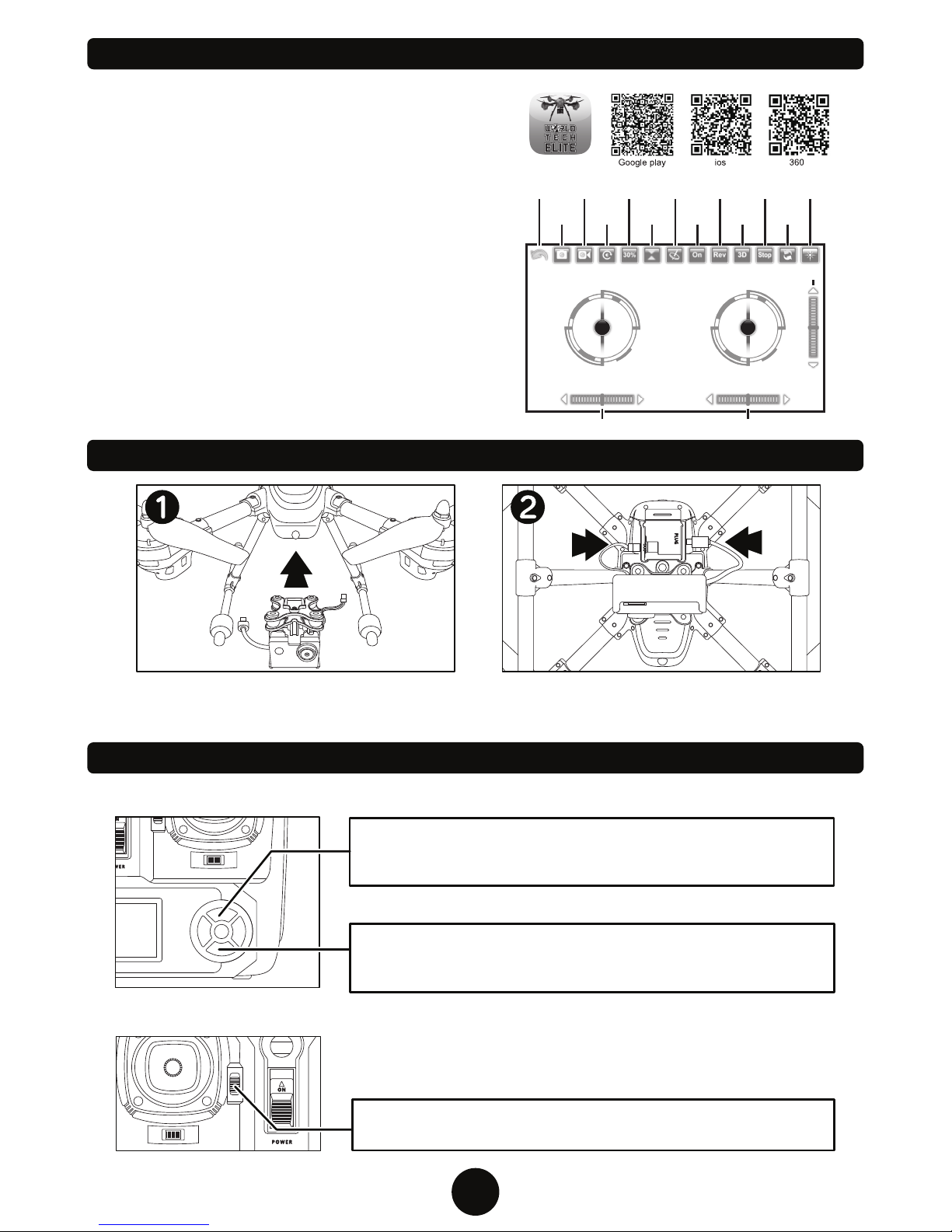
ATTACHING THE DRONE CAMERA
Once camera is secured in the bracket, connect the
three prong cord and the mini USB to the drone.
Make sure the drone power switch is in the OFF
position. Slide the camera onto the bracket on the
bottom of the drone.
1. Search your phones application store for “ECHO FPV” and
download the free app. This application allows you to see a live
feed of your drones camera and take photos/videos that can be
kept in the app or saved to your phone.
2. Turn on the drone, go into the WI-Fi settings of your phone and
select the network “ WIFIUFO-XXX” (X’s are the unique ID of
your drone) to establish a connection. This must be done
every time the drone is first turned on.
3. Open the ECHO FPV app and select “PLAY” to go to live feed
screen shown to the right. Start flying and use touch controls to
take photos or start and stop recording. Select Gallery to
view/delete photos and videos in app. Copies
are automatically saved to your phones media viewer.
Additional info available in Help section on app.
* NOTE: Some features listed may not be available for
your device.
Return
Take
Photo
Record
Gallery
Speed
Atmospheric
Pressure
Gravity
Toggle
Controls
Reverse
Picture Stop
360°
Flip
Reset
Gyro
3D
Mode
Speed up
Speed down
Turn
Left
Turn
Right
Yaw Fine Tune Roll Fine Tune
Fly forward
Fly backwards
Fly to
the left
Fly
to the
right
Pitch Fine Tune