manuals.online logo
Brands
  1. Home
  2. •
  3. Brands
  4. •
  5. XDrum
  6. •
  7. Drum
  8. •
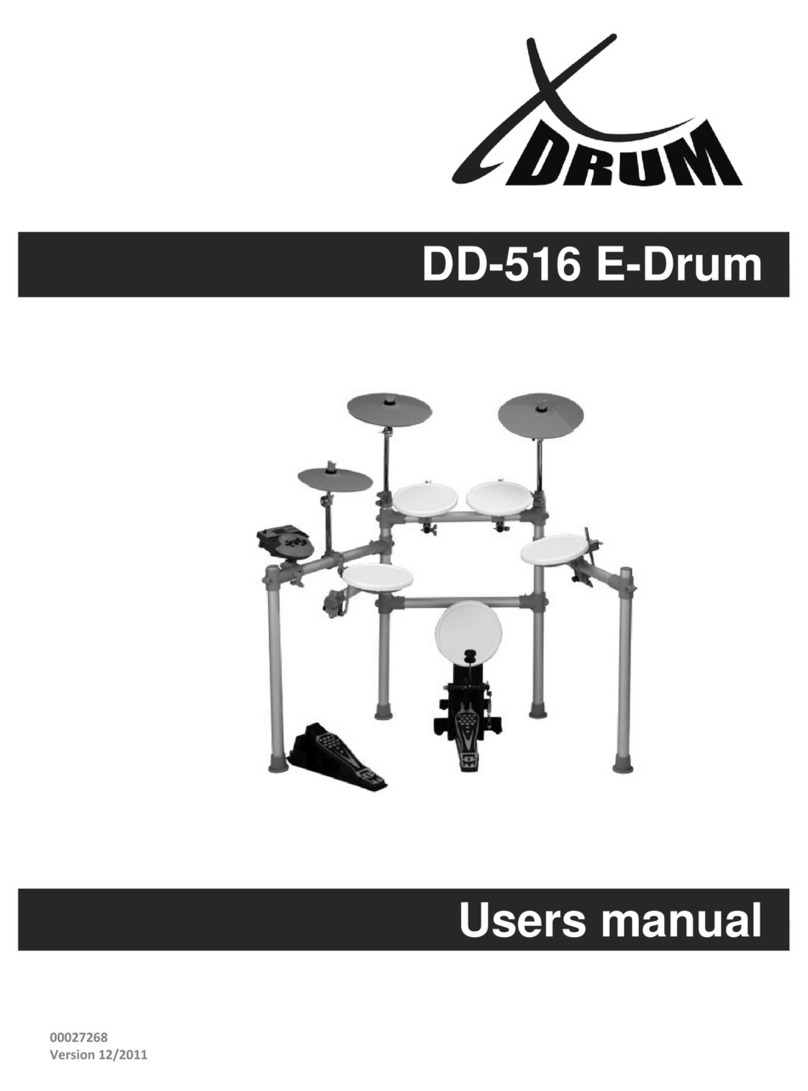
  9. XDrum DD-516 E-Drum User manual

XDrum DD-516 E-Drum User manual

Other manuals for DD-516 E-Drum

1

Other XDrum Drum manuals

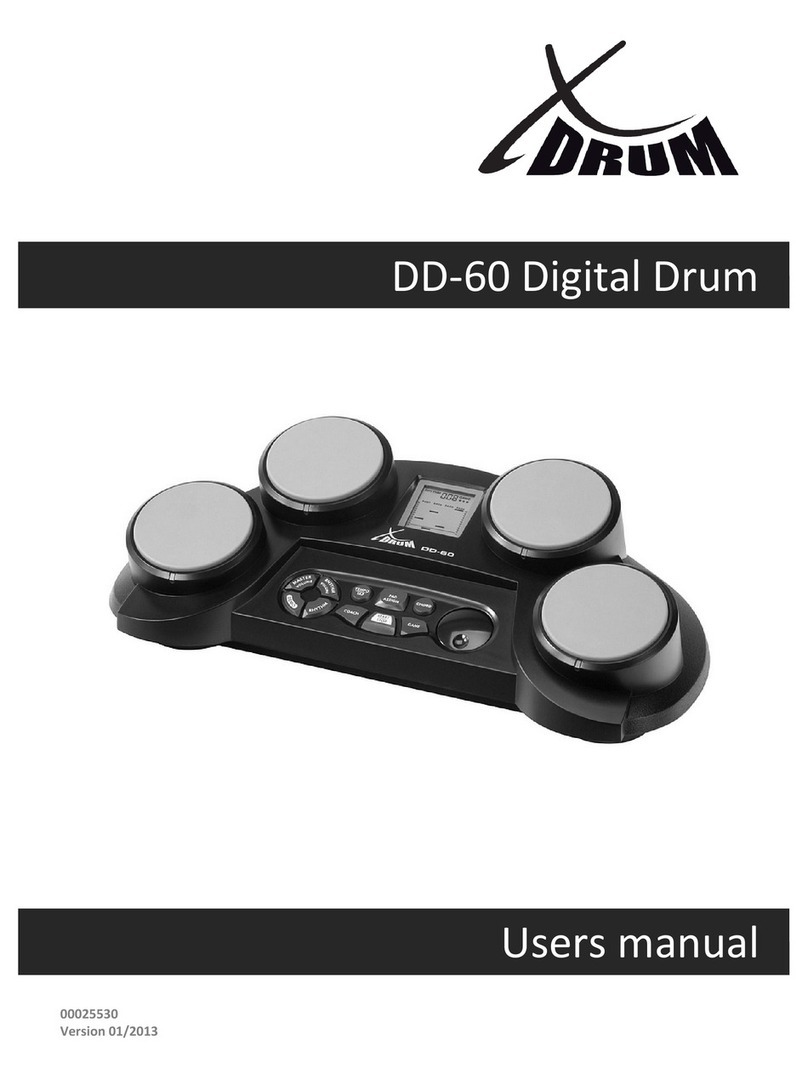
XDrum DD 650 User manual

XDrum

XDrum DD 650 User manual

XDrum DD-250 User manual

XDrum

XDrum DD-250 User manual

XDrum DD-530 User manual

XDrum

XDrum DD-530 User manual

XDrum DD-30 User manual

XDrum

XDrum DD-30 User manual

XDrum DD-516 E-Drum User manual

XDrum

XDrum DD-516 E-Drum User manual

XDrum DD-508L User manual

XDrum

XDrum DD-508L User manual

XDrum DD-505 User manual

XDrum

XDrum DD-505 User manual

XDrum PDP-10 User manual

XDrum

XDrum PDP-10 User manual

XDrum DD-512 User manual

XDrum

XDrum DD-512 User manual

XDrum DD-60 User manual

XDrum

XDrum DD-60 User manual

XDrum Junior kids User manual

XDrum

XDrum Junior kids User manual

XDrum DD-501 User manual

XDrum

XDrum DD-501 User manual

XDrum DD-460P Mesh E-Drum Kit User manual
XDrum

XDrum DD-460P Mesh E-Drum Kit User manual

XDrum DD-200DG User manual

XDrum

XDrum DD-200DG User manual

XDrum DD-450 User manual

XDrum

XDrum DD-450 User manual

XDrum DD 520 User manual

XDrum

XDrum DD 520 User manual
Popular Drum manuals by other brands

Audiothingies DoubleDrummer user manual

Audiothingies

Audiothingies DoubleDrummer user manual

Yamaha RX-21 owner's manual

Yamaha

Yamaha RX-21 owner's manual

Roland TD-9K Setup guide

Roland

Roland TD-9K Setup guide

Sudoku LEXUS owner's manual

Sudoku

Sudoku LEXUS owner's manual

Cherub WRW-206 owner's manual

Cherub

Cherub WRW-206 owner's manual

Roland CR-80 owner's manual

Roland

Roland CR-80 owner's manual

V-Drums V-Tour TD-9KX2 Setup guide

V-Drums

V-Drums V-Tour TD-9KX2 Setup guide

Yamaha DTXPLORER manual

Yamaha

Yamaha DTXPLORER manual

Yamaha DD65 YDD-60 null

Yamaha

Yamaha DD65 YDD-60 null

Roland CR-80 owner's manual

Roland

Roland CR-80 owner's manual

Roland TR-808 Operation manual

Roland

Roland TR-808 Operation manual

Koma Elektronik RH 301 user manual

Koma Elektronik

Koma Elektronik RH 301 user manual

Roland TR-8 Operation guide

Roland

Roland TR-8 Operation guide

Casio RZ-1 manual

Casio

Casio RZ-1 manual

Yamaha DD-7 owner's guide

Yamaha

Yamaha DD-7 owner's guide

Pintech E-Gig Care and instruction guide

Pintech

Pintech E-Gig Care and instruction guide

Krüger & Matz Warrior KM0764 quick start guide

Krüger & Matz

Krüger & Matz Warrior KM0764 quick start guide

Alesis DM10 MKII Pro Assembly guide

Alesis

Alesis DM10 MKII Pro Assembly guide

manuals.online logo
manuals.online logoBrands
  • About & Mission
  • Contact us
  • Privacy Policy
  • Terms and Conditions

Copyright 2025 Manuals.Online. All Rights Reserved.

000
27268
Version 12/2011
DD-516 E-Drum
Users manual
All manuals and user guides at all-guides.com
all-guides.com
INFORMATION FOR YOUR SAFETY!THE FCC REGULATION WARNING (for USA)This equipment has been tested and found to comply with the limits for a Class B digital device, pursuant to Part 15 of the FCC Rules.These limits are designed to provide reasonable protection against harmful interference in a residential installation. This equipment generates, uses, and can radiate radio frequency energy and, if not installed and used in accordance with the instructions, may cause harmful interference to radio communications. However, there is no guarantee that interference will not occur in a particular installation.If this equipment does cause harmful interference to radio or television reception, which can be determined by turning the equipment off and on, the user is encouraged to try to correct the interference by one or more of the following measures: Reorient or relocate the receiving antenna. Increase the separation between the equipment and receiver. Connect the equipment into an outlet on a circuit different from that to which the receiver is connected. Consult the dealer or an experienced radio/TV technician for help.Unauthorized changes or modification to this system can void the user’s authority to operate this equipment.CAUTIONThe normal function of the product may be disturbed by Strong Electro Magnetic Interference. If so, simply reset the product to resume normal operation by following the owner’s manual. In case the function could not resume, please use the product in other location.PRECAUTIONSPLEASE READ CAREFULLY BEFORE PROCEEDINGPlease keep this manual in a safe place for future reference.Power SupplyPlease connect the designated AC adaptor to an AC outlet of the correct voltage.Do not connect it to an AC outlet of voltage other than that for which your instrument is intended.Unplug the AC power adaptor when not using the instrument, or during electrical storms.ConnectionsBefore connecting the instrument to other devices, turn off the power to all units. This will help prevent malfunction and / or damage to other devices.LocationDo not expose the instrument to the following conditions to avoid deformation, discoloration, or more serious damage: Direct sunlight Extreme temperature or humidity Excessive dusty or dirty location Strong vibrations or shocks Close to magnetic fieldsInterference with other electrical devicesRadios and televisions placed nearby may experience reception interference. Operate this unit at a suitable distance from radios and televisions.CleaningClean only with a soft, dry cloth.Do not use paint thinners, solvents, cleaning fluids, or chemical-impregnated wiping cloths.HandlingDo not apply excessive force to the switches or controls.Do not let paper, metallic, or other objects into the instrument. If this happens, unplug the AC adaptor from the wall outlet. Then have the instrument inspected by qualified service personnel.Disconnect all cables before moving the instrument.205257595100aw_DD516_Manual_G06_1011082010󾾠󾾠11󾾠󾾠8󾾠󾾠 14:28:22
All manuals and user guides at all-guides.com
ContentsPanel & Display DescriptionFront Panel.................................................................4Rear & Side Panel......................................................5Display........................................................................5SetupConnecting Pads and Pedals......................................6ConnectionsConnecting an Audio Equipment.................................7Connecting a set of Headphones................................7Connecting an MP3/CD Player...................................7Connecting a Computer..............................................7Connecting a Midi Keyboard.......................................7Power Supply & Switch...............................................7PerformingSelecting a Drum Kit...................................................8Playing the Pads.........................................................8Adjusting the Sensitivity of a Pad................................9Using the Metronome/Click Feature...........................9Adjusting the Tempo...................................................9Editing and Saving a Drum KitAdjusting the Volume of a Drum Kit..........................10Switching Reverb On/Off and Setting EQ.................10Selecting the Drum Instrument of the Pad................10Adjusting the Volume, Pan and Pitch of the Pad......10Setting the Pads to Play Songs................................10Saving the Edited Kit.................................................10Playing Along with SongsSelecting and Playing Back a Song..........................11Adjusting the Volume of the Accompaniment and Drum....11Muting the Drums in Songs.......................................11Using the Pads to Play Songs...................................11Recording Your PerformanceRecording Your Performance Quickly.......................12Playing Back Your Recorded Performance...............12Making the Settings for Recording............................12Practicing with PatternsSelecting a Pattern and Practicing with it..................13Scoring Your Practice................................................13Playing Back Your Recorded Practice......................13Creating Your Own Drum KitAbout the Drum Kits..................................................14Selecting a Drum Kit.................................................14Overall Drum Kit Setting...........................................14Selecting the Pad to Edit...........................................14About the Drum Instruments.....................................15Selecting Instruments...............................................15Drum Instrument Setting...........................................15Settings for Other Functions.....................................15Saving to a User Drum Kit........................................15Making the Settings for PadsAbout Settings of Pads.............................................16Adjusting the Pad Sensitivity.....................................17Setting the Pad Threshold........................................17Eliminating Crosstalk between Pads.........................17Selecting the Pad Curve...........................................17Setting Rim Sensitivity on Pads................................18Adjusting the Hi-Hat Pedal Splash Sensitivity...........18Saving Settings of Pads............................................18Setting the MetronomeAbout Click................................................................19Switching the Click On/Off........................................19Adjusting the Click Tempo.........................................19Setting the Time Signature........................................19Setting the Interval....................................................19Adjusting the Click Volume.......................................19Selecting the Click Sound.........................................19Playing Back SongsAbout Songs.............................................................20Selecting a Song.......................................................20Playing Back a Song.................................................20Adjusting the Accompaniment Volume......................20Adjusting the Drum Volume......................................20Muting the Drums in Songs.......................................20Recording a SongAbout Recording.......................................................21Recording Pad Performances...................................21Recording Performances Accompanied with a Song...20Playing Back Your Recorded Performance...............21Recording Standby....................................................21Practicing in Learning ModeAbout Learning Mode................................................22Practicing with Beats.................................................22Practicing with Rhythms............................................23Practicing with Patterns............................................23Recording and Scoring Your Practice.......................24Playing Back Your Recorded Practice......................24Making the Setting for MIDI About MIDI................................................................25Making the MIDI Settings..........................................25Connecting with an External Sound Device..............26 Using the digital drum as a Sound Module...............26 Prompt Messages.....................................................27Troubleshooting........................................................27Specifications............................................................28Kit/Voice/Song/Pattern/Parameter List......................29MIDI Implementation Chart.......................................39Quick StartAdvanced UseAppendices
QUICK STARTADVANCED USE APPENDICES
3
05257595100aw_DD516_Manual_G06_1011082010󾾠󾾠11󾾠󾾠8󾾠󾾠 14:28:22
All manuals and user guides at all-guides.com
Panel DescriptionFront Panel1. VOLUME Knob Adjust the volume of phone and line output.2. START/STOP Button Start or stop playing.3. SAVE Button This button is used to save the current kit settings in a user kit and save the trigger settings under the Utility menu pages.4. LCD Display Please refer to the LCD Display section.5. SONG/PATTERN Button Enter the Song menu in NORMAL mode or enter the Pattern Practice menu in LEARNING mode.6. KIT/RHYTHM Button Enter the Kit menu in NORMAL mode or enter the Rhythm Practice menu in LEARNING mode.7. VOICE/BEAT Button Enter the Voice menu in NORMAL mode or enter the Beat Practice menu in LEARNING mode.8. PAGE/SELECT Button Scroll through the menu pages. Press and hold it for 1 second to switch modes between NORMAL and LEARNING.9. CLICK Button Turn the metronome on or off and enter the Click menu in NORMAL mode.10. DRUM OFF Button Mute the drum part of the pattern.11. TEMPO Button Adjust the current tempo.12. UTILITY Button Enter the Utility menu in NORMAL mode.13. RECORD Button Enter the Record menu in NORMAL mode.14. PLAY/PRACTICE Button Play back your recording in NORMAL mode. Start practicing following sample practice patterns in LEARNING mode. Press and hold it for 1 second to play back your practice in LEARNING mode.15. Button and Button Press the [ ] button increases and press [ ] button decreases the current parameter.16. Pad Select Buttons These buttons play the pad voices of the current kit. In Voice menu and Utility menu, they select the pad to be edited.4( )
05257595100aw_DD516_Manual_G06_1011082010󾾠󾾠11󾾠󾾠8󾾠󾾠 14:28:23
All manuals and user guides at all-guides.com
Panel DescriptionRear Panel & Side Panel17. AUX IN Jack(1/8”) This stereo input jack is for an external sound source, such as an MP3 or CD player.18. LINE OUTPUT Jacks(1/4”) Stereo output connection to an audio system or drum amplifier.19. CRASH 2 Jack(1/4”) Input connection for Crash 2 (dual-zone).20. TOM 4 Jack(1/4”) Input connection for Tom 4 (dual-zone).21. MIDI Connectors (IN, OUT) These ports allow communication with other products equipped with a MIDI interface.22. USB Connector This port is used to connect to a computer (MIDI In/Out via USB).23. PAD Connectors Input connections for Kick, Snare, Tom, Cymbal pads and Hi-Hat control pedal.24. PHONES Jack(1/8”) This stereo jack is used to connect headphones to the unit.25. POWER Switch This switch turns the power on and off.26. DC IN Jack Connect the included DC 9V power adaptor.Display1. Tempo/Measure2. Hitting Indicator3. Beat Count4. Indicators for Learning 5. Indicators for Menus (Such as UTILITY, REC, etc.)6. Current Mode and Parameter Display 5
05257595100aw_DD516_Manual_G06_1011082010󾾠󾾠11󾾠󾾠8󾾠󾾠 14:28:23
All manuals and user guides at all-guides.com
SetupCaution!To prevent electric shock and damage to the device, make sure the power is switched OFF on the drum and all related device before making any connection.Connecting Pads and Pedals Standard: KICK, SNARE, TOM1-3, CRASH1, RIDE, HIHAT, HIHAT CONTROL PEDALExtended: CRASH2, TOM4 Using the provided cables, connect with kick, snare, tom1~tom3, ride, crash, hi-hat, hi-hat control triggers. Snare, tom, ride, crash are stereo input, support double triggering (increase edge triggering); kick, hi-hat are mono input, which can't response edge triggering. Hi-hat control pedal is stereo input.Note: For details on assembling the drum stand, attaching the digital drum and connecting pads, refer to the Installation manual.6Drum Modulehi-hatcrash1ridetom1tom2snarehi-hat controlkicktom3
05257595100aw_DD516_Manual_G06_1011082010󾾠󾾠11󾾠󾾠8󾾠󾾠 14:28:24
All manuals and user guides at all-guides.com
all-guides.com
ConnectionsConnecting an Audio Equipment When using an amplifier, connect the Output L/MONO and R jacks on the rear panel to the input of the amplifier.Note:For mono playback, use the L/MONO jack. For stereo playback, connect both L/MONO and R jacks. The line output volume is controlled by the VOLUME knob.Connecting a set of HeadphonesAn optional set of stereo headphones can be connected to the PHONES jack located on the side of the drum module. The headphones output volume is controlled VOLUME knob, too.Connecting an MP3/CD PlayerConnect the audio output of an MP3/CD player or other audio source to the stereo AUX IN jack on the rear panel. The input signal is mixed with the drum signal, allowing you to play along. Connecting a Computer Via the USB Connector This receives and transmits MIDI messages. Via the MIDI Connectors MIDI IN Connector This receives MIDI messages transmitted from an external MIDI device or a computer. MIDI OUT Connector Pad performance data is transmitted from this connector to connected computer or MIDI device.Connecting a Midi KeyboardIf you’re using an external MIDI keyboard or pads to control the digital drum, make connections as shown. Here, it is used as a sound module.Power Supply & SwitchMake sure the power is switched OFF. Connect the power adaptor to the DC IN jack on the side panel. After confirming that all connections have been completed, rotate the volume knob to the left (minimum volume level) before switching the power on. Set the power switch to the “ON” position. The KIT indicator on LCD will light up and the display will show kit number 01.Note: Make sure the power is switched OFF when connecting the drum module with external devices.7
05257595100aw_DD516_Manual_G06_1011082010󾾠󾾠11󾾠󾾠8󾾠󾾠 14:28:25
All manuals and user guides at all-guides.com
PerformingSelecting a Drum KitAfter powering up, the digital drum will be in KIT menu (KIT indicator ON ). The display should look like this: 1. Use the [ ] and [ ] buttons to select the active kit. There are 45 kits in the digital drum: 29 preset kits (Kits 01-29) 16 user kits (Kits 30-45), the parameter display area will display as "U30~U45", with an additional letter "U".2. Pressing the Pad Select buttons allows you to preview the current kit (fixed velocity). 3. Hit the pads to play the current kit.Playing the PadsSimilar to an acoustic drum kit, the digital drum responds differently to various playing techniques and dynamics. All the pads are velocity sensitive. And some voices change timbre depending on the striking force. Drum Pad Head or Rim shot The digital drum pad detects head and rim shots (rim shots trigger the rim voice). Cymbal Bow shot and Rim shotThe digital drum cymbals detect bow shot and rim shots (rim shots trigger the rim voice).Both Ride and Crash cymbals have cymbal choke. But hi-hat don't have the cymbal chokeChoking the crash/ride edge with the hand immediately after hitting the crash/ride mutes the crash/ride sound.Hi-HatThe Hi-Hat sound varies depending on the position of the Hi-Hat pedal: Open Hi-Hat: Strike the Hi-Hat pad without pressing the pedal. Half-Open Hi-Hat: Strike the Hi-Hat pad with the pedal pressed halfway down. Closed Hi-Hat: Strike the Hi-Hat pad with the pedal pressed completely down. Pedal Close: Press the pedal completely down without striking the pad. Splash: Press the pedal completely down and release it immediately.
8
05257595100aw_DD516_Manual_G06_1011082010󾾠󾾠11󾾠󾾠8󾾠󾾠 14:28:25
All manuals and user guides at all-guides.com
PerformingAdjusting the Sensitivity of a PadYou may wish to adjust the sensitivity of the pads according to your playing style and desired dynamic range.1. Press the [UTILITY] button The UTILITY indicator appears. 2. Strike a pad or press a pad select button to select the one whose sensitivity is to be adjusted. The PAD indicator shows the current selected pad.3. Press the [ ] or [ ] button to adjust the sensitivity.4. Press the [SAVE] button to save the current setting.For details on pad adjustments, refer to Advanced Use.Using the Metronome/Click FeatureYou can switch the click sound on and off by pressing [CLICK] button. When the click plays at the current Time Signature and Tempo (displayed in the top left corner of the LCD), the beat indicators will swing accordingly. You can set the time signature and interval, adjust the click volume and select the click soundin the CLICK menu.1. Press the [CLICK] button. Start the metronome with click sound. 2. Press the [PAGE] button to select the click menu pages and press the [ ] or [ ] button to adjust the parameters. 3. Press the [CLICK] button again. Stop the metronome and exit the click menu.Adjusting the TempoYou can adjust the tempo of the Metronome, the current song, and the current learning pattern. The current tempo always displays in the top left corner of the LCD.1. Press the [TEMPO] button. 2. Press the [ ] or [ ] button. Adjust the current tempo.3. Press both [ ] and [ ] buttons at the same time, reset the current tempo to its default value.Note:If there’s no operation, it will return to the previous menu page automatically after 3 seconds.PAGE/SELECTUITILY
TEMPO
BEAT
UTILITY
TEMPO
BEAT
CLICK
TEMPO
BEAT
SONG
TEMPO
BEAT
UTILITYCLICKCLICK
TEMPOSAVE9
05257595100aw_DD516_Manual_G06_1011082010󾾠󾾠11󾾠󾾠8󾾠󾾠 14:28:25
All manuals and user guides at all-guides.com
Editing and Saving a Drum KitIn KIT menu, you can modify the parameters as you like and save to the selected user kit.Adjusting the Volume of a Drum Kit1. Press the [KIT] or [PAGE] button. Select the Kit Volume page.2. Press the [ ] or [ ] button. Adjust the kit volume.Switching Reverb On/Off and Setting EQ1. Select the Global Reverb page and EQ pages.2. Press the [ ] or [ ] button. Switch Reverb ON or OFF. Set the gain of three-band EQ (high, middle, low)Press the [KIT] or [PAGE] button.Selecting the Drum Instrument of the Pad 1. Press the [VOICE] button. Select the Pad Voice page.2. Press the [ ] or [ ] button. Select the drum instrument of the selected pad. Please refer to Drum Instrument List.
Adjusting the Volume, Pan and Pitch of the PadSetting the Pads to Play SongsSaving the Edited Kit
1. Select the Pad Volume, Pad Pan, and Pad Pitch pages.2. Press the [ ] or [ ] button. Adjust the corresponding parameter.Press the [VOICE] or [PAGE] button.1. Press the [VOICE] or [PAGE] button. Select the Pad Song and Song Number pages.2. Press the [ ] or [ ] button. Switch the Pad Song function ON or OFF. Select the Song that begins playing when the following pad is struck.1. The number of user kit will be flashed.2. Press the [ ] or [ ] button. Select a user kit to save your settings. (No. 30-45)3. Press the [SAVE] button again. Save the setting to the selected user kit.Press the [SAVE] button.10HINTIf the edited kit isn’t saved before selecting another kit, powering down the digital drum, the changes will be lost.
05257595100aw_DD516_Manual_G06_1011082010󾾠󾾠11󾾠󾾠8󾾠󾾠 14:28:25
All manuals and user guides at all-guides.com