www.xprgroup.com 1
EN
ON
1
2
OFF
WS42DE
2 Door access control unit with web access
DESCRIPTION
SPECIFICATIONS
FACTORY RESET
CHANGE PASSWORD
SOFTWARE SETTINGS
METHOD 1
ADDING READERS
METHOD 2
ADDING USERS
ADDING SLAVE CONTROLLERS
FIRST CONNECTION AND CONFIGURATION
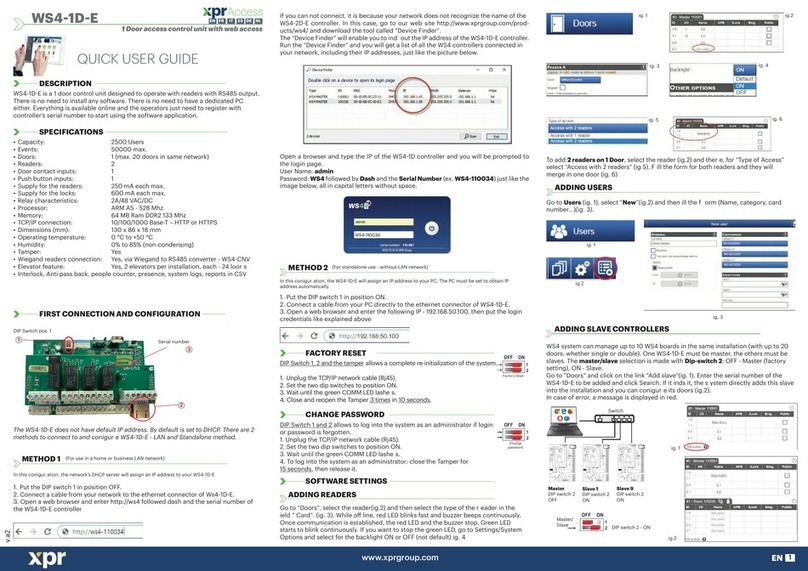
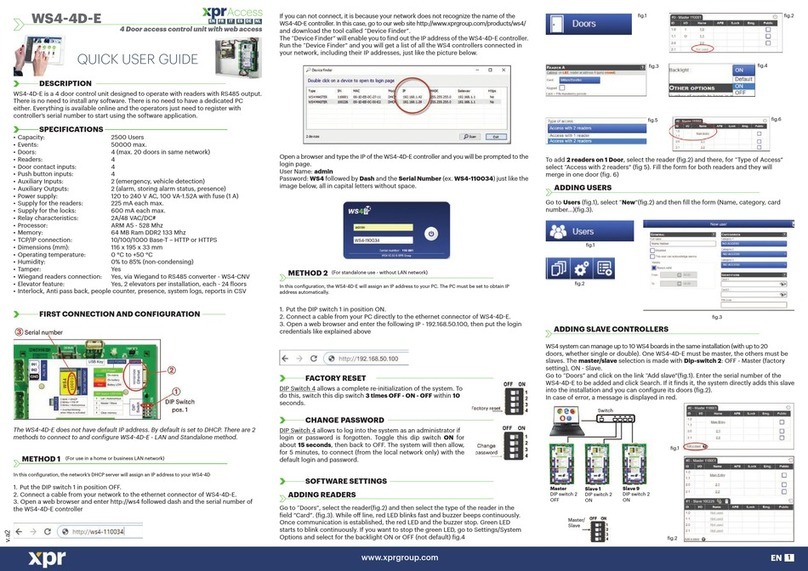
If you can not connect, it is because your network does not recognize the name of the
WS42DE controller. In this case, go to our web site http://www.xprgroup.com/prod-
ucts/ws4/ and download the tool called “Device Finder”.
The “Device Finder” will enable you to ind out the IP address of the WS42DE controller.
Run the “Device Finder” and you will get a list of all the WS4 controllers connected in
your network, including their IP addresses, just like the picture below.
To add 2 readers on 1 Door, select the reader (ig.2) and there, for “Type of Access”
select “Access with 2 readers” (ig 5). Fill the form for both readers and they will
merge in one door (ig. 6)
WS4 system can manage up to 10 WS4 boards in the same installation (with up to 20
doors, whether single or double). One WS42DE must be master, the others must be
slaves. The master/slave selection is made with Dip-switch 2: OFF - Master (factory
setting), ON - Slave.
Go to “Doors” and click on the link “Add slave”(ig.1). Enter the serial number of the
WS42DE to be added and click Search. If it inds it, the system directly adds this slave
into the installation and you can conigure its doors (ig.2).
In case of error, a message is displayed in red.
Go to Users (ig.1), select “New”(ig.2) and then ill the form (Name, category, card
number...)(ig.3).
Open a browser and type the IP of the WS42DE controller and you will be prompted to
the login page.
User Name: admin
Password: WS4 followed by Dash and the Serial Number (ex. WS4110034) just like the
image below, all in capital letters without space.
QUICK USER GUIDE
• Capacity: 2500 Users
• Events: 50000 max.
• Doors: 2 (max. 20 doors in same network)
• Readers: 2
• Door contact inputs: 2
• Push button inputs: 2
• Auxiliary Inputs: 2 (emergency, vehicle detection)
• Auxiliary Outputs: 3 (alarm, storing alarm status, presence)
• Supply for the readers: 250 mA each max.
• Supply for the locks: 600 mA each max.
• Relay characteristics: 2A/48 VAC/DC
• Processor: ARM A5 - 528 Mhz
• Memory: 64 MB Ram DDR2 133 Mhz
• TCP/IP connection: 10/100/1000 Base-T – HTTP or HTTPS
• Dimensions (mm): 130 x 86 x 36 mm
• Operating temperature: 0 °C to +50 °C
• Humidity: 0% to 85% (non-condensing)
• Tamper: Yes
• Wiegand readers connection: Yes, via Wiegand to RS485 converter - WS4CNV
• Elevator feature: Yes, 2 elevators per installation, each - 24 loors
• Interlock, Anti pass back, people counter, presence, system logs, reports in CSV
DIP Switch
pos. 1
1
2
3
The WS42DE does not have default IP address. By default is set to DHCP. There are 2
methods to connect to and conigure WS42DE - LAN and Standalone method.
In this coniguration, the network’s DHCP server will assign an IP address to your WS42DE
In this coniguration, the WS42DE will assign an IP address to your PC. The PC must be set to obtain IP
address automatically.
(For use in a home or business LAN network)
(For standalone use - without LAN network)
1. Put the DIP switch 1 in position OFF.
2. Connect a cable from your network to the ethernet connector of Ws42DE.
3. Open a web browser and enter http://ws4 followed dash and the serial number of
the WS42DE controller
1. Put the DIP switch 1 in position ON.
2. Connect a cable from your PC directly to the ethernet connector of WS42DE.
3. Open a web browser and enter the following IP - 192.168.50.100, then put the login
credentials like explained above
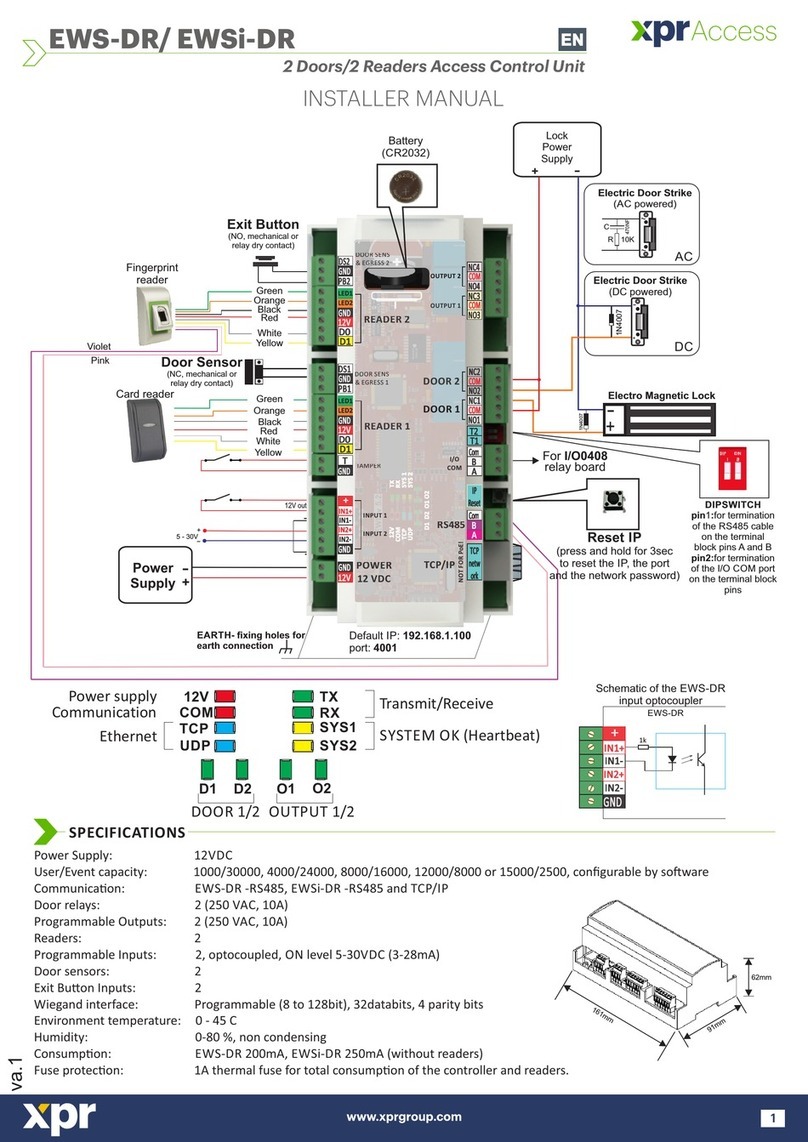
DIP Switch 1, 2 and the tamper allows a complete re-initialization of the system.
1. Unplug the TCP/IP network cable (Rj45).
2. Set the two dip switches to position ON.
3. Wait until the green COMM LED lashes.
4. Close and reopen the Tamper 3 times in 10 seconds.
DIP Switch 1 and 2 allows to log into the system as an administrator if login
or password is forgotten.
1. Unplug the TCP/IP network cable (Rj45).
2. Set the two dip switches to position ON.
3. Wait until the green COMM LED lashes.
4. To log into the system as an administrator: close the Tamper for
15 seconds, then release it.
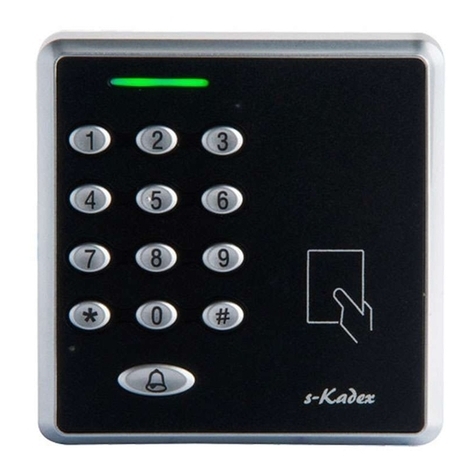
Go to “Doors”, select the reader(ig.2) and then select the type of the reader in the
ield ”Card”. (ig.3). While o line, red LED blinks fast and buzzer beeps continuously.
Once communication is established, the red LED and the buzzer stop. Green LED
starts to blink continuously. If you want to stop the green LED, go to Settings/System
Options and select for the backlight ON or OFF (not default) ig.4
v.a3
1
1
ig.1
ig.3
ig.5
ig.1
ig.2
Switch
Master
DIP switch 2
OFF
Slave 1
DIP switch 2
ON
Slave 9
DIP switch 2
ON
ig.3
ig.6
ig.4
ig.2
ig.1
ig.2
WS42DE is a 2 door control unit designed to operate with readers with RS485 output.
There is no need to install any software. There is no need to have a dedicated PC
either. Everything is available online and the operators just need to register with
controller’s serial number to start using the software application.
Serial number
Factory reset
Change
password
Master/
Slave DIP switch 2 - ON
NLDE
ES
IT
FR
EN