manuals.online logo
Brands
  1. Home
  2. •
  3. Brands
  4. •
  5. Yamaha
  6. •
  7. Microphone
  8. •
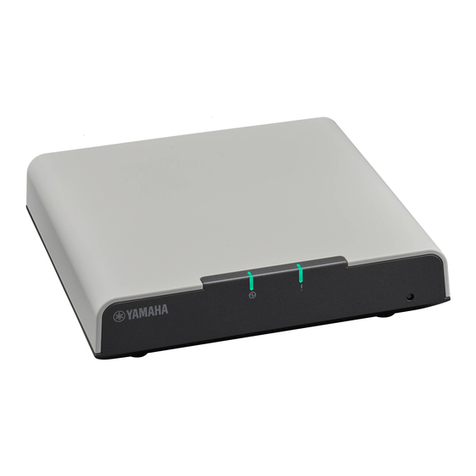
  9. Yamaha YVC-1000 User manual

Yamaha YVC-1000 User manual

Other manuals for YVC-1000

7

Other Yamaha Microphone manuals

Yamaha RMWMIC User manual

Yamaha

Yamaha RMWMIC User manual

Yamaha DM-105 User manual

Yamaha

Yamaha DM-105 User manual

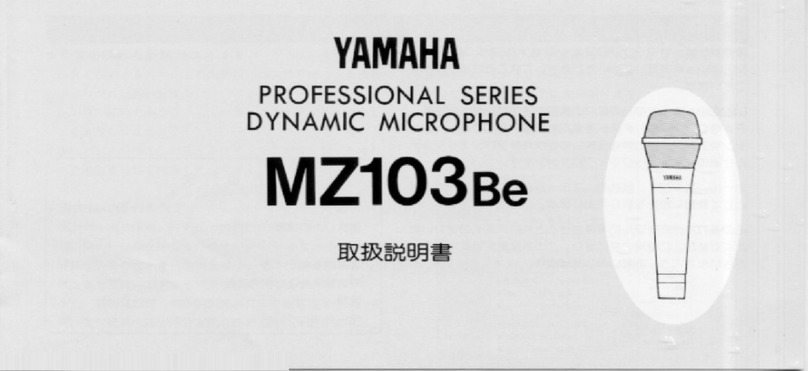
Yamaha MZ103Be User manual

Yamaha

Yamaha MZ103Be User manual

Yamaha XW-CS-700 User manual

Yamaha

Yamaha XW-CS-700 User manual

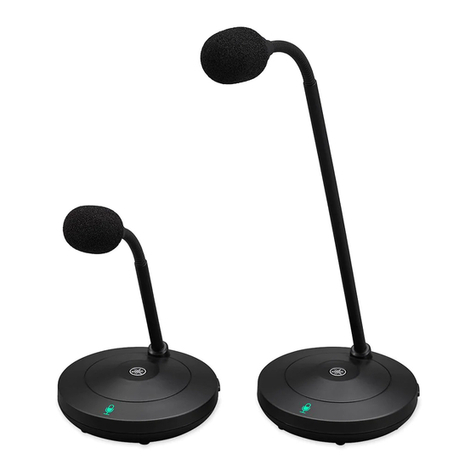
Yamaha YVC-MIC1000EX User manual

Yamaha

Yamaha YVC-MIC1000EX User manual

Yamaha AG01 User manual

Yamaha

Yamaha AG01 User manual

Yamaha PGM1 User manual

Yamaha

Yamaha PGM1 User manual

Yamaha RM-TT User manual

Yamaha

Yamaha RM-TT User manual

Yamaha RM-TT User manual

Yamaha

Yamaha RM-TT User manual

Yamaha RMWAP8 User manual

Yamaha

Yamaha RMWAP8 User manual

Yamaha PJP-25URS User manual

Yamaha

Yamaha PJP-25URS User manual

Yamaha YVC-1000 User manual

Yamaha

Yamaha YVC-1000 User manual

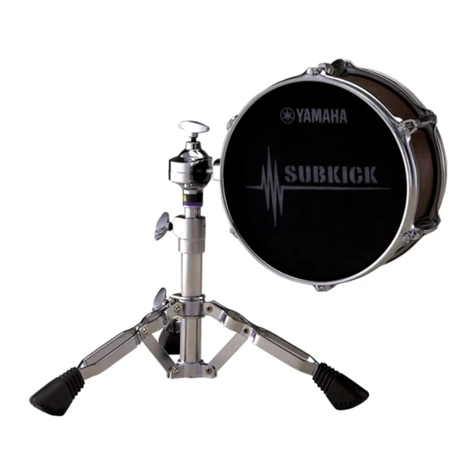
Yamaha Subkick SKRM100 User manual

Yamaha

Yamaha Subkick SKRM100 User manual

Yamaha RM-CG User manual

Yamaha

Yamaha RM-CG User manual

Popular Microphone manuals by other brands

Betzold 760932 operating instructions

Betzold

Betzold 760932 operating instructions

Shure A88SM user guide

Shure

Shure A88SM user guide

JTS UF-10TH/12 instruction manual

JTS

JTS UF-10TH/12 instruction manual

Shure BETA 58A User giude

Shure

Shure BETA 58A User giude

Shure SM7 user guide

Shure

Shure SM7 user guide

Sony ECM-Z200 Service manual

Sony

Sony ECM-Z200 Service manual

Electro-Voice 652 engineering data

Electro-Voice

Electro-Voice 652 engineering data

mantona 21150 instruction manual

mantona

mantona 21150 instruction manual

Loewe We. SEE 55 user manual

Loewe

Loewe We. SEE 55 user manual

IK Multimedia iRig Stream MIC PRO user manual

IK Multimedia

IK Multimedia iRig Stream MIC PRO user manual

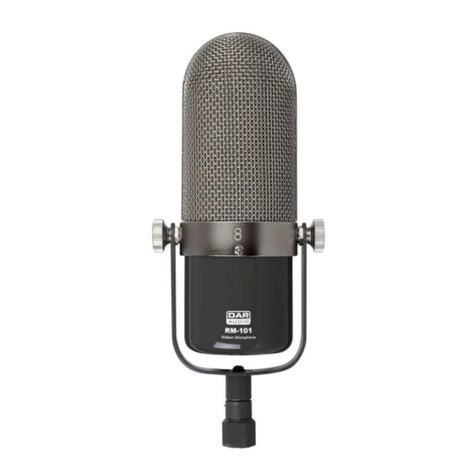
DAPAudio RM-101 user manual

DAPAudio

DAPAudio RM-101 user manual

AKG CHM 21 User instructions

AKG

AKG CHM 21 User instructions

Sennheiser evolution wireless series EM 100 instruction manual

Sennheiser

Sennheiser evolution wireless series EM 100 instruction manual

Sony C-48 operating instructions

Sony

Sony C-48 operating instructions

GIGAMEDIA GGM PAMICUHFG user manual

GIGAMEDIA

GIGAMEDIA GGM PAMICUHFG user manual

Shure WH30TQG user guide

Shure

Shure WH30TQG user guide

auna PRO MIC-900 manual

auna PRO

auna PRO MIC-900 manual

Shure MV51 manual

Shure

Shure MV51 manual

manuals.online logo
manuals.online logoBrands
  • About & Mission
  • Contact us
  • Privacy Policy
  • Terms and Conditions

Copyright 2025 Manuals.Online. All Rights Reserved.

YVC-1000
To use a wired handheld microphone
by connecting to YVC-1000 ......................................................1
To use Line 6 XD-V35 by connecting to YVC-1000...........................6
To use Revolabs HD Single/Dual by connecting to YVC-1000 ... 11
Contents
1
To use a wired handheld microphone by connecting to
YVC-1000
You can connect up to two handheld microphones to YVC-1000, and use them as external
microphones. Voice through the external microphone is output not only to a communication
partner, but also from the connected YVC-1000 speaker. With the connected external microphone,
you can turn up the voice volume at your site and also have a conversation with the partner.
To use this function, you need the YVC-1000 firmware ver.2.00 or later.
■Operability confirmed handheld microphone
Yamaha: DM-105
Audio-Technica: PRO41
Shure: SM58
* Some models may be unavailable in some areas.
Note
Handheld microphones which can be directly connected to YVC-1000 are dynamic microphones. Do not use a
condenser microphone.
2
Step 1: How to connect
1. Connect the YVC-1000 audio input terminal (RCA pin) and a handheld microphone with a
commercially available audio cable.
Before connecting the handheld microphone, turn off YVC-1000.
Prepare a proper audio cable for the handheld microphone connecting terminal.
Operability confirmed handheld microphone: "RCA pin plug↔XLR (Female)" audio cable
Memo
Both of the YVC-1000 audio input terminals (L and R) are connectable.
You can use the external microphone simultaneously with the microphone supplied with YVC-1000, or
the optional microphone (YVC-MIC1000EX). Also, you can use it in combination with an external
speaker.
Microphone
Plug into an
outlet
Connect to a
microphone
3
Step 2: How to set
To connect the handheld microphone to YVC-1000 for use, you have to change the YVC-1000
settings. Use the application software "YVC-1000 Configurator" to change the settings.
Memo
This manual explains how to change the settings with a PC. Please refer to the YVC-1000 user’s manual when
checking difference in operation between a PC and a Mac.
1. Download "YVC-1000_Configurator_XXX.zip" from the following website, and decompress the file.
http://www.yamaha.com/products/en/communication/download/
Memo
"XXX" in the file name indicates the version of YVC-1000 Configurator.
2. Connect YVC-1000 and the PC with the supplied USB cable.
3. Double-click "YVC-1000 Configurator.exe" in the decompressed folder.
"YVC-1000 Configurator" starts up. At the initial startup, the "YVC-1000 Licensing Agreement" dialogue
appears. Read the information carefully, then select "Accept all terms of the license agreement" and
click "OK."
Memo
Also, when you re-download the latest version of "YVC-1000 Configurator," the "YVC-1000 Licensing
Agreement" dialogue appears at the initial startup.

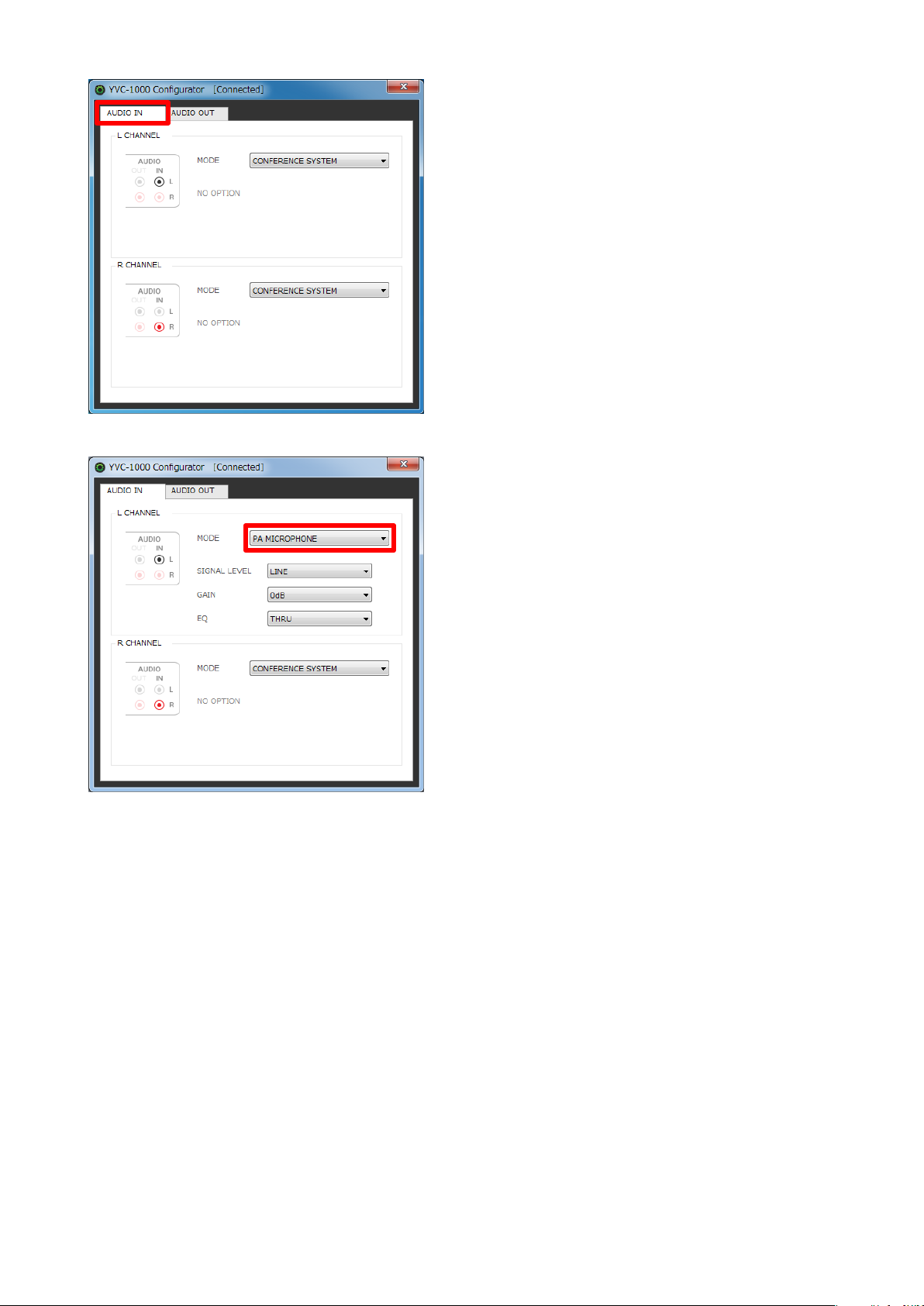
4. In the "YVC-1000 Configurator" window, select the "AUDIO IN" tab.
4
5. Select "PA MICROPHONE" in "MODE" of the terminal to which the handheld microphone is connected.
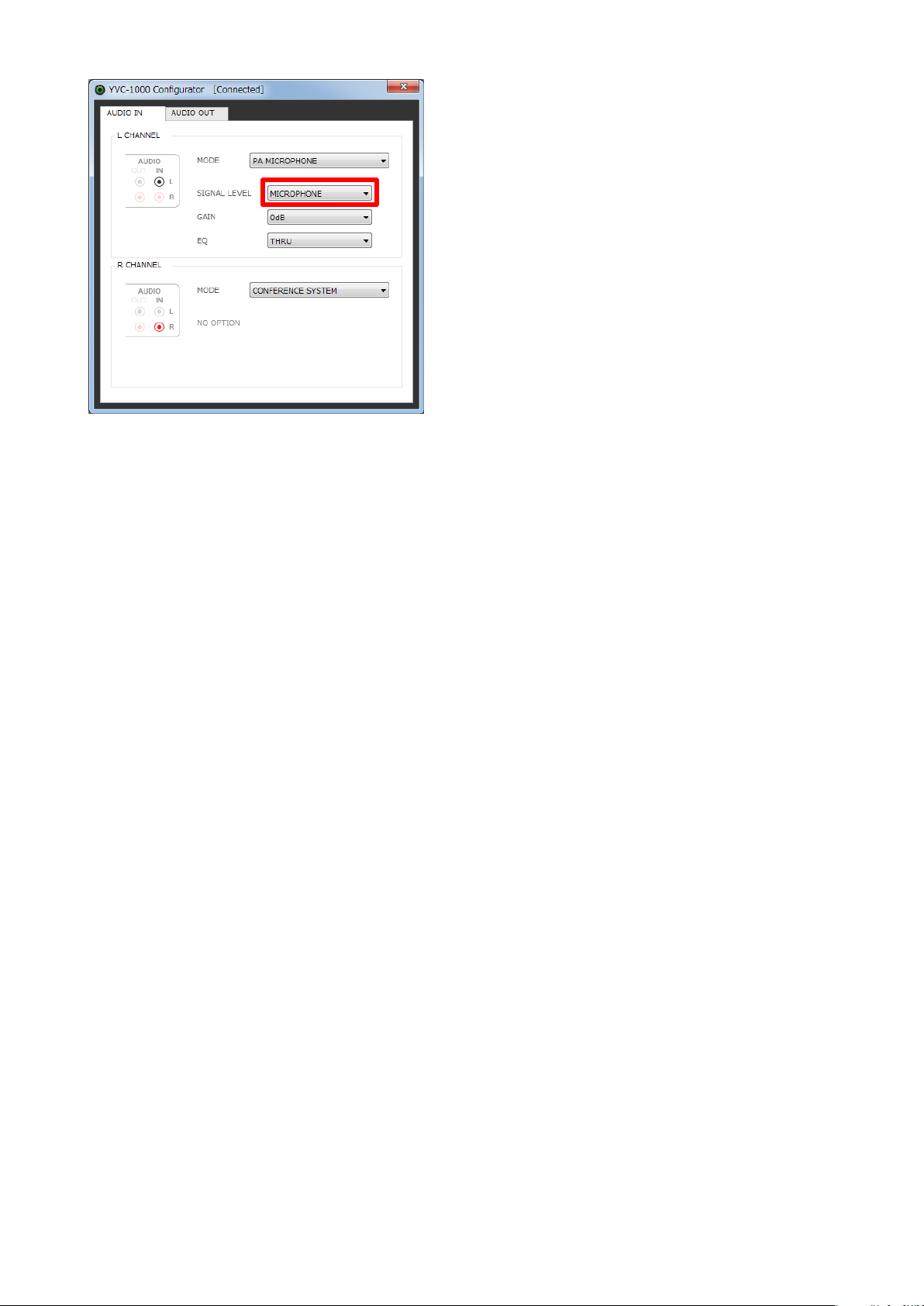
6. Select "MICROPHONE" in "SIGNAL LEVEL."
7. Test to check sound of the handheld microphone.
If there is a problem, change the sound volume and tone with "YVC-1000 Configurator."
Note
Voice through the handheld microphone is output not only to a communication partner, but also from the
YVC-1000 speaker. When feedback occurs, enlarge the distance between the handheld microphone and
the speaker, or refer to the section "How to change the sound volume and tone" in this manual, and
decrease "GAIN."
5
■How to change the sound volume and tone
On the assumption that the distance between the handheld microphone and your mouth is 3cm,
the following values are recommended. Based on these values, change the settings according to
your operation environment.
GAIN:0dB
EQ:THRU
GAIN
Adjust the sensitivity of the handheld microphone by 3dB.
Sensitivity: -12 dB (minimum sensitivity) to +12 dB (maximum sensitivity)
EQ
Change the sound tone of the handheld microphone.
Setting
Detail
THRU
Does not change the tone.
LOW CUT
Turns down the low pitch sound.
LOW BOOST Turns up the low pitch sound.
6
To use Line 6 XD-V35 by connecting to YVC-1000
You can connect up to two units of Line 6 XD-V35 (Digital Wireless Handheld Mic System) to
YVC-1000, and use them as external microphones. Voice through the external microphone is
output not only to a communication partner, but also from the connected YVC-1000 speaker. With
the connected external microphone, you can turn up the voice volume at your site and also have a
conversation with the partner.
To use this function, you need the YVC-1000 firmware ver.2.00 or later.
Memo
Please refer to the operation manual supplied with XD-V35 for more detailed operation of Line 6 XD-V35.
Step 1: How to connect
XD-V35 receiver
Plug into
an outlet
Connect to a
microphone
7
1. Connect the YVC-1000 audio input terminal (RCA pin) and the XD-V35 receiver with a commercially
available audio cable.
Before connecting the XD-V35 receiver, turn off YVC-1000.
Prepare a proper audio cable for the XD-V35 receiver's connecting terminal.
Unbalanced 1/4 inch audio output connector: "RCA pin plug↔PHONE plug (monaural)" audio cable
Balanced XLR audio output: "RCA pin plug↔XLR (Female)" audio cable
Memo
Both of the YVC-1000 audio input terminals (L and R) are connectable.
You can use the external microphone simultaneously with the microphone supplied with YVC-1000, or
the optional microphone (YVC-MIC1000EX). Also, you can use it in combination with an external
speaker.
Step 2: How to set
To connect the XD-V35 to YVC-1000 for use, you have to change the YVC-1000 settings. Use the
application software "YVC-1000 Configurator" to change the settings.
Memo
This manual explains how to change the settings with a PC. Please refer to the YVC-1000 user’s manual when
checking difference in operation between a PC and a Mac.
1. Download "YVC-1000_Configurator_XXX.zip" from the following website, and decompress the file.
http://www.yamaha.com/products/en/communication/download/
Memo
"XXX" in the file name indicates the version of YVC-1000 Configurator.
2. Connect YVC-1000 and the PC with the supplied USB cable.
3. Double-click "YVC-1000 Configurator.exe" in the decompressed folder.
"YVC-1000 Configurator" starts up. At the initial startup, the "YVC-1000 Licensing Agreement" dialogue
appears. Read the information carefully, then select "Accept all terms of the license agreement" and
click "OK."
Memo
Also, when you re-download the latest version of "YVC-1000 Configurator," the "YVC-1000 Licensing
Agreement" dialogue appears at the initial startup.
8
4. In the "YVC-1000 Configurator" window, select the "AUDIO IN" tab.
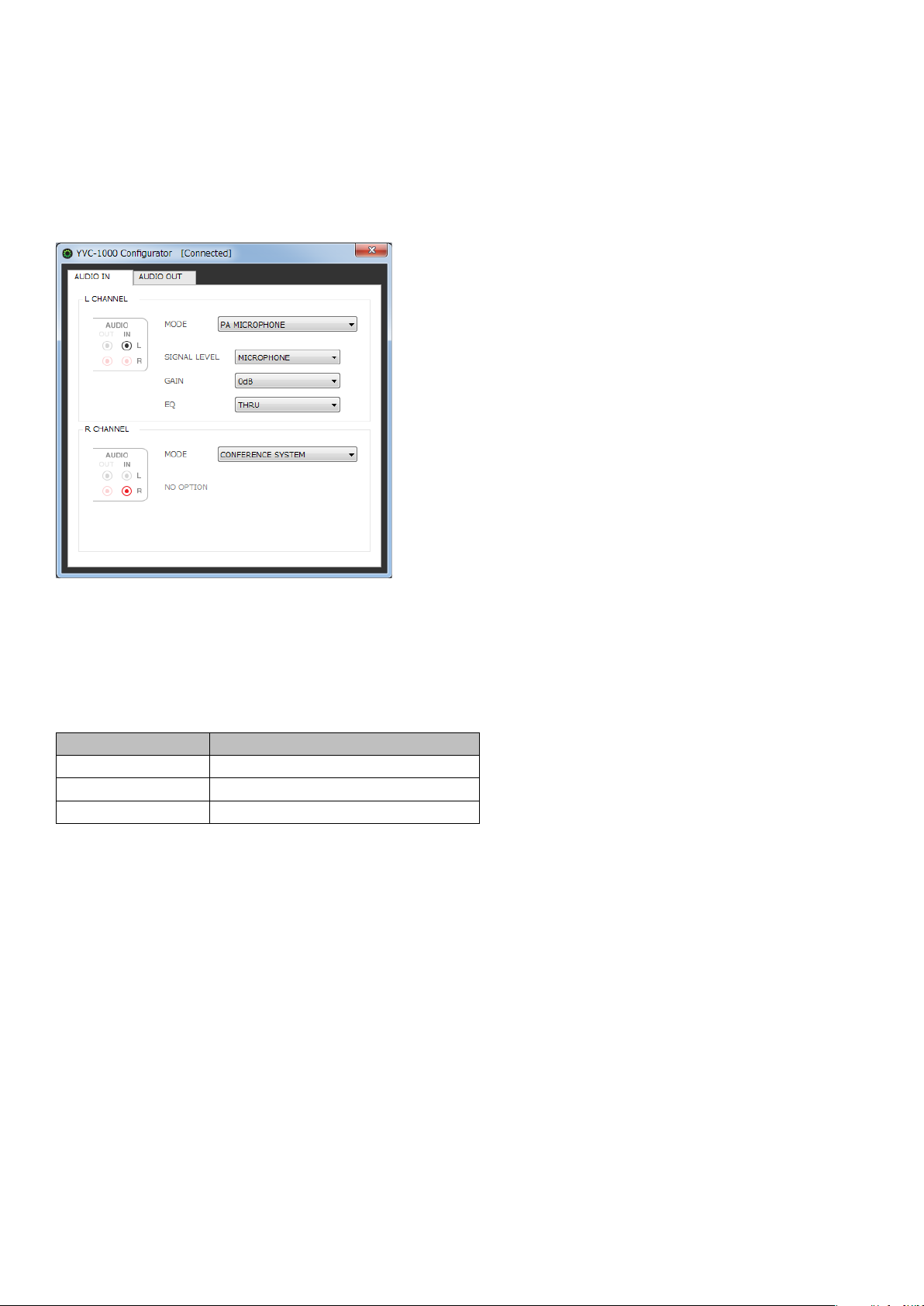
5. Set "PA MICROPHONE" in "MODE" of the terminal to which the XD-V35 receiver is connected.
9
6. Select "MICROPHONE" in "SIGNAL LEVEL."
7. Test to check sound of the wireless microphone.
If there is a problem, change the sound volume and tone with "YVC-1000 Configurator."
Note
Voice through the wireless microphone is output not only to a communication partner, but also from the
YVC-1000 speaker. When feedback occurs, enlarge the distance between the wireless microphone and the
speaker, or refer to the section "How to change the sound volume and tone" in this manual, and decrease
"GAIN."