manuals.online logo
Brands
  1. Home
  2. •
  3. Brands
  4. •
  5. 3D Systems
  6. •
  7. 3D Printer
  8. •
  9. 3D Systems NextDent 5100 User manual

3D Systems NextDent 5100 User manual

Other 3D Systems 3D Printer manuals

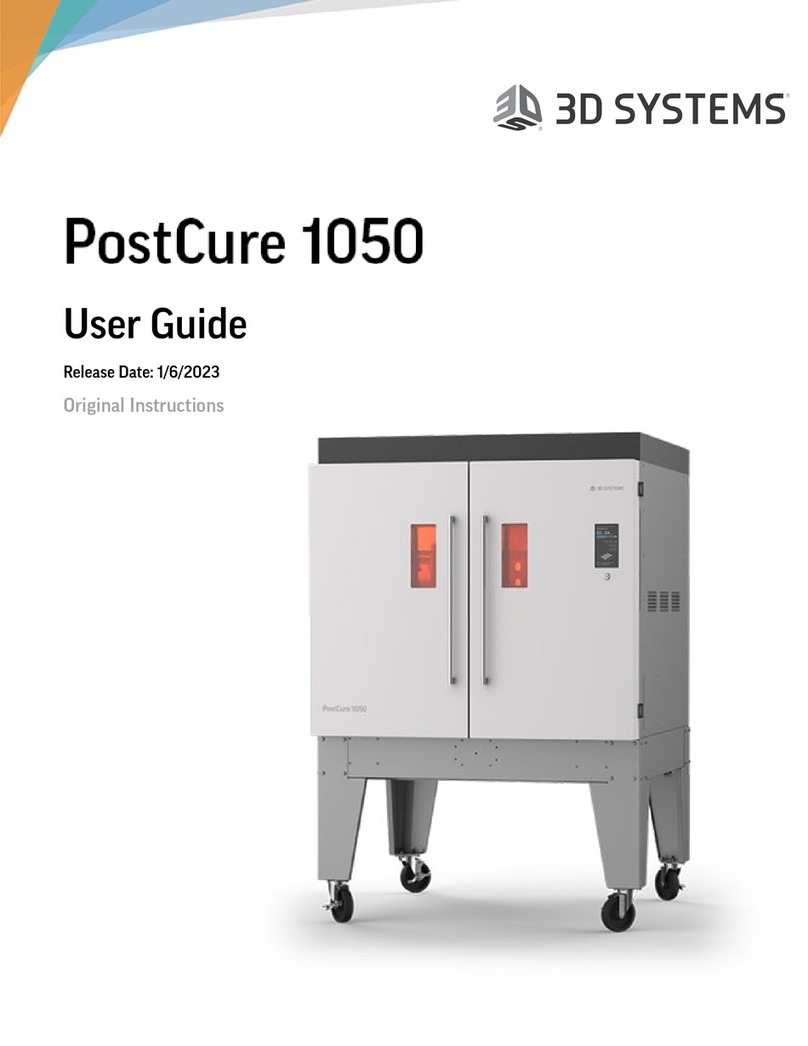
3D Systems PostCure 1050 User manual

3D Systems

3D Systems PostCure 1050 User manual

3D Systems projet mjp 2500 User manual

3D Systems

3D Systems projet mjp 2500 User manual

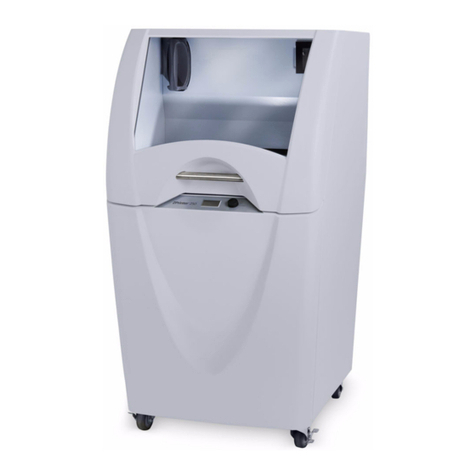
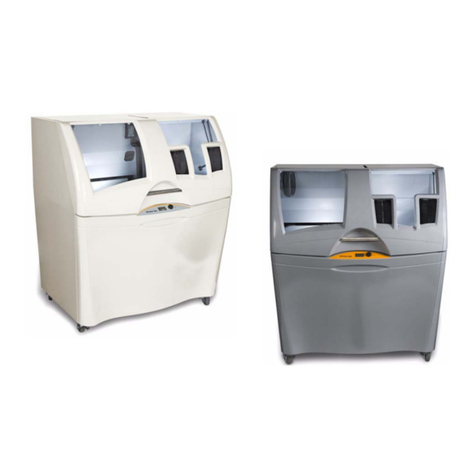
3D Systems ZPrinter 350 User manual

3D Systems

3D Systems ZPrinter 350 User manual

3D Systems ProX 800 User manual

3D Systems

3D Systems ProX 800 User manual

3D Systems Figure 4 Standalone User manual

3D Systems

3D Systems Figure 4 Standalone User manual

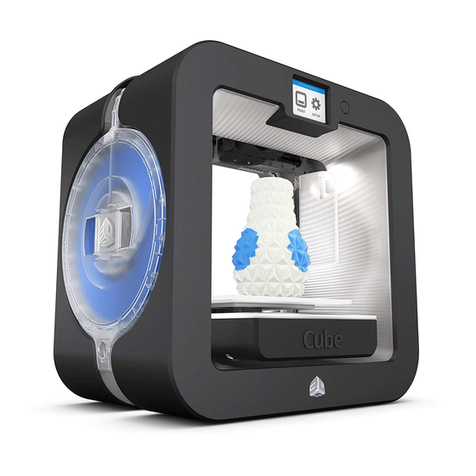
3D Systems CUBE User manual

3D Systems

3D Systems CUBE User manual

3D Systems DuraForm TPU Elastomer User manual

3D Systems

3D Systems DuraForm TPU Elastomer User manual

3D Systems ProX SLS 6100 User manual

3D Systems

3D Systems ProX SLS 6100 User manual

3D Systems wematter Density User manual

3D Systems

3D Systems wematter Density User manual

3D Systems CUBE User manual

3D Systems

3D Systems CUBE User manual

3D Systems CUBE Operator's manual

3D Systems

3D Systems CUBE Operator's manual

3D Systems ProX SLS 6100 User manual

3D Systems

3D Systems ProX SLS 6100 User manual

3D Systems DMP Flex 350 User manual

3D Systems

3D Systems DMP Flex 350 User manual

3D Systems CUBE User manual

3D Systems

3D Systems CUBE User manual

3D Systems CUBE User manual

3D Systems

3D Systems CUBE User manual

3D Systems Cubify CUBEX Duo User manual

3D Systems

3D Systems Cubify CUBEX Duo User manual

3D Systems ProJet 5000 User manual

3D Systems

3D Systems ProJet 5000 User manual

3D Systems ProJet 1200 User manual

3D Systems

3D Systems ProJet 1200 User manual

3D Systems CUBE User manual

3D Systems

3D Systems CUBE User manual

3D Systems CubeX Assembly instructions

3D Systems

3D Systems CubeX Assembly instructions

3D Systems ProJet 2500 User manual

3D Systems

3D Systems ProJet 2500 User manual

3D Systems CubePro User manual

3D Systems

3D Systems CubePro User manual

3D Systems CubeX User manual

3D Systems

3D Systems CubeX User manual

3D Systems Figure 4 Standalone Manual

3D Systems

3D Systems Figure 4 Standalone Manual

Popular 3D Printer manuals by other brands

bq Hephestos 2 Faq

bq

bq Hephestos 2 Faq

EcubMaker TOYDIY quick start guide

EcubMaker

EcubMaker TOYDIY quick start guide

AnyCubic Kossel Plus Modification

AnyCubic

AnyCubic Kossel Plus Modification

ReDeTec ProtoCycler Operation manual

ReDeTec

ReDeTec ProtoCycler Operation manual

Kywoo3D Tycoon IDEX user manual

Kywoo3D

Kywoo3D Tycoon IDEX user manual

CraftBot PLUS PRO user guide

CraftBot

CraftBot PLUS PRO user guide

3DGence INDUSTRY F340 user manual

3DGence

3DGence INDUSTRY F340 user manual

HP Jet Fusion 4200 Product Documentation Site Preparation Guide

HP

HP Jet Fusion 4200 Product Documentation Site Preparation Guide

Rokit AEP Series user manual

Rokit

Rokit AEP Series user manual

Ackuretta FreeShape 120 user manual

Ackuretta

Ackuretta FreeShape 120 user manual

DIYElectronics PRUSA I3 ELECTRONICS AND SOFTWARE GUIDE

DIYElectronics

DIYElectronics PRUSA I3 ELECTRONICS AND SOFTWARE GUIDE

Ultimaker S5 Material Station installation guide

Ultimaker

Ultimaker S5 Material Station installation guide

Stratasys FDM Vantage Series user guide

Stratasys

Stratasys FDM Vantage Series user guide

ZYYX Pro II user manual

ZYYX

ZYYX Pro II user manual

German RepRap X400 Pro V3 user guide

German RepRap

German RepRap X400 Pro V3 user guide

3DGence ONE user manual

3DGence

3DGence ONE user manual

Create 3400 Handbook

Create

Create 3400 Handbook

Snapmaker Dual Extrusion 3D Printing Module quick start guide

Snapmaker

Snapmaker Dual Extrusion 3D Printing Module quick start guide

manuals.online logo
manuals.online logoBrands
  • About & Mission
  • Contact us
  • Privacy Policy
  • Terms and Conditions

Copyright 2025 Manuals.Online. All Rights Reserved.

NextDent®5100 Quick Start Guide
Please see the NextDent 5100 User Guide, found on support.3dsystems.com/nextdent-5100, for safety information and comprehensive operating instructions.
Save all foam and packing material for future use. Shipping without the original packing material may cause damage to the printer.
1. Mix Print Material/Unbox and Stage Printer 2. Unbox Optional Pedestal
LC-3DMixer sold sepa-
rately from printer
4
1. Before unpacking, place materials bottle(s)
on LC-3DMixer for time specied on bottle.
2. Remove 4 packing clips around the bottom
of the crate. Lift outer box to remove - ceiling
clearance should be > 2.6m (8.5 ft).
3. Remove accessories box. Compare contents
of box to list in the Welcome Letter to
ensure everything is included.
4. Remove documentation, foam pieces
and plastic sleeve simultaneously
(they are taped together).
5. If you have the optional pedestal, go
to Section 2. If not, team-lift
printer onto a level surface.
6. Remove lid’s blue tape and
desiccant pack, and go to Section 6.
CAUTION:
Insu󰀩ciently
mixed
material may result
in build failure.
3. Place/Secure Printer on Pedestal
21 3
1. Cut box open. Remove top packing foam and
plastic sleeve from top of pedestal.
2. Grab pedestal with one hand by rectangular hole
in middle and lift out of box.
3. Remove tape from all four casters.
4. Stage pedestal on a level oor and remove the
blue tape from the door.
5. Open door and remove tape/cardboard spacer.
1 2
3 4
PINCH HAZARD:
Keep ngers/
hands clear of gap
between printer and
pedestal.
1. Team-lift printer onto pedestal,
tting 4 printer feet into 4 holes in
top of pedestal.
2. Open pedestal door. Install/snug 5 thumb
screws on inside-top of pedestal. Remove all
remaining blue tape from printer.
CAUTION: Failure to secure printer
to pedestal could cause printer to
tip over in certain situations.
5. Level Printer on Pedestal
1. Place bubble level (included with printer shipment) on printer chassis.
2. The pedestal has 4 casters with leveling feet. To adjust each leveling foot:
a. Turn the orange thumb wheel to the right to lower it.
b. Turn the orange thumb wheel to the left to raise it.
3. You will now adjust the leveling feet.
a. Keep back-left leveling foot off the ground.
b. Lower front-right leveling foot until it touches the ground.
c. Lower front-left leveling foot until it touches the ground. Adjust foot
up or down until bubble in level is roughly centered in the circle left-to-right.
4. Lower back-right leveling foot until it touches the ground. Adjust foot up or down until the
bubble in the level is roughly centered in the circle back-to-front.
5. Verify that the left-to-right level has not changed. Continue adjusting the front-left and/or
back-right feet until bubble is roughly centered in both directions.
6. Lower back-left foot until it touches the ground. Take care not to lower it too much, so as to
throw the level off.
7. Push lightly on each corner of the printer to ensure it does not rock in any direction.
1 2 3 4
ab
c
5
1. Remove thumb screws from lter
bracket. Remove lter bracket.
2. Slide carbon lter into place.
3. Reinstall bracket with lter and
reinstall thumbscrews.
4. Remove desiccant from inside
printer lid if not done in Section 1.
4. Install Carbon Filter
1
2
65
1 1
2
6. Install Resin Tray
1. Open printer lid and front door.
2. Push in the tension-release button (a)
and lift the tension arm (b).
3. Install resin tray in chassis, concave
side up, in orientation shown. Lower
the tension arm and push down on it
until it locks into place.
1 2
3
a
b
7. Power Printer On
1. Plug in power cable and Ethernet
cable.
2. Flip the power switch to the “I”
position to turn printer on.
802.11n WiFi bridge
>300Mbps may be connected
to Ethernet port.
2
1
1

NextDent®5100 Quick Start Guide
Please see the NextDent 5100 User Guide, found on support.3dsystems.com/nextdent-5100, for safety information and comprehensive operating instructions.
Save all foam and packing material for future use. Shipping without the original packing material may cause damage to the printer.
Other Useful Documents
Please visit support.3dsystems.com/nextdent-5100 and visit these helpful links:
Full Product Documentation - Click this link
to see the User Guide, Customer Information
Bulletins, copies of guides in the printer box, and
software downloads.
Best Practices - Click this link to view quick ref-
erences, 3D Sprint tutorials, and post-processing
charts.
11. Register Your Printer
13. Activate Warranty 14. Check for Printer Updates
3
©2020 3D Systems, Inc. All rights reserved. P/N 48-0547 Rev. C
8. Install 3D Sprint
Ensure your computer can
run 3D Sprint - See User
Guide for specs.
9. Add Printer
1. Open 3D Sprint. Click the Printer icon if Printer window is not already open.
2. Click Find Printer button to nd printer on your network. If this fails, enter
the printer’s IP address and press Enter. The IP address can be found on the
printer’s touch screen on the Settings tab (above, right).
3. Click the NextDent 5100 icon that the software just found.
4. Click Next.
1
2
3
4
Printer’s IP address will need to be an exception on your network’s
rewall, if applicable. Both the printer and the 3D Sprint PC must be
on the same network and connected to the internet.
2
1
1. On a PC, go to support.3dsystems.
com/nextdent-5100. Click Install
Software link.
2. Click 3D Sprint Download Page.
Follow instructions to install
Sprint.
1. To register your NextDent 5100
Printer, go to support.3dsystems.
com/nextdent-5100.
2. Click LOGIN in the upper-right
corner.
3. If you already have an account,
log in and skip to Section 13. If you
must create an account, proceed
to Section 12.
1. On support.3dsystems.com/
nextdent-5100, click Warranty
Registration.
2. Enter your printer’s serial number
and click CONFIRM. The SN is on
the back label of your printer.
1. In 3D Sprint, go to Printer Tools >
Check for Updates. If updates are
available, download/install them.
2. In the future, 3D Sprint will check
for updates each time you open
the software.
1. Below the login section, click Not a member? Register here.
2. Fill out all elds. The printer serial number is on the back label. Click Sign Up.
3. You will receive an email conrmation with a link to set your password. Follow the
link, enter your preferred password, and then click Change Password. This will
log you into the Support website.
10. Set Up 3D Sprint for NextDent 5100
1. Click the icon of the Material that you
plan to use. Click Next.
2. Click the icon of the Shade you plan
to use. There may only be one. Click
Next.
3. Click the icon of the Print Mode
you wish to use. Click Next.
4. Click the Build Style you wish to
use. Click Set.
12It is vital that you register your
printer to activate your Service
warranty.
4
12. Sign Up for Infocenter
31 2 1
2
Materials - IFUs ship with each material. These
and SDSs are also available on nextdent.com.
3D Sprint Online Help - While in 3D Sprint,
launch online help by pressing F1, or by clicking
the Help icon.