manuals.online logo
Brands
  1. Home
  2. •
  3. Brands
  4. •
  5. Aqara
  6. •
  7. Door Lock
  8. •
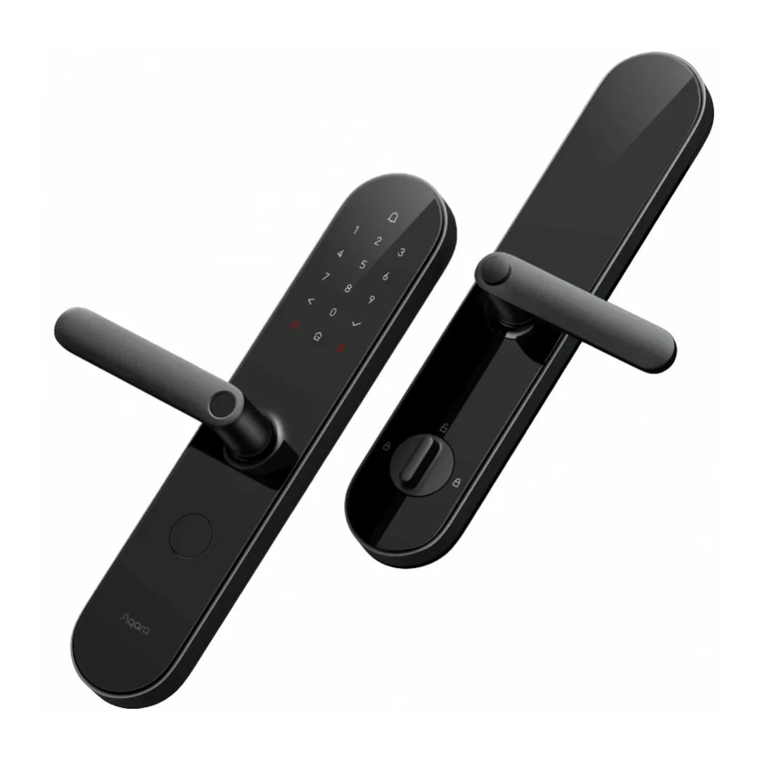
  9. Aqara ZNMS11LM User manual

Aqara ZNMS11LM User manual

Other Aqara Door Lock manuals

Aqara N100 User manual

Aqara

Aqara N100 User manual

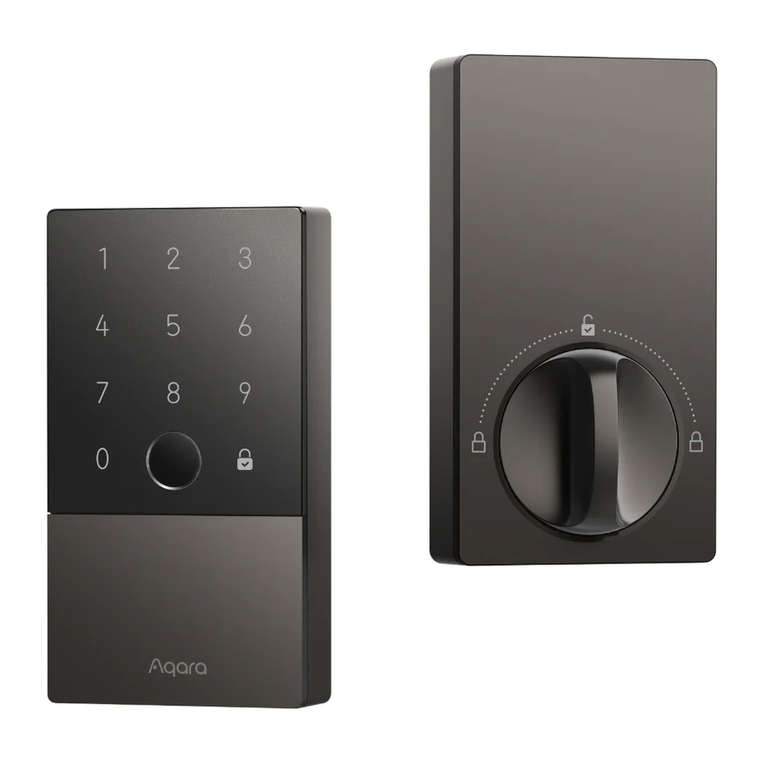
Aqara U100 User manual

Aqara

Aqara U100 User manual

Aqara A100 User manual

Aqara

Aqara A100 User manual

Aqara D100 User manual

Aqara

Aqara D100 User manual

Aqara D100 User manual

Aqara

Aqara D100 User manual

Aqara D100 User manual

Aqara

Aqara D100 User manual

Aqara N100 User manual

Aqara

Aqara N100 User manual

Aqara U100 User manual

Aqara

Aqara U100 User manual

Popular Door Lock manuals by other brands

Dorma MUNDUS PREMIUM US 10 Mounting instruction

Dorma

Dorma MUNDUS PREMIUM US 10 Mounting instruction

Defiant LG600BRA4BGT Instructions for installation

Defiant

Defiant LG600BRA4BGT Instructions for installation

TRU-BOLT M1740024 manual

TRU-BOLT

TRU-BOLT M1740024 manual

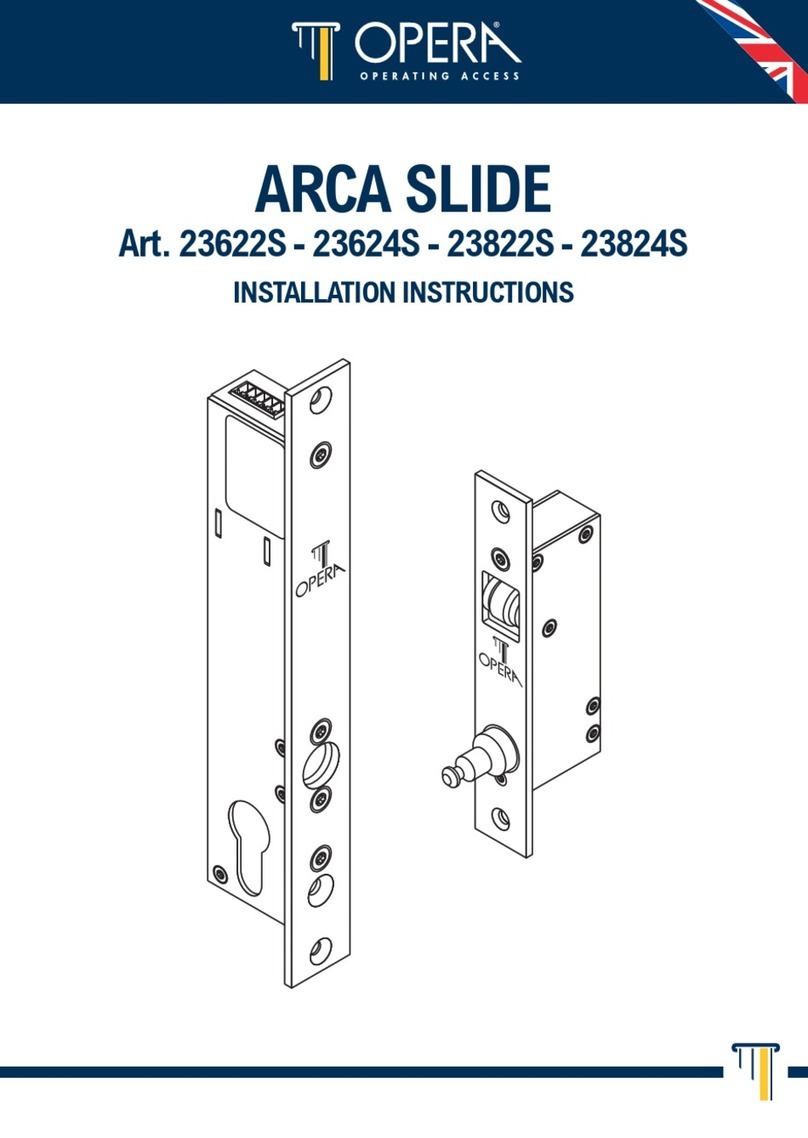
Opera ARCA SLIDE installation instructions

Opera

Opera ARCA SLIDE installation instructions

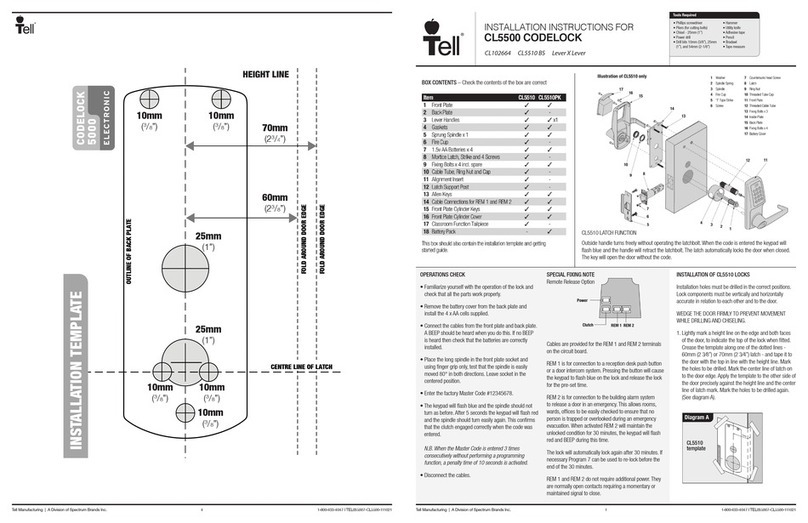
tell CODELOCK CL5500 Series installation instructions

tell

tell CODELOCK CL5500 Series installation instructions

ABH LR6000 installation instructions

ABH

ABH LR6000 installation instructions

Assa Abloy effeff 827A-IP Mounting instructions

Assa Abloy

Assa Abloy effeff 827A-IP Mounting instructions

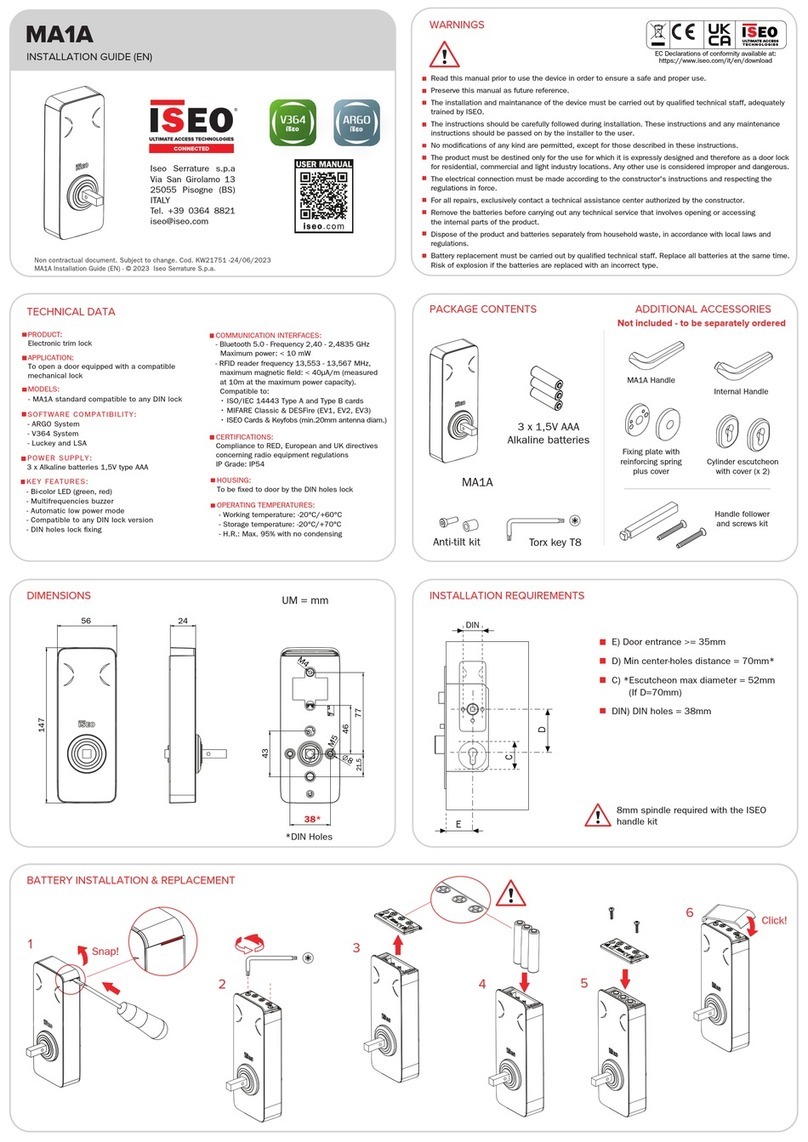
Iseo MA1A installation guide

Iseo

Iseo MA1A installation guide

ID Lock 150 user manual

ID Lock

ID Lock 150 user manual

Lockly ACCESS TOUCH PRO user manual

Lockly

Lockly ACCESS TOUCH PRO user manual

iLoq G50S user guide

iLoq

iLoq G50S user guide

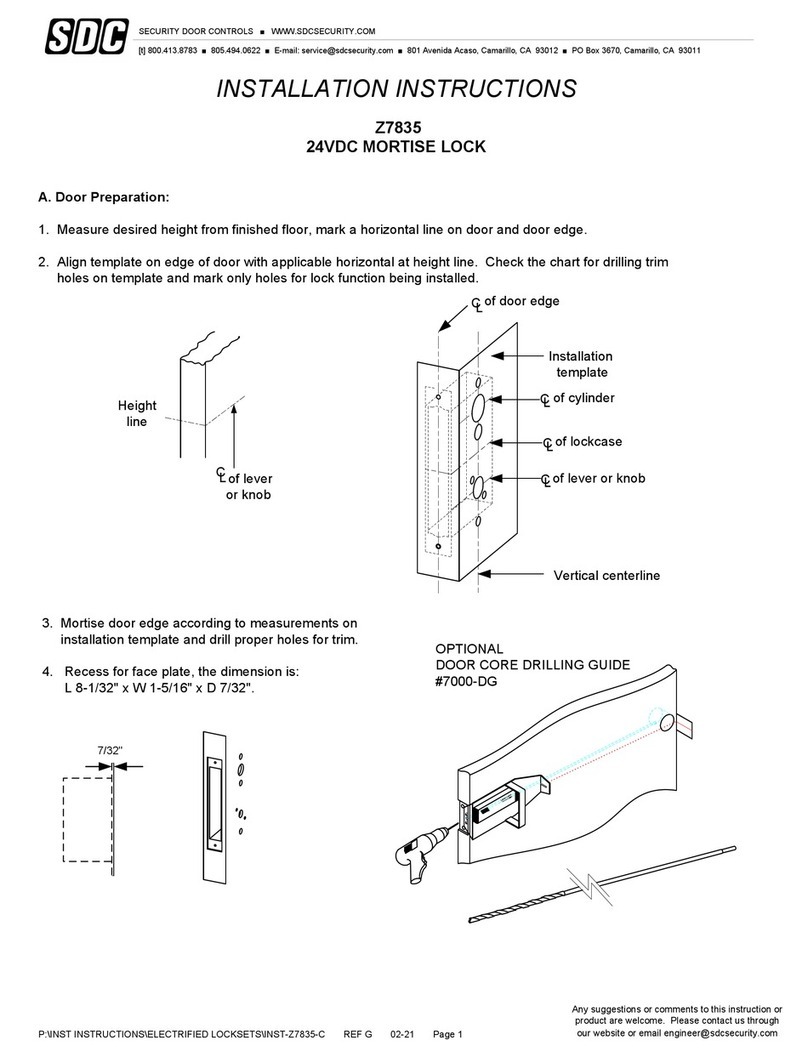
SDC Z7835 installation instructions

SDC

SDC Z7835 installation instructions

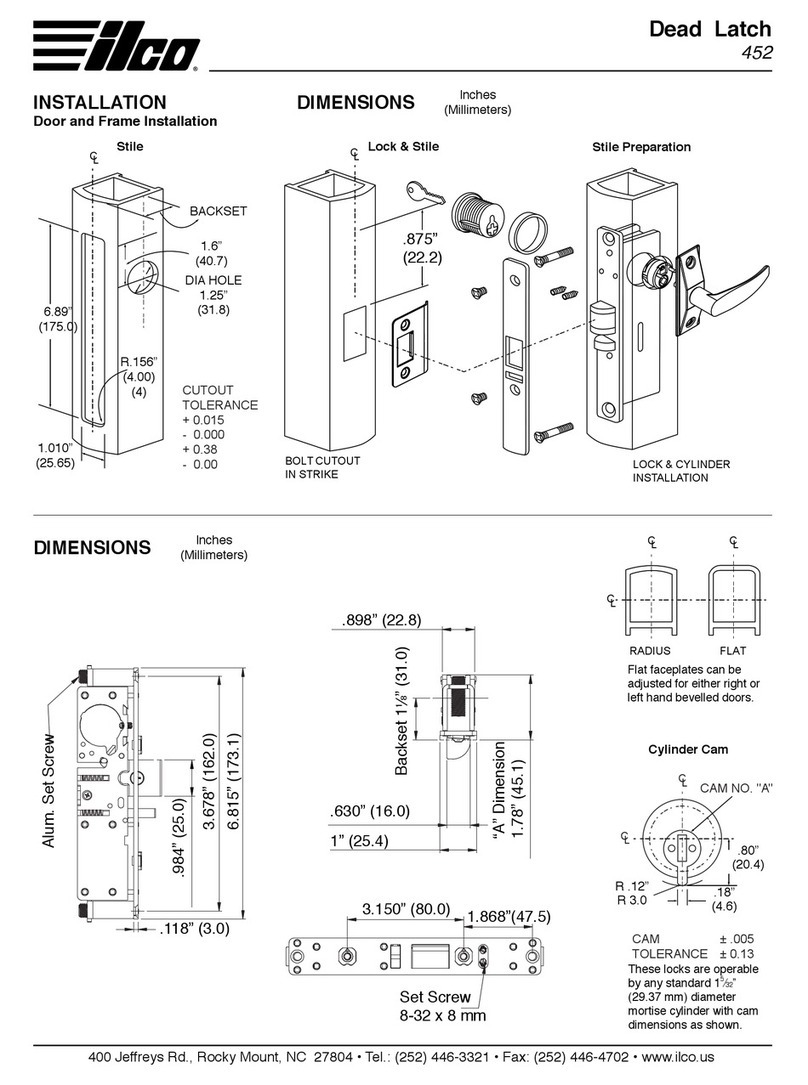
ilco 452 Installation

ilco

ilco 452 Installation

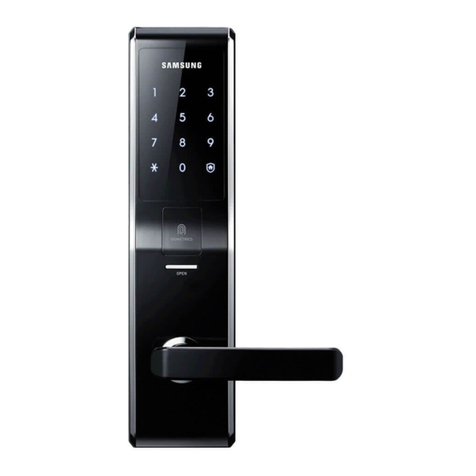
Samsung shs-h705 user guide

Samsung

Samsung shs-h705 user guide

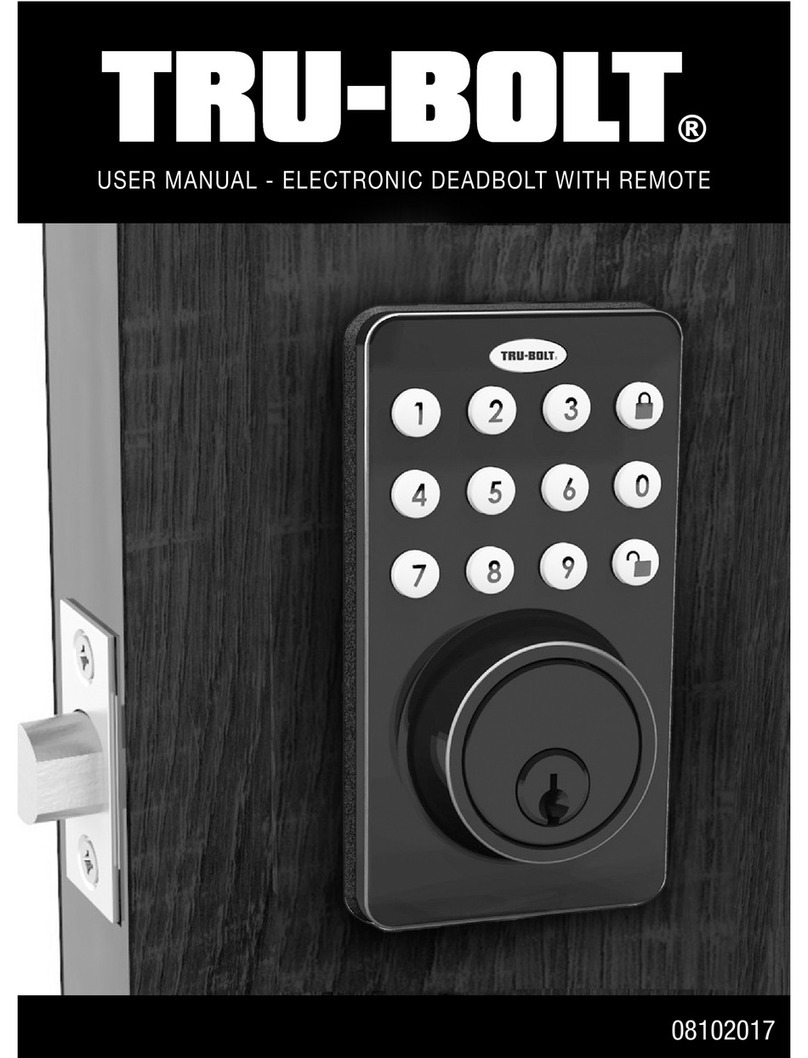
TRU-BOLT 08102017 user manual

TRU-BOLT

TRU-BOLT 08102017 user manual

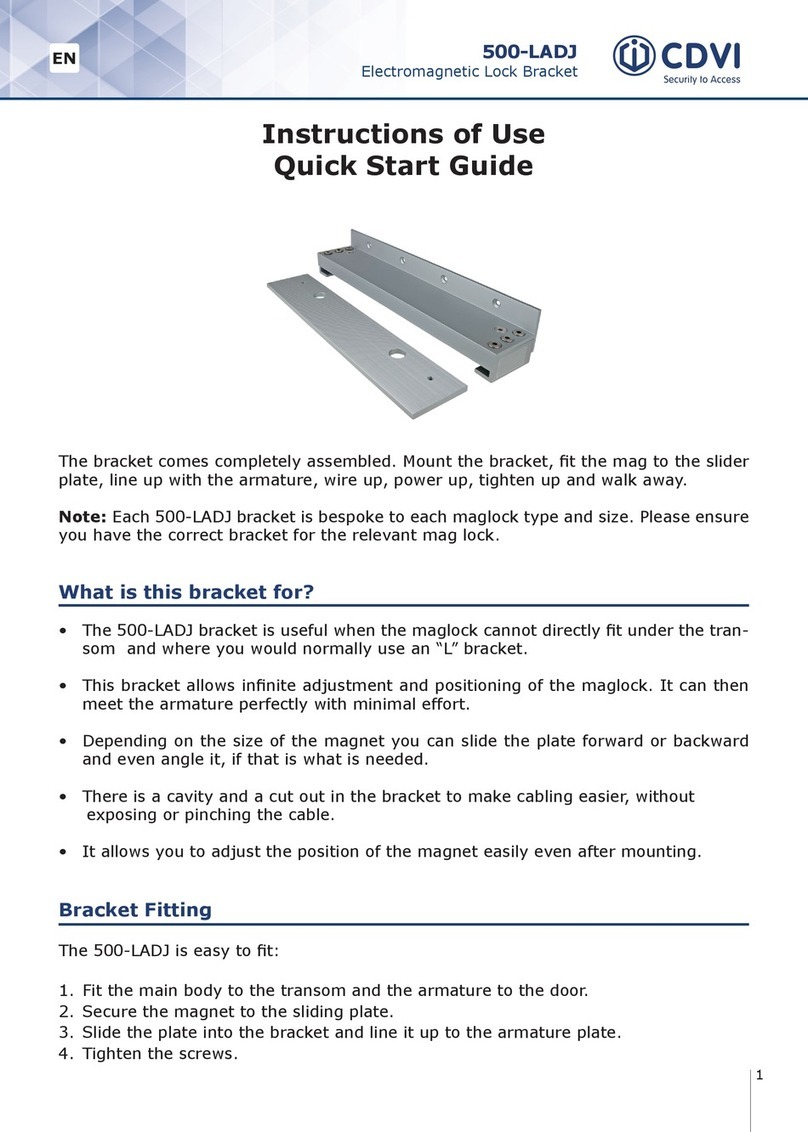
CDVI 500-LADJ quick start guide

CDVI

CDVI 500-LADJ quick start guide

Igloohome Deadbolt 2S Metal Grey Installer/user guide

Igloohome

Igloohome Deadbolt 2S Metal Grey Installer/user guide

eSSL FL-300 user manual

eSSL

eSSL FL-300 user manual

manuals.online logo
manuals.online logoBrands
  • About & Mission
  • Contact us
  • Privacy Policy
  • Terms and Conditions

Copyright 2025 Manuals.Online. All Rights Reserved.

Smart lock Aqara Smart Door Lock
User guide
Overview
The smart lock uses the ZigBee wireless protocol, supports opening with a ngerprint,
password, contactless card and usual mechanical key, has the function of blocking
through the peephole and alarms, according with a device, that has a function of a
network gateway (hereinafter «gateway»), you can congure the alarm mode through
the gateway and synchronize the lock with other smart devices.
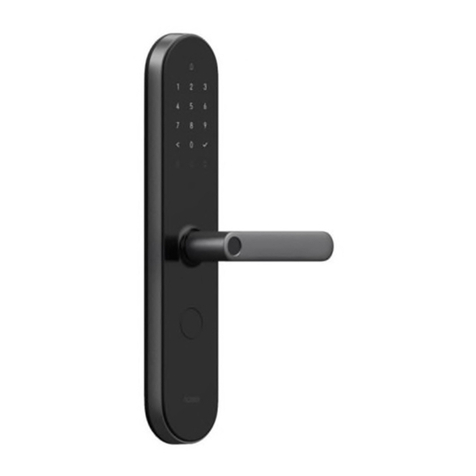
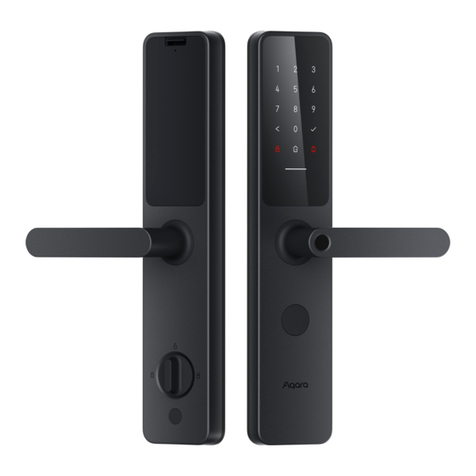
1 - Touch keypad for entering the password;
Reading area of the contactless card;
2 - Fingerprint sensor
3 - Handle;
4 - Micro-USB - power connector for emergency cases (Micro-USB);
5 - Keyhole for emergency cases;
6 - Battery cover slider for batteries;
7 - Hole of the reset button;
8 - Lock button for opening the handle through the door peephole (to open the door, hold
the button and pull the handle down)
9 - Swivel bolt for locking the lock from the back;
10 - To open the keyhole cover, simultaneously press the left and right bottom corner of
the cover.
Quick settings
1. Reset
Before using the product, open the battery
cover slider, press and hold the reset button
for 8 seconds to clear all data.
Press and hold the reset button for 8 seconds
until you hear «Initialize the system,» then
release the button.
2. Add an alministrator
According to the voice prompts of the lock, add a ngerprint, password and contactless
administrator card.
3. Add an user
First, conrm the administrator’s face, press «#», according to the voice prompts, add a
ngerprint, password and contactless user card.
4. Download the mobile app
This product is compatible with a Smart Mi Home platform,
it can be controlled using a mobile Mi Home application, the
device supports the MIUI system, can interact with other smart
devices of the Mi Home platform.
Enter «Mi Home» into the App Store / Play Store search bar or
scan the QR code below to download and install the Mi Home
application.
5. Connecting the lock to the network
Open the Mi Home application, select the gateway, to which the connection will be
made, in the Hardware section click Add Sub-Device, continue according to the prompts
in the application until you hear
«Device successfully connected» voice
notication.
If you are unable to add a device, place
the gateway closer to the smart lock
and try again.
* This product does not support Mi
Multifunctional Gateway of the 1st
generation.
Press and hold the reset button for 3
seconds until you hear «Network setting
reset», then release the button.
6. Buy more
To purchase more smart devices and other quality items, download Mi Home app and go
to the «Store» section, or scan the QR code below to browse the store’s website.
Video of settings
Scan the QR code to view the video of the lock setup.
Recommendations for synchronization
1. Automatic light up after opening the door.
Smart lock Smart switch
2. Automatically turn o󰀨 alarm
Smart lock Multifunctional gateway

Main parameters
Model: ZNMS11LM;
Dimensions: 369 × 76 × 24mm (front panel, without handle);
Standard: GA 701-2007, GA 374-2001, GA / T 73-2015;
Input voltage: 6V DC;
Operating temperature: -10 ° C ~ + 55 ° C;
Operating humidity: Relative humidity 10% ~ 90%, non-condensing;
Wireless connection: ZigBee.
Name and content of harmful substances in the product
Manufacturer: Shenzhen Lumi United Technology Co., Ltd.
Address: 8th Floor, Jinqi Zhigu Bldg, No 1 Tangling Rd, Liuxian Ave, Taoyuan Subdistrict,
Nanshan District, Shenzhen City.
Support phone: 400-990-7930.
XIAOMI-MI.COM